Dataset Configuration Wizard
Why Use the Dataset Configuration Wizard?
The Dataset Configuration Wizard is what turns a basic event log into an analysis-ready dataset that gives accurate, business-meaningful answers. Without it, mindzieStudio still works - but the metrics it produces are generic and often misleading. Five minutes spent in the wizard typically pays back across every dashboard, calculator, and investigation you build for the rest of the dataset's life.
By stepping through the wizard you get:
- Accurate cycle times - cases without a defined "complete" state look infinitely long; the wizard fixes that
- Working-time durations - durations that exclude evenings, weekends, and holidays so they reflect real effort, not wall-clock time
- Cost and ROI metrics - dollar figures behind every case so you can prioritize improvement work
- Industry benchmarks - your numbers compared against published benchmarks for your process type
- Conformance and compliance reporting - measurement of how well execution follows the designed process
- Cleaner visualizations - process maps that aren't cluttered with system noise or naming variations
- AI-powered defaults - mindzie AI fills in most of the configuration for you, so you mostly review rather than write
The cost of skipping configuration is hidden but real: dashboards that drift, durations that overstate the problem, variant maps too noisy to read, and no way to tell "open" from "closed." The wizard exists so you don't pay that tax.
Where the Wizard Appears
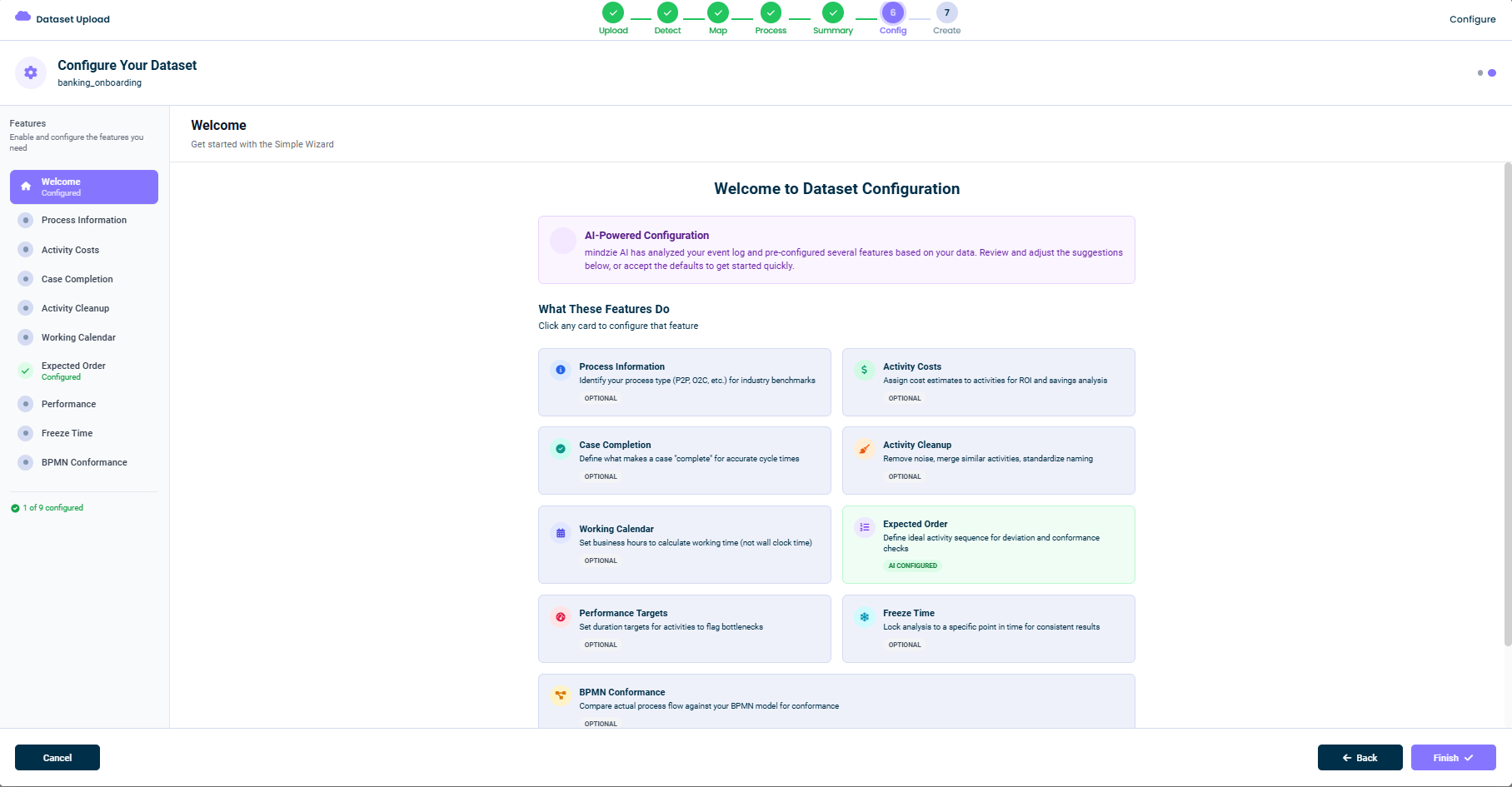
The Configuration Wizard is Step 6 (Config) of the Dataset Upload flow, after your data has been uploaded, detected, mapped, processed, and summarized. By the time you arrive, mindzieStudio already has a working event log - this wizard is where you give it the extra context that makes process mining accurate for your business.
AI-Powered Configuration
When you arrive at the wizard, you will see a banner at the top of the Welcome screen:
AI-Powered Configuration - mindzie AI has analyzed your event log and pre-configured several features based on your data. Review and adjust the suggestions below, or accept the defaults to get started quickly.
mindzie AI looks at your activity names, attribute names, distributions, and patterns to make smart starting choices. Anything mindzie AI has set for you is marked with an AI Configured badge. You can accept the suggestions, tweak them, or override them entirely.
What These Features Do
The Welcome screen shows a card for every available feature so you can see at a glance what is configured, what is optional, and what mindzie AI has already filled in. You can click any card to jump straight to that feature, or use the left sidebar to move between them.
| Feature | Purpose |
|---|---|
| Process Information | Identify the process type (P2P, O2C, etc.) for industry benchmarks |
| Activity Costs | Assign cost estimates to activities for ROI and savings analysis |
| Case Completion | Define what makes a case "complete" for accurate cycle times |
| Activity Cleanup | Remove noise, merge similar activities, and standardize naming |
| Working Calendar | Set business hours so durations use working time, not wall clock time |
| Expected Order | Define the ideal activity sequence for deviation and conformance checks |
| Performance Targets | Set duration targets for activities to flag bottlenecks |
| Freeze Time | Lock the analysis to a specific point in time for consistent results |
| BPMN Conformance | Compare actual flow to a BPMN model |
Every feature is optional - you can configure as many or as few as you like, and you can always come back later to adjust them.
How the Sidebar Works
The left sidebar tracks your progress through the wizard:
- A green check next to a feature means it is configured
- An AI badge means mindzie AI pre-configured it
- A plain dot means it has not been configured yet
- The currently open feature is highlighted
At the bottom of the sidebar you'll see a counter such as "1 of 9 configured" so you know how far through the optional features you are.
Skipping the Wizard
You don't have to configure every feature. You have several options to move on:
- Configure only what you need and click Finish at any time
- Accept all the AI suggestions as-is and click Finish
- Click Skip (if shown) to bypass configuration entirely
- Click Cancel to abandon the upload
Anything you don't configure here can still be configured later from the dataset's settings.
What's in This Section
Each feature in the wizard has its own dedicated page in this section. Use the left menu to jump to any feature:
- Process Information
- Activity Costs
- Case Completion
- Activity Cleanup
- Working Calendar
- Expected Order
- Performance
- Freeze Time
- BPMN Conformance
Tips
- Trust the AI suggestions as a starting point - they are usually close to correct
- Configure Working Calendar early - many other metrics depend on it
- Define Case Completion - without it, cycle times are not as meaningful
- You don't have to do everything in one sitting - features can be edited later
This documentation is part of the mindzieStudio process mining platform.