Freeze Time
Why Use Freeze Time?
Freeze Time is the simple answer to a frustrating question: "Why does my dashboard show different numbers today than yesterday?" By default, every open case keeps aging in real time, so the same report shows different durations every time someone opens it. Freeze Time locks the analysis to a specific point in time so the numbers stop drifting.
Enable Freeze Time to gain:
- Reproducible reports - rerunning yesterday's analysis tomorrow gives the same numbers
- Stable presentations - dashboards don't change mid-meeting
- Apples-to-apples historical comparisons - lock the "as of" date so different time periods compare cleanly
- Audit-ready snapshots - reports tied to a documented as-of date
- Consistent numbers across team members - everyone sees the same metrics regardless of when they open the dashboard
- Predictable monthly reporting - freeze to end-of-month so the report stays valid for the rest of the month
Without Freeze Time, every duration involving an open case is a moving target. With it, your numbers stand still.
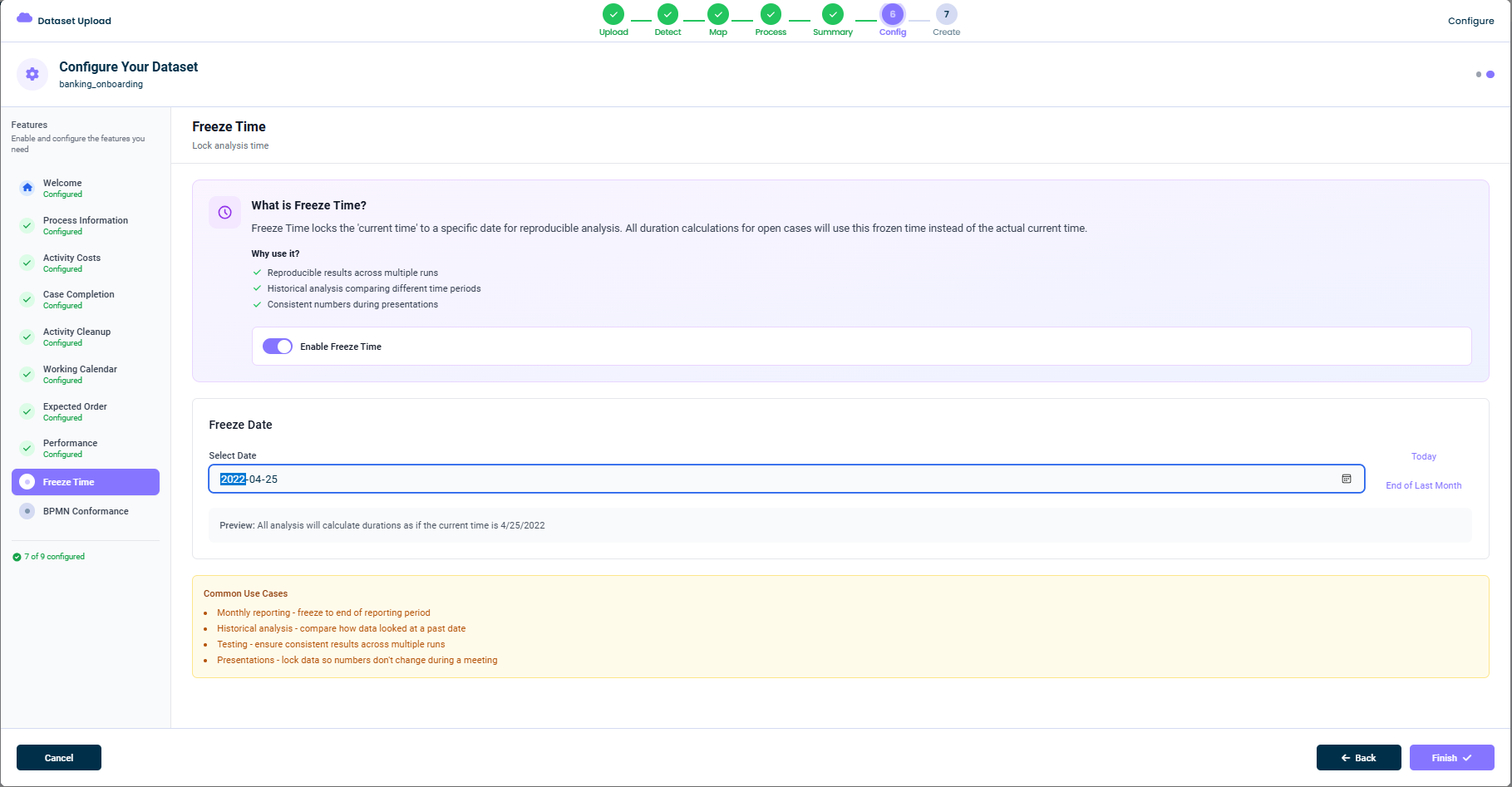
What This Tab Does
By default, mindzieStudio uses the actual now when computing how long an open case has been running. This means the same dashboard can show different numbers depending on when it is opened. Freeze Time replaces "now" with a fixed date, so:
- Open case durations are computed as if today were the frozen date
- Reports are reproducible
- Historical comparisons line up against a consistent point in time
- Numbers stop drifting between team members who open the dashboard at different moments
Enabling Freeze Time
Toggle Enable Freeze Time on. The Freeze Date editor becomes active once it is enabled.
Freeze Date
The Select Date field is where you set the frozen point in time. You can:
- Type a date directly (e.g.
2022-04-25) - Use the calendar icon to pick a date from a date picker
- Click Today (top-right) to set the freeze date to today
- Click End of Last Month (top-right) to set it to the last day of the previous month - the most common choice for monthly reporting
A live Preview below the field tells you exactly what the frozen calculation will assume:
Preview: All analysis will calculate durations as if the current time is 4/25/2022
Common Use Cases
The bottom panel lists typical reasons to enable Freeze Time:
- Monthly reporting - freeze to end of reporting period
- Historical analysis - compare how the data looked at a past date
- Testing - ensure consistent results across multiple runs
- Presentations - lock the data so numbers don't change during a meeting
What Stays the Same
Freeze Time only affects calculations that depend on "now" - typically the duration of open (incomplete) cases. It does not:
- Filter out events that occurred after the frozen date (use a Time Period filter for that)
- Change the actual data in the event log
- Affect closed cases (their duration is fixed by the start and end events)
If you want to also exclude post-freeze events from the analysis, combine Freeze Time with a Time Period filter.
Disabling This Feature
If you want durations to always reflect real-time, click Disable or simply leave the toggle off. The dataset will use the actual current time whenever it computes open-case durations.
Tips
- Use End of Last Month for monthly reporting - it's the most common reporting cadence
- Pick a single freeze date for a presentation - so numbers don't shift mid-meeting
- Combine with a Time Period filter - to also exclude events that occurred after the freeze date
- Document the frozen date - so consumers of the dashboard know what point in time they are looking at
This documentation is part of the mindzieStudio process mining platform.