Working Calendar
Why Use a Working Calendar?
Without a working calendar, every duration metric in mindzieStudio is wall-clock time - including evenings, weekends, and holidays when nobody is working. This makes office processes look much slower than they really are and unfairly penalizes any case that happens to span a weekend. A working calendar is the single biggest accuracy improvement you can make to a duration-heavy analysis.
Configure a Working Calendar to gain:
- Accurate cycle times - measure work-in-process, not idle nights and weekends
- Fair case comparisons - cases starting Friday don't look slower than identical cases starting Monday
- Realistic SLA tracking - a 24-hour SLA uses 24 working hours, not 24 wall-clock hours
- Meaningful bottleneck detection - bottlenecks reflect actual queue time, not after-hours gaps
- Trustworthy team performance metrics - apples-to-apples comparisons across teams in different time zones
- Stakeholder-aligned numbers - the durations match what the business already believes
A real example: an invoice that arrives Friday at 5pm and is processed Monday at 9am has a 64-hour wall-clock duration but only 0 working hours. With a working calendar, the metric reflects what actually happened.
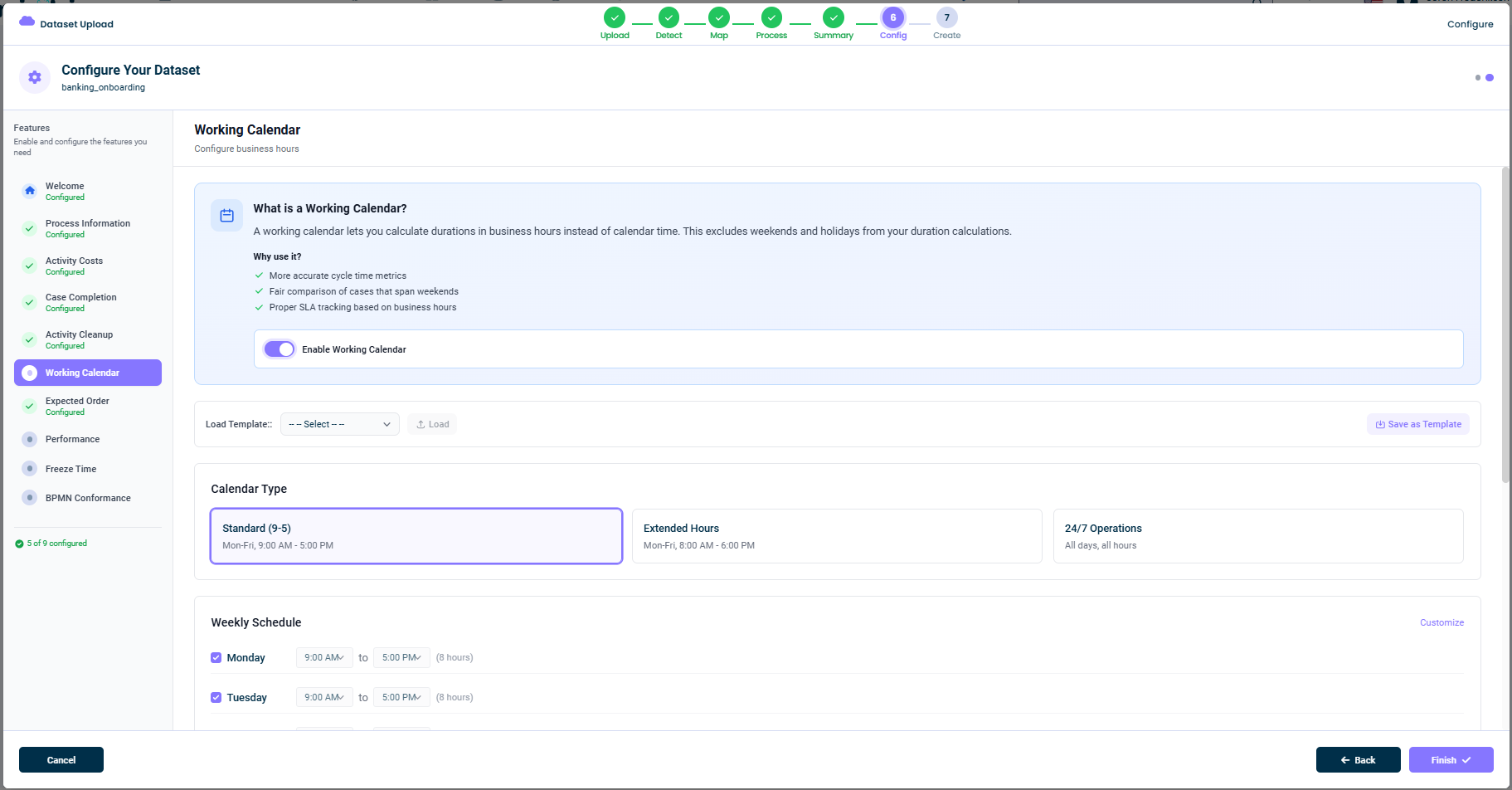
What This Tab Does
A working calendar lets you exclude evenings, nights, weekends, and holidays from duration calculations. Once configured, every duration metric in mindzieStudio respects the calendar:
- Case duration
- Activity-to-activity duration
- SLA tracking
- Bottleneck detection
- Performance targets
The calendar applies to the entire dataset and is used everywhere a duration is computed.
Enabling the Calendar
At the top of the tab, toggle Enable Working Calendar on. Until you enable it, all durations use plain wall-clock time.
Calendar Type
Pick one of three preset calendars (or customize your own):
Standard (9-5)
Monday to Friday, 9:00 AM - 5:00 PM. The default for office-based work in most industries.
Extended Hours
Monday to Friday, 8:00 AM - 6:00 PM. Suits teams that start earlier and work later.
24/7 Operations
All days, all hours. Effectively turns the calendar off but lets you keep it enabled (useful for processes that run nonstop, such as high-volume customer support or manufacturing).
You can also click any of the cards and customize the hours to match your business.
Templates
If your tenant has multiple datasets that share working hours, you can save your calendar as a template:
- Load Template - Pick a saved calendar and load it into this dataset
- Save as Template - Save the current calendar so other datasets can use it
Templates make it easy to apply consistent working hours across your tenant without re-entering values.
Weekly Schedule
Below the preset cards, the Weekly Schedule lets you fine-tune each day individually:
- A check box to enable or disable each day
- A start time dropdown (e.g.
9:00 AM) - An end time dropdown (e.g.
5:00 PM) - A computed total hours label (e.g.
(8 hours)) - A Customize link to adjust beyond the simple start/end model
You can use this to set different hours per day, half-day Fridays, or anything else your business does.
Holidays
If the schedule editor exposes a holiday section (depending on your version), you can also add specific days to exclude - public holidays, company-closed days, planned shutdowns, etc.
Tips
- Configure the working calendar early - it affects almost every other metric
- Match your business reality - don't oversimplify; use the customize option if needed
- Use 24/7 for continuous processes - manufacturing, customer support, payment networks
- Save a template if your tenant has multiple datasets with the same hours
This documentation is part of the mindzieStudio process mining platform.