Editor Overview
The editor is where you draw and refine BPMN models. It opens when you create a model, or when you click Open in editor on a model.
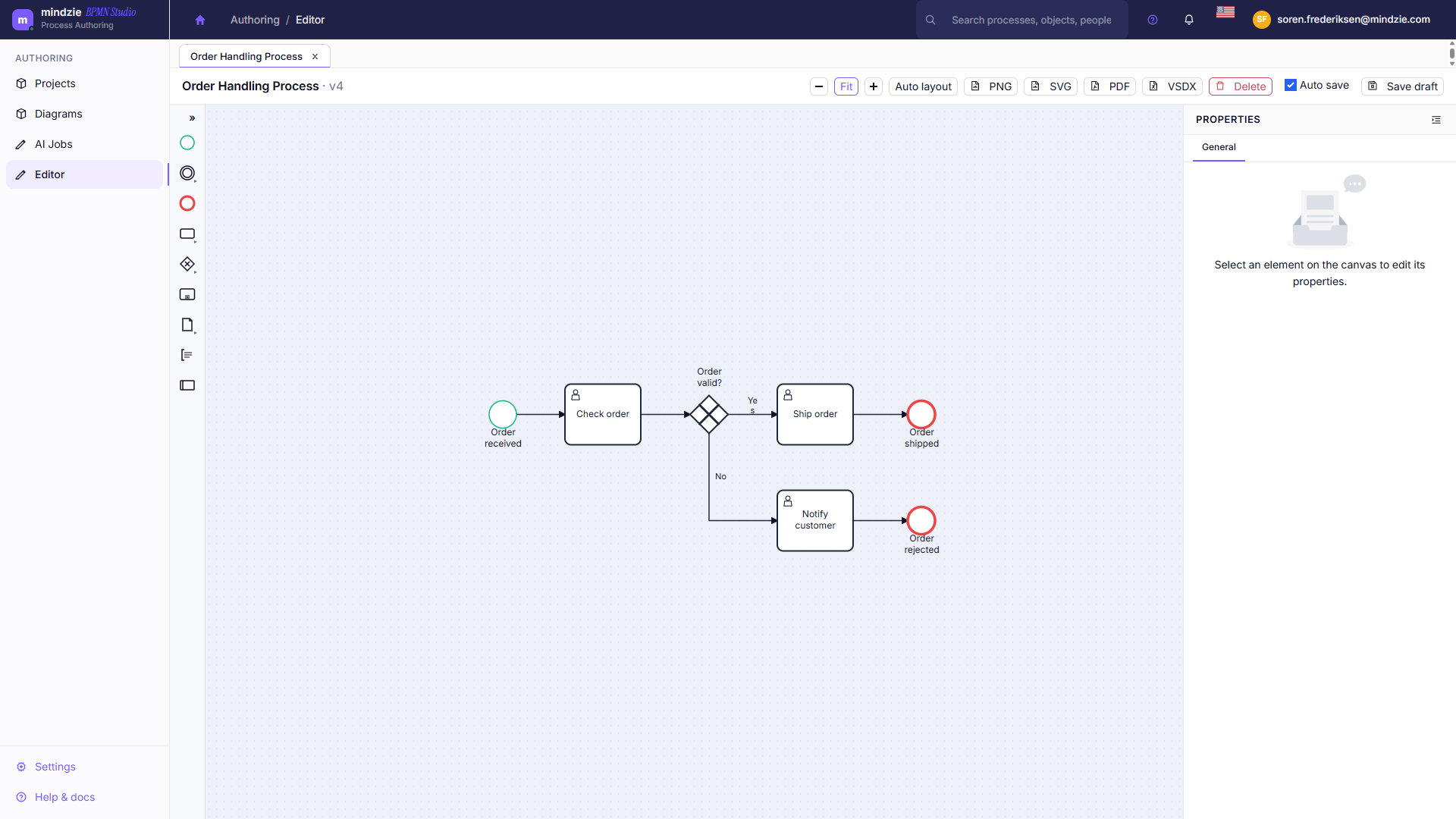
The Editor Screen
| Area | What it does |
|---|---|
| Tab strip (top) | Each open model gets its own tab. Switch tabs freely - edits in other tabs are kept. A tab with unsaved work is marked, and closing it asks before discarding. |
| Toolbar | Zoom, undo and redo, Import, Arrange, delete, Lint, Properties, Share, Export, and Save (see below). |
| Palette (left) | The BPMN shapes you add to the canvas, grouped into Events, Tasks, Gateways, Containers, Data, and Structure. A shape with a chevron opens a flyout of more specific variants. Use the toggle at the top to switch between the icon-only and the wide, labelled palette. |
| Canvas (center) | The model itself. Place shapes, select them, and connect them. |
| Canvas controls (top right of the canvas) | Four in-canvas actions: Clean up routes, Show validation report, Show process documentation preview, and Open quick pattern gallery. |
| Properties panel (right) | Click Properties to open it. It shows the selected element's type, ID, and name, plus any settings specific to that element. |
The Toolbar
Left to right:
- Back to models returns to the project's model list.
- The model name, with a Published tag if the model is published, or an asterisk if it has unsaved changes.
- The save status - for example,
Saved v4 at 14:32. - - / Fit / + zoom out, fit the whole model in view, and zoom in.
- Undo / Redo step backward and forward through your changes.
- Import brings a
.bpmnor.xmlfile into the current model. - Arrange opens a menu with Auto layout, which re-lays out the whole model in one step, and - when you have several elements selected - Align left / center / right and Distribute horizontally / vertically.
- Delete removes the selected elements. It is greyed out when nothing is selected.
- Lint opens the panel listing potential problems in the model, with a running count of errors, warnings, and information notices. See Checking Your Model.
- Properties shows or hides the properties panel.
- Share copies a link to this model (see below).
- Export downloads the model in your choice of format - see Exporting Models.
- Save saves your work as a new version - see Saving and Versions.
Working with Tabs
Open several models at once - each gets a tab, and edits in progress survive switching between them. A tab holding unsaved changes is marked Unsaved changes; closing it asks whether to Discard changes or Keep editing.
When the Editor Is Read-Only
The editor opens read-only in two cases, and a banner at the top of the canvas says which one applies:
| Situation | What the banner says | How to get editing back |
|---|---|---|
| The model is published | "This model is published and cannot be edited." A Go to Models link takes you to the model list. | Unpublish the model. See Managing Models. |
| You are a Viewer on the project | "You have read-only (Viewer) access to this project." | Ask a project Owner for Editor access. See Project Members. |
In read-only mode the palette, Import, Arrange, Delete, and Save are hidden. You can still zoom, select elements, open Properties and Lint, Share the model, and Export it.
Sharing a Model
Share builds a link straight to this model in the editor and copies it to your clipboard. The link does not grant access on its own: anyone you send it to must already be a member of the tenant, and what they can do is decided by their project role. Editors open it able to edit; Viewers open it read-only.
Next
- BPMN Elements - what every palette shape means.
- Editing Basics - placing, connecting, and arranging elements.
- Checking Your Model - the Lint panel and the validation report.
- Keyboard Shortcuts - the full list.
- Saving and Versions - how saving works.
- Exporting Models - PNG, SVG, PDF, Visio, BPMN, and Markdown export.