Checking Your Model
The editor checks your model as you work and tells you what is wrong with it before anyone else has to. There are two checks: the Lint panel, which reviews how the process is modelled, and the validation report, which reviews whether the BPMN itself is well formed.
The Lint Panel
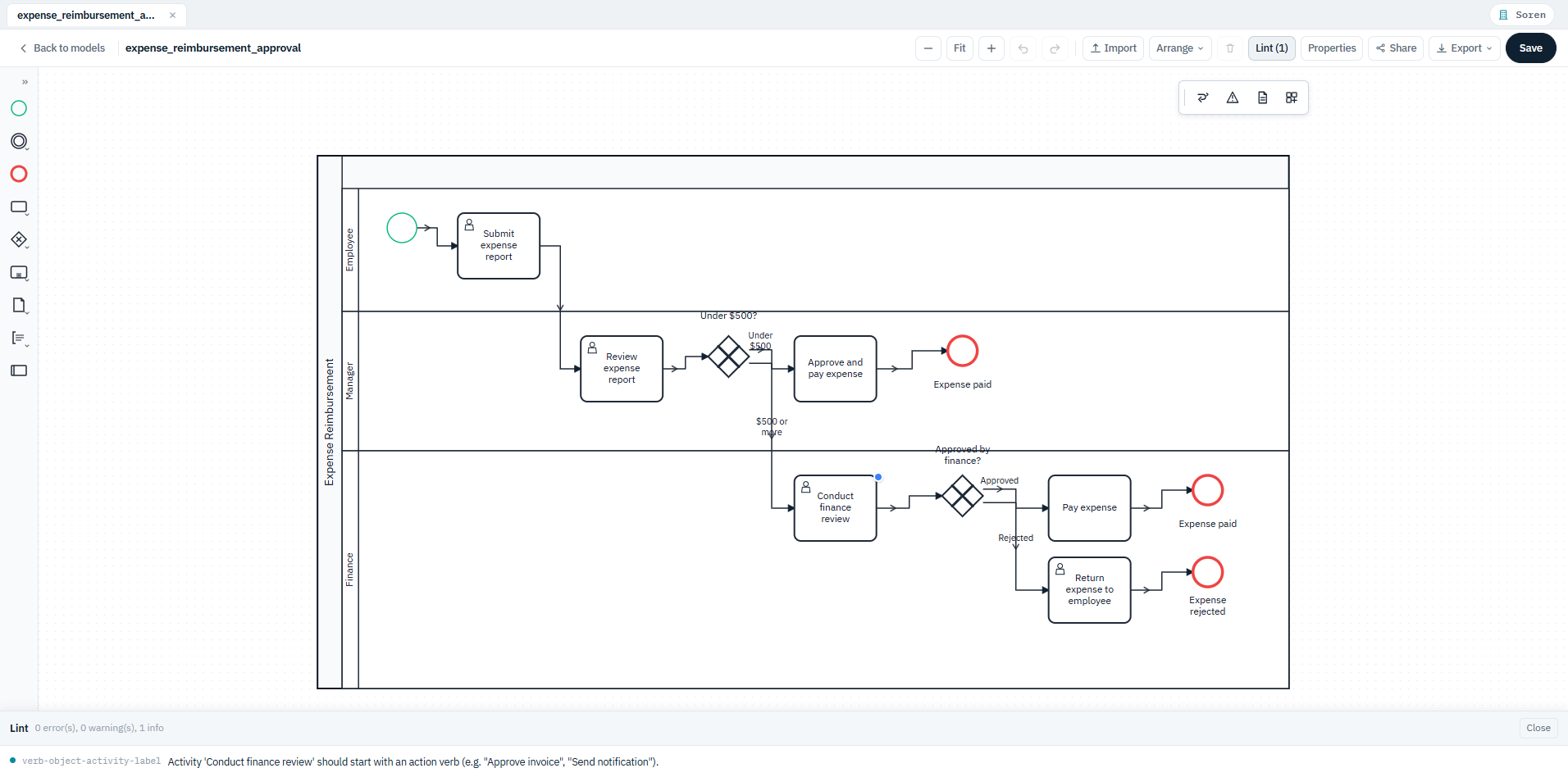
Click Lint in the toolbar to open the panel. The header shows a running count in three severities:
| Severity | What it means |
|---|---|
| Error | The model is broken - it does not describe a process that can run. |
| Warning | The model works, but something about it will cause confusion or maintenance pain. |
| Info | A suggestion. Worth reading, safe to ignore. |
Click any issue to select and scroll to the element it refers to, so you can fix it without hunting. When there is nothing left, the panel says No issues found.
Quick Fixes
Some issues carry a one-click fix directly on the issue - for example Remove gateway, Delete element, or Delete duplicate flow. Applying a quick fix is a normal edit, so Ctrl+Z undoes it.
What Lint Checks
The checks fall into a few families.
Structure - every process needs a beginning and an end
- A process or sub-process with no start event, or no end event.
- A process with several blank start events, where each entry point should be typed or the starts merged.
- An element that acts as an implicit start or end because nothing connects upstream or downstream of it.
Connectivity - nothing should be stranded
- An element with no incoming or outgoing flows at all.
- A dead end: no outgoing sequence flow.
- An unreachable element: no incoming sequence flow.
- A sequence flow whose source or target no longer exists.
- Two elements joined by duplicate sequence flows.
- A duplicated element ID.
Gateways - branching should be explicit
- An element with several outgoing flows doing the job of a gateway (an implicit split), or several incoming flows doing the job of a join.
- A gateway that both joins and forks, which should be split into two gateways.
- A gateway declared diverging or converging but wired the other way.
- A gateway with one flow in and one out - it neither joins nor forks and can be removed.
- An event-based gateway followed by anything other than an intermediate catch event or a receive task.
- Outgoing flows that need a condition because their siblings are conditional.
- Inclusive and complex gateways, which are flagged as harder to reason about than exclusive or parallel ones.
Sub-processes and end events
- A typed start event inside an embedded sub-process, which must use a blank start.
- A blank start event in an event sub-process, which requires a typed start.
- A redundant terminate end event.
Naming and size - readability
- An element with no name.
- An activity name that does not begin with an action verb ("Approve invoice", "Send notification").
- An event name that is not phrased as a completed state ("Invoice received", "Order shipped").
- A process large enough to be worth decomposing into sub-processes.
- An element with enough incoming or outgoing paths that the branching should be broken up or merged upstream.
The Validation Report
The canvas controls include Show validation report, which presents the same findings as a plain text report rather than an interactive list. It gives the total issue count, then each issue with its severity and the ID of the element it belongs to - or confirms that no issues were found.
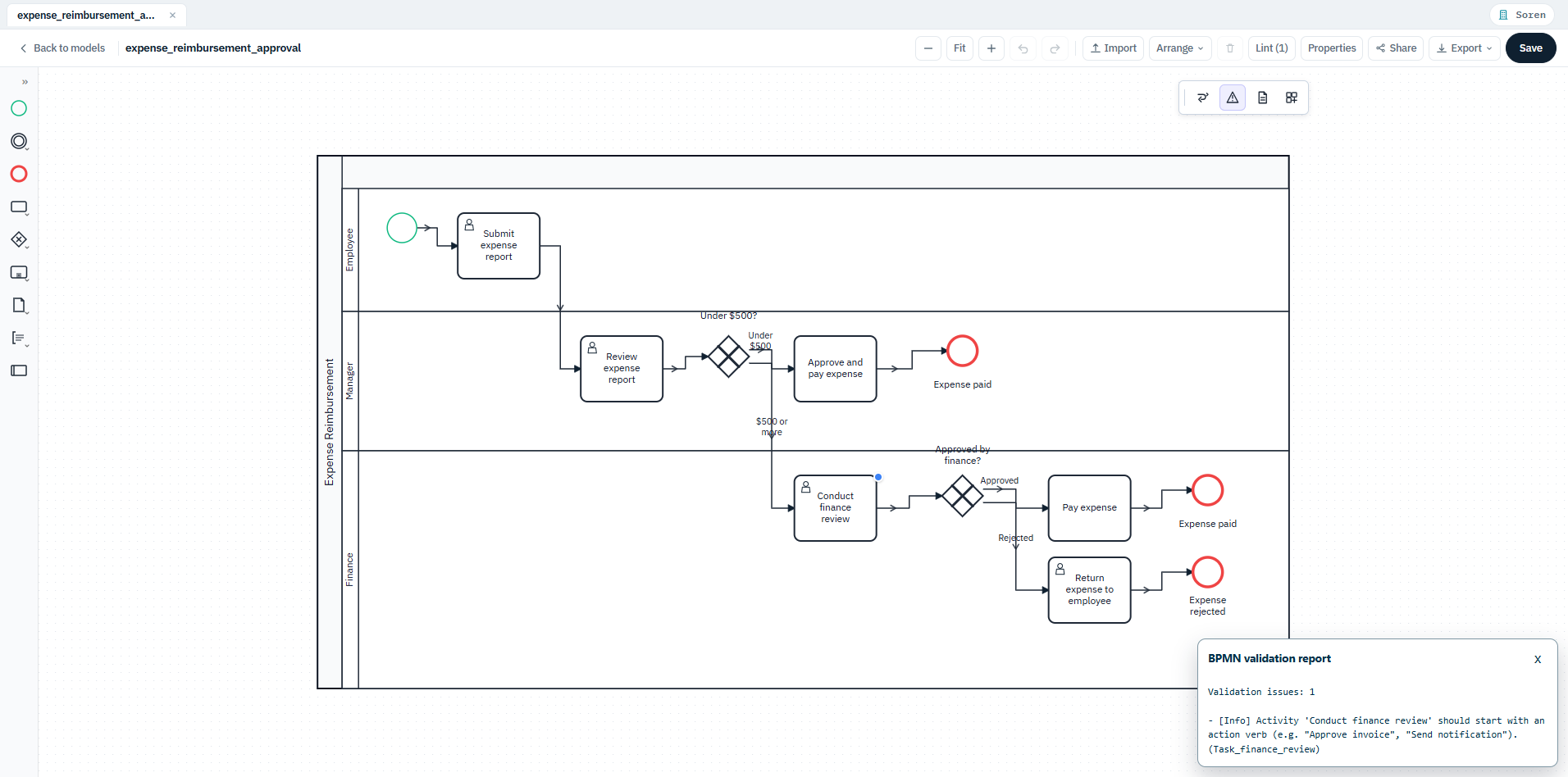
Use the Lint panel while you are building the process, because you can click an issue and jump straight to the element. Use the validation report when you want the findings as text you can copy into a review note, a ticket, or an email - the element IDs make each one unambiguous.
Process Documentation Preview
Show process documentation preview in the canvas controls renders the model as a written description, so you can read the process as prose and catch steps that do not make sense in words. It is the same write-up you get from Export > Markdown docs.
Notices on the Canvas
If a model was built elsewhere and contains something the canvas cannot draw, a notice appears rather than silently dropping it. Notices cover:
- Drill-down views that are not rendered, so you are seeing a partial view.
- Elements with no position information, which are not shown.
- Element types that are drawn as placeholders.
The underlying BPMN is preserved either way - a notice tells you the picture is incomplete, not the file.
A Suggested Order
- Draw the process.
- Open Lint and clear the errors, then the warnings.
- Read the process documentation preview to check the process makes sense in words.
- Run Clean up routes and Arrange > Auto layout to tidy the picture.
- Save, then publish.