Project Members
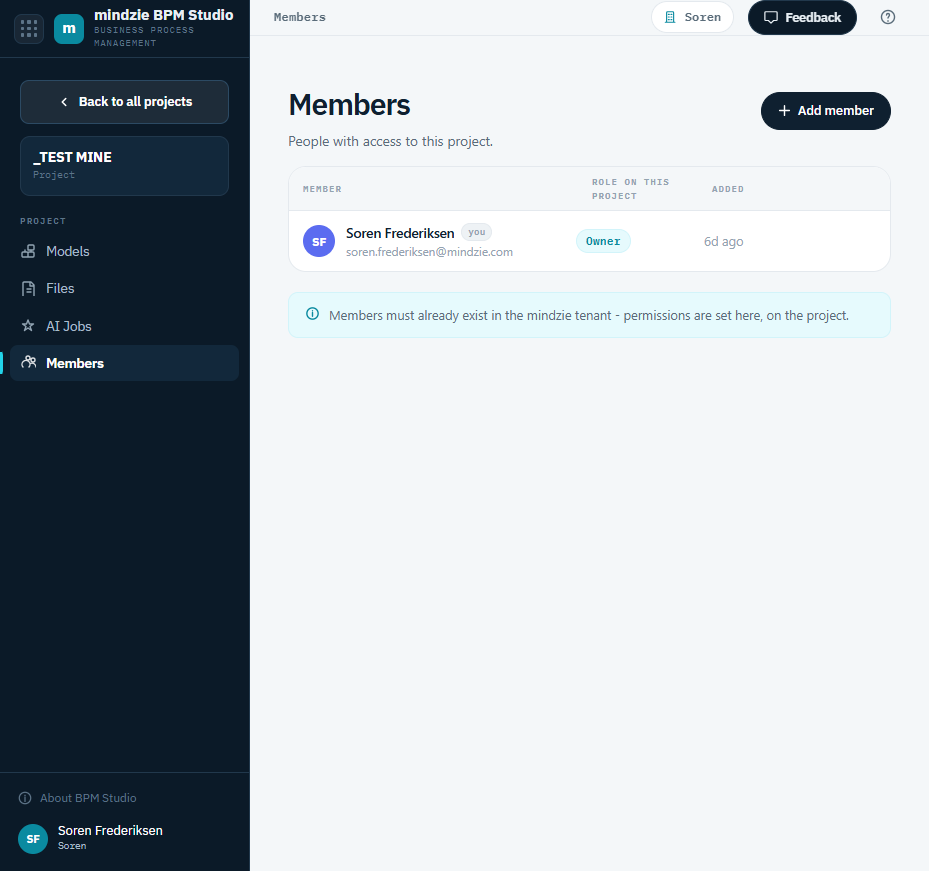
A project's Members page controls who can access the project and what they can do. Open it with Members in the sidebar while a project is open.
Roles
Each member has one role on the project:
| Role | Can do |
|---|---|
| Owner | Everything an Editor can, plus manage members (add, remove, change roles) and rename or delete the project. The person who creates a project is its first Owner. |
| Editor | Create, edit, rename, duplicate, publish, and delete models; upload and manage files; start AI jobs. |
| Viewer | View the project's models and open them read-only. Cannot make changes. |
Roles are set per project, so the same person can be an Owner of one project and a Viewer of another.
Adding a Member
- Click Add member.
- Search for a person by name or email and select them.
- Click Add member.
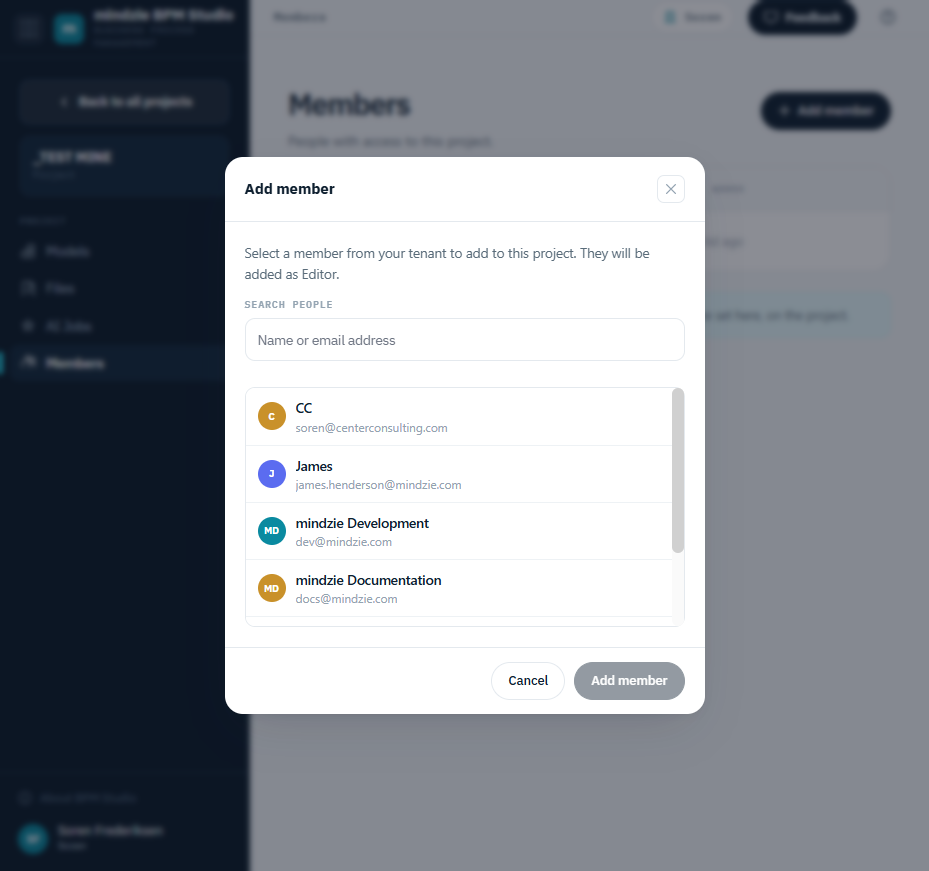
New members are added as Editor; change the role afterward if you need to. People must already exist in your mindzie tenant - their project access is set here, on the project.
Changing a Role or Removing a Member
Use the options menu (the three dots) on a member's row:
- Set role: Owner / Editor / Viewer - change what the member can do.
- Remove from project - revoke the member's access.
Managing members is available to project Owners.