Keyboard Shortcuts
Shortcuts work on the editor canvas. While you are typing in a name field or a text box, keys go to that box instead.
Editing
| Shortcut | What it does |
|---|---|
| Ctrl+Z | Undo the last change, including an Auto layout. |
| Ctrl+Y or Ctrl+Shift+Z | Redo. |
| Ctrl+C | Copy the selection. |
| Ctrl+V | Paste. |
| Ctrl+D | Duplicate the selection in one step. |
| Delete or Backspace | Delete the selection. |
Selecting and Moving
| Shortcut | What it does |
|---|---|
| Ctrl + drag on empty canvas | Rubber-band select everything inside the box. |
| Ctrl+Shift + drag | Rubber-band select, adding to the current selection. |
| Arrow keys | Nudge the selection by one grid step. |
| Shift + arrow keys | Nudge by a larger step. |
| Arrow keys with nothing selected | Pan the canvas. |
| Drag on empty canvas | Pan the canvas. |
Element Actions
| Shortcut | What it does |
|---|---|
| Double-click a shape | Rename it in place. |
| Enter while renaming | Commit the name. |
| Escape while renaming | Discard the change. |
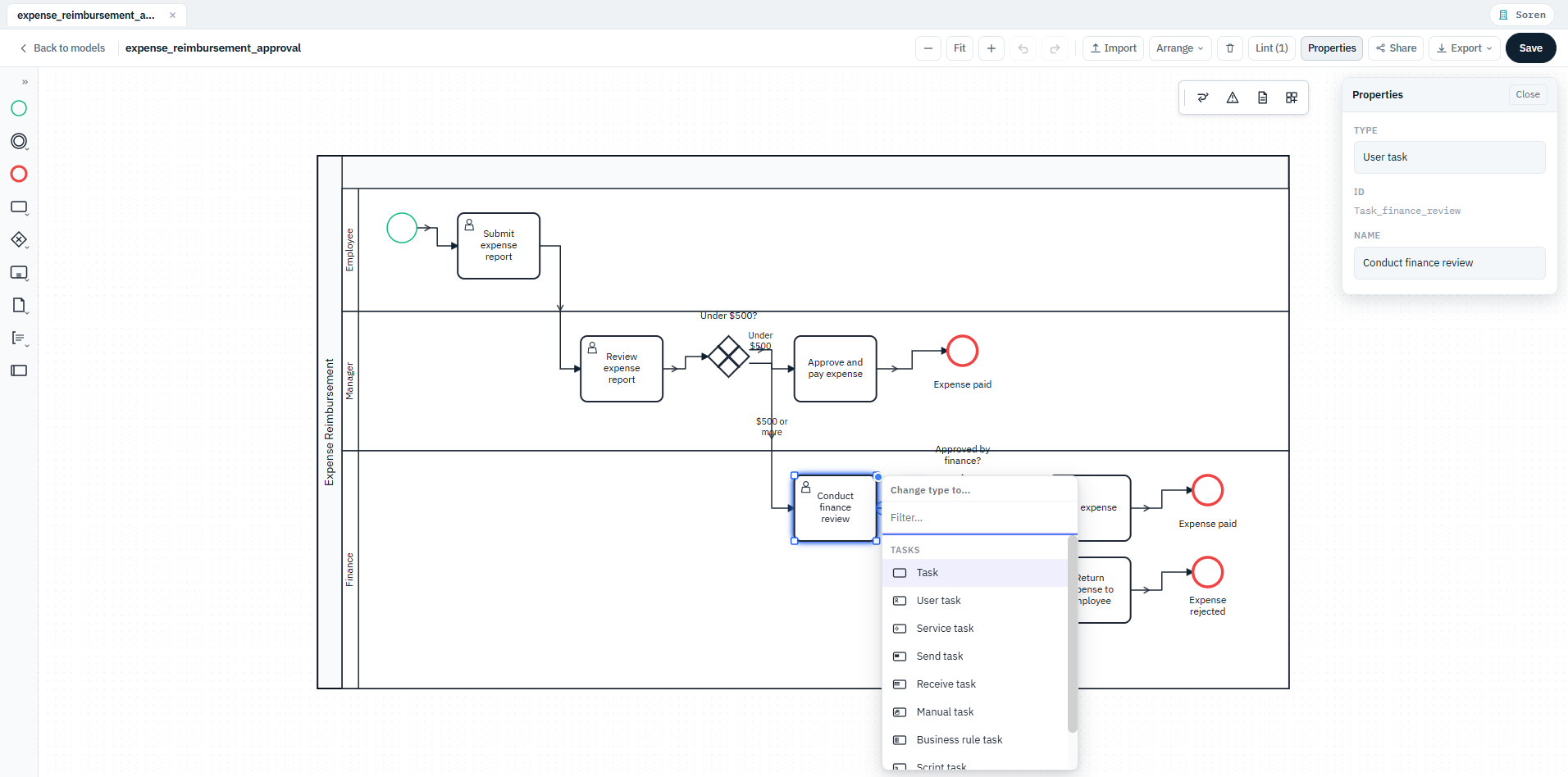
| R with one shape selected | Open Change type to... and convert the element in place (see below). |
| Escape with a palette tool armed | Disarm the tool without placing anything. |
Changing an Element's Type
Selecting one shape and pressing R opens the type picker. Start typing to filter it, then choose the new type - the element keeps its name and its connections.
Connections
| Shortcut | What it does |
|---|---|
| Alt+L | Clean up the routing of every connection in the model. |
| Alt+R | Clean up the routing of the selected connections only. |
Menus and Pickers
| Shortcut | What it does |
|---|---|
| Arrow keys | Move through the entries. |
| Enter | Choose the highlighted entry. |
| Escape | Close without choosing. |
| Right arrow on a palette group | Open its flyout of variants. |
Typing in the append picker filters the element types as you go.