Managing Models
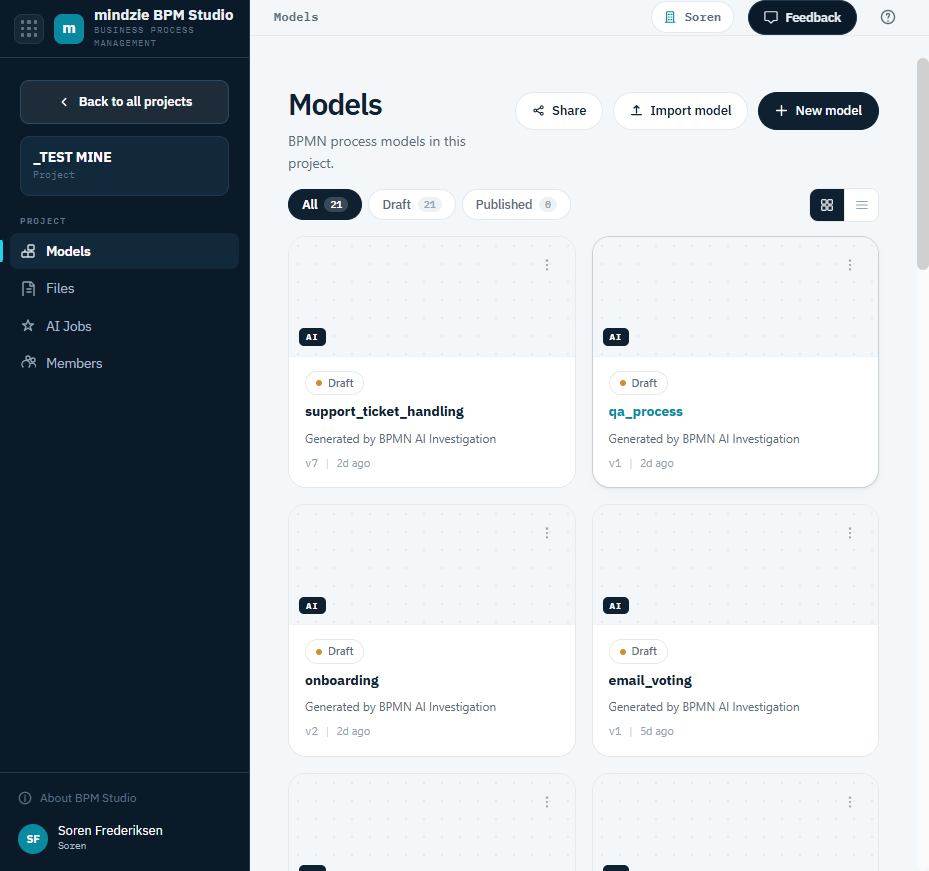
Each project has a Models page listing the BPMN models it contains. Open it by clicking a project on the All Projects page, or via Models in the sidebar while a project is open.
The Model List
Each model appears as a card showing its name, a preview, its lifecycle state, the current version, and when it was last modified. A model created by the AI agent carries an AI-built badge. Use the grid/list toggle to switch layouts, and the filter tabs to narrow the list:
| Filter | Shows |
|---|---|
| All | Every model in the project. |
| Draft | Models still being worked on. |
| Published | Models that have been published to the Repository. |
Creating a Model
Click New model and choose how to start - by hand or with AI. To start from a blank canvas, choose Start from scratch and click Open the editor. The AI options are covered in Creating Models with AI.
You can also click Import model to bring in an existing BPMN file (.bpmn).
Opening a Model
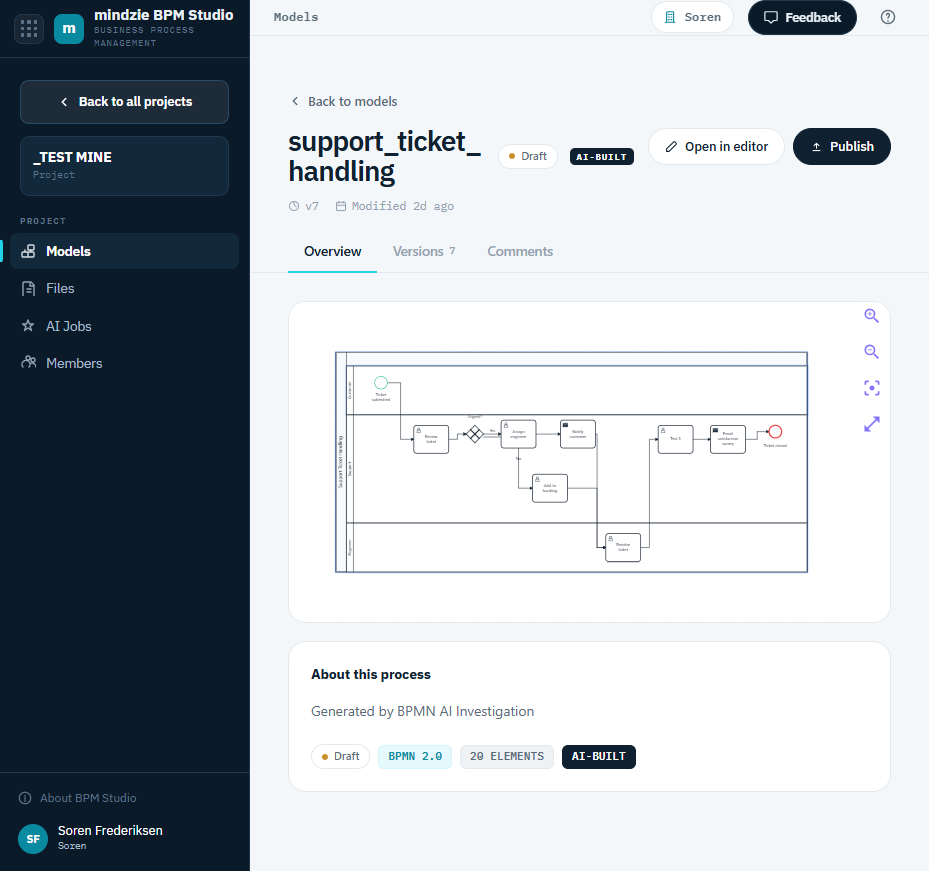
Click a model card to open its detail page, which has three tabs.
Overview
A read-only preview of the model, with its description under About this process and a row of chips summarizing it: BPMN 2.0, the element count, and the AI-built badge where it applies. If the model is published, a note explains that it is edit-locked and must be unpublished before it can change.
From here, click Open in editor to edit the model, or Publish to publish it.
Versions
The full version history - see Versions below.
Comments
A discussion about the model. You can:
- Post a comment (up to 2000 characters).
- Reply to a comment, which keeps the exchange together as a thread.
- Resolve a thread once it is settled, and Reopen it if it turns out not to be. Threads are badged Open or Resolved.
- Delete a comment you no longer want.
Model Actions
Use the options menu (the three dots) on a model card for:
| Action | What it does |
|---|---|
| Open / Open in editor | Open the model for viewing or editing. |
| Rename | Change the model's name. |
| Duplicate | Make a copy of the model in the same project. |
| Publish / Unpublish | Publish the model to the Repository, or remove it from the Repository. |
| Delete | Delete the model. Deletion cannot be undone. |
Lifecycle: Draft and Published
A new model starts as a Draft. When it is ready to share more widely, Publish it - published models appear in your organization's Repository.
Publishing also locks the model against editing, so what the organization is reading cannot change underneath them. Open a published model and the editor is read-only, with a banner and a link back to the Models page. Unpublish it when you need to make changes; the version history carries on from where it left off.
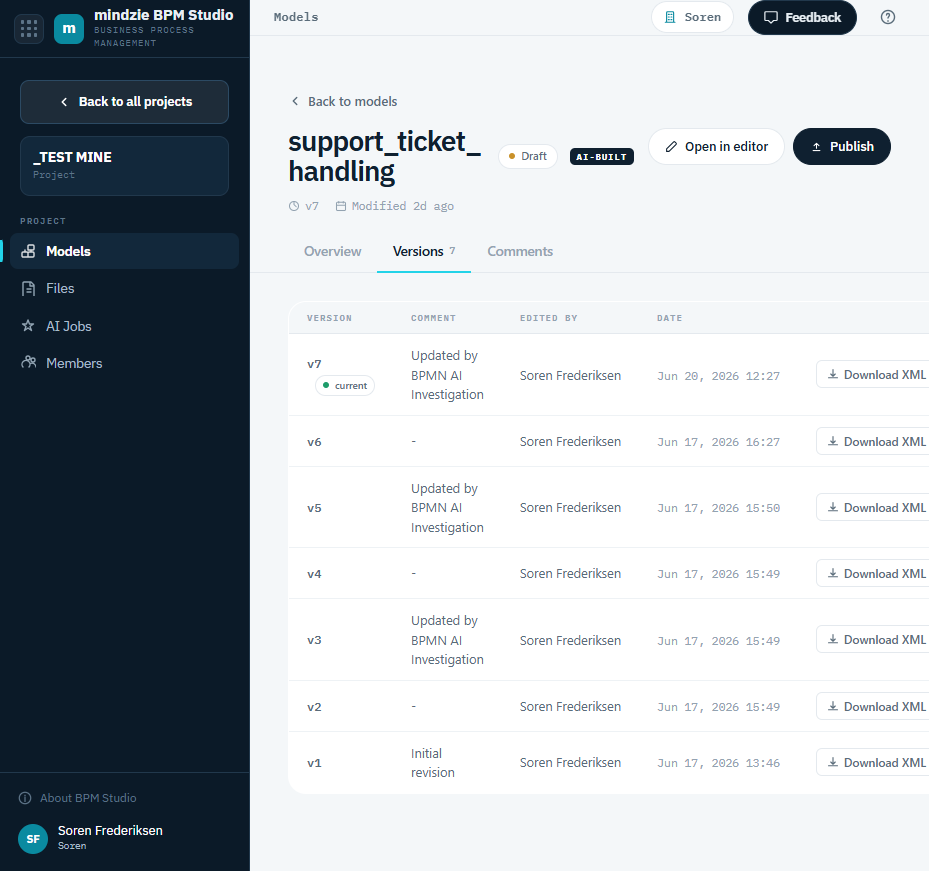
Versions
Every save writes a new numbered version. The Versions tab lists each version with its number (the latest marked current), a comment where one was recorded, who made the change, and when. Use Download BPMN on any row to download that version's file.
See Saving and Versions.