Saving and Versions
Every model keeps a numbered version history: each save records a new version, so earlier states are never lost.
Saving
Click Save in the toolbar to save the model. The toolbar then confirms what happened - for example, Saved v4 at 14:32.
While a model has changes you have not saved, its name in the toolbar carries an asterisk and its tab is marked Unsaved changes. Closing that tab asks whether to Discard changes or Keep editing, so unsaved work is never dropped silently.
How Versions Work
- A new model starts at v1.
- Every save writes the next version: v2, v3, and so on.
- The current version is shown in the editor and in the Version detail of each model on the Models page.
Browsing the Version History
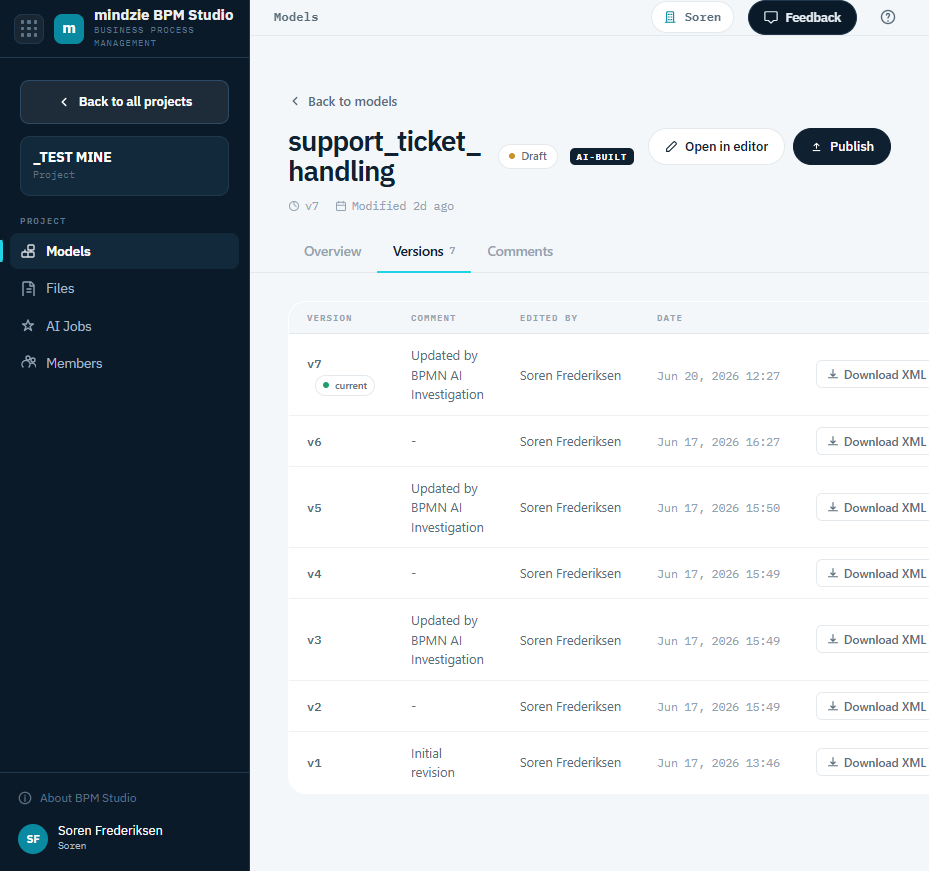
Open a model and go to the Versions tab on its detail page. It lists every version with:
- The version number, with the current one marked current.
- A comment, where one was recorded (for example, "Initial revision" or an AI update note).
- Who made the change, and when.
- A Download BPMN action that downloads that version's BPMN file.
Published Models Are Locked
Publishing a model locks it against editing so that what the organization sees in the Repository does not change underneath them. Open a published model and the editor is read-only, with a banner and a Go to Models link. Unpublish it to continue editing; the version history carries on from where it left off.
See Managing Models for publishing and unpublishing.
What This Means in Practice
- You never lose a previous state to an accidental save - earlier versions remain recorded and can be downloaded.
- The Models list and the editor always open the latest version.
- To go back to an earlier state, download that version's BPMN and use Import in the editor to bring it into the model.