Editing Basics
Everything on the canvas is edited directly: place shapes, select them, and use the controls that appear around the selection.
Adding Elements
There are two ways to get a shape from the palette onto the canvas, and both end the same way.
- Click, then click. Click a palette tool to arm it. A ghost of the shape follows your pointer; the next click on the canvas places it. Press Escape to disarm the tool without placing anything.
- Drag and drop. Press and hold on a palette tool and drag the shape to where you want it.
Where you release decides what happens:
| You release on | Result |
|---|---|
| Empty canvas | The shape is placed where the pointer is. |
| An existing shape | The new shape is appended after it, already connected. |
| A sequence flow | The new shape is inserted into that flow, which splits to run through it. |
For shape families grouped behind a flyout - tasks, gateways, intermediate events, sub-processes, data, annotations - hover the group or click its chevron to open the flyout and pick the specific variant.
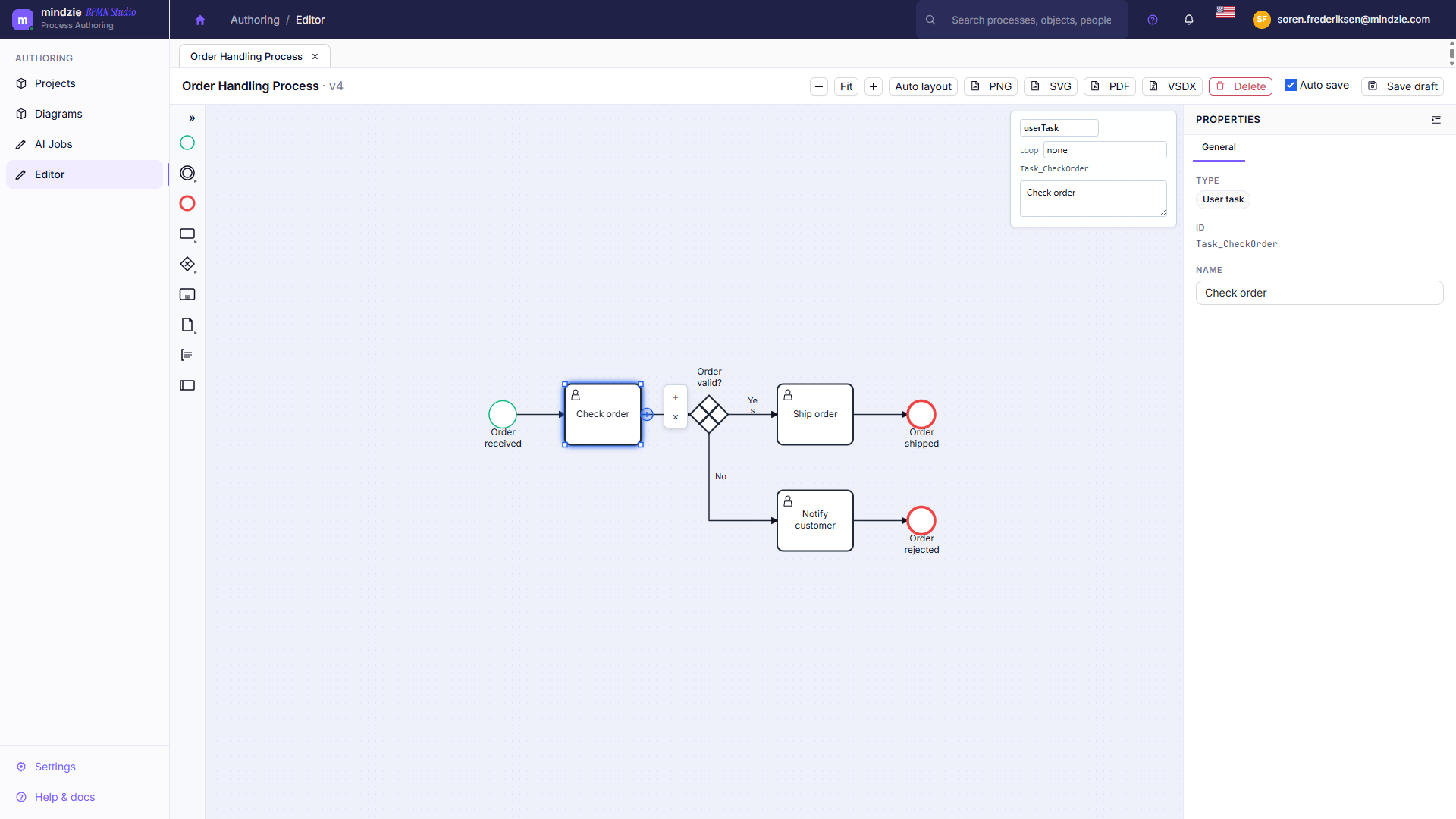
The Context Pad
Select a single shape and a small pad of buttons appears beside it:
| Button | What it does |
|---|---|
| + (Append element) | Opens a searchable picker of element types, grouped into Tasks, Gateways, Events, Containers, Data, and Other. Choose one and it is created and connected in a single step. |
| Attach boundary event | On tasks, sub-processes, and call activities: docks a boundary event on the shape's edge. Choose the kind - Message, Timer, Error, Escalation, Signal, Conditional, or Compensation. |
| Delete | Removes the shape. |
On a pool, the pad offers Add lane below, Distribute lanes evenly, and Delete pool. On a lane, it offers Add lane above, Add lane below, and Delete lane.
Connecting Elements
Select a shape and drag from its connect handle onto the target shape. A preview follows your pointer, so what you see before you release is the connection you get.
To adjust a connection afterwards:
- Drag either end onto a different shape to re-dock it.
- Drag the line to add or move a bend point.
- Use Clean up routes in the canvas controls to re-route connections neatly - every connection in the model, or only the ones you have selected.
Selecting
- Click an element to select it.
- Hold Ctrl and drag on empty canvas to rubber-band select everything inside the box. Hold Shift as well to add to the current selection instead of replacing it.
- Click empty canvas to clear the selection.
Selecting several elements enables Align and Distribute in the Arrange menu.
Naming Elements
Double-click a shape to rename it in place: type the new name, then press Enter to commit or Escape to discard. Clicking elsewhere also commits.
You can also edit the Name field in the properties panel. Clear, action-oriented names ("Approve invoice", "Check credit") keep the model readable - and the Lint panel points out activity names that do not start with an action verb.
Changing an Element's Type
Select a single shape and press R to open Change type to... - a picker that converts the element to another type in place, keeping its name and its connections. Use it when a Task should really be a User task, or an Exclusive gateway should be Parallel.
Moving, Resizing, and Arranging
- Drag an element to move it; connections follow.
- Drag a selected element's handles to resize it. Pools and lanes resize the same way.
- Nudge the selection with the arrow keys; hold Shift for a larger step.
- Open Arrange > Auto layout to re-lay out the whole model in one step.
- With several elements selected, use Arrange > Align left / center / right and Distribute horizontally / vertically.
- Use - / Fit / + to zoom. Fit shows the entire model.
- Drag on empty canvas to pan. With nothing selected, the arrow keys pan too.
Copying and Duplicating
- Ctrl+C and Ctrl+V copy and paste the selection.
- Ctrl+D duplicates the selection in one step.
Undo and Redo
- Ctrl+Z undoes the last change - including an Auto layout.
- Ctrl+Y or Ctrl+Shift+Z redoes it.
The toolbar undo and redo buttons do the same thing, and grey out when there is nothing left to step through.
Starting from a Pattern
The canvas controls include a quick pattern gallery of common BPMN fragments you can drop straight into the model:
| Pattern | What it inserts |
|---|---|
| Approval flow | A user task followed by a decision point. |
| Decision branch | An exclusive gateway with two outgoing task branches. |
| Parallel split/join | A parallel gateway, two branches, and a join gateway. |
| Exception path | A task followed by an exception event path. |
| Timer escalation | A task followed by an intermediate timer event. |
Deleting Elements
Select an element and press Delete or Backspace, use the Delete button in the toolbar, or use the context pad's delete button.
To delete an entire model rather than a single element, use the model's options menu on the Models page or the model detail page. See Managing Models.
Next
- Keyboard Shortcuts - every shortcut in one table.
- Checking Your Model - find and fix problems before you publish.