Connect Your Own Agent and Get the Process Context Graph
This page takes you from nothing to the process context graph of one of your projects, as a JSON file on your own machine, fetched by your own agent. Then it goes one step further: reports and JSON files of your own, made the same way. Every command on this page was run, in this order, against a real project of 1.6 million events, and the numbers and messages quoted are the ones it gave.
How it fits together
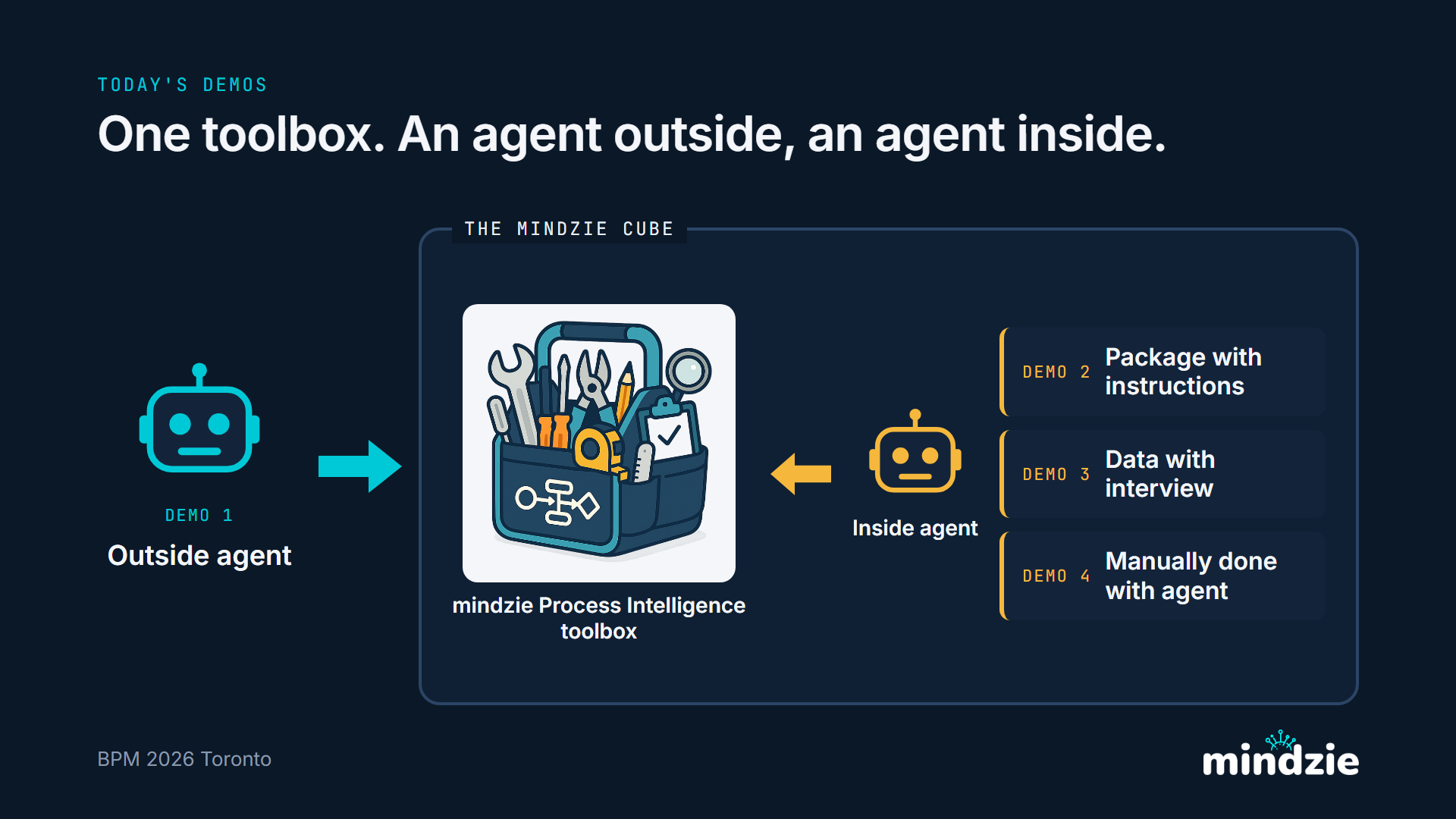
Each Process Intelligence project runs in its own cube: one container holding the project's event log and a toolbox of process intelligence tools. Two kinds of agent use the same toolbox.
- The agent inside is the mindzie agent that runs in the cube. It is the one that writes a report when a report card is run, including the Process Context Graph.
- An agent outside is yours - a coding agent, a script, a program on your machine. It reaches the cube over HTTPS with a small command line tool,
mz, and one key that opens that one project. It never sees the cube's files; it asks, and the cube answers.
On this page your agent, outside, asks the agent inside to build the graph, waits for it, and fetches the result. (The picture is a slide from the talk where the cube was presented; its DEMO labels are that talk's running order.)
What you need
- A Process Intelligence project with its data loaded. Your First Project shows how to make one.
- Python 3.9 or newer on the machine your agent runs on.
- AI credits in the project. Building the graph is an AI job.
- Driving a project with a key must be switched on for your installation. If you are not sure it is, ask your mindzie contact before you rely on it.
Step 1 - Download the tool and its method file
Two files, from these exact addresses:
curl -O https://mindzie.blob.core.windows.net/download/mindzie-agent/mzcube-1.2.0-py3-none-any.whl
curl -O https://mindzie.blob.core.windows.net/download/mindzie-agent/skill/SKILL.md
On Windows, type curl.exe instead of curl. A browser download works as well.
mzcube-1.2.0-py3-none-any.whlis the tool,mz, version 1.2.0. It uses nothing but Python's own standard library.SKILL.mdis its method file: every command, every option, what each answer looks like, and the method the agent inside the cube works by. Give it to your agent - put it wherever your agent reads its instructions or skills. It is written for an agent, and it is the reference for everything on this page.
Step 2 - Install it
Make a clean Python environment for it and install the file you downloaded:
python -m venv mz-env
mz-env\Scripts\activate
pip install mzcube-1.2.0-py3-none-any.whl
mz --help
On macOS or Linux, the second line is source mz-env/bin/activate. The tool is installed from the file and from nowhere else: pip install mzcube on its own finds nothing of ours.
mz --help lists the groups of commands. mz reports --help lists one group's commands, and mz reports cards --help one command's options.
Step 3 - Start the project and mint its key
A person does this step, in mindzieStudio.
- Open the AI Process Intelligence projects page and Start the project, if it is not running. Starting takes a minute or two.
- On the project's card, click the ... menu and choose API keys.
- Under Key name, say what will hold the key -
my-agent,nightly-graph-robot- and click Mint key. - Click Copy, and keep the key where you keep passwords. It begins
mz_pk_, and it is shown once: mindzieStudio keeps only a fingerprint of it.
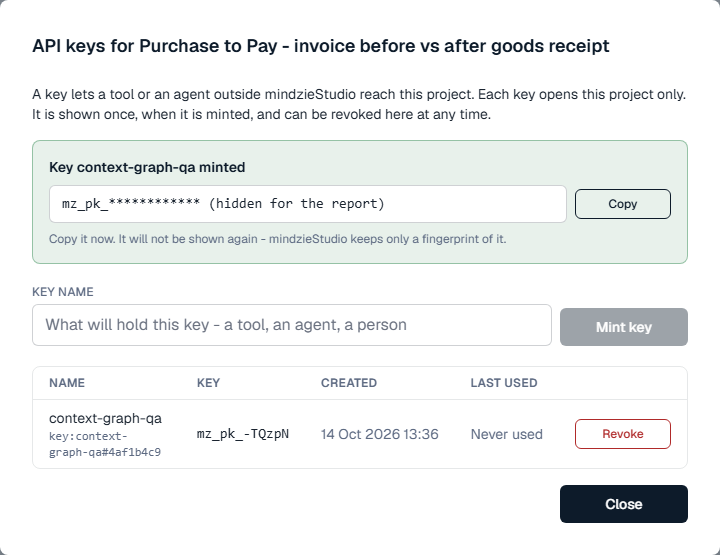
A project key opens this one project and nothing else. The dialog lists every key of the project, when each was last used, and a Revoke button for each. See The Projects Page.
The project's address. Your agent also needs the address of the cube. Open the project; your browser's address bar then shows the project's own address, which starts https://p- - for example https://p-34d6537ced37.project.mindziestudio.com. Take the part up to the end of the name, without anything after it.
Step 4 - Point the tool at the project
mz reads the address and the key from its environment. There is deliberately no way to put the key on the command line, because a command line is kept in the shell's history.
The simplest safe way is a small file outside any folder you share or commit, for example mz.env:
MZ_CUBE_URL=https://p-34d6537ced37.project.mindziestudio.com
MZ_CUBE_KEY=mz_pk_...
and one variable that tells mz where it is. In Windows Command Prompt:
set MZ_CREDENTIALS_FILE=C:\keys\mz.env
In Windows PowerShell:
$env:MZ_CREDENTIALS_FILE = "C:\keys\mz.env"
On macOS or Linux:
export MZ_CREDENTIALS_FILE=~/keys/mz.env
You can also set MZ_CUBE_URL and MZ_CUBE_KEY themselves in the environment; values already there win over the file. Then prove the connection:
mz log stats
Numbers back - the events and cases of your log - means the tool, the address and the key all work. If the address or the key is missing, mz names the exact variable to set.
Step 5 - List the report cards
mz reports cards
The answer is the four report cards the project's Reports screen offers, in the same order, each with the key your agent uses for it:
| Key | Card |
|---|---|
data-quality-review |
Data Quality Review |
process-analysis-summary |
Process Analysis Summary |
process-improvement-recommendations |
Process Improvement and Recommendations |
process-context-graph |
Process Context Graph - "Includes agent-ready JSON" |
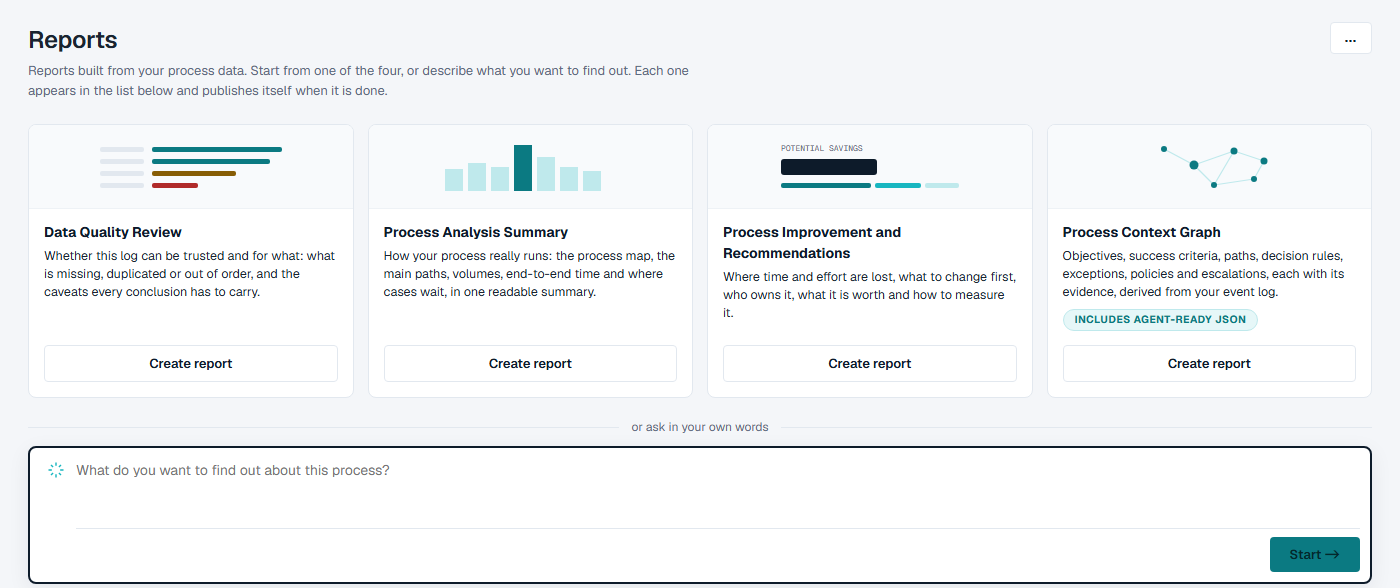
Step 6 - Start the Process Context Graph card
mz jobs create-agent --card process-context-graph
mz jobs run --slug process-context-graph
The first command makes the card's job and answers its slug, the name the other commands take. On a project where the card has never run it is process-context-graph; use whatever slug it answers. A card has one job: asking again returns the same job, and every run of it publishes the next version of the same report.
The second command starts the run and answers at once: Started run r0001 of 'process-context-graph'.
This is the same report a person starts with Create report on the card. It is an AI job: it uses the project's AI credits, so ask before you let an agent start one.
Step 7 - Wait for it
mz jobs status --slug process-context-graph
Ask every 30 seconds or so. Be ready to wait:
- It takes a while on a large log. On a log of 1.6 million events and about 250,000 cases, the run took 45 minutes. Plan for up to an hour on a log that size.
- There is no progress to show. The status says
runningfrom start to finish, and thendone. A long wait is not a hung run. - Jobs run one at a time in a project. Anything else you start - your own report, say - waits until the graph is finished.
done means the report has published itself. Any other final status - failed, timeout, out_of_memory, out_of_processor_time, cancelled - means it did not, and the status carries a sentence saying why.
The report is now on the project's Reports screen like any other, for a person to read: the same content as the JSON, with the evidence beside every statement.
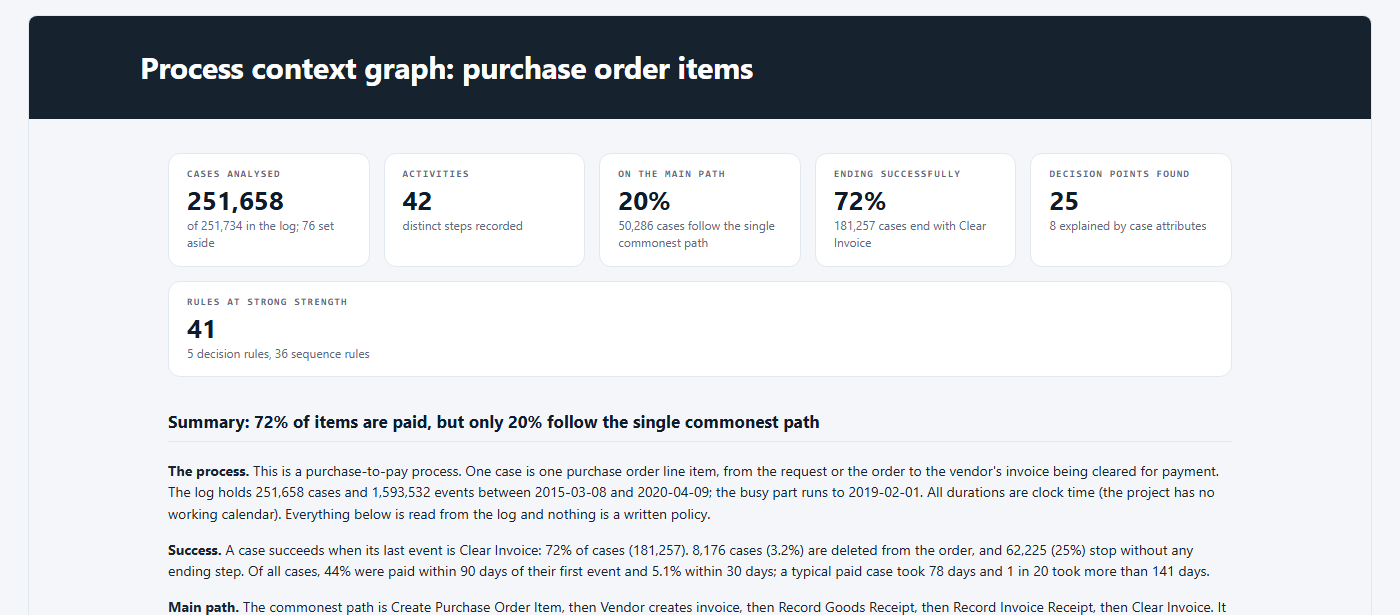
Step 8 - Fetch the graph
mz reports context-graph > process-context-graph.json
The graph itself goes to the file, and a line saying which report and version it came from goes to the screen. On the project above the file was about 300 KB: 44 steps, 188 hand-offs, 25 decision points, 48 exceptions and 25 policies, each with its evidence. Nothing is computed again and no AI is used - the call reads the report that is already published.
On Windows, run this one in Command Prompt: Windows PowerShell re-encodes text sent to a file with >.
The same document is a file the card's report carries, so this fetches exactly the same bytes:
mz reports attachment --slug process-context-graph --name process-context-graph.json > process-context-graph.json
What is in it, part by part, and a picture of a real one, is on Getting the Process Context Graph.
Step 9 - Check it against the definition
The graph has a fixed, versioned shape. Download the definition, mindzie.process-context-graph-1.0.schema.json, from the end of Getting the Process Context Graph, put it beside the graph, and check one against the other with any JSON Schema validator. In Python, save this as check_graph.py:
import json

import jsonschema

with open("process-context-graph.json", encoding="utf-8") as file:
    graph = json.load(file)
with open("mindzie.process-context-graph-1.0.schema.json", encoding="utf-8") as file:
    schema = json.load(file)

jsonschema.validate(graph, schema)
print("valid")
and run it:
pip install jsonschema
python check_graph.py
It prints valid, or stops with the part that does not have the shape. The project checks this too: a report whose graph does not have the shape is refused when it is published, so a published graph always passes.
Beyond the graph - your own reports, with your own JSON
The process context graph is a default: we decided what goes in it. Anything beyond it is yours - any analysis, carrying JSON files under names you choose, fetched by name the same way. There are two ways to make one, and both were run on the same project as above.
Way 1 - a script your agent writes
Your agent writes a short Python script that reads the log in the cube and writes a report. Each JSON file travels in the report as a download link written by mzreport.json_download_link(name, document) - any name, any JSON, as many files as you like. The whole script from the run above is on Your Own Reports and JSON. Then:
mz run invoice_timing.py
mz jobs create --name "Invoice timing against the goods receipt"
mz jobs put-file --slug invoice-timing-against-the-goods-receipt --name invoice_timing.py --file invoice_timing.py
mz jobs run --slug invoice-timing-against-the-goods-receipt
mz jobs status --slug invoice-timing-against-the-goods-receipt
mz jobs outputs --slug invoice-timing-against-the-goods-receipt
mz jobs publish --slug invoice-timing-against-the-goods-receipt --run-id r0001 --output invoice_timing.html --name "Invoice timing against the goods receipt"
mz run runs the script once in the cube and shows any error whole, so get it clean there first. mz jobs create answers the slug the other commands take, mz jobs outputs the run and the output to publish. No AI is used: the run took under 10 seconds. mz jobs publish puts the report on the Reports screen.
Way 2 - a report asked for in plain words
Your agent describes the report in its own words, names the JSON files it wants, and the agent inside the cube writes it:
mz jobs create-agent --name "Payment blocks - where they are set and removed" --brief "Find where payment blocks are set and removed in this purchase-to-pay process: how many cases get a payment block, at which step it is set, how long it stays before it is removed, and which item categories and vendors are most affected. Keep it short. At the end of the report, attach two JSON files for a program to read, using mzreport.json_download_link inside a prose section: 'payment-blocks-summary.json' holding the headline numbers (cases blocked, share of all cases, median days blocked) and 'payment-blocks-by-category.json' holding one row per item category with cases blocked and median days blocked."
mz jobs run --slug payment-blocks-where-they-are-set-and-removed
mz jobs status --slug payment-blocks-where-they-are-set-and-removed
This is an AI job, like the card: it took 8 minutes, and the report published itself carrying exactly the two files it was asked for.
Fetching your files
mz reports list
mz reports attachments --slug invoice-timing-against-the-goods-receipt
mz reports attachment --slug invoice-timing-against-the-goods-receipt --name invoice-timing-kpis.json > invoice-timing-kpis.json
mz reports list shows every published report with the JSON files each one carries; mz reports attachments lists one report's files with their sizes and the schema each names; mz reports attachment returns one file. Only a file that names the schema mindzie.process-context-graph is held to our definition - any other shape is yours to decide.
When something is refused
Every refusal says, in a sentence, what to do next. mz exits with 3 when the project refused the request and nothing ran, and with 4 when the project was never reached. These are the refusals your agent will meet, in the words it is given:
| What happened | Exit | What the agent is told |
|---|---|---|
| Asking for the graph before the card has run | 3 | No process context graph has been published in this project. Make one with the Process Context Graph card: mz jobs create-agent --card process-context-graph, then mz jobs run --slug with the slug that answers, and wait for mz jobs status to say done. ... |
| A card that does not exist | 3 | There is no report card called 'no-such-card'. The cards are: data-quality-review, process-analysis-summary, process-improvement-recommendations, process-context-graph. |
| A report that does not exist | 3 | There is no published report called 'no-such-report' in this project. The published reports are: ... |
| A file the report does not carry | 3 | v0001 of the report 'invoice-timing-against-the-goods-receipt' carries no attachment called 'no-such-file.json'. Its attachments are: invoice-timing.json, invoice-timing-kpis.json. |
| A file that is not valid JSON | 3 | The attachment 'broken.json' of v0001 of the report ... cannot be returned as a value: it is not valid JSON (...). ... the report has to be published again with a file that is valid JSON. |
| Publishing a graph with parts missing | 3 | The report carries "process-context-graph.json". This is not a valid mindzie.process-context-graph 1.0 document: the document is missing "assumptions", "decisions", ... |
| A key that has been revoked | 4 | revoked: Studio refused the key exchange for p-....project.mindziestudio.com: revoked |
Asking for the graph never starts the card by itself: the card is an AI job that uses your credits, so it only runs when it is asked for. A revoked key is refused within seconds of being revoked.
Where the cube runs
The cube can run on your own servers or in our cloud. Your agent reaches it the same way in both: from outside, with mz, the project's address and a project key.
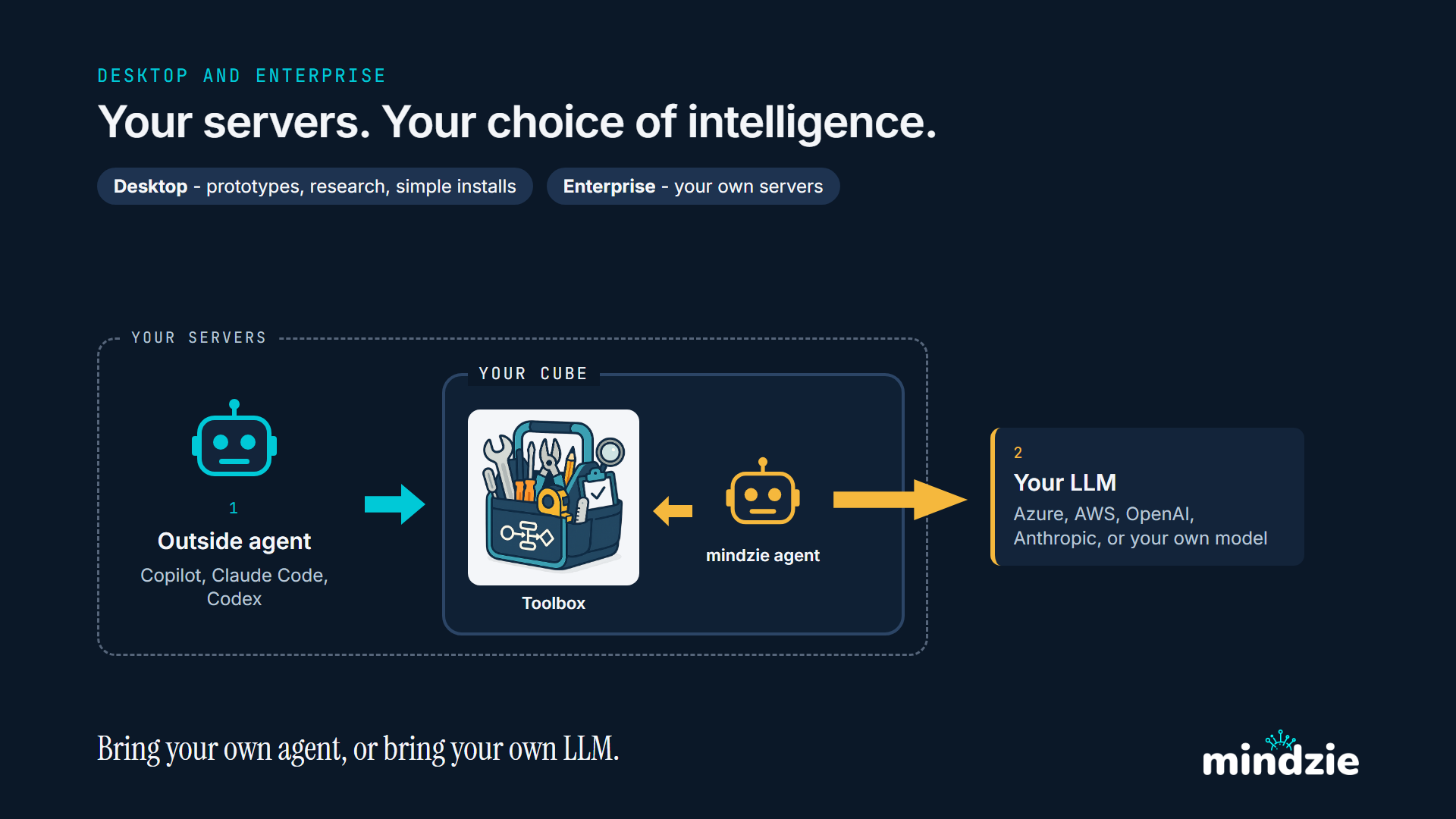
On your servers - mindzie Desktop or Enterprise. The cube runs inside your own network, beside your data. Your agent outside uses its toolbox, and the agent inside calls the language model you choose.
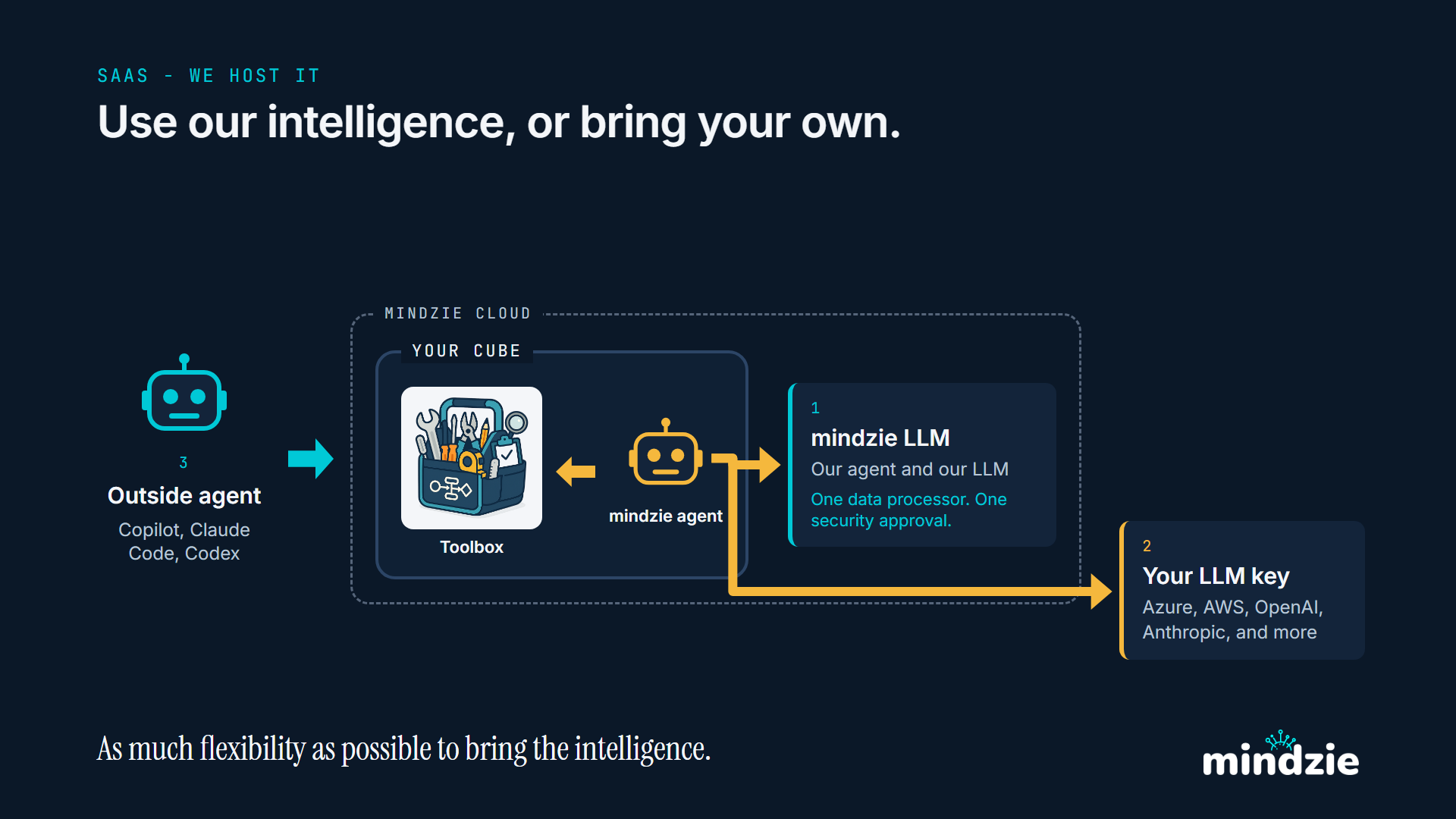
In our cloud - SaaS. We host the cube. The agent inside uses our language model or your own key, and your agent outside still uses the cube's toolbox directly.
When you are done
- Stop the project on the projects page. A running project costs money; a stopped one costs nothing and loses nothing - the log and the reports are there on the next start.
- Revoke the key in the project's API keys dialog if nothing needs it any more. Minting another takes seconds.
Next
- Getting the Process Context Graph - what is in the graph, part by part, with a real one drawn as a picture.
- Your Own Reports and JSON - the two ways in full, with the script and the files they produced.
- The Cube's Toolbox - what is in the toolbox, and who can reach which tools.
- Driving a Project from Your Own Agent - hand your agent a tenant key and let it create, load and stop projects itself.