Driving a Project from Your Own Agent
You can hand a Process Intelligence project to your own coding agent. It creates the project, starts it, loads your data, asks the event log questions, runs its own analysis inside the project, publishes a report, and stops the project when it is done - from your own machine, with nothing installed but one small Python tool that the agent fetches itself.
You do two things: mint a key, and paste one line to your agent. Everything else is the agent's work, and it reads its own instructions.
Before you start
- Driving a project with a key works on production, www.mindziestudio.com. On the Europe server, check with mindzie before you rely on it. It is not available yet on the Australia server. See Regions and Availability.
- The agent needs Python 3.9 or newer on the machine it runs on.
Step 1 - Mint your key
- Sign in to mindzieStudio, and check you are in the right tenant. The tenant is named at the bottom right of the page.
- Open the menu under your name, then Administration, then Settings, then API Keys.
- Click Create New Secret Key.
- Give the key a name that says what will hold it -
my-laptop-agent,nightly-load-robot- notkey1ortest. The name is the only handle you will have on this key later. - Click Create.
The key is shown once and never again. Copy it now and keep it where you keep passwords. The key begins mz_tk_: it is a key for your tenant, which is what the agent needs.
The key then has a row under Your API Keys, with its name, when it was created, who created it and when it was last used. To remove the key later, click the bin icon on its row.
Which key, the tenant key or a project key
There are two kinds of key a person mints, and they do different jobs:
| Key | Where you mint it | What it reaches | Use it for |
|---|---|---|---|
Tenant key (mz_tk_...) |
Administration, Settings, API Keys | Every project you can open, and it can create, start, stop and delete projects | Handing Process Intelligence to your agent, as on this page |
Project key (mz_pk_...) |
The ... menu on a project, API keys | That one project only | Keys your agent mints for itself, and a tool that should never reach more than one project |
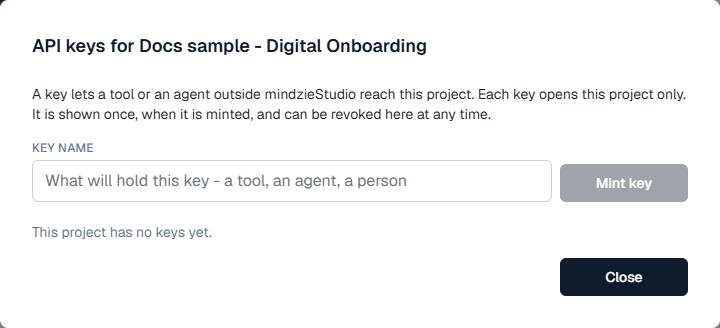
The agent is given the tenant key. With it, the agent mints a project key for each project it works in, and uses that project key for the work. Those keys appear in the project's API keys dialog on the projects page, with their names and when each was last used, and you can revoke any of them there. See The Projects Page.
Step 2 - Paste one line to your agent
Follow https://docs.mindziestudio.com/mz-cube.txt and drive a mindzie Process Intelligence project for me. My mindzieStudio is https://www.mindziestudio.com and my key is mz_tk_...
Put your own key at the end. The address must be the address you sign in to mindzieStudio at: a key works on exactly one server, and nothing in the key tells the agent which one.
That is the whole handover. The page in that line is written for the agent, not for you: it tells the agent how to get its tool, create and start a project, get your data in, work, publish, and stop the project again.
The agent asks you one thing it must never decide for itself: what a case is in your data - an order, a claim, a patient. That choice decides every number the product gives you, so the agent asks rather than guesses. See Choosing What a Case Is.
What your agent does
- Creates and starts a project. The project appears on your projects page like any other, and goes through the same states. Starting takes about a minute.
- Loads your data. The agent sends your extract - a whole database export can go as one zip file - and builds the event log from it. A single file can be up to 2 GB.
- Works in the project. It asks the event log questions and runs its own analysis inside the project, against your real data.
- Publishes a report. The report says which event log it was built from.
- Stops the project when the work is done, and revokes the project key it minted, unless you want it kept.
Your agent does not delete a project unless you ask it to, in words, for that project.
What the key can do, and what that means for you
Treat the tenant key like a password, because that is what it is. It can create, start, stop and delete projects in your tenant, and it can open every project you yourself can open, with full access to the data in each one. For a tenant administrator, that is the whole tenant.
- Pasting the key into a conversation puts it in that conversation's transcript, and wherever the transcript is stored or synced. Treat the key as spent once it has been there, and remove it when the work is done. Minting another takes seconds.
- For anything shared or long-running - a scheduled job, a team's tooling - mint the key from a role account rather than your own. The key then belongs to something your organisation controls and can remove centrally.
- Removing a key is the only thing that stops it. Disabling somebody's account does not stop keys they minted, so when a person leaves, remove their keys as a separate, deliberate step.
- A project key is not read-only. It reaches everything in its project, including loading data. Its reach is one project, and that is the point of it.
A running project costs money; a stopped one costs nothing
Your agent stops the project when the work is done. Nothing is lost by stopping: the event log, the maps and the reports are there when it starts again. If a conversation ends before your agent finishes, open the projects page and stop anything still running.
Good to know
- A project waiting on the question "what is a case?" shows Needs an answer on the projects page. That is not a failure. Answer it yourself on the projects page, or answer your agent when it asks.
- If a start fails, the project shows Failed to start with one plain sentence saying why, and the agent passes that sentence to you rather than retrying blindly.
- Name the keys after the job. A project key's name is printed in the record of a report it produced, and it outlives the key, so never put a client's name or a person's full name in it.
Feedback
Questions and feedback on driving a project from your own agent go to support@mindzie.com.