The Projects Page
The projects page is where you land when you open Process Intelligence. It lists every project you can open, with its state, its size and when it was last used. Each project runs in its own workspace, so you start a project before you work in it and stop it when you are done.
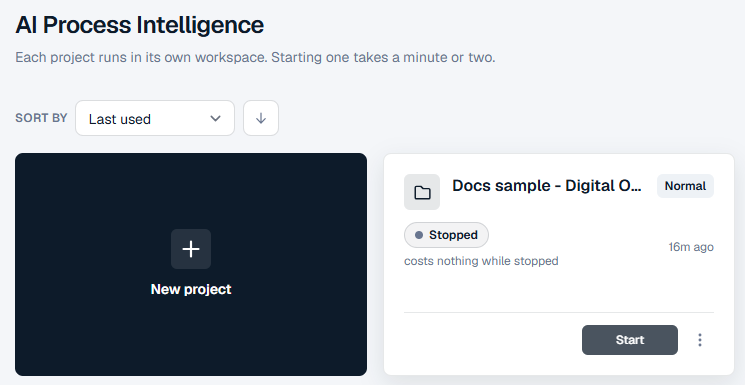
Viewing and sorting
- Sort by orders the projects by Name, Last used, State, Size or Created. The arrow beside it reverses the order.
- The two buttons at the right switch between card view and list view.
Each project shows its name, how many events and cases it holds, its size, its state and when it was last used ("Never opened" until someone opens it).
Creating a project
- Click New project.
- Type a Project name (required).
- Choose a Size: Normal suits logs up to about 500,000 events; Large is for bigger logs. Choose with your data in mind: the size cannot be changed once the project is created.
- Click Create project.
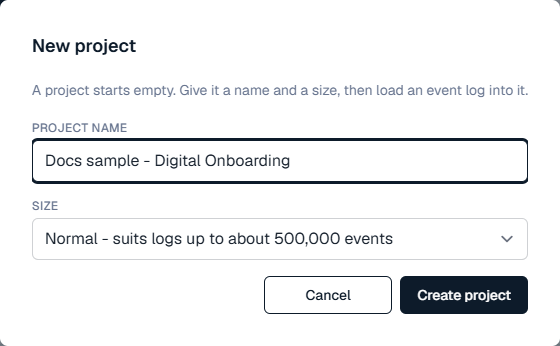
A project starts empty. Once it has started, you load an event log into it. See Your First Project.
Starting, opening and stopping
| Button | What it does |
|---|---|
| Start | Starts a stopped project. It usually takes a minute or two; the page shows how long it expects and counts up while you wait. You can leave the page - the start carries on. |
| Cancel | Cancels a start that is still under way. |
| Open | Opens a running project. |
| Stop | Stops a running project. Nothing in it is lost. |
A running project stops itself after it has not been used for a while. Your administrator sets how long, and a change takes effect the next time a project starts.
What the states mean
| State | Meaning |
|---|---|
| Creating | The project is being set up. This usually takes a few minutes. |
| Starting | The project is starting. The card shows about how long is left. |
| Running | Ready to open. The card says how long it has been up. |
| Stopping | The project is stopping. |
| Stopped | Not running. A stopped project costs nothing. |
| Needs an answer | The data holds several kinds of objects, and the project cannot tell which one a case should follow. Click Choose, pick one, and click Continue building. Nothing is guessed for you. |
| Not created | The project could not be created. Click Try again. |
| Failed to start | The project could not start. Click Try again. |
| Backing up | A backup of the project is running. It can be started when the backup has finished. |
| Restoring | An earlier backup is being restored. It can be started when the restore has finished. |
| Not imported | The file could not be imported. The card says why. Click Import again. |
| Deleting | The project and its files are being removed. This can take a few minutes. |
| Not deleted | The delete did not finish. Try again. |
If a state reads "cannot confirm right now", the page could not check the project just then. It checks again by itself.
The project menu
The ... menu on each project holds:
- Rename - change the project's name.
- Members - choose who else can open the project.
- API keys - mint a key that lets a tool or an agent outside mindzieStudio reach this one project. A key is shown once, when it is minted; copy it then. You can revoke it here at any time.
- Save - save the whole project as one file and download it. The file can be imported as a new project, here or on another server. Stop the project first.
- Backup - back up the project, and restore or download an earlier backup. Stop the project first. A restore keeps a copy of how the project is now, so it can be undone.
- Delete - delete the project. If it is running, it is stopped first. Its data and backups are removed and cannot be brought back.
To bring in a project someone saved, click Import project and choose the .mzproject file. If a project with the same name already exists, the imported one is given a new name, which you can change.
Save, Backup and Import are not available on every server yet. If you do not see them, they are not switched on where you work.
If something goes wrong
Every failure on this page is one plain sentence on the project's card, with Try again where trying again can help. If the same failure keeps coming back, contact your administrator.