Install On-Premise Server
Process Intelligence on your own servers needs two servers:
- A Windows server runs mindzieStudio itself: the website in IIS, the mindzieStudio Windows service and SQL Server. This is the same mindzieStudio Enterprise installation that Process Mining uses.
- A Linux server with Docker runs the Process Intelligence projects. Each project is one container on it. The Windows server starts, stops and updates those containers over SSH, so nothing on the Linux server is open to the network except SSH and the projects' own ports.
Docker Desktop is not supported on Windows Server, so the projects cannot run on the Windows server itself. A separate Linux server is the setup Docker supports and the one we test.
This page takes you through both servers and connects them. Allow half a day, most of it for the Windows server.
What you are installing
| Server | Runs | Reached by |
|---|---|---|
| Windows server | IIS with the mindzieStudio website, the mindzieStudio Windows service, SQL Server (on this server or another) | Your users' browsers, on HTTPS |
| Linux server | Docker Engine, with one container per running project and a folder holding the projects' data | The Windows server only, over SSH and on the ports the projects use |
Every project opens at its own web address under one name of yours. With the name projects.yourcompany.com, a project opens at an address such as p-1234.projects.yourcompany.com. Your browser asks the Windows server for that address, and the Windows server passes the request on to the project's container on the Linux server.
Before you start
A Windows server that meets the Technical Requirements of mindzieStudio Enterprise, with 4 or more processors, 8 GB of memory or more and 100 GB of disk. We test on Windows Server 2019.
A Linux server with a 64-bit version of Linux that Docker supports. We test on Ubuntu Server 24.04 LTS. Size it in the next section.
Administrator rights on the Windows server, and an account with
sudoon the Linux server.Your mindzieStudio Enterprise license key. If you do not have one, ask support@mindzie.com.
Two DNS names, and a certificate that covers both, from your IT or security team:
- a name for the website, such as
mindzie.yourcompany.com; - a wildcard name for the projects, such as
*.projects.yourcompany.com.
Both point at the Windows server. One certificate with both names in it, or two certificates, both work; the project name must be covered by a wildcard certificate.
- a name for the website, such as
The network between the two servers. The Windows server must reach the Linux server on the SSH port (22) and on the ports Docker gives the projects. Docker picks a free port for each project every time it starts, from the Linux server's range of temporary ports (on Ubuntu, 32768 to 60999). If there is a firewall between the two servers, or on the Linux server, allow the Windows server to reach that whole range. Users never reach the Linux server directly.
Internet access, for the downloads. If either server has no internet, read With no internet in Step 8 first.
How big the Linux server should be
Each running project gets its own share of the Linux server. By default a project may use up to 4 processors and 8 GB of memory; you can change that on the Containers tab (Step 7). Projects that are stopped use only disk.
| Linux server | Start with |
|---|---|
| Processors | 4, plus 4 for each further project you expect to run at the same time |
| Memory | 16 GB, plus 8 GB for each further project you expect to run at the same time |
| Disk | 100 GB, plus room for your data. The project image takes about 2 GB; each project keeps its files in its own folder. |
A project that is open and idle uses little: on our test server a project with a 20,000-event log used about 250 MB of memory at rest. Large logs and AI jobs use the most while they run.
Step 1 - The Windows server
Install mindzieStudio Enterprise as described in the Installation Guide of the Process Mining documentation: SQL Server, IIS with the WebSocket Protocol, WebDAV removed, the ASP.NET Core 8 Hosting Bundle, mindzieStudioSetup.exe, the license key and the database.
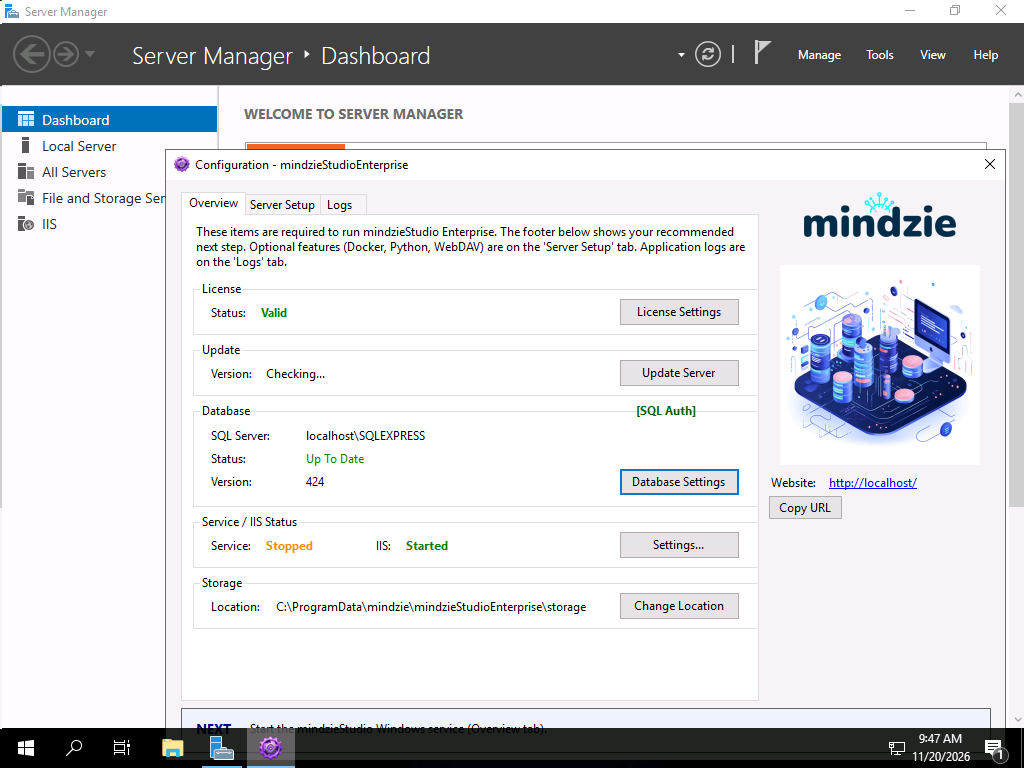
When the guide is finished, the Overview tab of the Enterprise Configuration app shows a valid license and a database that is Up To Date. If Service still says Stopped, as in the picture below, click Settings... next to it and start the mindzieStudio service there.
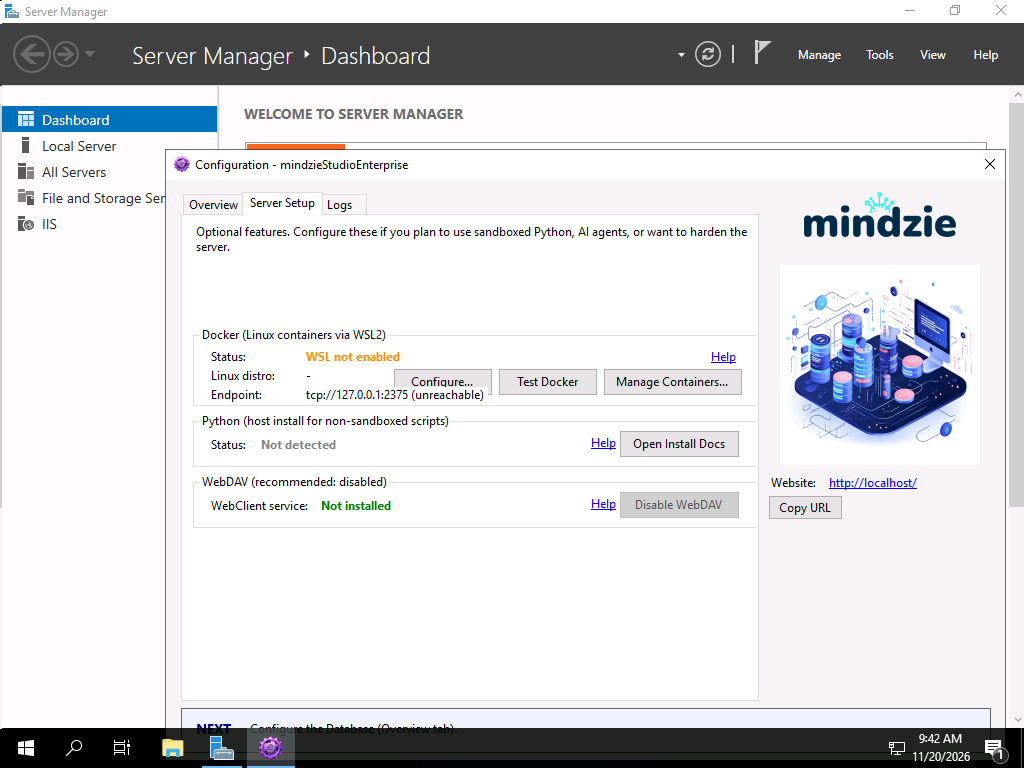
Leave the Docker box on the Server Setup tab alone. The Server Setup tab of the Enterprise Configuration app has a Docker (Linux containers via WSL2) section that says WSL not enabled. That is for Docker on the Windows server itself, which is not supported. Process Intelligence uses the Linux server instead, and you connect it in the website in Step 7.
Then put the website on HTTPS with your certificate, under the website's DNS name, as in Step 5 of that guide. The project wildcard name must be served by the same website, so either add the wildcard name to the HTTPS binding as well or use one binding on port 443 with a certificate that covers both names.
Step 2 - The Linux server
Install Docker Engine by following Docker's instructions for your distribution: docs.docker.com/engine/install. On Ubuntu Server 24.04 that is Docker's own package repository:
sudo apt-get update
sudo apt-get install -y ca-certificates curl
sudo install -m 0755 -d /etc/apt/keyrings
sudo curl -fsSL https://download.docker.com/linux/ubuntu/gpg -o /etc/apt/keyrings/docker.asc
sudo chmod a+r /etc/apt/keyrings/docker.asc
echo "deb [arch=$(dpkg --print-architecture) signed-by=/etc/apt/keyrings/docker.asc] https://download.docker.com/linux/ubuntu $(. /etc/os-release && echo "$VERSION_CODENAME") stable" | sudo tee /etc/apt/sources.list.d/docker.list > /dev/null
sudo apt-get update
sudo apt-get install -y docker-ce docker-ce-cli containerd.io docker-buildx-plugin docker-compose-plugin
Check it works with
sudo docker run --rm hello-world. Docker starts by itself whenever the server starts.Make an account for mindzieStudio and let it use Docker:
sudo useradd --create-home mindzie
sudo usermod --append --groups docker mindzie
Make the folder that holds the projects' data. The name is yours to choose. It must exist before the first project starts, because Docker refuses to use a folder that is not there:
sudo mkdir -p /srv/mindzie/cubes
sudo chown mindzie /srv/mindzie/cubes
Step 3 - The Docker command line on the Windows server
The website controls Docker on the Linux server with the docker command, which it runs on the Windows server. Docker Desktop is not needed and not used.
Download the Docker command line for Windows from download.docker.com/win/static/stable/x86_64. Take the newest
docker-<version>.zip.Open the zip and copy only
docker.exeinto a folder of its own, such asC:\Program Files\Docker CLI.Add that folder to the machine PATH, not your own. In PowerShell opened as administrator:
$p = [Environment]::GetEnvironmentVariable('Path', 'Machine')
[Environment]::SetEnvironmentVariable('Path', "$p;C:\Program Files\Docker CLI", 'Machine')
Restart IIS and the mindzieStudio service so that they read the new PATH. In the same PowerShell:
iisreset /restart
Restart-Service mindzieStudioService
Step 4 - The SSH key for the website
The website reaches the Linux server as the Windows account it runs under. On a standard installation that is LocalSystem, so the SSH key belongs to LocalSystem, not to you. LocalSystem keeps its key in C:\Windows\System32\config\systemprofile\.ssh.
If you set the website and the service to run under a service account instead, in the Installation Guide, do this step and Step 5 for that account: put the key and the known hosts file in the .ssh folder of that account's profile, and grant the key to that account instead of SYSTEM.
Make a key without a passphrase. Open Windows PowerShell as administrator - the one built into Windows, not PowerShell 7, which turns the empty passphrase below into a real one that SSH can never unlock:
$ssh = "C:\Windows\System32\config\systemprofile\.ssh"
New-Item -ItemType Directory -Force $ssh
ssh-keygen -t ed25519 -f "$ssh\id_ed25519" -N '""'
Lock the private key down so that only SYSTEM and Administrators can read it. SSH refuses a key that any other account can read, including the account you are signed in with:
icacls "$ssh\id_ed25519" /inheritance:r
icacls "$ssh\id_ed25519" /setowner "SYSTEM"
icacls "$ssh\id_ed25519" /grant:r "SYSTEM:F" "Administrators:F"
icacls "$ssh\id_ed25519" /remove "$env:USERNAME"
Check with
icacls "$ssh\id_ed25519": it must list onlyBUILTIN\AdministratorsandNT AUTHORITY\SYSTEM.Show the public key and copy the whole line:
Get-Content "$ssh\id_ed25519.pub"On the Linux server, add that line to the
mindzieaccount'sauthorized_keysfile. Replace the text between the quotes with the line you copied:sudo -u mindzie mkdir -p -m 700 /home/mindzie/.ssh echo 'ssh-ed25519 AAAA... administrator@YOUR-SERVER' | sudo -u mindzie tee -a /home/mindzie/.ssh/authorized_keys sudo -u mindzie chmod 600 /home/mindzie/.ssh/authorized_keys
Step 5 - Let the Windows server recognise the Linux server
The name. Choose the name the Windows server uses for the Linux server, such as
linux-docker-01, and make sure the Windows server can resolve it: a DNS entry in your network, or a line inC:\Windows\System32\drivers\etc\hostson the Windows server. You can also use the Linux server's IP address everywhere below instead of a name.The host key. SSH must already know the Linux server, or it answers
Host key verification failed. On the Linux server, show its host key:cat /etc/ssh/ssh_host_ed25519_key.pubOn the Windows server, add one line to LocalSystem's known hosts file: the name you chose, then the first two parts of that key. In PowerShell opened as administrator, with your own name and key:
Add-Content -Encoding ASCII -Path "C:\Windows\System32\config\systemprofile\.ssh\known_hosts" -Value "linux-docker-01 ssh-ed25519 AAAA..."Use
Add-Content -Encoding ASCIIas shown. PowerShell's>>writes the file in a format SSH cannot read. Do not usessh-keyscanfrom Windows: it cannot read the keys of Ubuntu 24.04 (unsupported KEX).
Step 6 - Sign in to the website
Open the website's address, for example https://mindzie.yourcompany.com, in a browser on your own computer. The first time, it asks you to set up your organization and to create the first administrator. Then sign in.
The home page says AI Process Intelligence needs a Linux machine with Docker. Click Connect a Linux machine.
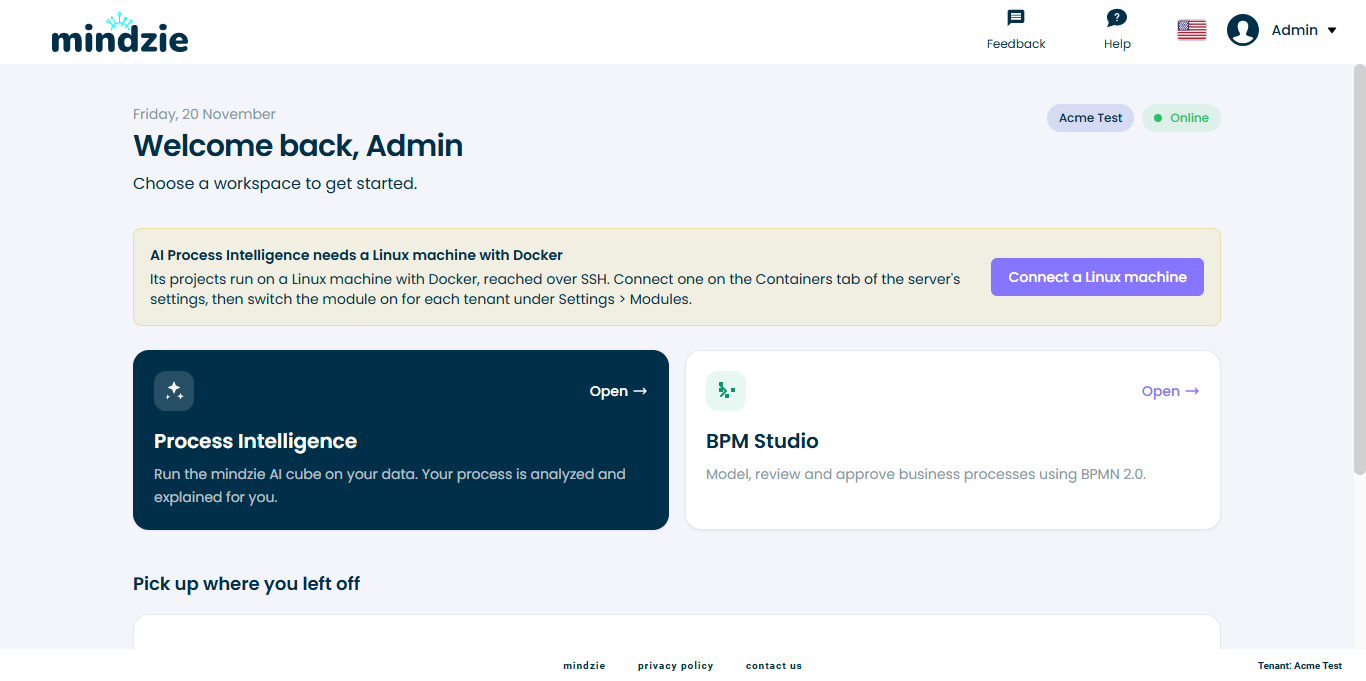
The button opens Server Settings, AI, the Containers tab. You also reach it from the user menu at the top right: Server Administration, Server Settings, then AI.
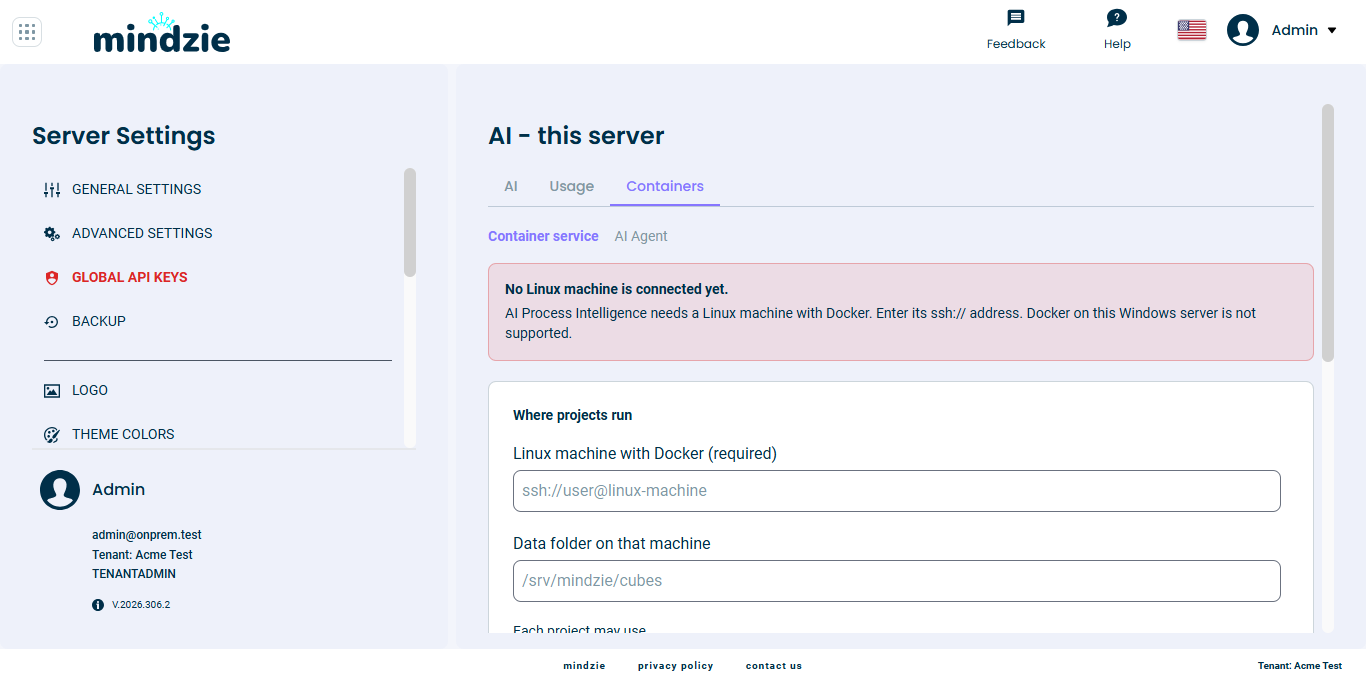
Step 7 - Connect the Linux server
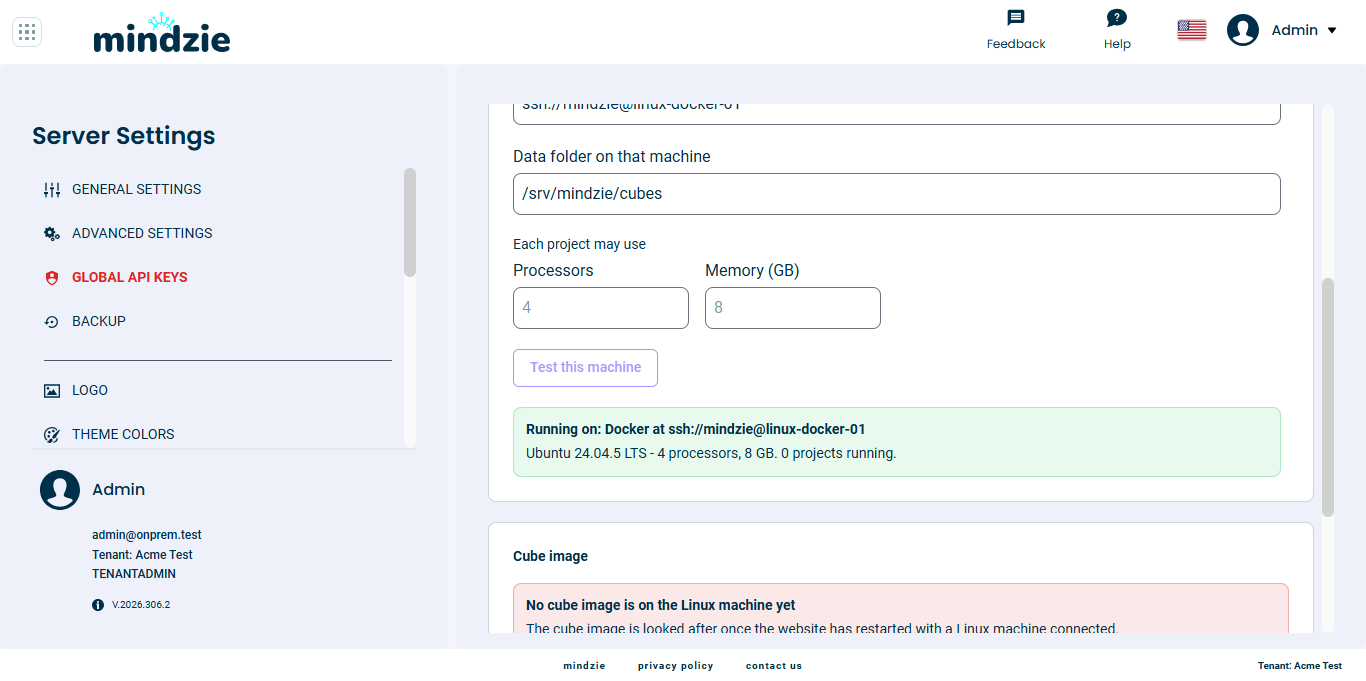
Under Where projects run, enter:
- Linux machine with Docker:
ssh://mindzie@followed by the name from Step 5, such asssh://mindzie@linux-docker-01; - Data folder on that machine: the folder from Step 2, such as
/srv/mindzie/cubes.
Leave Processors and Memory (GB) empty to keep the defaults of 4 processors and 8 GB for each project, or enter your own limits.
- Linux machine with Docker:
Click Test this machine. It answers with what it found, such as Running on: Docker at ssh://mindzie@linux-docker-01 and the Linux server's system, processors and memory, or with what went wrong. See When something is wrong at the end of this page.
Open More settings and enter the Project web address: the wildcard name without the
*., such asprojects.yourcompany.com. Leave the other settings as they are.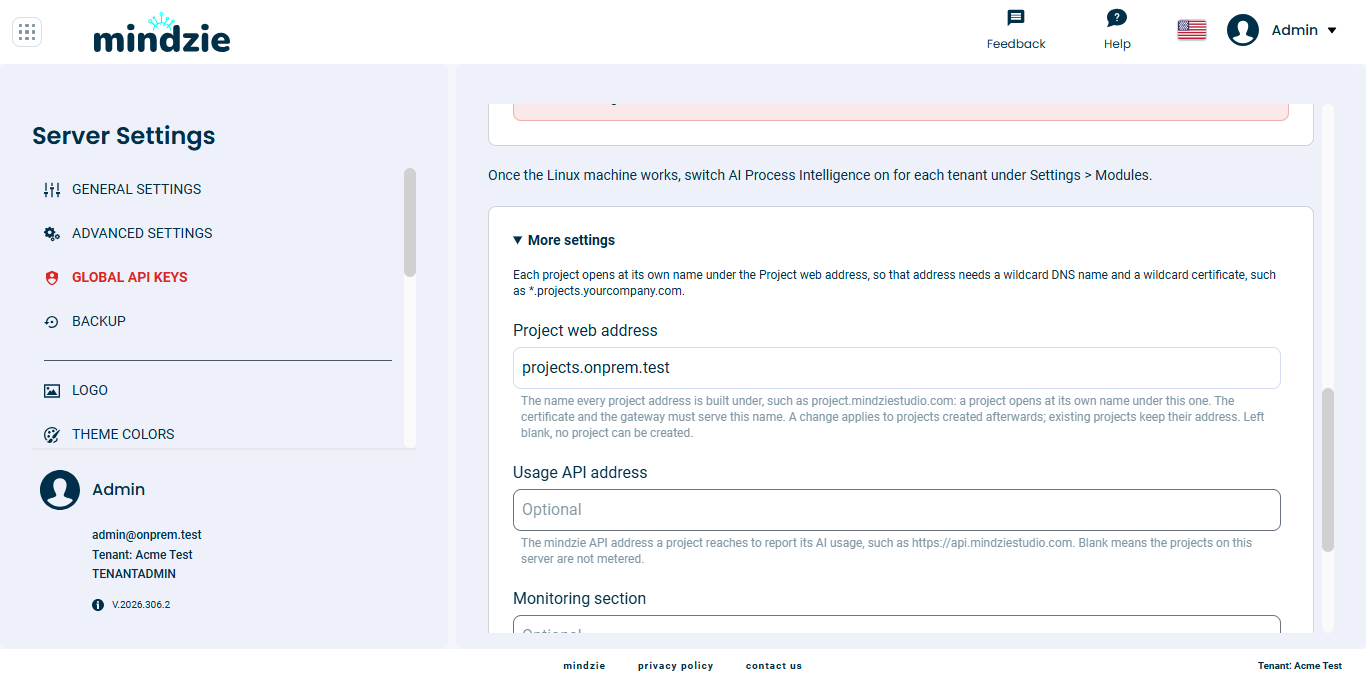
Click Save Changes. The page says a change takes effect only after mindzieStudio is restarted.
Restart the website and the service. In PowerShell opened as administrator on the Windows server:
iisreset /restart
Restart-Service mindzieStudioService
Each tenant that should have Process Intelligence needs the module switched on. If Process Intelligence is not on a tenant's home page, switch it on under Settings, Modules in that tenant.
Step 8 - The project image
The projects run on an image that has to be on the Linux server. The Windows server puts it there by itself after the restart in Step 7. It takes a few minutes the first time. The Cube image card on the Containers tab shows the image in use, when it last looked for a newer one, and what it found.
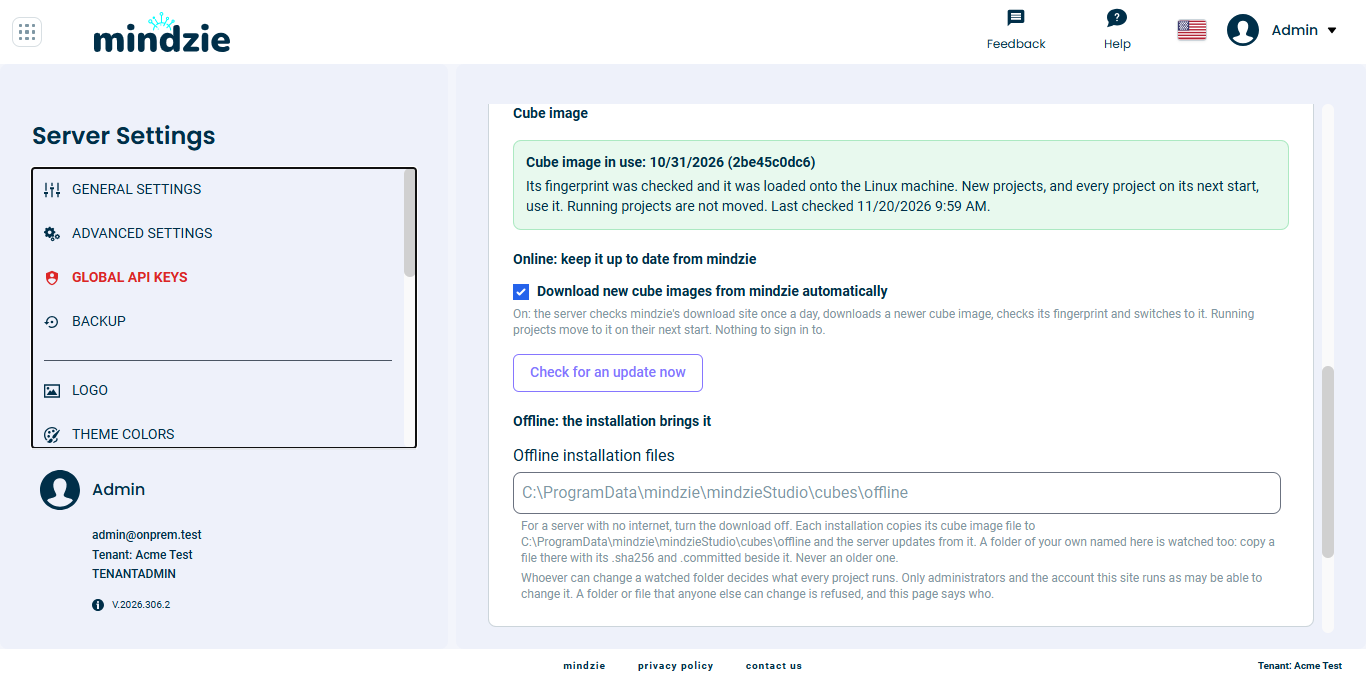
The image is never replaced by an older one, and a project that is running keeps the image it started with. It moves to a newer image the next time it starts.
With internet. While Download new cube images from mindzie automatically is on, the server looks for a newer image once a day. Click Check for an update now to look at once.
With no internet
Turn Download new cube images from mindzie automatically off. Every mindzieStudio installation and update brings its image with it and copies it to C:\ProgramData\mindzie\mindzieStudio\cubes\offline. The server loads it from there within about 15 minutes, or at once when you click Check for an update now.
To bring a newer image without installing, copy these three files together into that folder, or into a folder of your own that you name in Offline installation files:
mindzie-newstudio-<commit>.tar.gzmindzie-newstudio-<commit>.tar.gz.sha256mindzie-newstudio-<commit>.tar.gz.committed
A file with another name, a file with either of the other two missing, or a file whose fingerprint does not match is refused by name on the card, and the image in use keeps working.
Whoever can change a watched folder decides what every project runs. So the server loads only from a folder that just Administrators, SYSTEM and the account the website runs as may change. Setup sets this on its own folder. For a folder of your own, run this in PowerShell opened as administrator, then copy the files in from that same window:
icacls "D:\CubeImages" /inheritance:r /grant "*S-1-5-18:(OI)(CI)(F)" "*S-1-5-32-544:(OI)(CI)(F)"
icacls "D:\CubeImages" /setowner "*S-1-5-32-544" /T
Keep the folder on the Windows server itself: a network share, a folder on another computer, or a path through a link is refused.
If the Linux server is replaced
A new Linux server has no images on it. Do Step 2, item 4 of Step 4, and Step 5 for the new server, then click Check for an update now. If the newest image mindzie has published is older than the one in use, the card says it was ignored. Then copy the three files of the image in use into the watched folder and click Check for an update now again.
Step 9 - Check that it works
Open Process Intelligence and create a project, as in Your First Project. The first start takes a minute or two. When it says Ready, click Open.
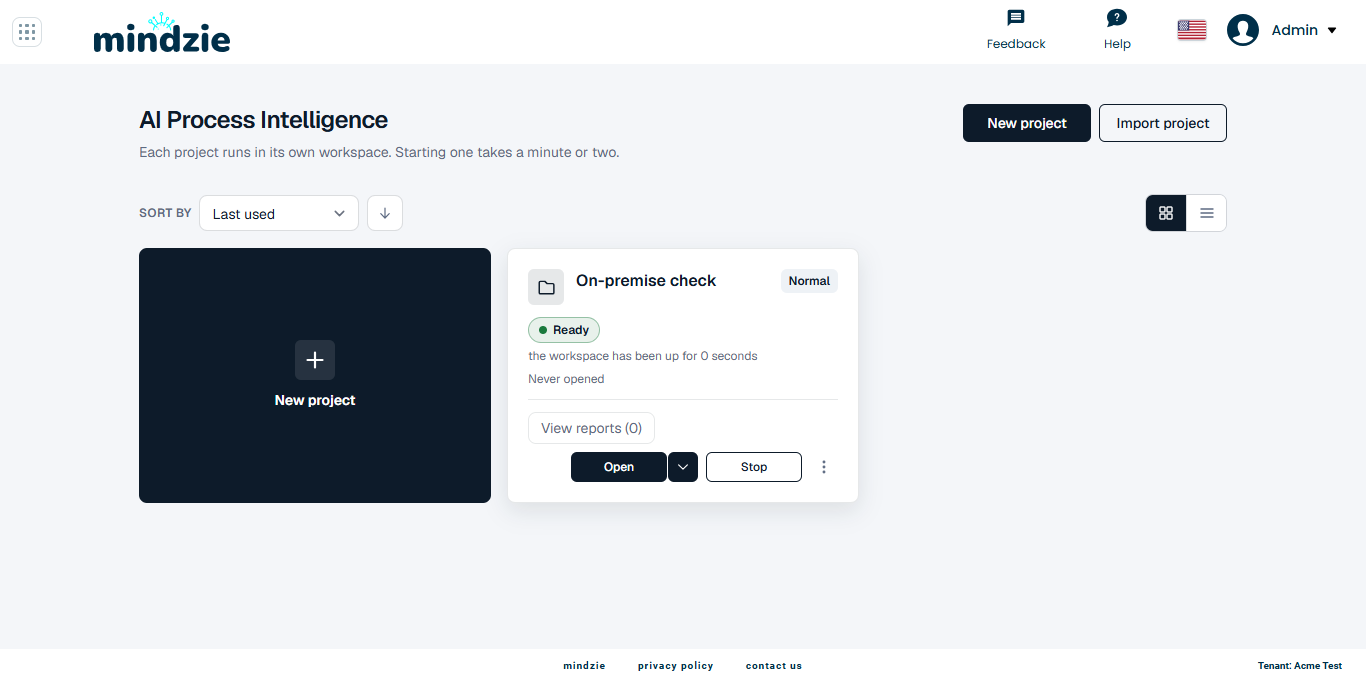
The project opens at its own address under your Project web address, such as
https://p-1234.projects.yourcompany.com. If the browser cannot find that address, or warns about the certificate, check the wildcard DNS name and the wildcard certificate from Before you start.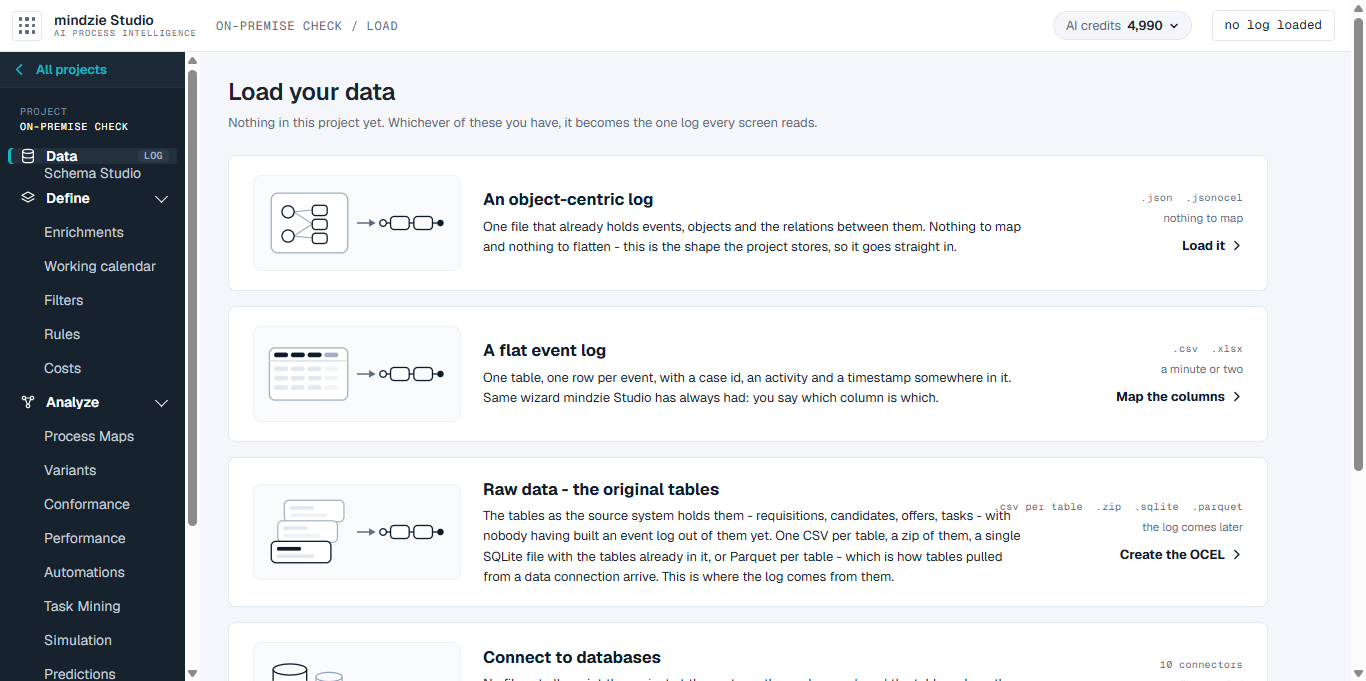
Load a small event log. When it shows the number of events and cases, both servers are working together.
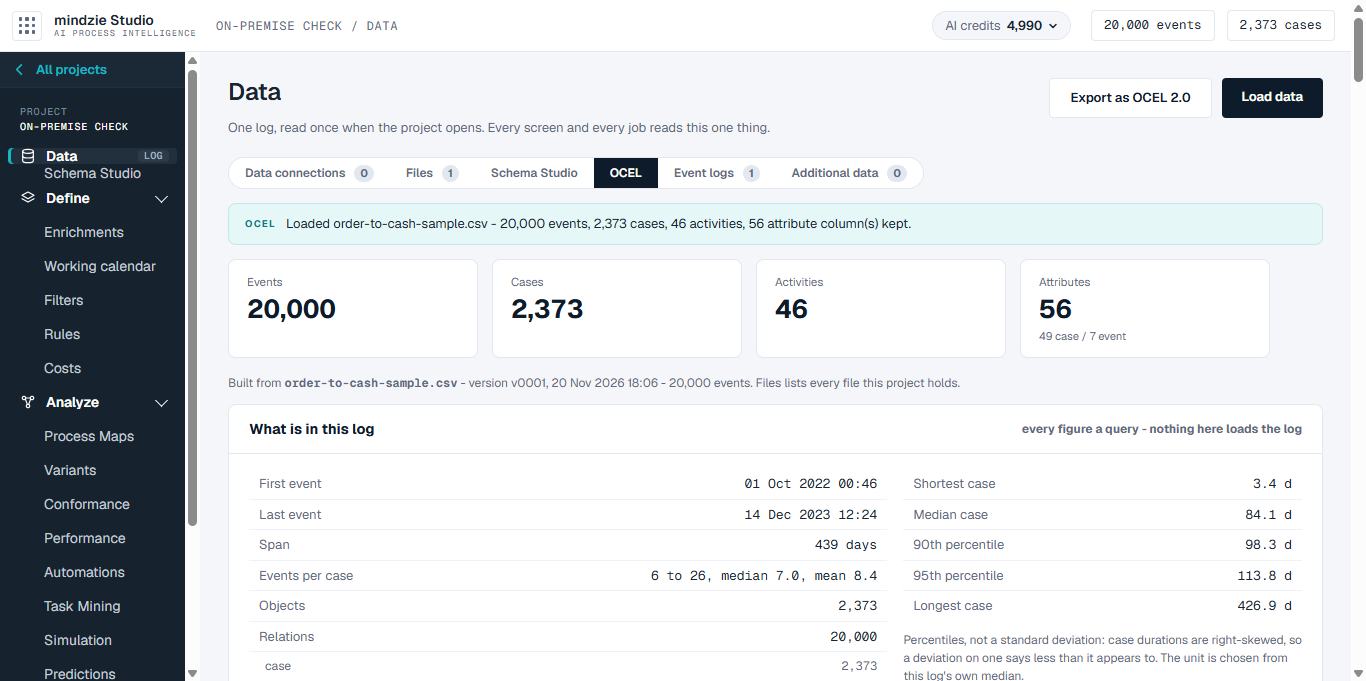
On the Linux server, docker ps now lists one container for the project, and its files are in a folder under the data folder from Step 2.
Updates
mindzieStudio updates on the Windows server as described in Auto Update. Nothing is installed on the Linux server by hand: each mindzieStudio update brings its project image, and the server loads it onto the Linux server as in Step 8. Keep Docker Engine and the Linux system up to date with your usual updates.
When something is wrong
Test this machine names what went wrong. The most common answers:
| The Containers tab says | What to do |
|---|---|
| The docker command is not installed on this Windows server | Step 3. Then restart IIS and the service, as in Step 3, item 4. |
Host key verification failed |
Step 5, item 2: the known hosts line is missing, or its name is not the name in the address. |
bad permissions, or UNPROTECTED PRIVATE KEY FILE |
Step 4, item 2: another account can still read the key. Run all four icacls lines. |
Permission denied (publickey) |
Step 4, item 4: the public key is not in the mindzie account's authorized_keys. |
permission denied ... docker.sock |
Step 2, item 2: the mindzie account is not in the docker group. |
| which is not a Linux machine | The address names the wrong machine. Projects run only on Linux. |
If Test this machine works but a project never becomes Ready, check that the Windows server can reach the Linux server's temporary ports, as described in Before you start.
Still stuck?
Send us your logs as described in Sending Logs and write to support@mindzie.com.
Next steps
- Your First Project - from an event log file to a published report.
- The Projects Page - start, stop and delete projects.
- Backup Strategy - back up the Windows server. On the Linux server, back up the data folder from Step 2.