Auto Update
mindzieStudio includes a built-in auto-update feature that allows server administrators to upgrade the server directly from the application interface without requiring direct server access.
Overview
When a new version of mindzieStudio is available, server administrators will see a notification in the application menu. This feature enables seamless upgrades without needing IT support to access the server directly.
Who Can Use Auto Update
The auto-update feature is only visible to users with the Server Administrator role. Other roles such as Analysts and Developers will not see the update notification or have access to this feature.
How Auto Update Works
Step 1: Check for Update Notification
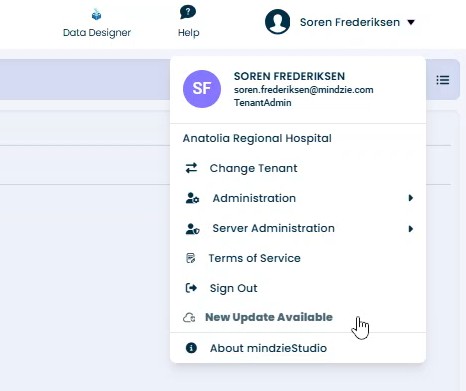
When logged into mindzieStudio, click on your username in the top-right corner to open the user menu dropdown. If a new update is available, you will see a New Update Available option at the bottom of the menu that blinks to draw your attention.
Step 2: Access the Update Screen
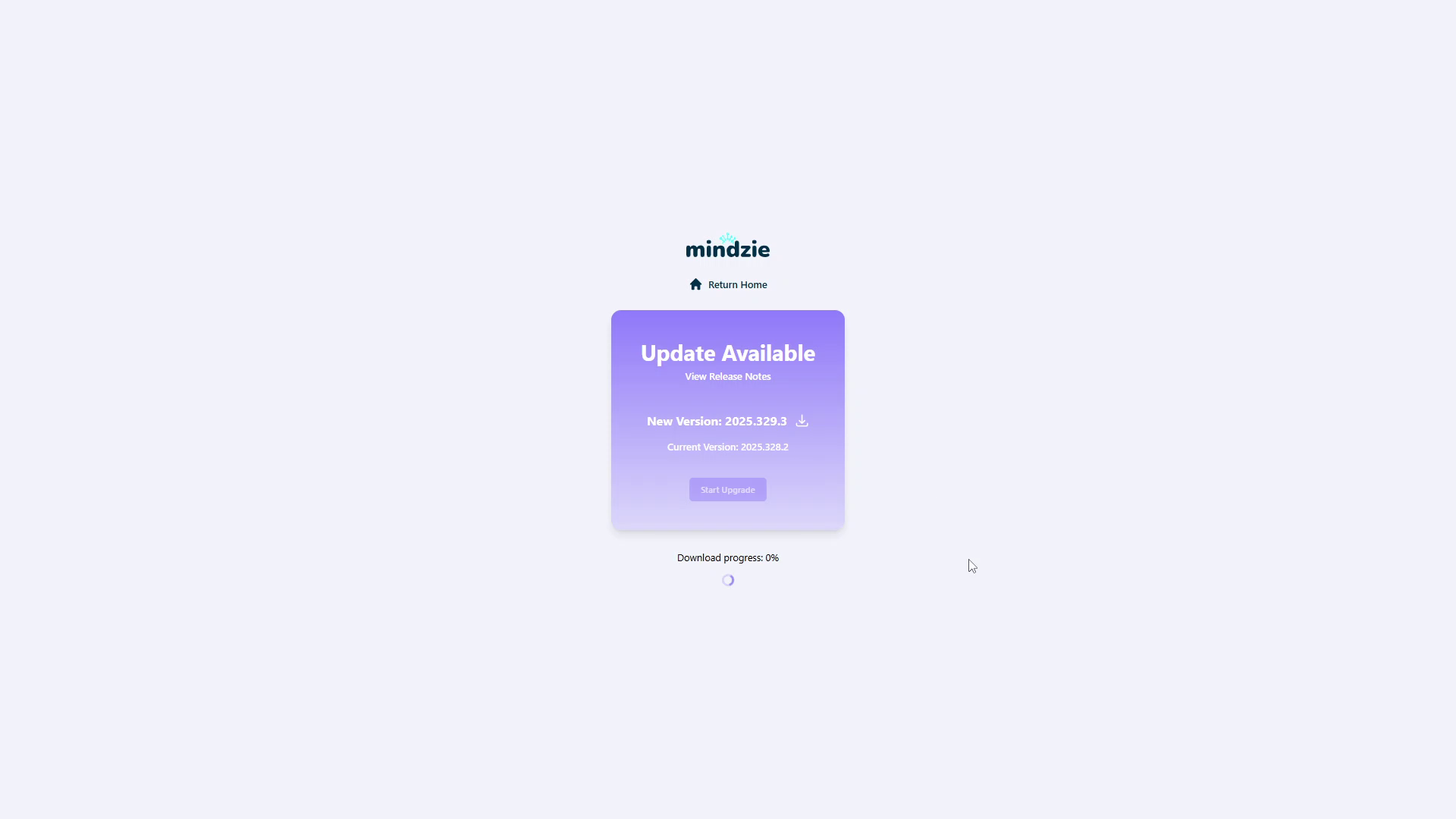
Click on the New Update Available menu item to open the update screen. This screen displays:
- New Version: The version number available for download
- Current Version: The version currently installed on your server
- View Release Notes: Link to see what's new in the update
- Start Upgrade: Button to begin the upgrade process
Step 3: Confirm the Upgrade
When you click Start Upgrade, you will see a confirmation dialog warning that the server will go offline during the update process.
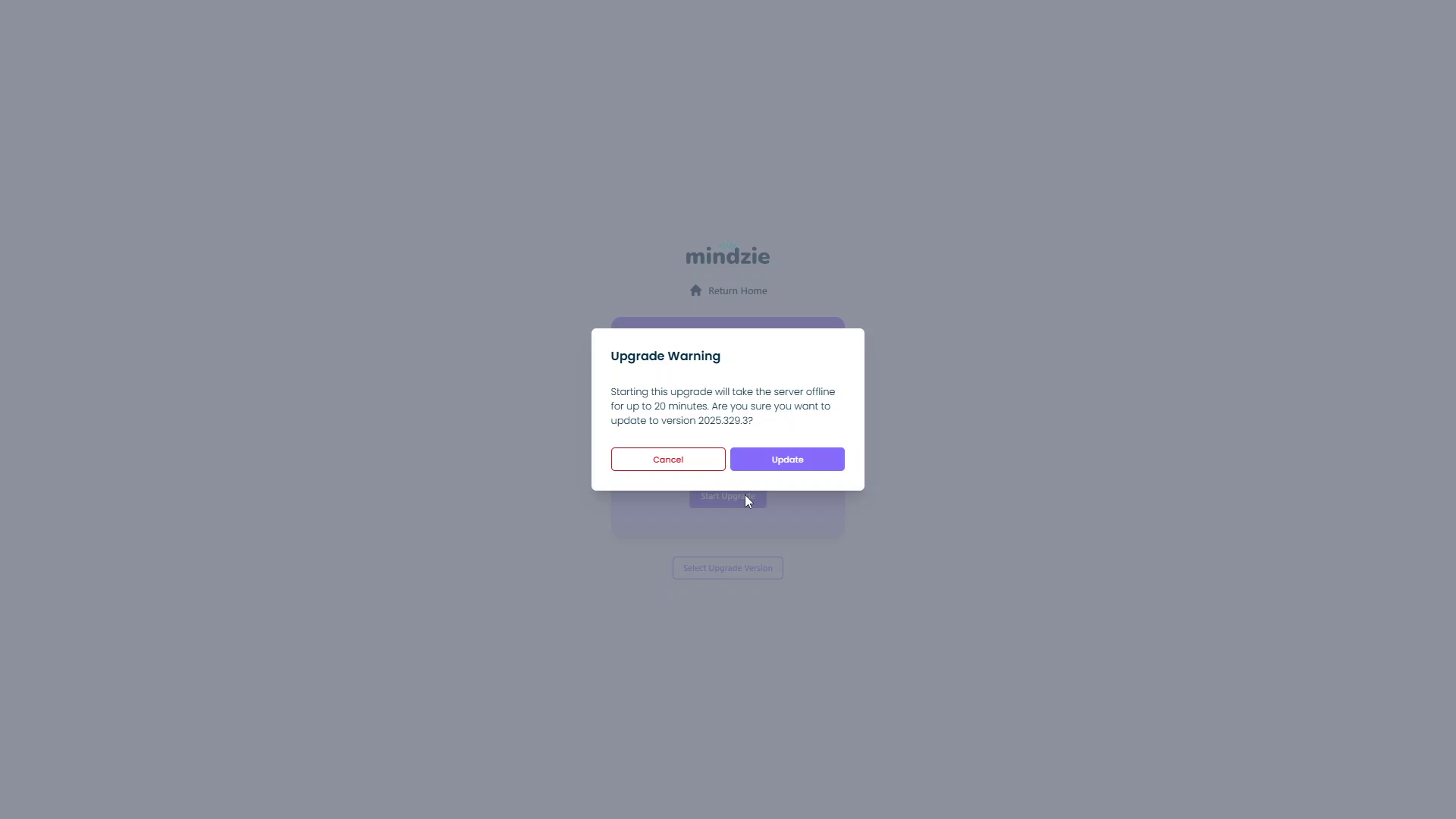
The dialog displays:
- The estimated downtime (up to 20 minutes)
- The target version number
- Cancel button to abort the upgrade
- Update button to proceed
Step 4: Update Process
After confirming, the system will:
- Take the server offline
- Download the new version
- Replace all server-side components (DLLs)
- Restart the website
- Bring the server back online
The update process typically takes 5-10 minutes but may take up to 20 minutes depending on your server and network speed.
Important Considerations
No Server Access Required
You do not need direct access to the server to perform this update. The entire process happens through the mindzieStudio web interface.
IT Notification
While IT support is not required to perform the update, it is recommended to:
- Notify your IT team before starting an update
- Have IT support available in case issues occur
- Schedule updates during low-usage periods
Success Rate
The auto-update feature has a very high success rate (99%+ of cases complete without issues). However, if the update fails or the server goes offline unexpectedly, you may need to use the Force Update feature which requires direct server access.
Troubleshooting
Update Not Appearing
If you do not see the update notification:
- Verify you have the Server Administrator role
- Check that your server has internet connectivity
- Contact support if the issue persists
Update Failed Mid-Process
If the update fails partway through:
- Wait 10-15 minutes for the server to recover automatically
- If the server does not come back online, use the Force Update procedure
- Contact support@mindzie.com if you need assistance
Related Documentation
- Force Update - Manual update procedure requiring server access
- Installation Guide - Initial server setup instructions
- Technical Requirements - Server specifications
Support
If you encounter issues with the auto-update feature:
- Email: support@mindzie.com