Sending Logs to mindzie
If you experience any issues or errors with mindzie Desktop, you can send your web server logs to the mindzie support team for troubleshooting. Follow these steps to locate and send the log files.
Step 1: Open the Desktop Menu
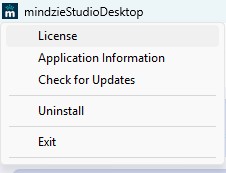
Click the menu icon in the top left corner of the application.
Step 2: Open Application Information
Click Application Information from the menu.
Step 3: Open the Web Server Logs Folder
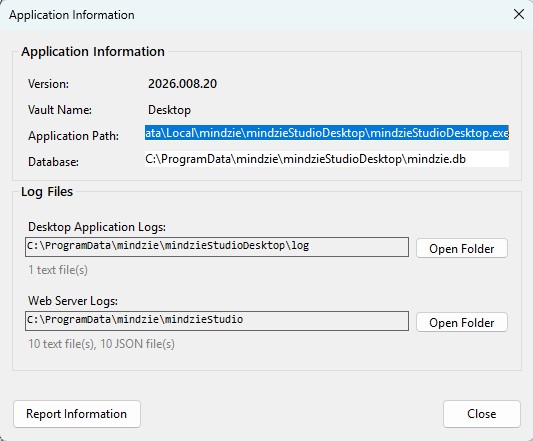
In the Application Information dialog, find the Web Server Logs section at the bottom. Click the Open Folder button next to it.
This opens the folder where mindzie Desktop stores its web server log files.
Step 4: Send the Latest Log File
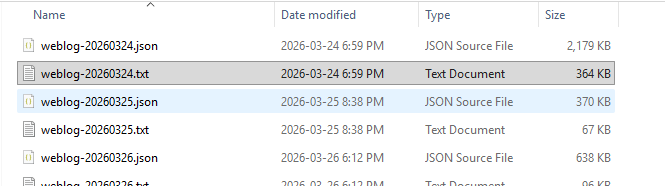
In the folder that opens, locate the most recent .txt file. The log files are named with the date in the format weblog-YYYYMMDD.txt (for example, weblog-20260324.txt).
Send the latest .txt file to support@mindzie.com along with a description of the issue you are experiencing.
Tips
- The folder also contains .json files with the same date-based naming. You typically only need to send the .txt files unless mindzie support requests the JSON files as well.
- If the issue occurred on a specific date, send the log file matching that date.
- Include details about what you were doing when the error occurred to help the support team diagnose the issue faster.