Install mindzieStudio Desktop
mindzieStudio Desktop runs Process Intelligence on your own Windows computer, with no server and no sign-in. Each project runs in Docker Desktop, a free program from Docker that you install before you create your first project. This page takes you through Docker Desktop, then mindzieStudio Desktop, then your first project.
It takes about 30 minutes, most of it downloading. Plan for one restart of the computer.
Before you start
- A computer that meets the requirements in the table below.
- Administrator rights on the computer, once. On a new Windows 11 computer, Docker Desktop has to turn on Windows features that only an administrator can turn on. If you are not an administrator, ask your IT team to install Docker Desktop for you (Step 1). Everything after it installs for your own Windows user, with no administrator rights.
- Your mindzieStudio Desktop license key. If you do not have one, ask support@mindzie.com.
- An internet connection for the downloads. If the computer has no internet, contact support@mindzie.com before you start.
System requirements
Docker Desktop sets most of these. They follow Docker's published requirements for Docker Desktop on Windows.
| What | Needed |
|---|---|
| Windows | Windows 11, 64-bit, version 23H2 or later. Windows 10 is not supported. |
| Processor | 64-bit, with virtualization support (SLAT). Almost every processor from the last ten years has it. |
| Virtualization | Turned on in the computer's BIOS or UEFI settings. See Virtualization is turned off if you are not sure. |
| Windows Subsystem for Linux (WSL) | Version 2.1.5 or later, with the Virtual Machine Platform feature turned on. The Docker Desktop installer turns both on in Step 1. |
| Memory | 8 GB at least. 16 GB is better for larger event logs. |
| Free disk space | About 10 GB for Docker Desktop, mindzieStudio Desktop and Process Intelligence, plus room for your data. |
Step 1 - Install Docker Desktop
Go to docker.com/products/docker-desktop, choose Download Docker Desktop, then Download for Windows - AMD64. Choose ARM64 only if your computer has an ARM processor. The file is called
Docker Desktop Installer.exeand is about 600 MB.Docker Desktop is free for personal use, education and small businesses; larger companies need a paid Docker subscription. Check with your IT team which applies to you.
Run
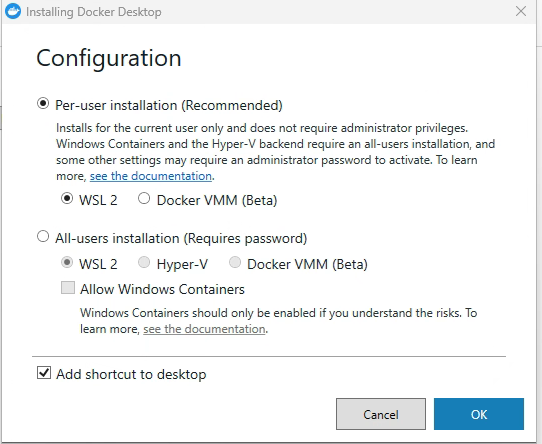
Docker Desktop Installer.exe. On the Configuration screen, choose All-users installation (Requires password) and keep WSL 2 selected. Leave Allow Windows Containers off and Add shortcut to desktop on. Click OK, and enter an administrator's password or click Yes when Windows asks.With this choice the installer turns on the Windows features Docker Desktop needs by itself. If it asks you to restart the computer when it has finished, restart.
If you cannot use an administrator account during the install, see Another way: turn on WSL first below.
Start Docker Desktop from the Start menu or the desktop shortcut. The first time, it shows Docker's service agreement: choose Accept. Docker Desktop does not run until you accept.
Docker Desktop then asks whether you use it for work or personal use, and asks you to sign up or sign in. Choose Skip. You do not need a Docker account to use Process Intelligence. If your company has set Docker Desktop up so that you must sign in, ask your IT team which account to use.
Wait until Docker Desktop says Engine running in the bottom-left corner.
Make Docker Desktop start with Windows. Click the Settings (gear) button at the top, and on General tick Start Docker Desktop when you sign in to your computer. Click Apply. This is off when Docker Desktop is first installed; if you leave it off, Docker Desktop is stopped after every restart and Process Intelligence projects cannot start until you start it yourself. Docker Desktop then uses some memory whenever the computer is on - about 2.5 GB on our test computer.
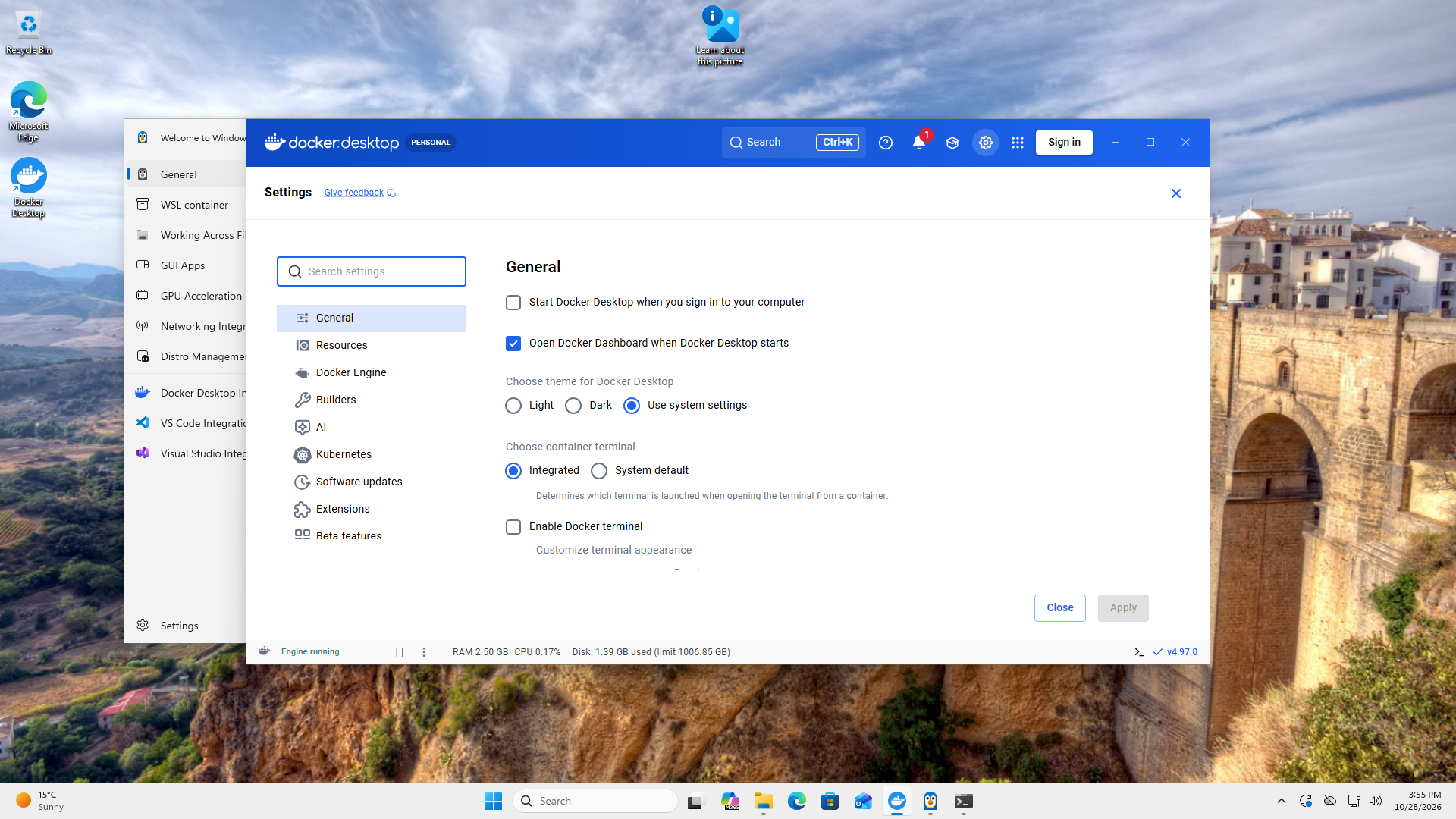
Docker Desktop shows no images or containers yet. That is expected: they appear when you create your first Process Intelligence project.
Another way: turn on WSL first
Use this when the person installing Docker Desktop is not an administrator. An administrator turns on the Windows Subsystem for Linux (WSL) and the Virtual Machine Platform feature once; after that, Docker Desktop installs for your own Windows user.
The administrator opens the Start menu, types PowerShell, right-clicks Windows PowerShell and chooses Run as administrator, then clicks Yes when Windows asks.
They type the following and press Enter:
wsl --install --no-distributionKeep
--no-distribution. Without it, Windows also installs a Linux distribution and asks you to create a Linux user name and password after the restart, which you do not need.When it finishes, restart the computer.
Now do Step 1 above, but on the Configuration screen choose Per-user installation (Recommended) with WSL 2. No administrator password is needed.
Step 2 - Install mindzieStudio Desktop
Start Docker Desktop and wait until it says Engine running before you run the mindzieStudio Desktop setup.
Download the setup:
Run
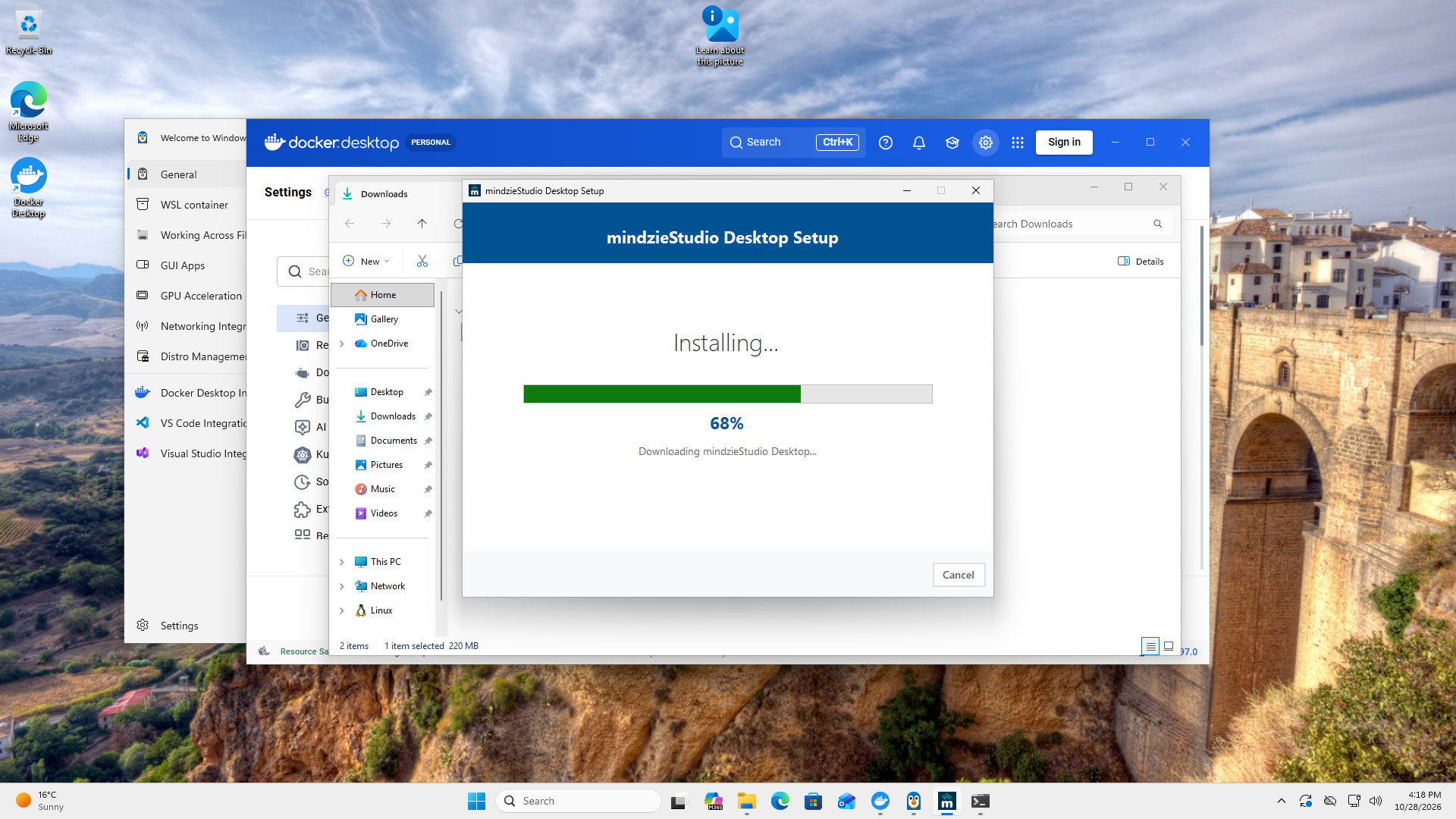
mindzieDesktopSetup.exe. It installs for your Windows user only, so it does not ask for administrator rights. Click Install Now.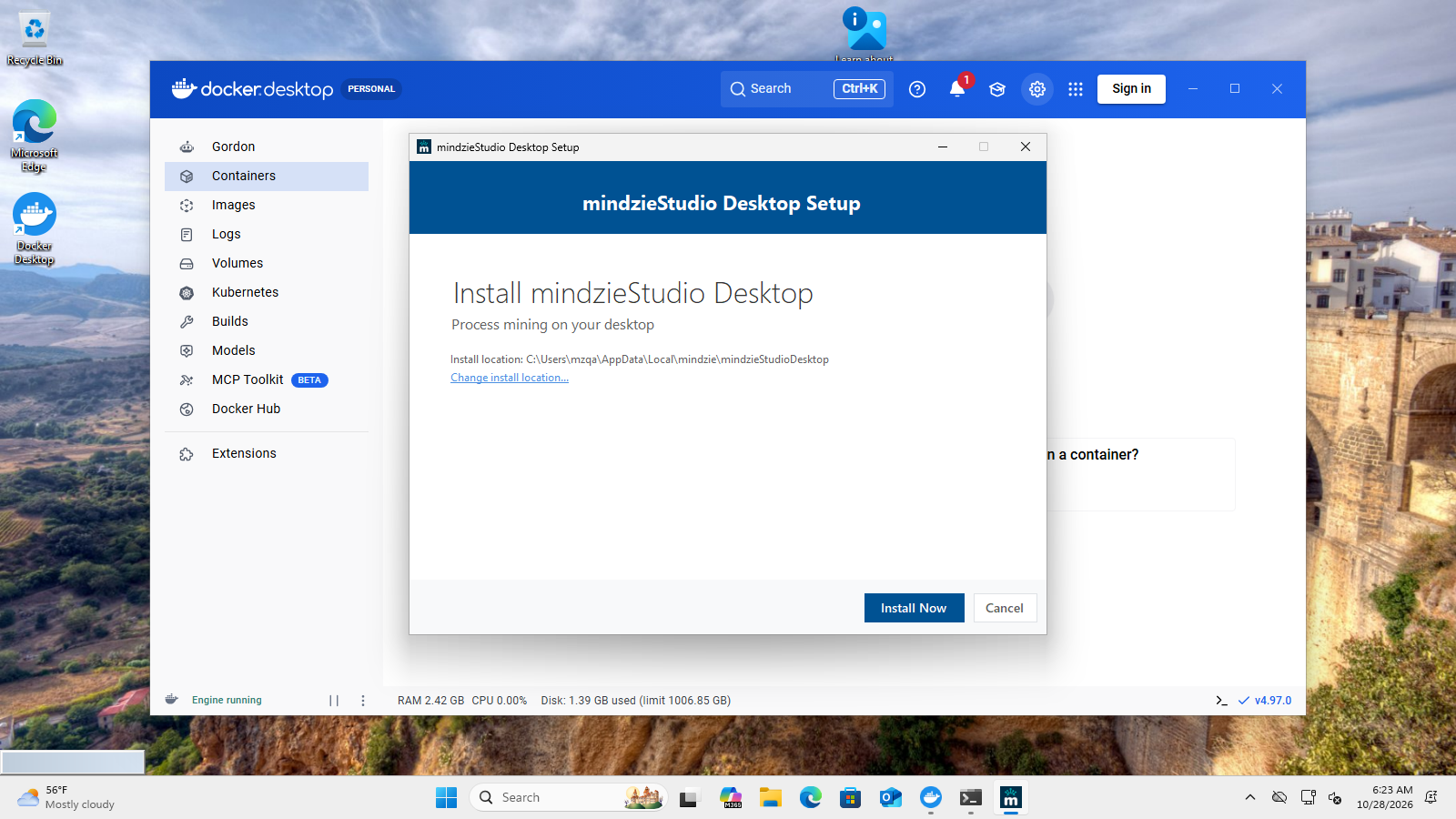
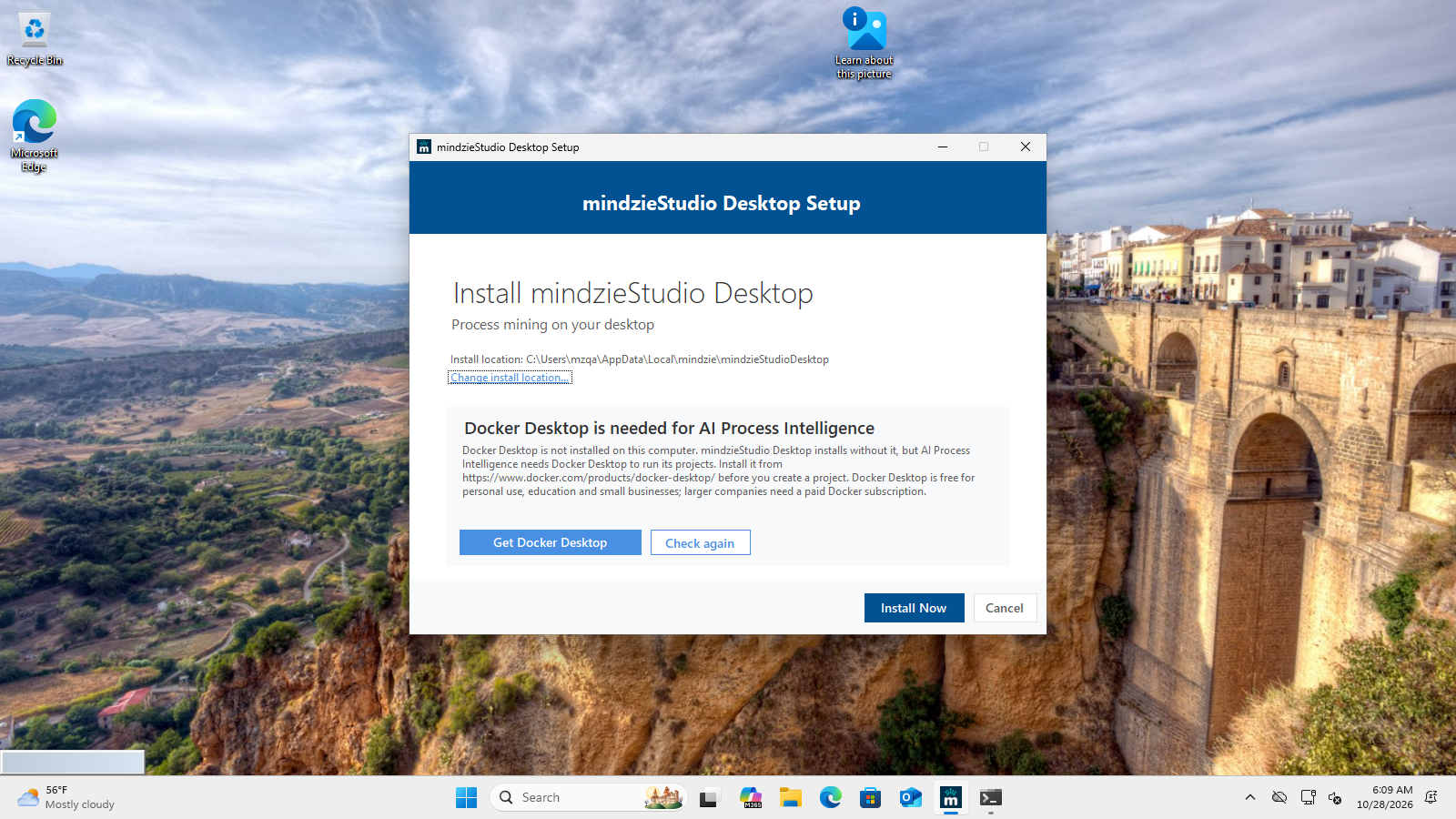
If the welcome screen shows a notice that Docker Desktop is needed for AI Process Intelligence or that Docker Desktop is not running, Docker Desktop is missing or stopped. You can carry on with the install - the notice does not stop it - but go back to Step 1 before you create a project. Once Docker Desktop is running, click Check again and the notice goes away.
Accept the license agreement and follow the steps to the end. The setup downloads mindzieStudio Desktop and then what Process Intelligence needs to run (about 330 MB) by itself. On a good connection the whole setup takes about three minutes.
Step 3 - Start the Desktop and enter your license key
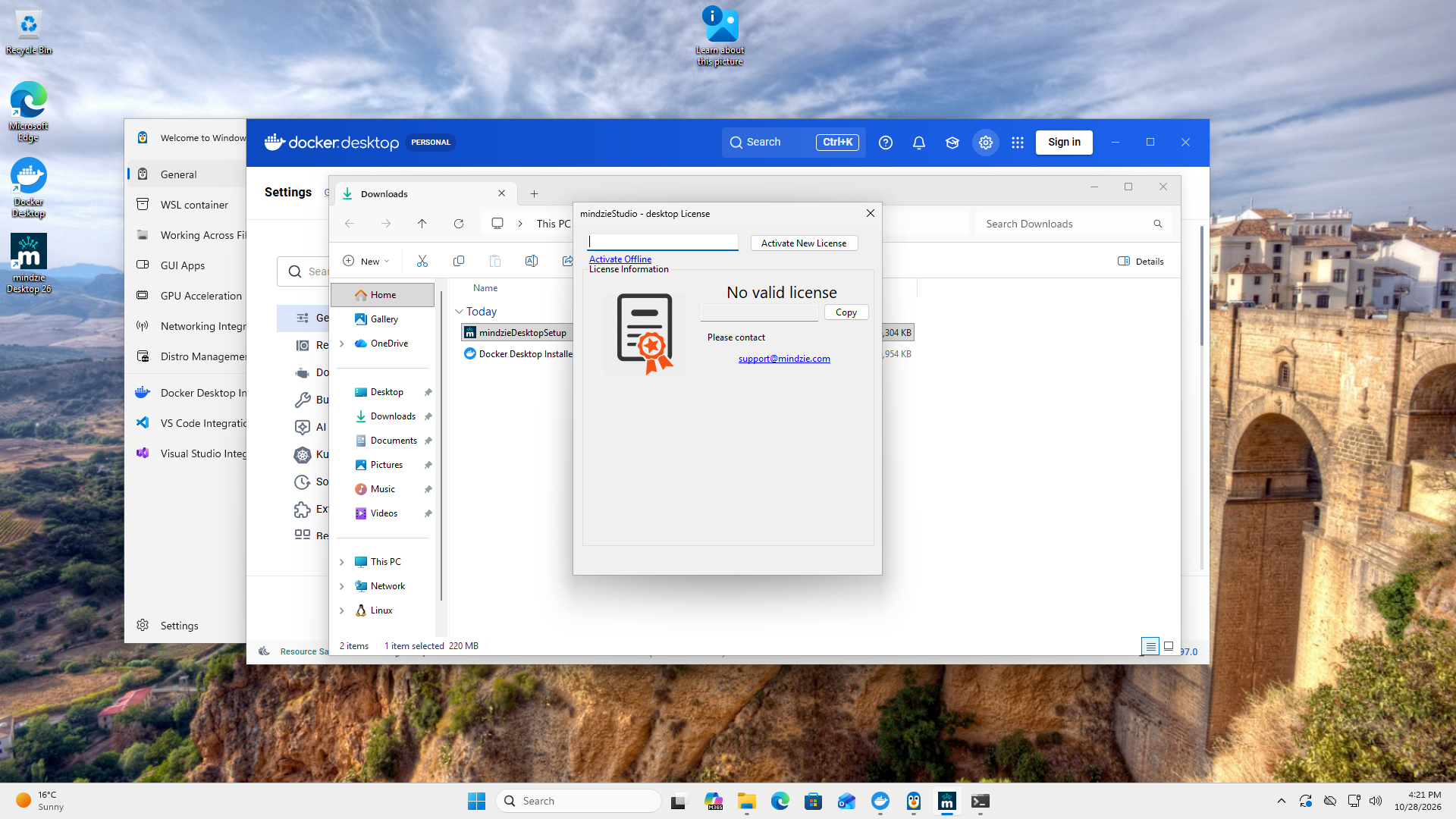
Start mindzieStudio Desktop from the Start menu or the desktop shortcut. The shortcut is called mindzie Desktop followed by the version number, for example mindzie Desktop 26.
The first time, the License window opens and says No valid license. Paste your key into the box at the top and click Activate New License.
The welcome screen shows Process Intelligence and BPM Studio. mindzie AI is switched on already, so you can ask questions straight away. If your company prefers its own AI models, you can switch to them later in the settings.
Step 4 - Create your first project
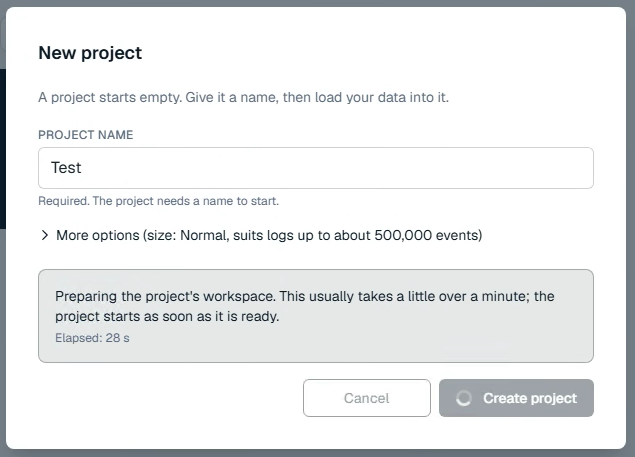
Open Process Intelligence and create a project as described in Your First Project. While the first project starts, the window says it is preparing the project's workspace; this usually takes a little over a minute. You never type a Docker command or change a Docker setting.
Docker Desktop must be running whenever you work in a Process Intelligence project. If you ticked Start Docker Desktop when you sign in to your computer in Step 1, it already is. If you did not, start Docker Desktop yourself each time you sign in to the computer, and wait for Engine running, before you open a project.
Updates. mindzieStudio Desktop checks for updates when it is online and offers them. When a newer version of Process Intelligence is published, the Desktop offers that update too; accept it and the Desktop does the rest.
Troubleshooting
Docker Desktop is not running
You see this in the setup, or when you create or start a project. Process Intelligence needs Docker Desktop running whenever you work in a project.
- Start Docker Desktop from the Start menu.
- Wait until it says the engine is running.
- Try again. In the setup, click Check again.
If this happens after every restart, Docker Desktop is not set to start with Windows - see item 6 of Step 1.
Docker Desktop is not installed
Docker Desktop is missing. Follow Step 1 above, then come back. You do not need to install mindzieStudio Desktop again.
Docker Desktop says a prerequisite is not fulfilled
The Docker Desktop installer stops with Installation failed. One prerequisite is not fulfilled and says the Virtual Machine Platform Windows feature is not enabled.
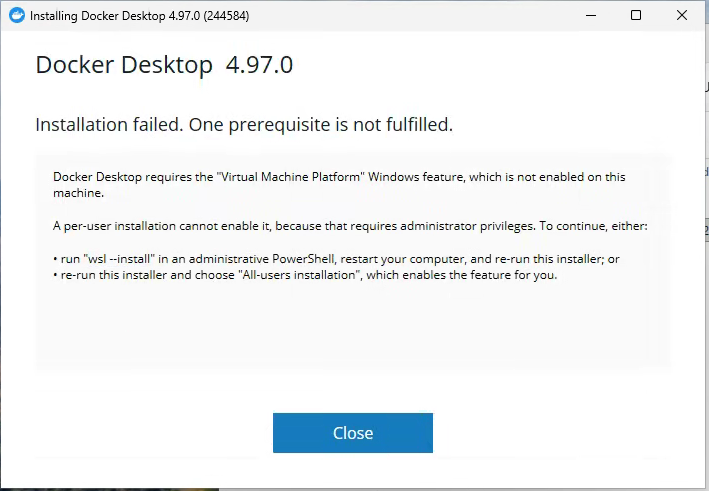
This happens when you choose Per-user installation on a computer where WSL is not turned on yet. Click Close and run the Docker Desktop installer again, this time choosing All-users installation (Requires password) as in Step 1. If you cannot use an administrator account, follow Another way: turn on WSL first instead.
WSL is missing or out of date
Docker Desktop says WSL is not installed, or that its version is too old. Open Terminal or PowerShell as administrator and run wsl --install the first time, or wsl --update to update it. Restart the computer when asked, then start Docker Desktop again. If your company manages WSL centrally, ask your IT team.
Virtualization is turned off
Docker Desktop stops with a message about virtualization, or WSL will not start. To check, open Task Manager, go to Performance, choose CPU, and look at Virtualization. If it says Disabled, it has to be turned on in the computer's BIOS or UEFI settings. The setting's name depends on the maker - often Intel VT-x, Intel Virtualization Technology, or AMD-V or SVM Mode. On a company computer, ask your IT team; on your own, see the computer maker's support pages.
Still stuck?
Send us your logs as described in Sending Logs and write to support@mindzie.com.
Next steps
- Your First Project - from an event log file to a published report.
- The Projects Page - start, stop and delete projects.
- What Process Intelligence Is - if you have not read it yet.
- Desktop Features and Sending Logs - they apply to mindzieStudio Desktop as a whole.