Desktop Features
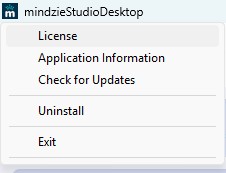
The mindzieStudioDesktop menu provides access to features specific to the Desktop version.
License
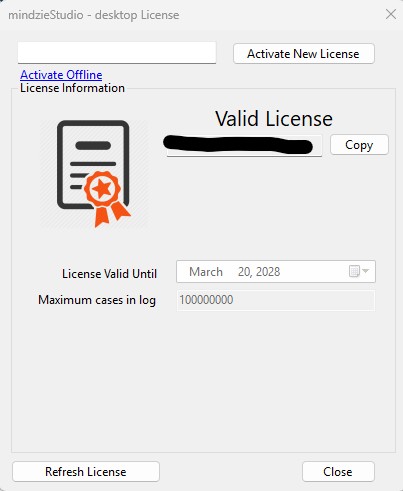
Manage your Desktop license from this dialog. Enter your license key and click Activate New License to activate. For computers without internet access, use the Activate Offline option.
Once activated, the dialog shows your license status, validity date, and the maximum number of cases allowed in your event logs.
Use Refresh License to update your license information after renewal.
Application Information
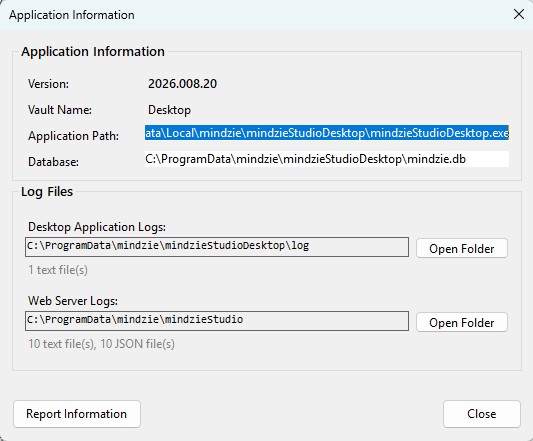
View details about your Desktop installation including:
- Version - The current application version
- Vault Name - The storage vault identifier
- Application Path - Where the application is installed
- Database - Location of the local database file
The Log Files section shows the location of application and web server logs. Use the Open Folder buttons to access these locations directly for troubleshooting.
Click Report Information to generate a diagnostic report for support.
Check for Updates
Check if a newer version of mindzie Desktop is available for download.
Uninstall
Remove mindzie Desktop from your computer. This opens the standard Windows uninstall process.