Working with Projects
Projects are the containers for your BPMN models. Every model belongs to exactly one project, and access to a model is controlled by who is a member of its project.
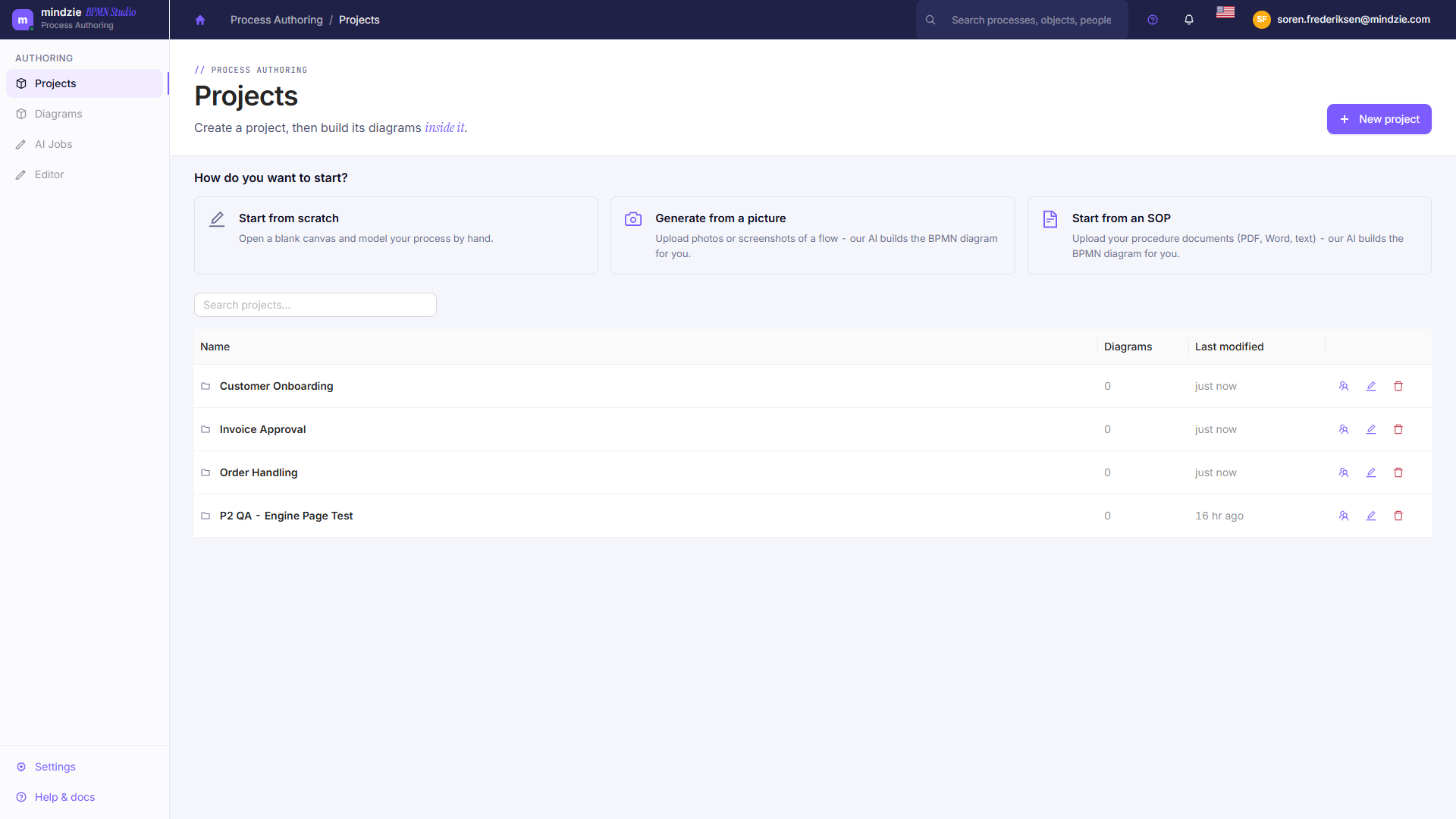
The All Projects Page
Click All Projects in the sidebar to see every project you can access, shown as cards. Each card shows the project name, how many members it has, and how many models it contains. Projects are grouped into:
- My projects - projects you own or are a member of.
- Shared projects - projects others have added you to.
Use the grid/list toggle to switch between card and list layouts. Tenant administrators also see a Show all projects option to view every project in the tenant.
Creating a Project
- Click New project.
- Enter a name (up to 200 characters) and an optional description.
- Click Create project.
The new project opens on its Models page, ready for you to create your first model. See Creating Your First Model.
Opening a Project
Click the project card. You land on the project's Models page, and the sidebar switches to that project - showing Models, Files, AI Jobs, and Members, plus a Back to all projects button to return to the list.
Renaming or Deleting a Project
Use the options menu (the three dots) on a project card:
- Rename - change the project name and description.
- Delete - remove the project. Deleting a project removes its models as well, so make sure nothing in it is still needed - there is no undo.
These actions are available on projects you own.
Sharing a Project
You share a project by adding people to it as members and giving each the right role - Owner, Editor, or Viewer. This is done on the project's Members page. See Project Members.
Next
- Managing Models - create, open, version, publish, and delete models.
- Project Members - roles and access.
- Project Files - source files for AI generation.
- Repository - published models across the organization.