Loading Data
Data is the first screen of a project: it shows what the project's event log holds, before anybody analyses it. Load your data is the screen you use to bring data in. It lists five ways in: four of them load data today, and the fifth, Connect to databases, sets up a connection but does not yet read any data into the project.
The Data screen
A project opens on Data. Click Data in the menu to come back to it from anywhere.
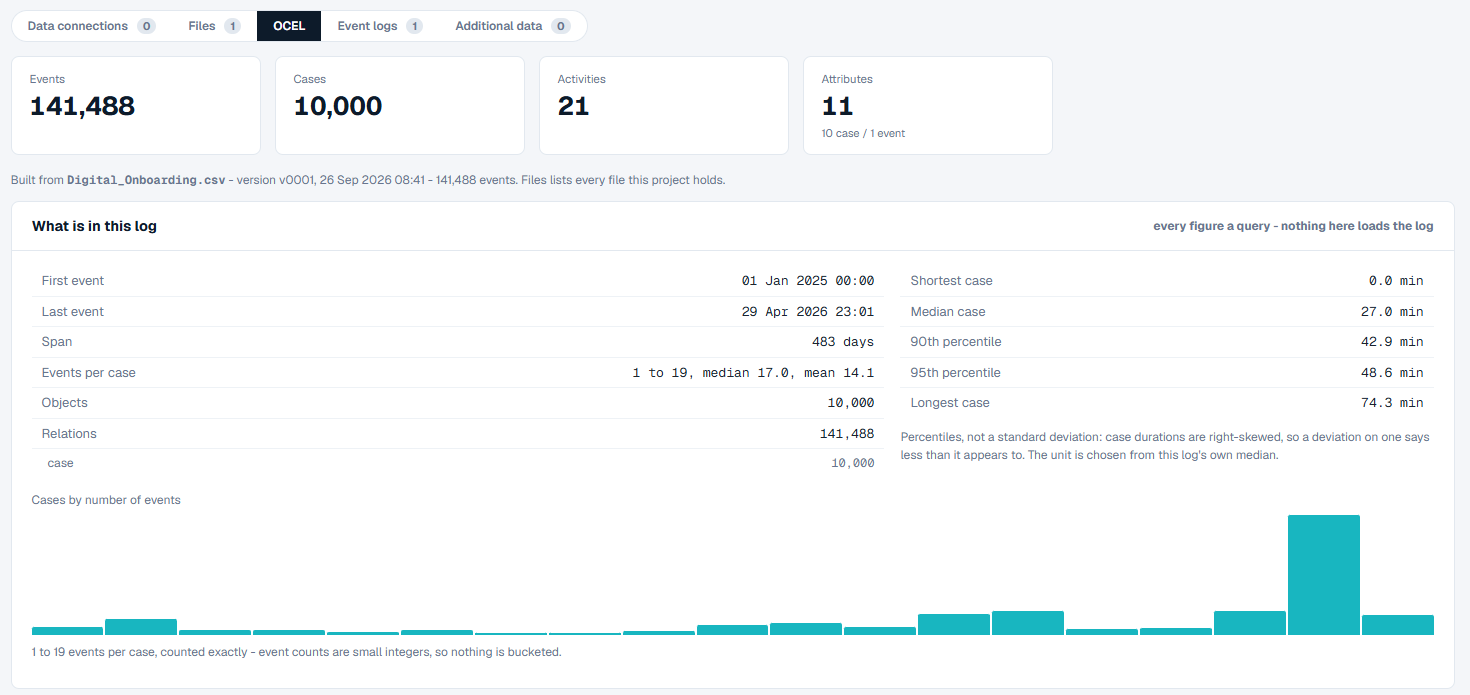
How to read it
From top to bottom:
- Load data, at the top right, opens Load your data.
- The tabs - Data connections, Files, OCEL, Event logs and Additional data, each with a count where it has one. The screen opens on OCEL, the overview described here. The other tabs are on Files, OCEL and Event Logs.
- Four figures: Events, Cases, Activities and Attributes, with how many attributes belong to a whole case and how many to single events. When the data holds several kinds of objects, Cases also says what one case is, for example "one per order".
- Built from - one line naming the file the log was built from, its version, when it was built and how many events it gave. Files in that line opens the Files tab.
- The cards, one under another. They arrive one after another; on a large log, a bar says how many have arrived while the rest are still coming.
| Card | What it shows |
|---|---|
| Case notion and Event logs | Only when the data holds more than one kind of object, or some events belong to no case. What one case is, how much of the log is inside a case, and the event logs kept over the data. See Choosing What a Case Is. |
| What is in this log | The first and last event and the span between them, events per case, and how long cases take: the shortest, the median, the 90th and 95th percentiles and the longest. A chart shows how many cases have each number of events. |
| Shape over time | Per week (or another period, chosen from the span): Arrivals (cases that start), Completions (cases that end) and Open cases (the backlog). Every period is shown, including empty ones, so gaps in the data stand out. |
| Activities | Every activity, with its events and its cases and their shares, how often it starts or ends a case, and when it was first and last seen. An activity on many events but few cases is one that repeats. |
| Quality baseline | Checks run as soon as the log is loaded, each with its result and what it means - for example events with no timestamp, exact duplicate events, single-event cases, timestamps at midnight, timestamps in the future, and cases that do not end in a common end activity. |
| Attributes | Every attribute, whether it belongs to the case or to the event, its type, how many distinct values it has, how many are missing, an example and its range. |
An attribute is a case attribute when its value never changes inside a case. That is measured from the data, not set by you.
Load your data
A new project is empty, so it opens straight on Load your data. In a project that already has data, click Load data on the Data screen; the screen then says the project already has data, and that different data goes into a new project.
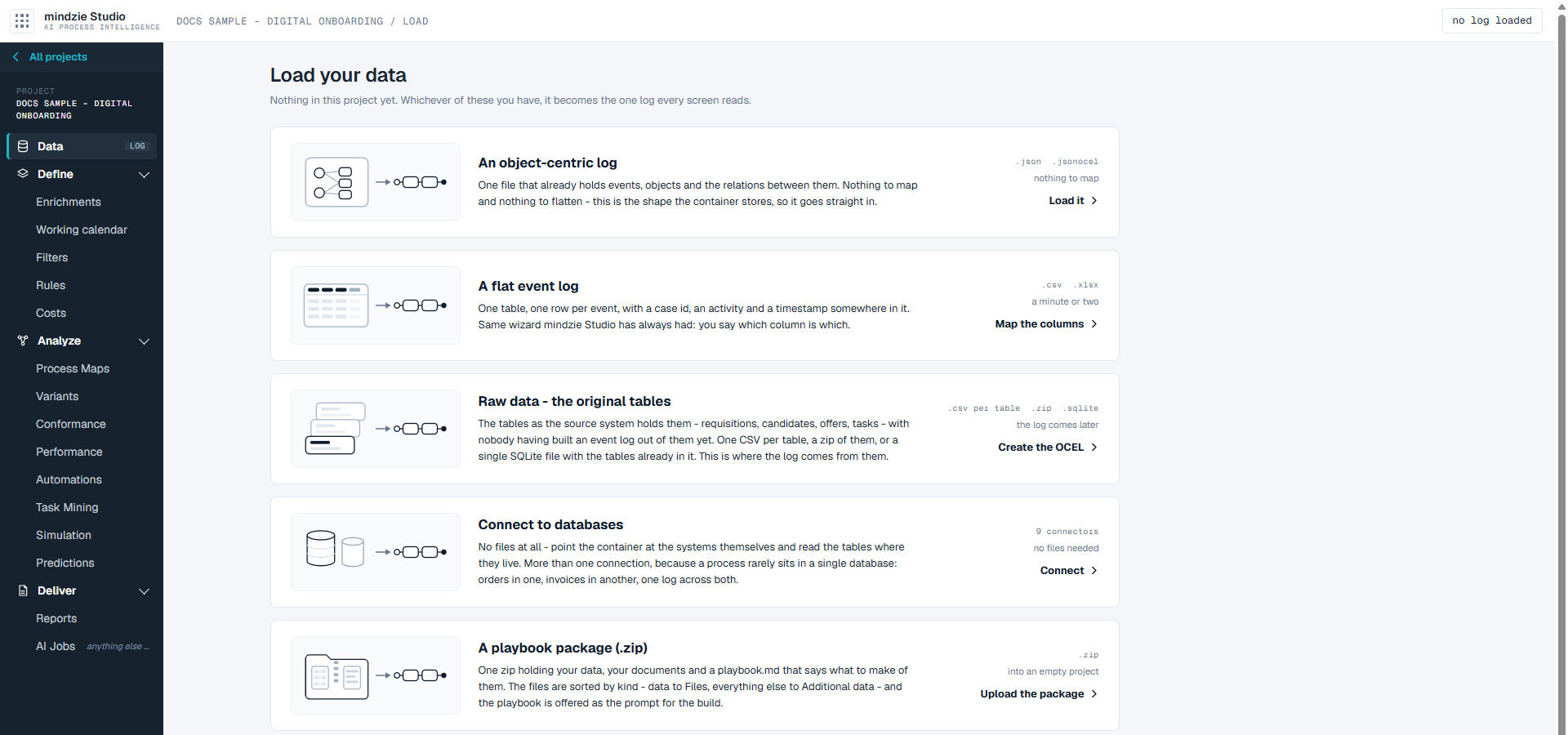
How to read it
Each way in is one row: what it is, which files it takes, and what to expect. They are listed in no order of preference - use the one that matches the data you have. Today, data reaches a project from a file or a playbook package; connecting to databases does not load data yet.
| Way in | Use it when you have | Takes | Next step |
|---|---|---|---|
| An object-centric log | One file that already holds events, the objects they involve, and the relations between them. There is nothing to map. | .json, .jsonocel |
Load it |
| A flat event log | One table with one row per event, and a case id, an activity and a timestamp somewhere in it. You say which column is which. | .csv, .xlsx |
Map the columns |
| Raw data - the original tables | The tables as your system holds them, with no event log made from them yet. | A .csv per table, a .zip of them, or one .sqlite file |
Create the OCEL |
| Connect to databases | Your data in one or more databases. Today this sets up the connection and chooses and counts its tables; it does not read the data into the project yet. | 9 connectors | Connect |
| A playbook package (.zip) | One zip holding your data, your documents and a playbook.md that says what to make of them. It goes only into an empty project. |
.zip |
Upload the package |
Which file kinds each way accepts is on Files, OCEL and Event Logs.
What you can do
Load a file (object-centric log, flat event log or raw tables)
Click the row for the kind of data you have.
Drop the file anywhere on the page, or click Choose files. For raw tables you can drop several files at once. A file can be up to 2 GB.
Each file is read as it arrives and gets a row in The files, saying what was found in it. A file that cannot be taken is named, with the reason. Remove takes one file off the list.
Check what the page found, then go on to the route's next step:
- An object-centric log - What is in it lists every object type in the file, with how many objects and events each has and an example. Click Load it.
- A flat event log - click Next - map the columns, say which column is the case, the activity and the timestamp, and click Build the log. Your First Project walks through this step by step.
- Raw data - click Next - create the OCEL. The schema shows how your tables fit together, which tables are part of the log and which are not. Check it, then click Create the OCEL.
Until you build, nothing is written into the project. Discard everything throws the dropped files away and leaves the project as it was. Closing the tab does not discard them; they are cleared the next time the project starts.
Connect to databases
This sets up a connection to a database and records which of its tables you need. It does not read the data into the project yet: the project stays as it was. To load the data today, export the tables as files and use Raw data - the original tables.
Click Connect to databases. This opens the Data connections tab.
Click Add connection. Add a connection walks through three steps: the system, the connection and the tables.
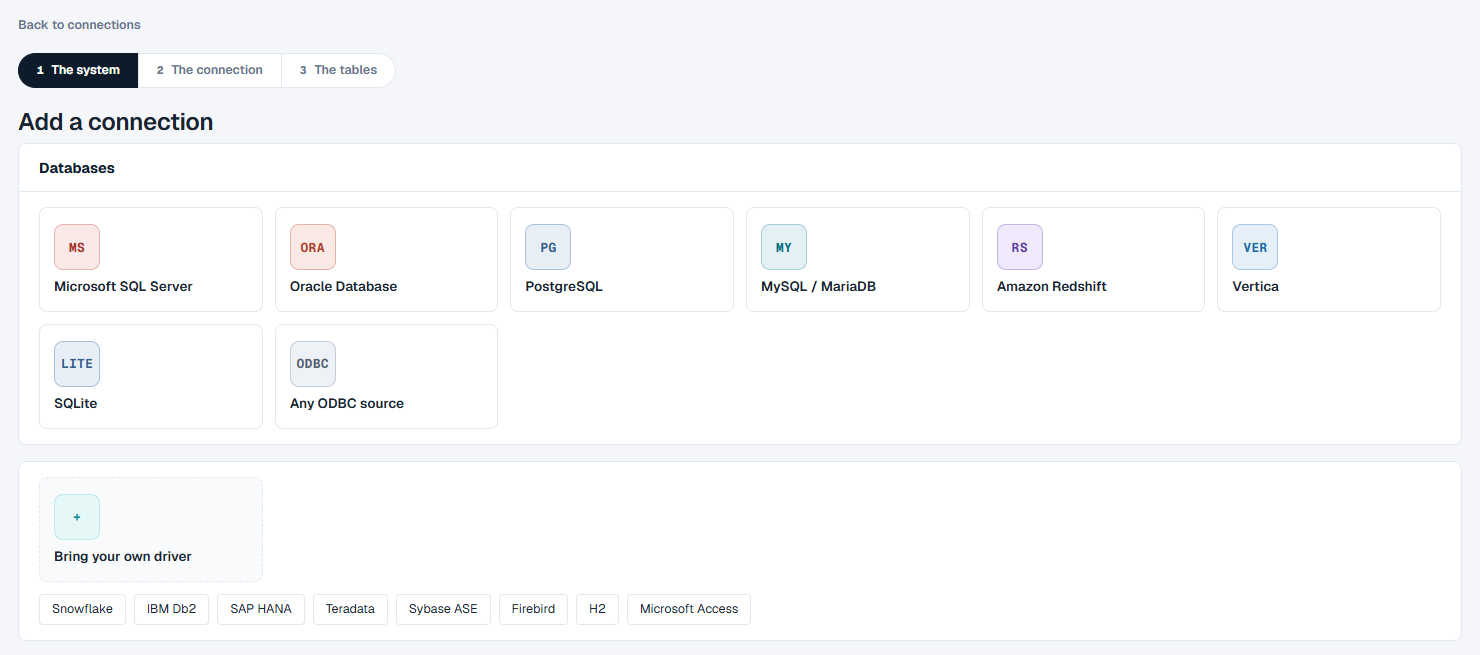
Choose your database: Microsoft SQL Server, Oracle Database, PostgreSQL, MySQL / MariaDB, Amazon Redshift, Vertica, SQLite, Any ODBC source, or Bring your own driver. Other databases are named beneath Bring your own driver; they have no ready-made connection.
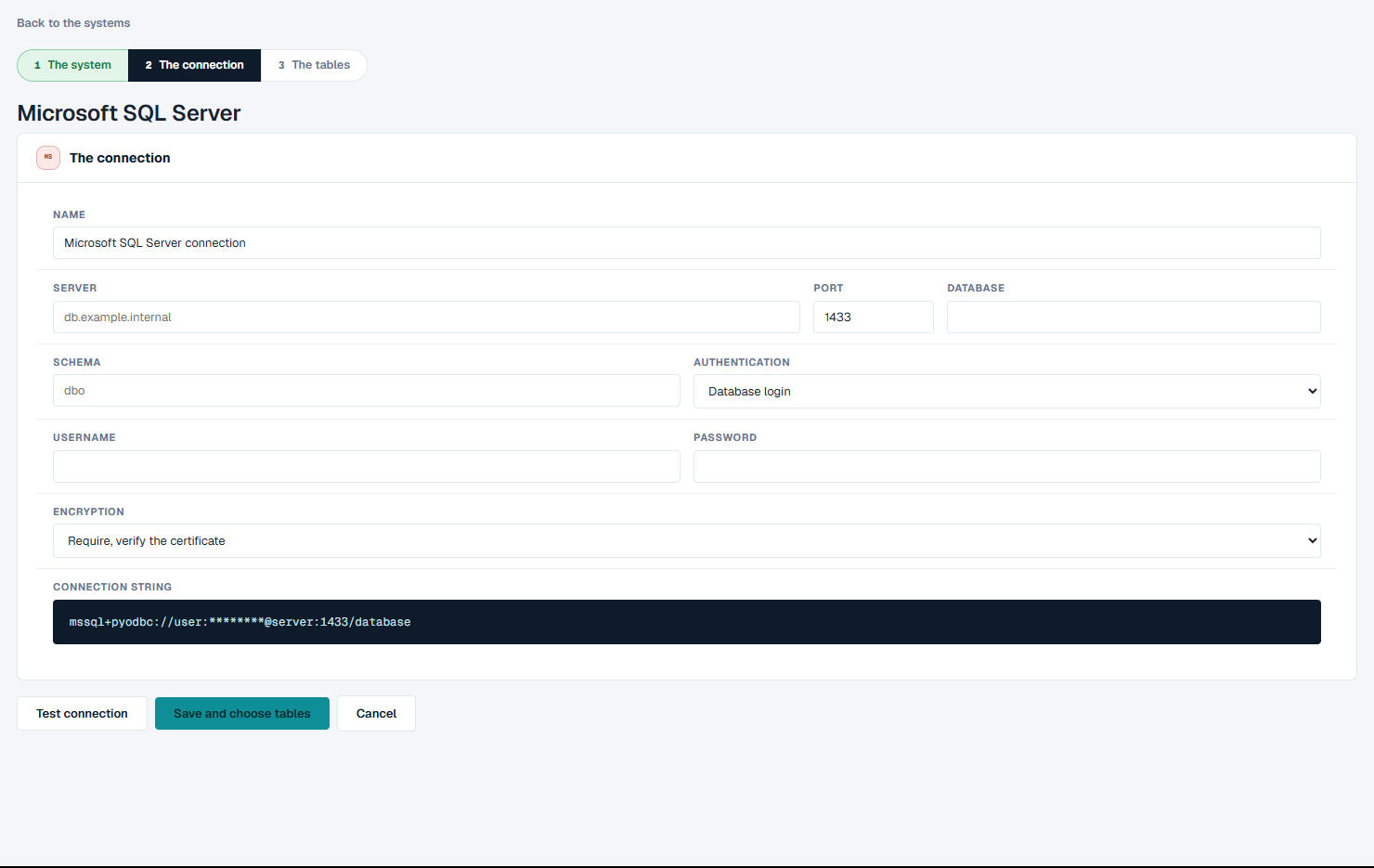
Fill in the connection: a Name, and the fields your database needs - for Microsoft SQL Server, Server, Port, Database, Schema, Authentication (Database login, Entra ID or Integrated), Username, Password and Encryption. The Connection string below the fields fills in as you type, with the password hidden.
Click Test connection to check it.
Click Save and choose tables. On Which tables, find and tick the tables you need, and click Save. The connection's row on the Data connections tab then shows how many tables you chose and how many rows they hold. No data is read into the project.
Cancel leaves the form without saving. A connection that fails its test can still be saved, and it shows as failed on the list until a test passes. Each saved connection on the Data connections tab has Tables, Edit and Remove.
Load a playbook package
- Click A playbook package (.zip) and drop the zip.
- Where the files go shows how the files will be sorted: data files to the Files tab, everything else - documents and the playbook - to Additional data. Click Next - place the files.
- On Say what to do with the package, the playbook is offered as the prompt. If the package holds more than one playbook, choose which one to follow. Edit the prompt if you want to, then click Start.
Keep a file without building anything
Not every file a project needs is the event log. When you have dropped one file, you can instead click Keep as a file: the file is stored in the project and nothing is built from it. It then appears on the Files tab.
Good to know
- A project holds one set of data. Once it has data, the Load your data screen says so, and loading again is refused with "This project already has data - load into a new project." Create a new project for different data.
- A playbook package goes only into an empty project.
- Connect to databases does not load data yet. It sets up and tests a connection and chooses and counts its tables; reading those tables into the project is not available yet. To load the data today, export the tables as files and use Raw data - the original tables.
- Before any data is loaded, the bar across the top of the project reads "no log loaded", and the Data tabs say there is nothing in the project yet, with a Load data button.
- A log with several kinds of objects needs one more answer after loading: what a case is. See Choosing What a Case Is.