Reports
Reports is where you ask for a report and where every report in the project is kept. You start from one of four standard reports or describe what you want to find out, and the report is written from this project's data and publishes itself here when it is done.
How to read it
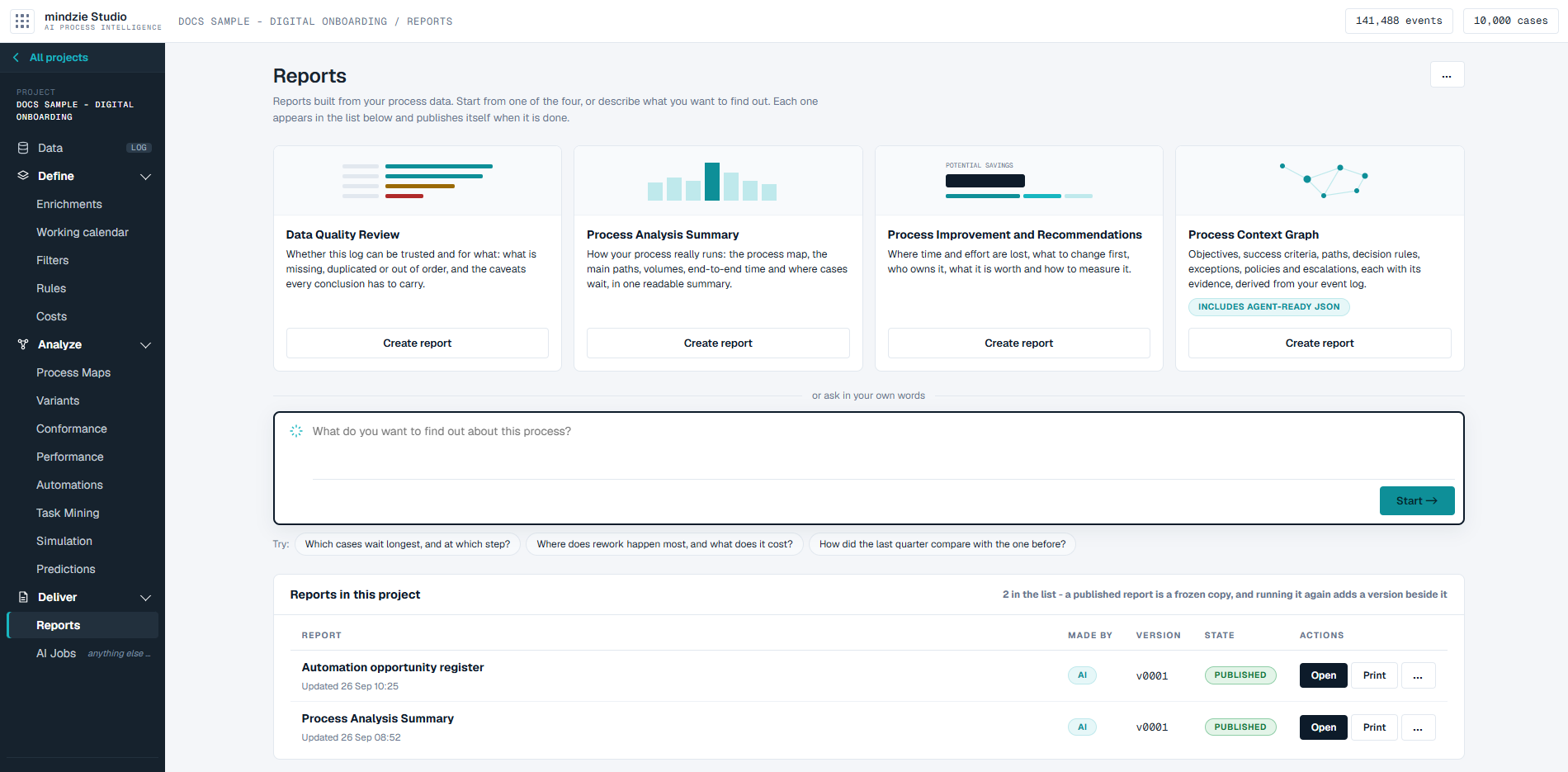
From top to bottom:
- The four standard reports - one card each for the reports nearly every project wants, with a line saying what it covers and a Create report button.
- The ask box - "What do you want to find out about this process?" A card's brief lands here, or you type your own request. Start runs whatever the box holds. Under the box, Try: offers three example questions; clicking one puts it in the box.
- Reports in this project - every report in the project, one row each, with who made it, its version, its state and what you can do with it. The line at the right says how many there are, and reminds you that a published report is a frozen copy: running it again adds a version beside it.
The ... button at the top right of the screen holds Import an HTML report and The runs behind these reports - AI Jobs.
The four standard reports
| Report | What it gives you |
|---|---|
| Data Quality Review | Whether the log can be trusted and for what: what is missing, duplicated or out of order, and the caveats every conclusion has to carry. |
| Process Analysis Summary | How your process really runs: the process map, the main paths, volumes, end-to-end time and where cases wait, in one readable summary. |
| Process Improvement and Recommendations | Where time and effort are lost, what to change first, who owns it, what it is worth and how to measure it. |
| Process Context Graph | Objectives, success criteria, paths, decision rules, exceptions, policies and escalations, each with its evidence. It includes the same content as structured data for an agent to read. |
A good first report is the Data Quality Review: it tells you which conclusions the other reports can safely draw from your log.
The states of a report
| State | Meaning | What you can do |
|---|---|---|
| Writing | The report is being worked out. A bar moves under its name, and the row says when it started and that it publishes itself when it is done. | Watch shows the run as it goes; Stop cancels it. |
| Published | Done, and ready to read. The row says when it was last updated and, when there is more than one, how many versions it has. | Open, Print, and more in the ... menu. |
| Draft | The run finished, but the report was not published. | Review opens it; Publish publishes it. |
| Failed | The run did not produce a report. The row says why. | Try again, or See the run for what happened. |
| Stopped | Someone stopped the run before it finished. | Try again, or See the run. |
The list keeps itself up to date while a report is being written, so a report moves from Writing to Published without you reloading the page.
What you can do
Ask for a report
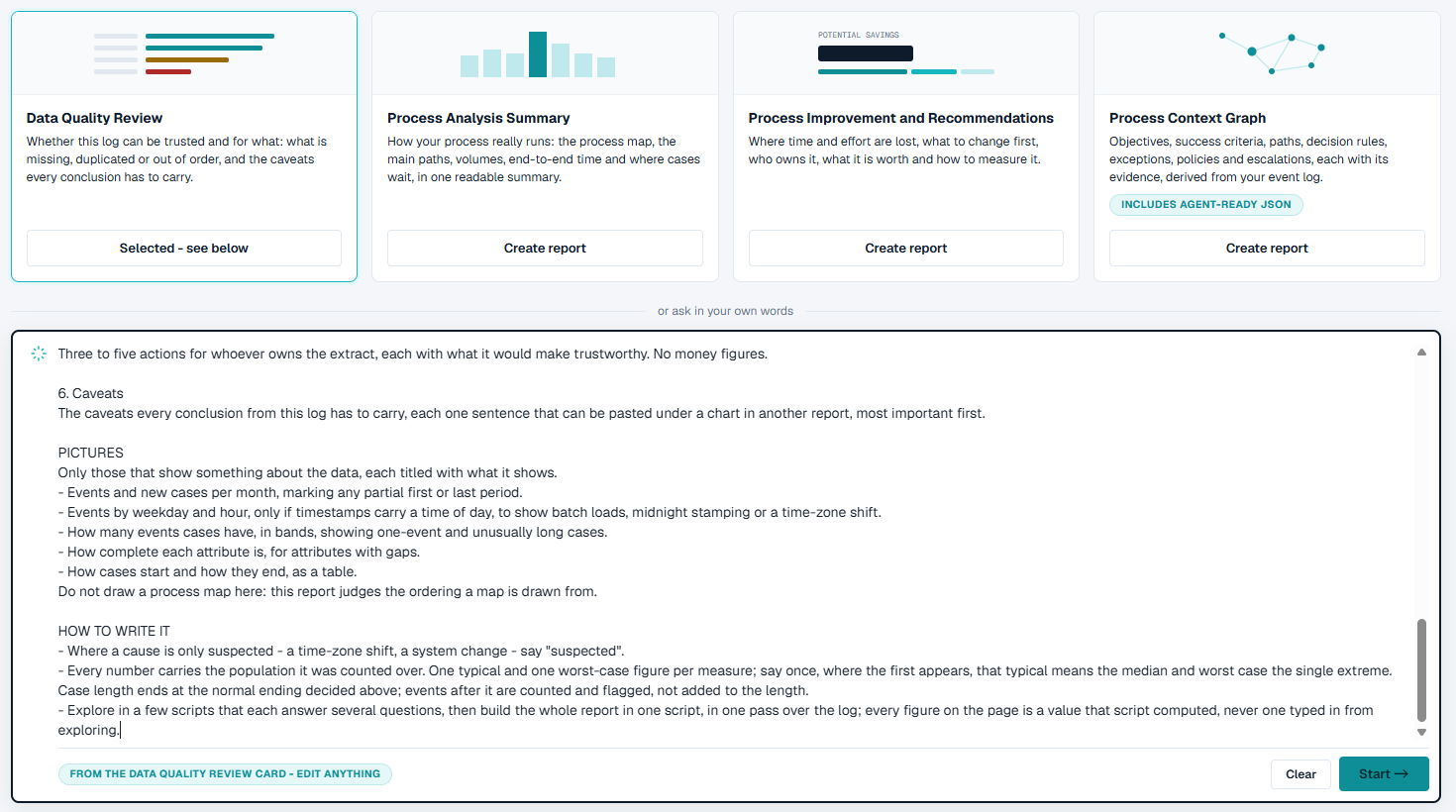
- Click Create report on one of the four cards. The card is marked "Selected - see below", and its brief appears in the box, labelled with the card it came from.
- Read the brief, and change anything in it you want - what to focus on, what to leave out, which cases to look at.
- Click Start.
Or skip the cards: type what you want to find out in the box, in your own words, and click Start. Clear empties the box. If you have typed something yourself and then click a card, the screen asks before it replaces your words.
The report appears at the top of Reports in this project as Writing, named from the first words of your request. Writing a report takes several minutes. You can leave the screen while it is written; it carries on.
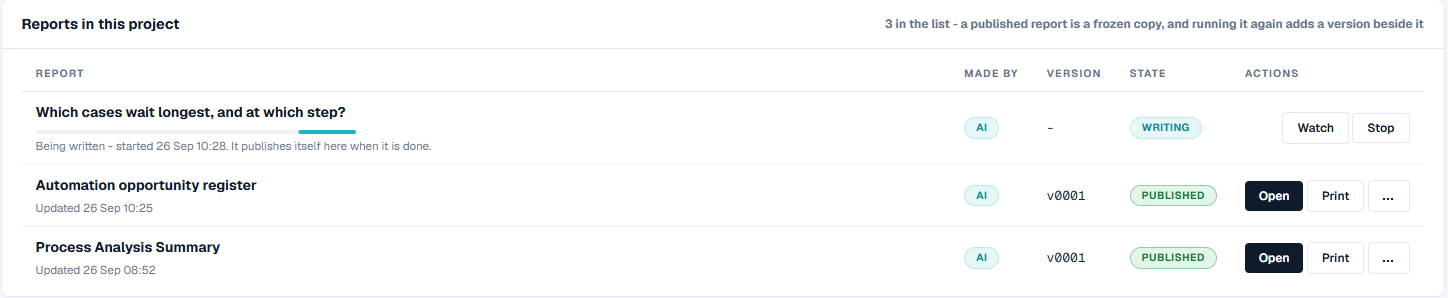
Follow a report while it is written
Click Watch on the row. This opens the run on AI Jobs, where you can see what the assistant is doing, step by step. Stop on the row cancels the run; nothing is published.
Open and read a report
Click Open on a published report, or click its name. The report fills the page, with a bar of actions above it:
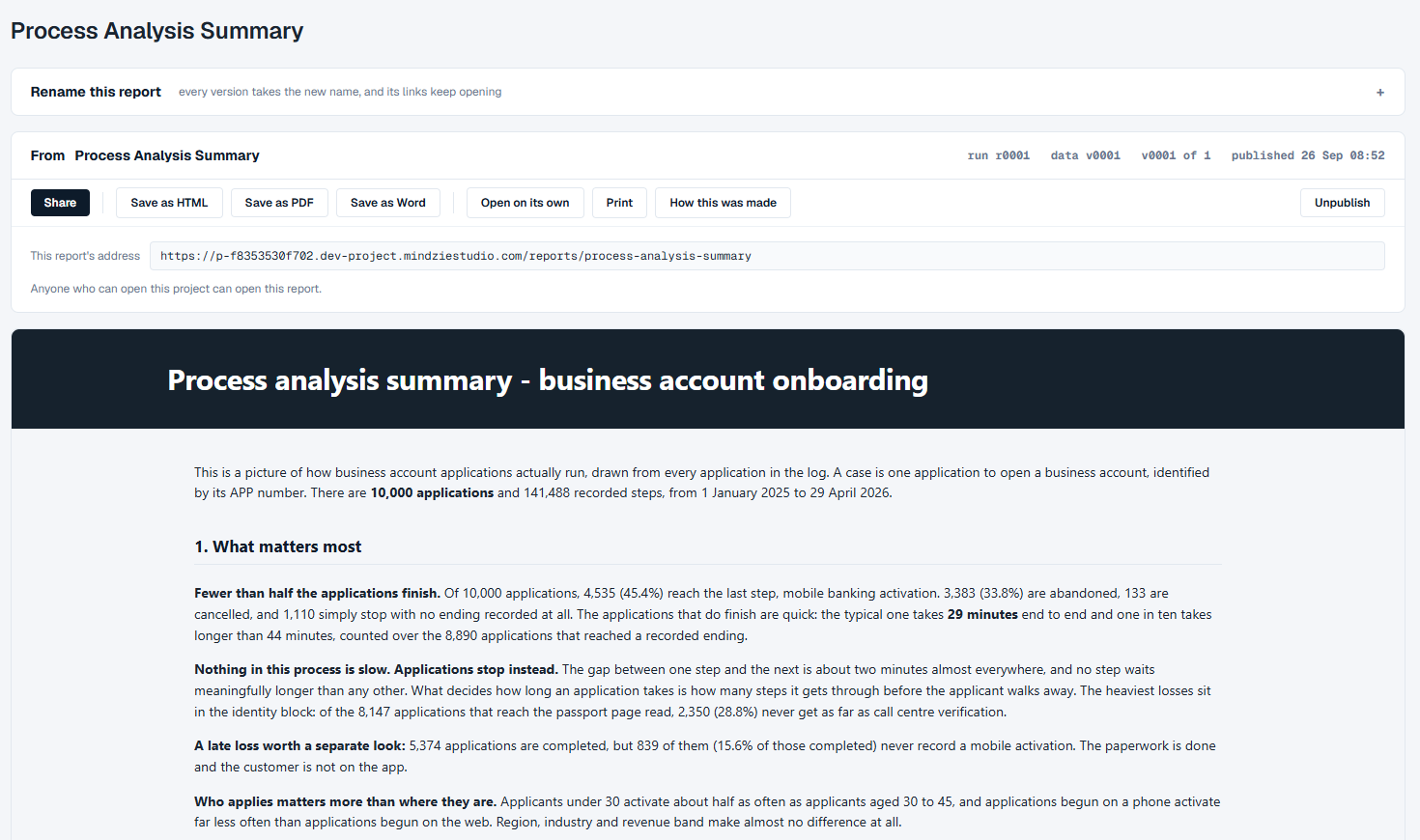
- Rename this report, folded away at the top - see below.
- From names the job that made the report, and the line beside it gives the run, the data version it read, which version you are reading (for example "v0001 of 1") and when it was published.
- Share, Save as HTML, Save as PDF, Save as Word, Open on its own, Print and How this was made - see below.
- Unpublish, at the far right.
Share a report
Click Share to copy the report's address to your clipboard. The address is also shown under the buttons, so if your browser refuses the clipboard you can select it and copy it yourself. Anyone who can open this project can open the report from that address; the address of an earlier version opens that version.
Save or print a report
- Save as HTML downloads the report as one file. It carries everything it needs, so it opens in a browser from an email or a laptop with no network.
- Save as PDF opens your browser's print dialog; choose Save as PDF as the destination.
- Save as Word builds an editable Word document of the same report and hands it to your browser to save. If some of the report's pictures cannot be drawn into the document, the screen says how many, and they are marked in the document.
- Save as PDF and Save as Word appear once the report has finished loading on the page; until then the screen says so under the buttons.
- Open on its own opens the report in a new tab, under a slim header that names the project and the report, with Back to Reports to return to the list. The header is never part of a save or a print. Print prints only the report.
See how a report was made
Click How this was made. It shows:
- What it was asked - the exact words this version was given, and where they came from (for example "from the Data Quality Review report on Reports", or "asked in your own words on Reports").
- What it read - the data version and the run, with a link to the run on AI Jobs.
- Change the prompt and run - the brief, which you can edit. Click Change the prompt and run to write the next version from your new words. The version you are looking at stays as it is.
Run a report again
In the ... menu on a published report, click Run again on today's data. The same brief is run on the data as it is now, and the result is added as the next version of the same report. Pressing a standard report's Create report again does the same: it makes the next version of that report, not a second report with the same title.
Read an earlier version
When a report has more than one version, the open report shows Versions: at the right of the bar, with one button per version. Click one to read it. An earlier version says so at the top, with a link to the current one; it is kept because somebody may have quoted it.
Rename a report
In the ... menu, click Rename, or open the report and click Rename this report at the top. Type the new name and click Rename. Every version takes the new name, and links to the report keep working.
Unpublish a report
Click Unpublish on the open report, or in the ... menu, and confirm. The report leaves the list with every version. The job that made it stays on AI Jobs, so you can publish from it again. A report that was imported rather than made by a job has Delete instead, and nothing of it is kept.
Import a report you already have
In the ... menu at the top of the screen, click Import an HTML report, choose the file, and give it a name and a description if you want to. Click Import and publish. The file has to be one self-contained HTML file; a file that needs anything it does not carry is refused, with the reason.
Good to know
- Who made it. The Made by column shows AI for a report the assistant wrote, and Built-in for one the project made on its own, without the assistant. An imported report shows a dash.
- A report from your own agent. A report your own agent published into the project shows Outside agent in the Made by column. It opens, prints and saves like any other, but it cannot be run again here: its row and its ... menu say "Made outside this project - cannot be re-run here", and there is no Run again on today's data. See Driving a Project from Your Own Agent.
- A published report does not change. It is a copy taken when it was published. Running it again, or changing its prompt, adds a new version and leaves the old one readable.
- A report reads your definitions. Named filters, rules and costs from Define are part of what a report can use, and money figures appear only in reports. See Deliver.
- If reports cannot be written. When the project's AI assistant is not available, the screen says so above the cards, and the cards and Start are switched off. Reports already in the project still open, print and save.