Preparing an ERP Export
Most projects built from an ERP system start as a set of exported tables: orders, their lines, deliveries, invoices, payments. This page says what to ask the system's owners for, how the files must look, what happens to the dates in them, how big is too big, and how to work through Schema Studio until the event log is right.
The examples use an order-to-cash export of ten tables.
What to export
Ask for the tables themselves, not reports built from them.
- One file per table. Each file holds one table, with one row per record. A zip of the files is fine.
- Every row. No filters, no "top 1,000", no totals or subtotal rows.
- The key columns. Every column that identifies a row (an order number, an invoice number) and every column that points at another table (the order number on a delivery, the customer number on an order). These are what the tables are joined on.
- Every date column that records a step. Created, approved, released, shipped, invoiced, paid, cancelled. Each of these becomes an event.
- The tables that link others. If invoices name their order only through an invoice line, export the invoice lines too.
A table export is better than a report screen saved as a file. A report usually has a title row, merged headings, totals and page breaks, and none of those are data.
For order to cash, a useful set is: order headers, order lines, deliveries, invoice headers, invoice lines, payments or receipts, credit notes and their lines, customers and items.
How the files must look
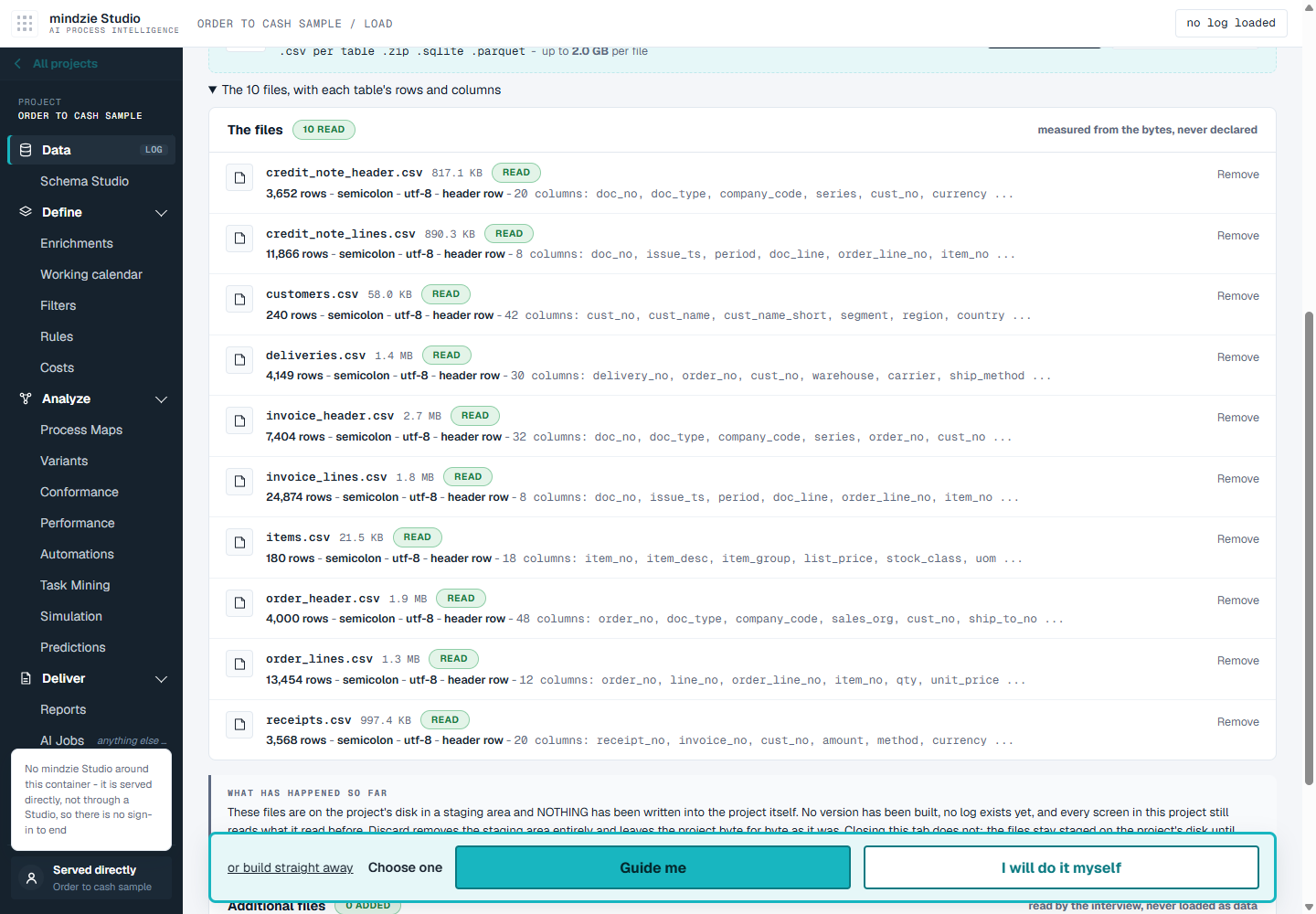
Load the files on Load your data, under Raw data - the original tables. Each file is read as it arrives, and The files says what was found in it: its rows, its separator, its encoding and its columns.
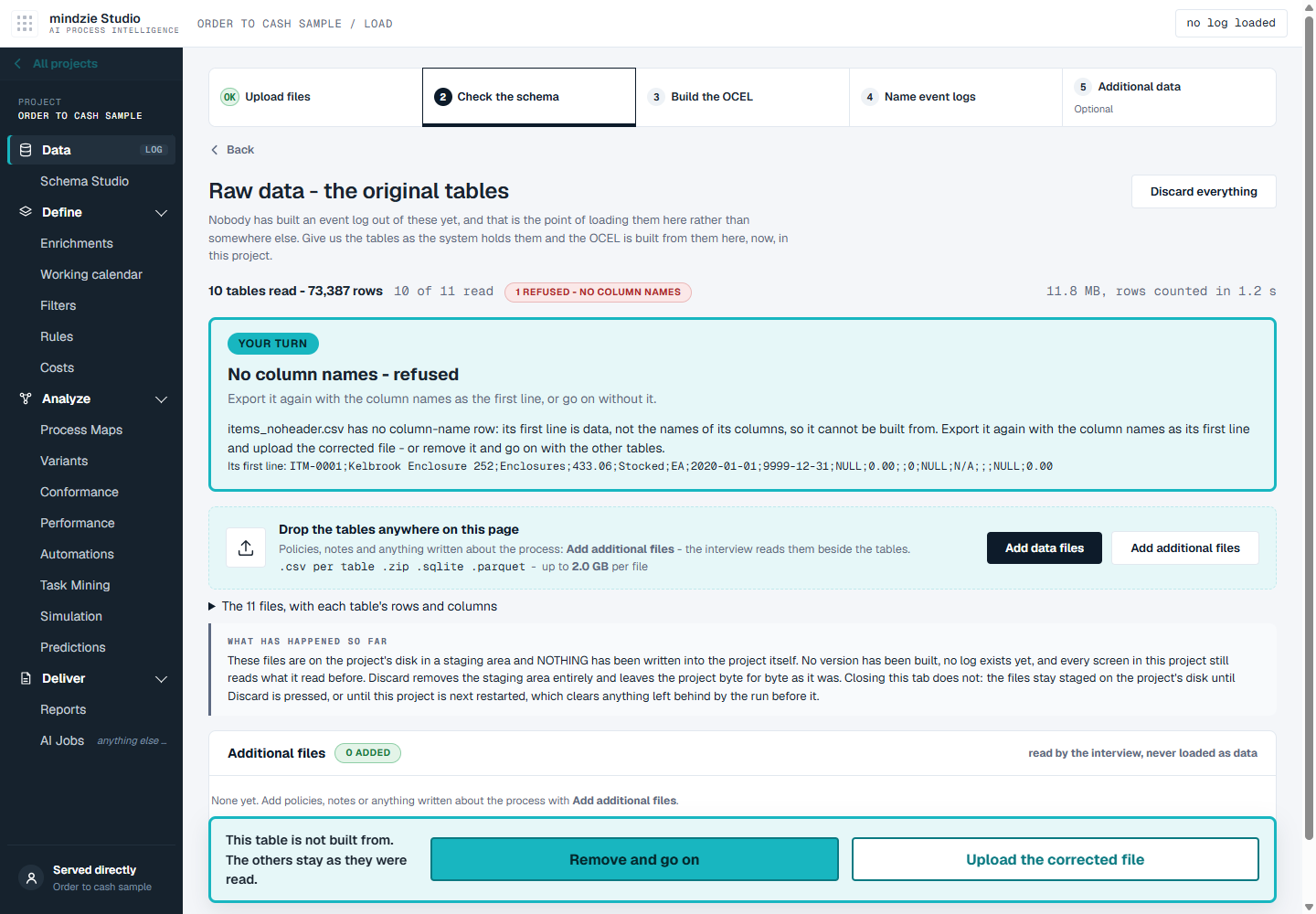
A column-name row is required. The first line of each file must hold the names of its columns. A file whose first line is data is refused, with its first line shown so you can see why. Export it again with the column names, and upload the corrected file - or remove it and go on with the other tables.
Save the files as UTF-8. A file that is not UTF-8 text is refused: its encoding cannot be told from the file, and a guessed one would load every accented name wrong. In Excel, save as CSV UTF-8; most ERP export screens have an encoding or character set option.
Any common separator. Comma, semicolon, tab and pipe are all recognised, file by file.
Write decimals with a point. A number written with a decimal comma, such as 12,50, is read as text, so a column of them - a unit price or a line value - cannot be summed or averaged. Export decimals with a point (12.50); in Excel the decimal separator is set in its options or in the computer's regional settings.
A file can be up to 2 GB. Each file is read as its own table, so do not split one table across several files; for a very large export, see Size, below.
Dates
Each date column of a table that records steps gives one event per row, at that date. A row whose date is empty gives no event for it.
Give the full date and time where the system has it. A date alone puts every step of one day at midnight, and the order of steps inside a day is lost.
Day-first dates are read (31/12/2025), as are month-first and ISO dates. When every value in a column could be read either way, the column cannot tell which order its dates are written in, and Schema Studio says so. A column that holds nothing but one value - often a placeholder - is usually better dropped: click Drop beside it under Which dates are events?.
A planned date is not an event. A requested delivery date or a due date says when something should happen, not when it did. A "last changed" date says only that something changed. Schema Studio does not propose these as events; leave them as details of the record.
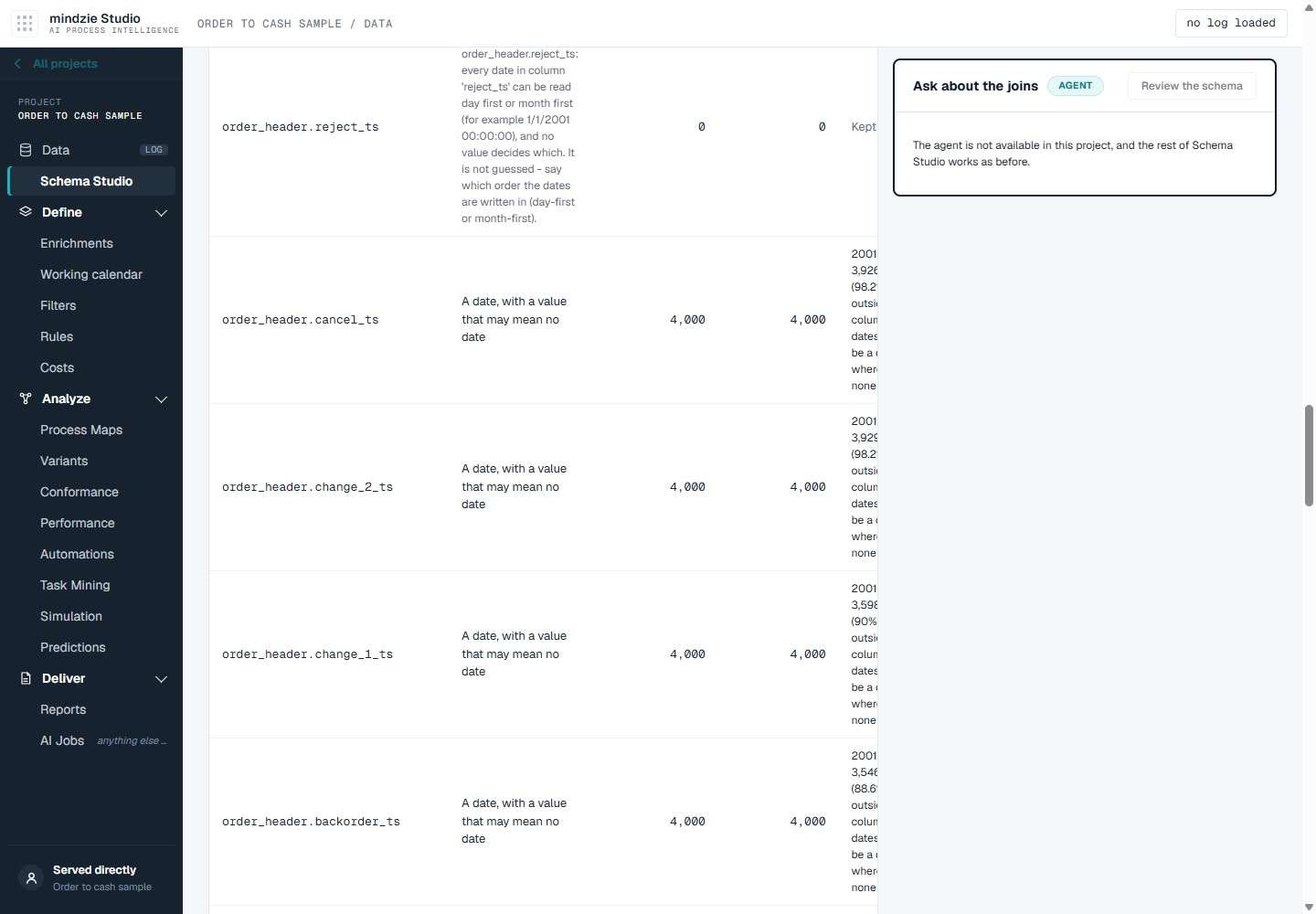
Placeholder dates. Many systems write a fixed date where there is none, such as 1/1/2001 or 31/12/9999. A far-future date such as 31/12/9999 is read as no date. A date that fills a large share of a column and sits far outside its other dates is found and shown on the Repeated events tab as A date, with a value that may mean no date. Choose It means no date or It is a real date for each one. Until you choose, its rows give events at that date.
Size
How much memory a build needs depends on how many rows and columns the tables have. When the files you loaded need more than the project has, the files screen says so before anything is built, with how much they need and how much the project has.
- An Automatic project moves itself to the size the tables need when you build from them. It stops, and starts again at the larger size a few minutes later, with the files kept.
- A project with a fixed size can be made larger by its owner or an administrator: on the AI Process Intelligence project list, open the project's menu, choose Change size, and pick a larger size.
- Tables the schema does not use can be left out to make a set fit: remove them on the files screen, or choose Leave it out of the log in Schema Studio.
If an export is very large, start with one year of it. The schema you settle on one year carries the same decisions you will want for the whole export.
Working through Schema Studio
Click I will do it myself after the files are read. Schema Studio shows how the tables fit together, worked out from the tables themselves. Three ideas carry the whole screen:
- An object type is a kind of thing the process handles - an order, an order line, an invoice, a customer. A table whose rows are things is an object type.
- An event source is a table whose rows record things that happened, at the dates in its columns. Many ERP tables are both: an order header row is an order, and its dates are the steps that order went through.
- A join says how two tables connect - for example, each delivery row names its order through
order_no. The joins decide which events belong to which object. Each one is marked Proposed, Needs a look, Accepted or Removed, with how many rows match.
Work in this order:
- Look at the joins that need a look first. Accept the ones that are right and remove the ones that are not. Everything left as proposed is built as it is shown.
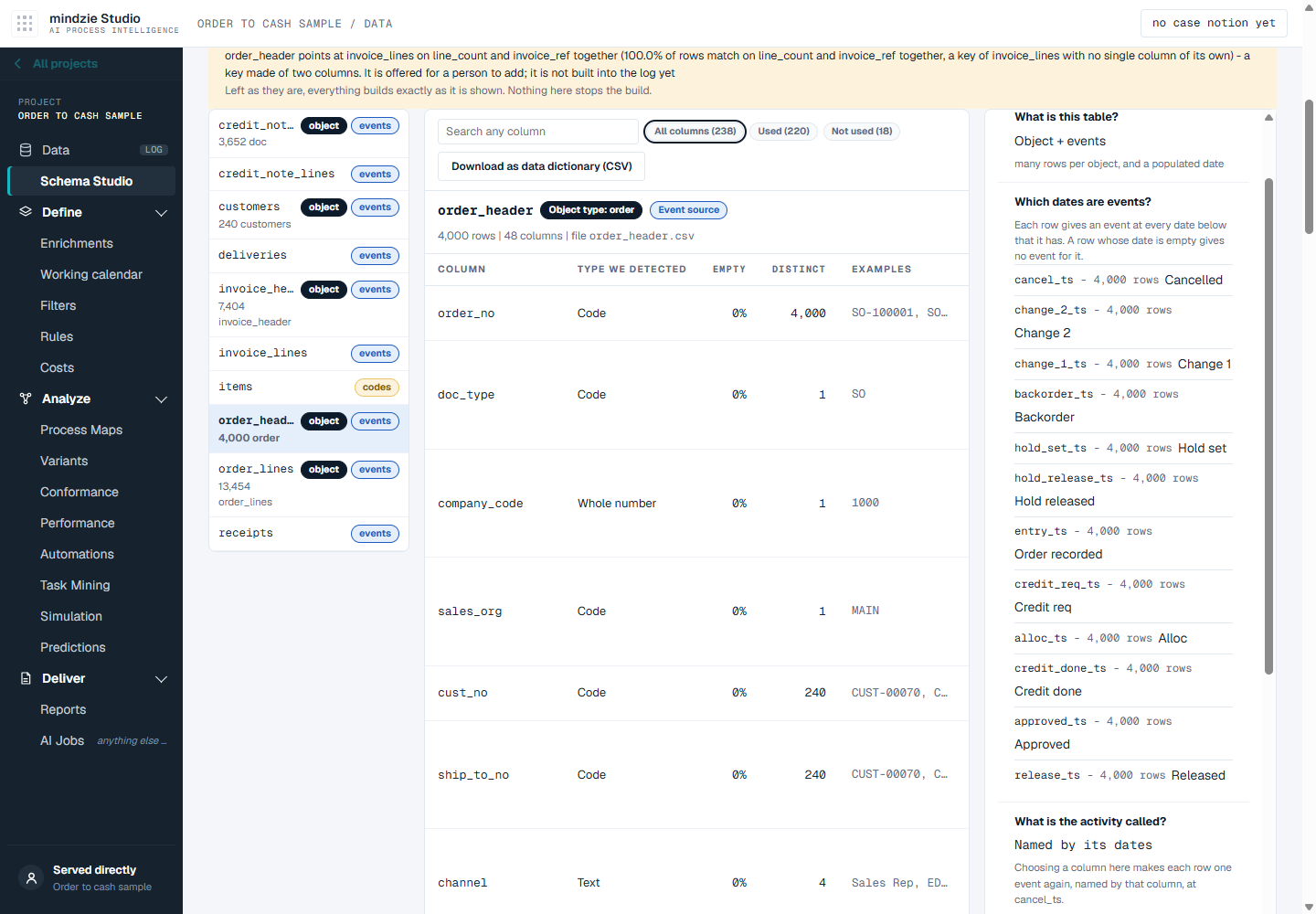
- Check each table's role. Click a table on the left: What is this table? says whether it is an event source, an object type, both, a lookup, or left out of the log.
- Check the dates. Which dates are events? lists the dates that become events, each with the name its events get. Use Rename to give a step a readable name, and Drop to stop a date from being an event.
- Check Repeated events. It says which dates repeat another (a header date copied onto every line, two columns that always hold the same date) and are kept once, and asks about every date that may mean "no date".
- Build. Click Build the OCEL from this schema. The OCEL tab then shows how many events, objects and relations were built, and the object types with their counts.
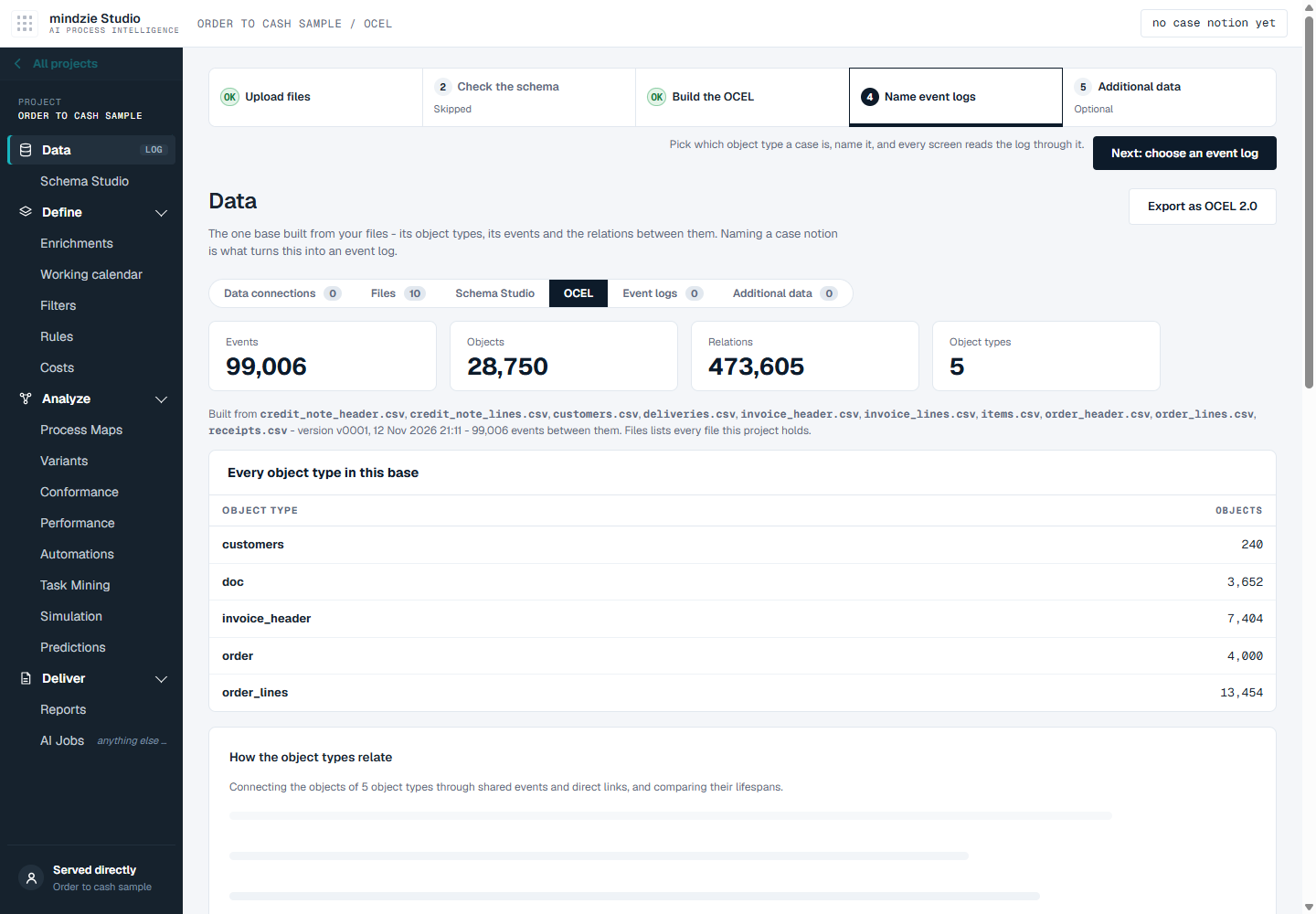
If a count looks wrong - far more events than you expected, or an object type with too few objects - go back to Schema Studio, change what reads wrong, and build again. Nothing here asks what a case is: you choose that afterwards, on the Event logs tab. See Choosing What a Case Is.
When a flat event log is the better choice
An export does not always need an OCEL. If the process has one kind of case - every event belongs to one order, say - and a handful of activities, a single table with a case id, an activity and a timestamp is quicker: load it as A flat event log and map its columns.
Use raw tables and an OCEL when the process runs through several kinds of documents - orders, deliveries, invoices, payments - that relate many to many, so that no single case notion holds every event. See Loading Data for both ways in.