Task Mining
Task Mining shows how people do their work on their own computers: the applications they use, how often they switch between them, and which steps a machine could do instead. You upload what the mindzie Task Mining Agent recorded, then ask for the standard task mining report or anything else about the recordings.
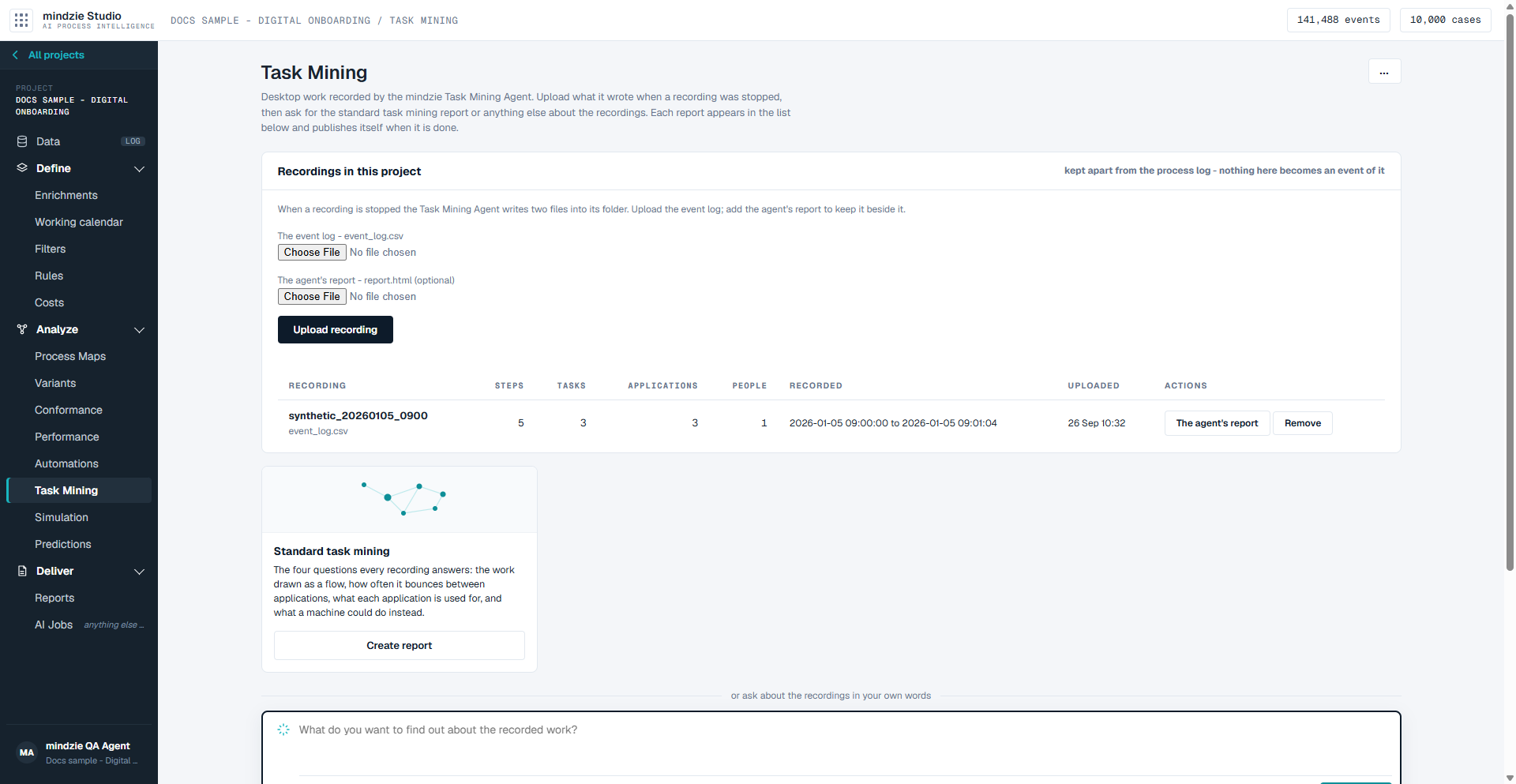
How to read it
At the top, Recordings in this project holds every recording uploaded to the project. A recording is kept apart from the project's event log: nothing in it becomes an event of the process, and no other screen reads it.
The upload form comes first. When a recording is stopped, the Task Mining Agent writes two files into the recording's folder:
- The event log - event_log.csv - required.
- The agent's report - report.html (optional) - kept beside the event log, so it can be opened from here later.
Under the form, each uploaded recording has one row:
| Column | What it shows |
|---|---|
| Recording | The recording's name, with the file it was uploaded from beneath it. |
| Steps | How many recorded steps it holds - clicks, field entries, application switches and the like. |
| Tasks | How many tasks the agent cut the recording into. |
| Applications | How many different applications were used. |
| People | How many different people recorded. |
| Recorded | The time of the first and the last step. |
| Uploaded | When it was uploaded. |
| Actions | The agent's report (when one was uploaded) and Remove. |
Every figure in this list is counted from the uploaded file.
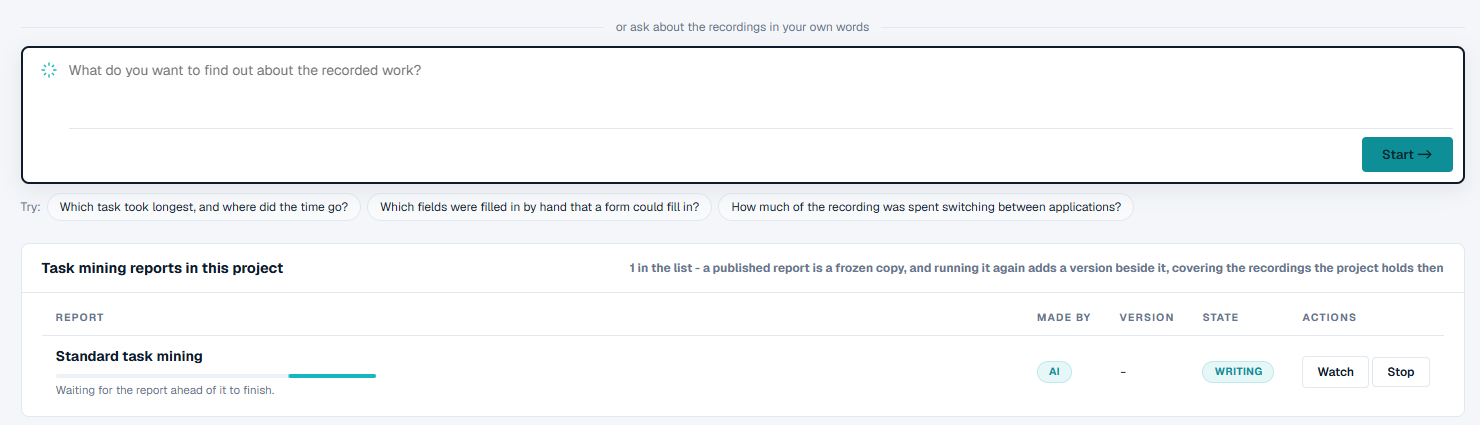
Below the recordings is the Standard task mining card. It answers the four questions every recording answers: the work drawn as a flow, how often it bounces between applications, what each application is used for, and what a machine could do instead. Under the card is the ask box, What do you want to find out about the recorded work?, with a few Try: suggestions beneath it - for example "Which task took longest, and where did the time go?".
At the bottom, Task mining reports in this project lists every task mining report, with who made it, its version and its state:
| State | Meaning |
|---|---|
| Writing | The report is being written. The row moves on by itself when it is done. |
| Draft | Finished, but not published yet. |
| Published | Ready to open, print and share. |
| Failed | The report could not be finished. |
| Stopped | Someone stopped it before it finished. |
What you can do
Upload a recording
- Under The event log - event_log.csv, choose the
event_log.csvfrom the recording's folder. The agent keeps its recordings in Documents\mindzie\mindzieTaskMiningAgent\recordings, one folder per recording. - To keep the agent's own report too, choose the
report.htmlfrom the same folder under The agent's report - report.html (optional). - Click Upload recording. The screen says Kept, with the recording's name and how many steps and tasks it holds, and the recording appears in the list.
Upload one recording at a time. A project can hold as many as you need: every report covers all the recordings the project holds when the report runs.
Get the standard task mining report
- Click Create report on the Standard task mining card. The card's full brief appears in the ask box. Nothing has started yet.
- Read the brief and change anything you like.
- Click Start. The report appears in the list as Writing. If another report in the project is still being written, the row says Waiting for the report ahead of it to finish. and starts by itself when that one is done.
- When it is Published, click Open to read it.
Ask about the recordings in your own words
- Type your question in the ask box - for example "Which fields were filled in by hand that a form could fill in?" - or click one of the Try: suggestions to put it there.
- Click Start.
Open the agent's own report
Click The agent's report on a recording's row. It opens in a new tab exactly as the agent wrote it: the recording's timeline, tasks and every step with its screenshot.
Remove a recording
- Click Remove on the recording's row.
- Confirm. Reports already written from it keep what they said; the next run leaves it out.
Work with a finished report
A published task mining report opens, prints and runs again exactly like any other report. On its row:
- Open reads it. From there you can share it, or save it as PDF or Word.
- Print opens a version ready to print.
- The ... menu holds Save as HTML, Open on its own, Rename, Run again on today's data, Change the prompt and run, How this was made (the words it was given and the run behind it) and Unpublish.
- Open on its own opens the report in a new tab, under a slim header with the project, the report's name and Back to Task Mining. Printing from that tab prints the report without the header.
A Draft offers Review and Publish. While a report is Writing, Watch shows the run as it goes and Stop stops it. A Failed or Stopped report offers Try again and See the run.
Good to know
- Only an event log written by the Task Mining Agent, version 2, can be uploaded. A file without the agent's columns - a process log, a spreadsheet, the wrong file picked - is refused under that did not work, with the columns it is missing, and nothing is kept. So is a file whose times cannot be read. The log of the earlier agent is refused too; see Task Mining Agent, Version 1.
- Until a recording has been uploaded, the card and the ask box are switched off and the screen says upload a recording first.
- The reports are written from the event logs. The screenshots stay in the agent's own report, and the task mining report does not read them.
- A published report is a frozen copy. Running it again adds a new version beside it, covering the recordings the project holds then; it does not change the one you have.
- Task mining reports are listed here, not on Reports. Each one runs as an AI job, so it also appears on AI Jobs. The ... menu at the top of the screen links to both.
- If task mining reports cannot be written on your project yet, the screen says so and the card and the box are switched off. Reports already published still open, print and save.
- To install the agent and make recordings, see Task Mining Agent. For how a report reads and how to share it, see Reports.