Task Mining Agent, Version 1
Version 1 of the mindzie Task Mining Agent is the earlier desktop recorder. It is a different program from the current Task Mining Agent, with its own installer and its own log. For new recordings, use version 2.
What it is
- The installer is
mindzieTaskMiningAgentSetup.exe. It needs administrator rights on Windows. - The main window has two buttons: Record, which starts a recording, and Logs, which opens the folder the logs are saved in.
- Starting a recording asks for a Case ID (optional), a Username (filled in from Windows) and Notes. Click OK; the agent moves to the notification area while it records mouse clicks, keyboard actions and switches between applications and windows.
- Stopping is done from the agent's icon in the notification area. Each log is saved with the time it was made in its name.
Download the Task Mining Agent, version 1 (mindzieTaskMiningAgentSetup.exe)
Using its logs in Process Intelligence
A version 1 recording has no supported use in Process Intelligence. To analyse recorded work here, make new recordings with version 2.
A version 1 log cannot be uploaded on the Task Mining screen. That screen takes only the event_log.csv that version 2 writes, and it refuses a version 1 log because the log does not have version 2's columns. The screen names the columns that are missing, and nothing is kept.
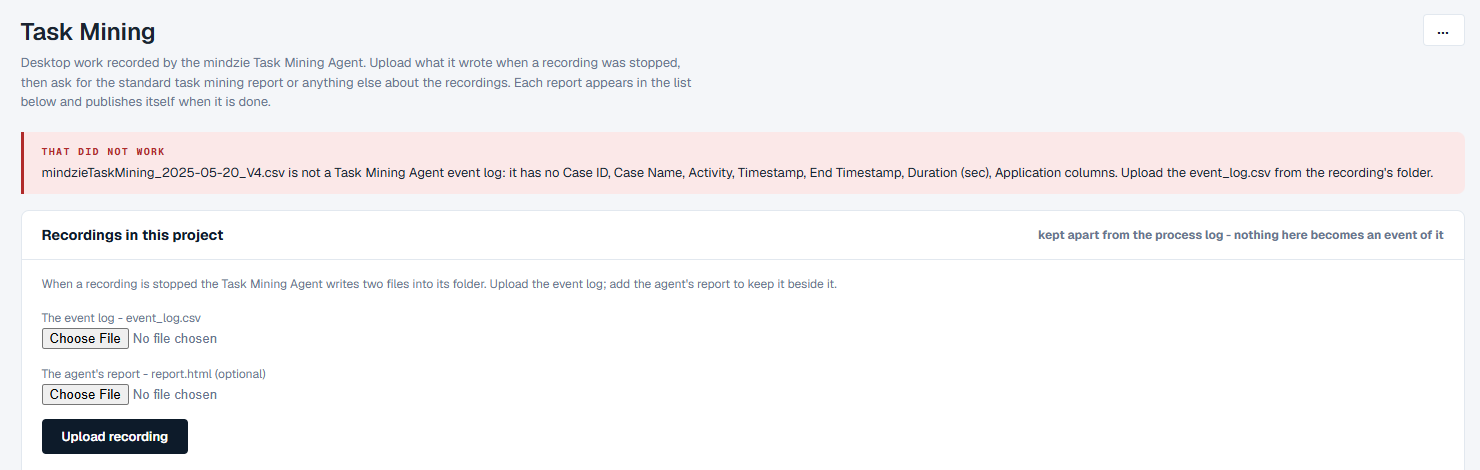
To use the Task Mining screen, record with version 2 instead. See Moving to version 2 below.
Moving to version 2
Version 2 needs no administrator rights, records far more (the element clicked, what was entered in which field, a screenshot per step, and web page detail through a Chrome extension), and writes both a report and an event log the Task Mining screen accepts. The two versions are separate programs. Install it from Task Mining Agent.
Troubleshooting
The agent will not start
- Check that the installation finished without an error.
- Look in Windows Event Viewer for an error from the agent.
- Install the agent again, as an administrator.
A recording captures nothing
- Check that the recording really started: after OK, the agent moves to the notification area.
- Check that the agent is allowed to watch mouse and keyboard activity, and that no security software is blocking it.
You cannot find the logs
- Click Logs in the agent's main window. It opens the folder the logs are saved in.
- Stop a recording from the agent's icon in the notification area. Closing the agent is not the same as stopping the recording.
- Check that the disk has room for the logs.
Support
For help with the agent, contact support@mindzie.com.