Simulation
Simulation answers "what if?" questions about your process: what if this handoff took two days instead of eight, or what if no step ever had to be done again. You pick a change or describe one, and the answer comes back as a simulation you open and read like a report.
How to read it
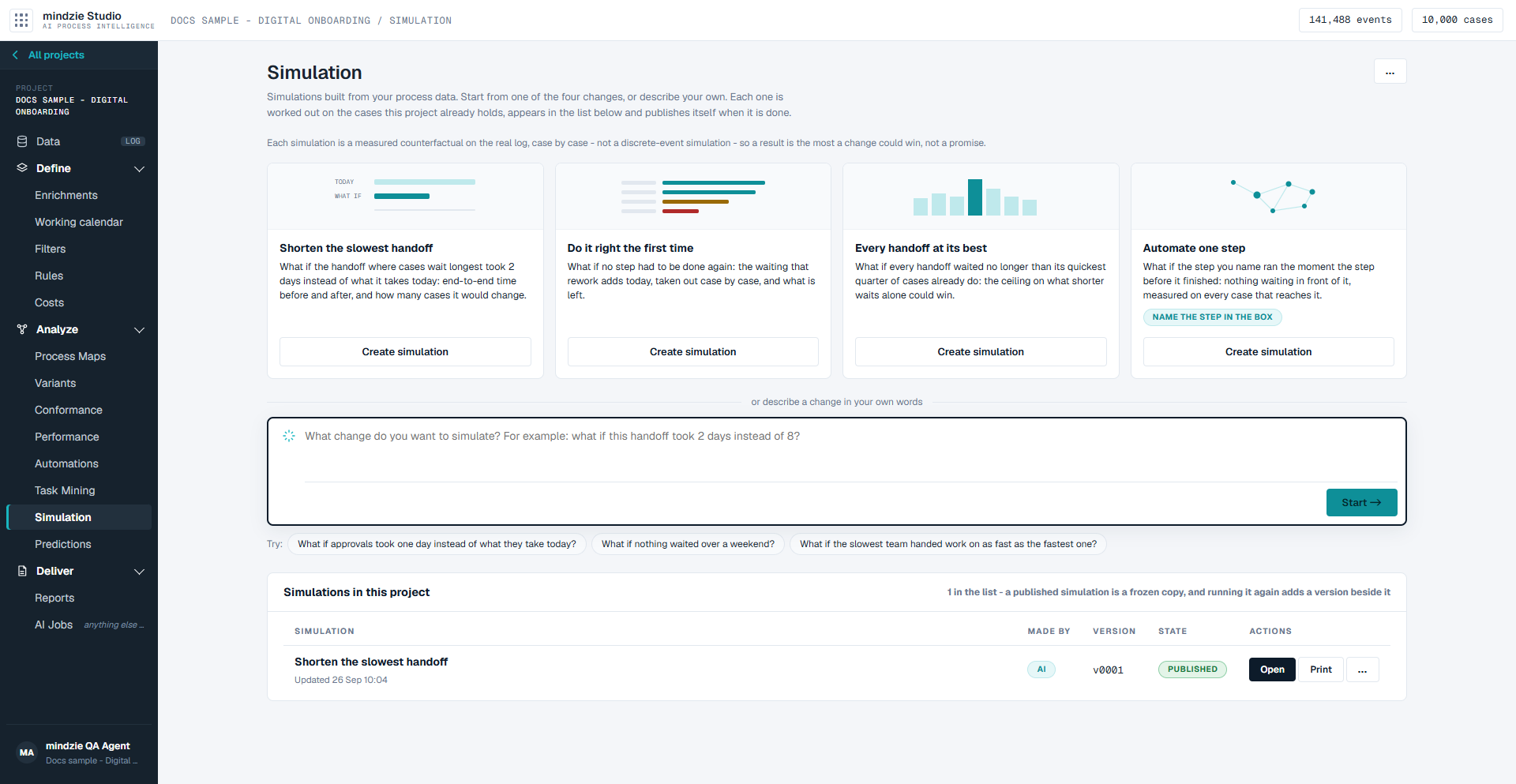
One line under the title says what a simulation is: "Each simulation is a measured counterfactual on the real log, case by case - not a discrete-event simulation - so a result is the most a change could win, not a promise." In plain terms: the change is applied to every case it touches, in the cases this project already holds - a wait is capped, a repeat is taken out - and each of those cases is shortened by exactly what the change saves. The typical and worst-case end-to-end times are then measured again and set beside today's. Nothing else moves: a simulation does not model queues, new work arriving or staffing. So every result is the most a change could win, not a promise.
Below it are four cards, one for each change worth simulating on nearly every process:
| Card | What it asks |
|---|---|
| Shorten the slowest handoff | What if the handoff where cases wait longest took 2 days instead of what it takes today: end-to-end time before and after, and how many cases it would change. |
| Do it right the first time | What if no step had to be done again: the waiting that rework adds today, taken out case by case, and what is left. |
| Every handoff at its best | What if every handoff waited no longer than its quickest quarter of cases already do: the ceiling on what shorter waits alone could win. |
| Automate one step | What if the step you name ran the moment the step before it finished: nothing waiting in front of it. The card says Name the step in the box. |
Under the cards is the ask box, for any other change in your own words, with three Try: suggestions beneath it - for example "What if nothing waited over a weekend?".
At the bottom, Simulations in this project lists every simulation, with who made it, its version and its state:
| State | Meaning |
|---|---|
| Writing | The simulation is being worked out. The row moves on by itself when it is done. |
| Draft | Finished, but not published yet. |
| Published | Ready to open, print and share. |
| Failed | The simulation could not be finished. |
| Stopped | Someone stopped it before it finished. |
What you can do
Run one of the four simulations
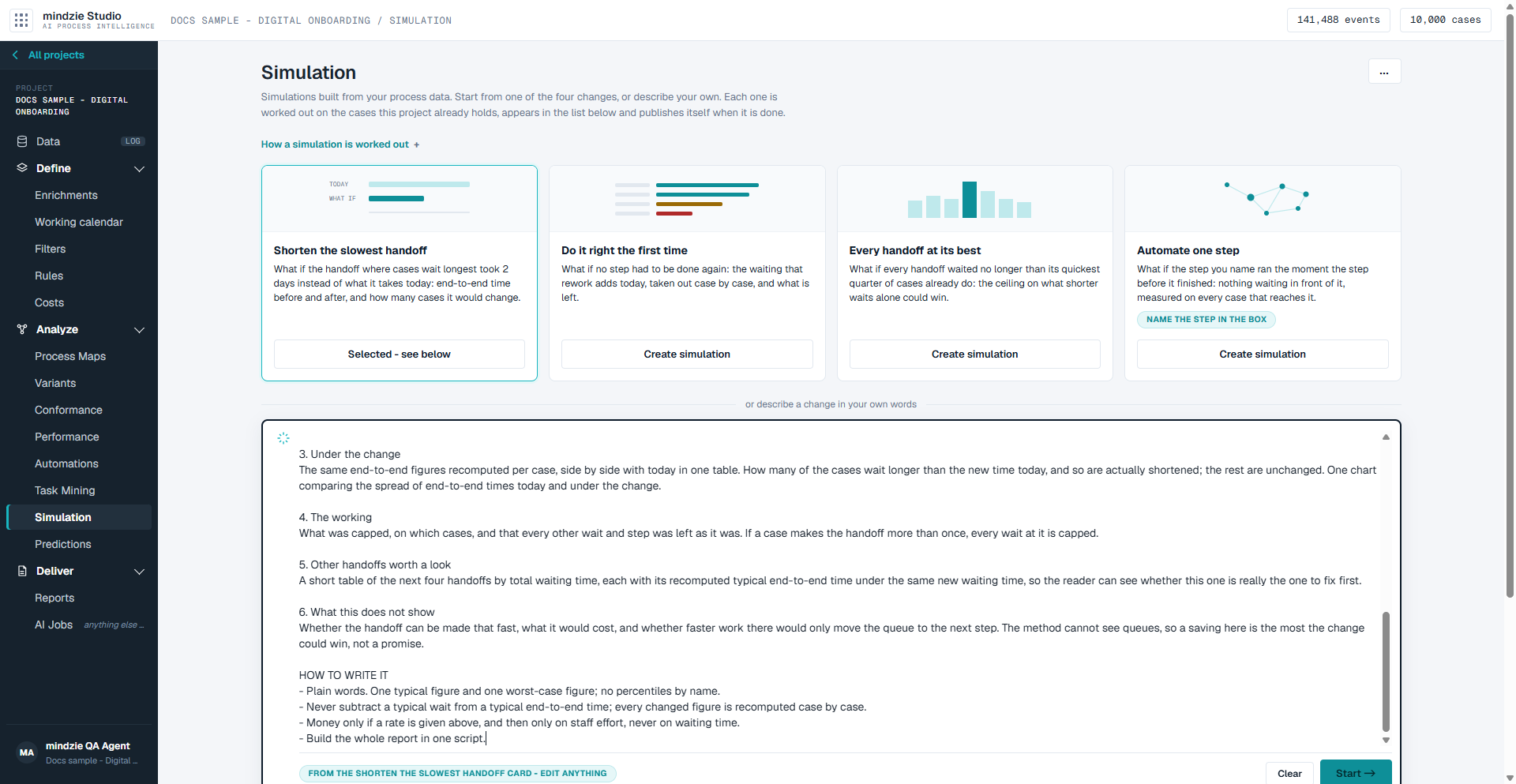
- Click Create simulation on a card. The card's full brief appears in the ask box, labelled with the card it came from, and the card's button reads Selected - see below. Nothing has started yet.
- Read the brief and change anything you like. It opens with the lines to edit: for Shorten the slowest handoff, which handoff, the new waiting time, and an hourly staff rate if you want the time turned into money. For Automate one step, name the step. Clear empties the box.
- Click Start. The simulation appears in the list as Writing.
- When it is Published, click Open to read it.
Simulate a change of your own
- Type the change in the ask box - for example "What if approvals took one day instead of what they take today?" - or click one of the Try: suggestions to put it there.
- Click Start.
Your question is worked out the same way as the cards: the change is applied case by case to the cases the project holds, and the result is set beside today's.
Read a simulation
A simulation opens like a report. It leads with its answer in one sentence, says what the change was, and sets today's figures beside the figures under the change - the typical case, the worst case, and how many cases the change actually shortens.
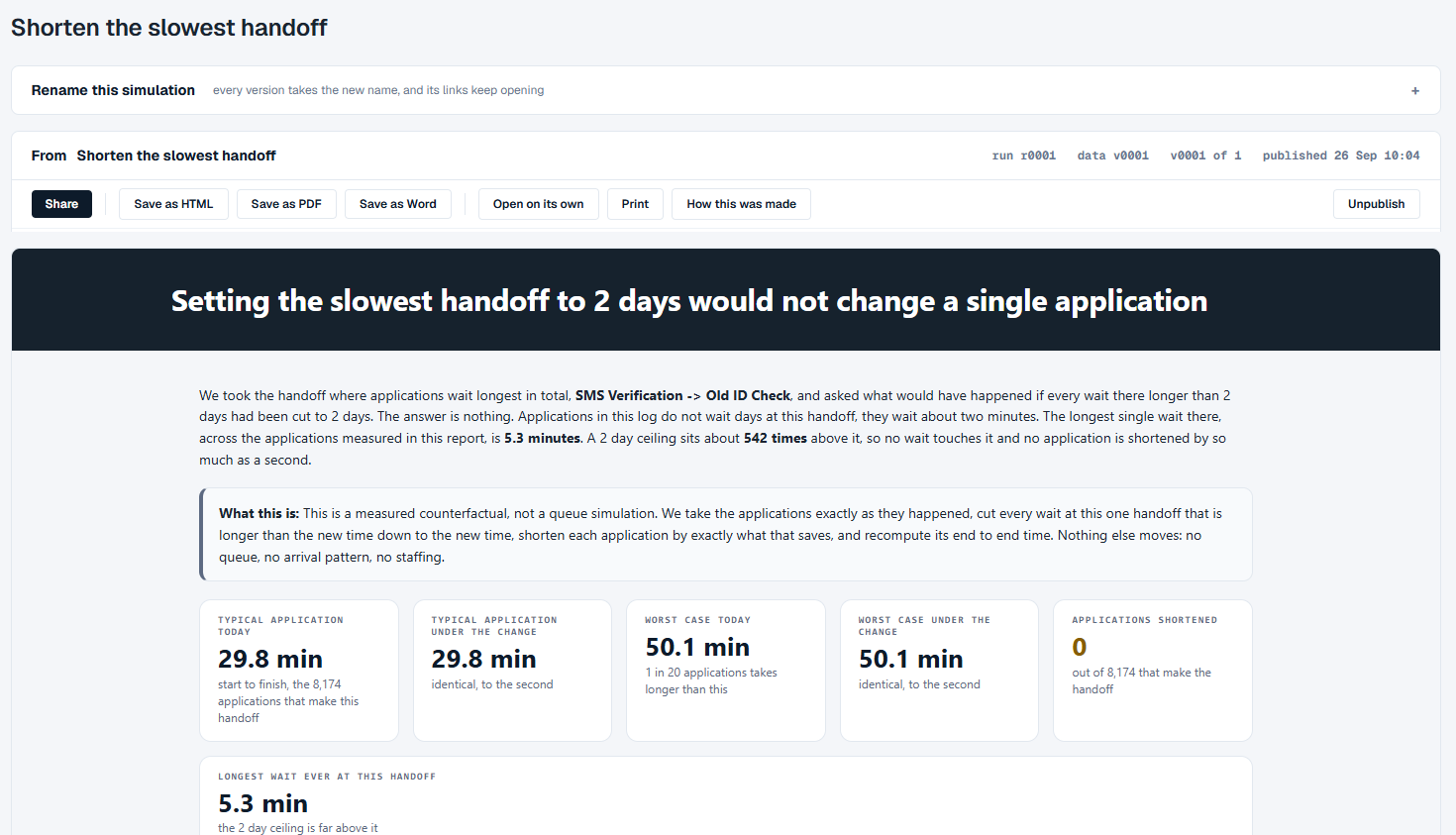
Above it are Share, Save as HTML, Save as PDF, Save as Word, Open on its own, Print, How this was made (what it was asked and what it read) and Unpublish. Rename this simulation changes its name on every version.
Work with a simulation from the list
- Open and Print are on every published row.
- The ... menu holds Save as HTML, Open on its own, Rename, Run again on today's data, Change the prompt and run, How this was made and Unpublish.
- Open on its own opens the simulation in a new tab, under a slim header with the project, the simulation's name and Back to Simulation. Printing from that tab prints the simulation without the header.
- While a simulation is Writing, Watch shows the run as it goes and Stop stops it.
- A Failed or Stopped simulation offers Try again and See the run.
Good to know
- Fit the numbers to your process. A card's brief comes with example figures. If the cases in your project wait minutes at a handoff, a 2-day ceiling changes nothing, and the simulation will tell you exactly that. Change the figure in the box before you click Start.
- A published simulation is a frozen copy. Running it again adds a new version beside it; it does not change the one you have.
- Simulations are listed here, not on Reports. Each one runs as an AI job, so its run also appears on AI Jobs.
- A simulation only knows the cases in the project. A change to a step that few cases reach changes little.
- If simulations cannot be worked out on your project yet, the screen says so at the top and the cards and the box are switched off. Simulations already published still open, print and save.
- For how a report reads and how to share it, see Reports. For the runs behind simulations, see AI Jobs.