AI Jobs
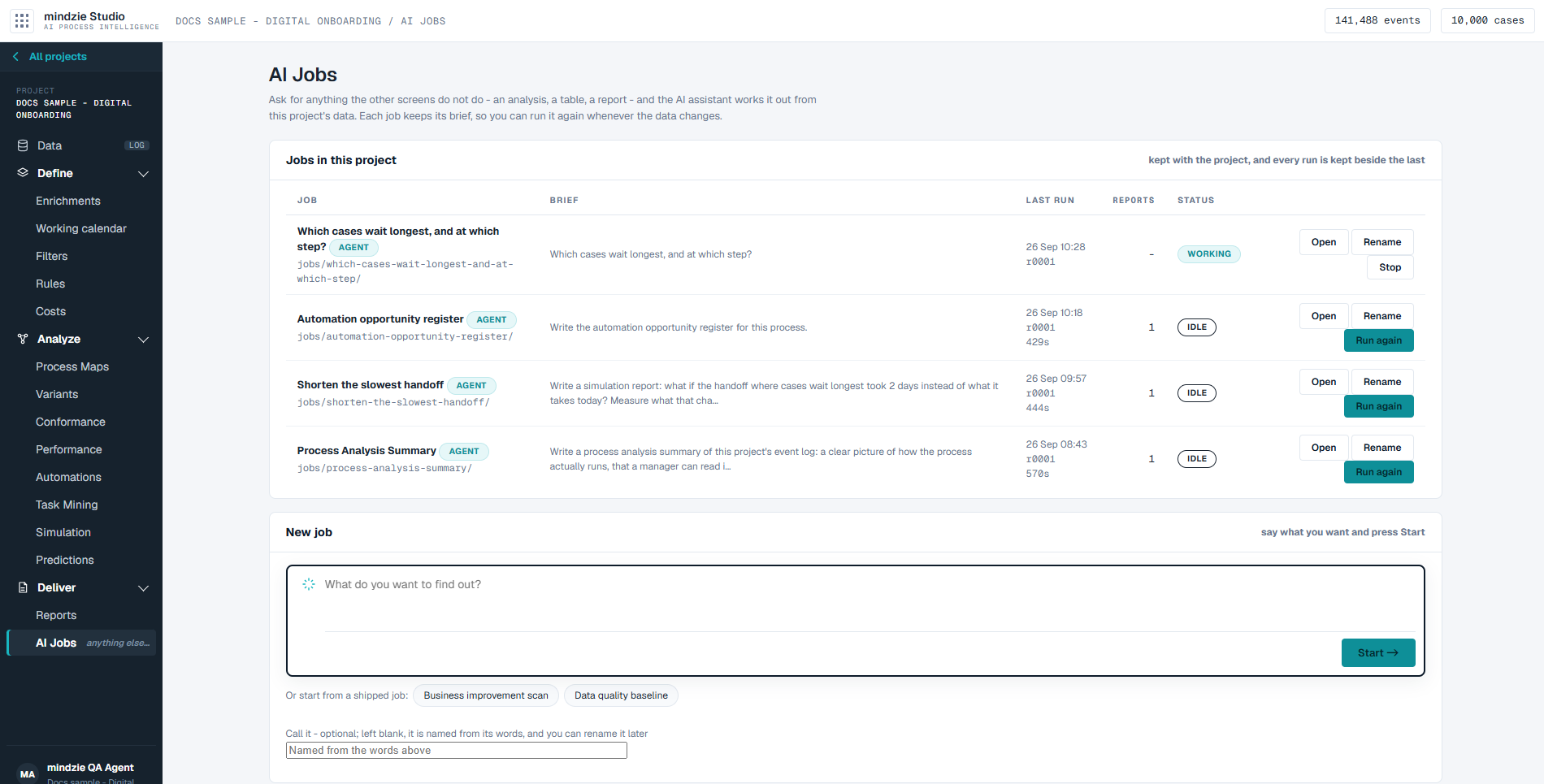
AI Jobs is where you ask for anything the other screens do not do - an analysis, a table, a report - and the AI assistant works it out from this project's data. Each job keeps its brief and every run it has made, so you can run it again whenever the data changes.
How AI Jobs relates to Reports
Every report you ask for on Reports is made by a job, and that job is listed here - so are the jobs behind reports started from other screens, such as Simulation and Automations. On Reports you never need to think about it: the report publishes itself when its run is done. AI Jobs shows you the same job from the other side - its brief, its runs, what each run did, and what it produced. Watch on a report that is being written, and the link to the run under How this was made, both bring you here.
A job you start on AI Jobs is different in one way: what it makes is not published by itself. You look at the result and publish it to Reports when you are happy with it.
How to read it
From top to bottom:
- Jobs in this project - one row per job, with its name, the start of its brief, when it last ran and how long that took, how many reports it has produced, and its status. A job the assistant works out is marked agent. Each row has Open and Rename, and Run again or, while it runs, Stop.
- New job - the box for a new job. "What do you want to find out?" Under it, Or start from a shipped job: offers two ready-made jobs, and Call it lets you name the job.
- What a job is - a reminder that a job keeps its brief and every run, and that Run again adds a new run beside the last one.
The status of a job
| Status | Meaning |
|---|---|
| working | A run is going now. |
| idle | Nothing is running, and the last run finished. |
| last run failed | The last run did not finish its work. |
| last run stopped | Someone stopped the last run. |
| last run interrupted | The last run was cut off before it finished. |
| last run hit a limit | The last run was stopped at a time, memory or processing limit. |
What you can do
Start a job in your own words
- In New job, type what you want to find out in the box.
- Under Call it, type a name if you want one. Left blank, the job is named from its words, and you can rename it later.
- Click Start.
The job appears in Jobs in this project as working.
Start from a shipped job
Under the box, click one of the two shipped jobs. Its brief is put in the box, labelled with the job it came from, and you can click Start as it is, or edit the words first - once you edit them, the assistant works from your words. Clear empties the box.
| Shipped job | What it does |
|---|---|
| Business improvement scan | Bottlenecks and delays, rework and quality, and the time each one costs - with a recommendation on every finding. |
| Data quality baseline | What is missing, what is out of order, and what any conclusion drawn from this log has to carry as a caveat. |
Open a job and follow its runs
Click Open on a job, or its name. The job's page shows:
- The brief - the words the job runs from. A standard report's brief left as it was is marked standard brief; words somebody typed are marked run by the agent.
- Runs - every run the job has made, newest first. Each run shows when it ran, the data version it read, its status, how long it took, and what it produced. While a run is going, it shows what the assistant is doing, step by step, and the list keeps itself up to date.

The status of a run:
| Status | Meaning |
|---|---|
| running | The run is going now. Stop cancels it. |
| waiting its turn | The run will start when the one before it has finished. |
| done | The run finished. What it produced is listed beside it. |
| stopped | Someone stopped the run. |
| interrupted | The run was cut off before it finished. |
| stopped at the time limit, stopped at the memory limit, stopped at the processing limit | The run hit one of the project's limits. What it had finished is still there. |
| failed | The run did not finish its work. The reason is on the run. |
Run a job again
Click Run again on the job's row, or on its page. The same brief runs on the data as it is now, and the new run is added beside the last one. An earlier run, and anything published from it, is not touched.
Publish what a job made
When a run is done, each file it produced is listed with a Publish button.
- Click the file's name to look at it first, if you want to.
- Click Publish.
- Check the Name and the Description - what a reader should expect before they open the report.
- If the project already has a report with that name, choose whether to add this as the next version of that report, or publish it as a separate report under a different name.
- Click Publish.
Publishing takes a copy and freezes it, so running the job again cannot change what you published. Once published, the file on the run shows published with the version (for example published v0001), and the report is on Reports. A job started from Reports publishes itself, so its runs already show this.
Rename a job
Click Rename on the job's row, or open the job and click Rename this job at the top. Type the new name and click Rename. Its runs and the reports made from it keep opening.
Good to know
- A job travels with the project. Its brief and every run are kept in the project, so they are there when the project is started again.
- Runs have a ceiling. A run stops at the limit set in the project's AI settings rather than carrying on. A run that hit it says so, and what it had already finished is still there.
- If the AI assistant is not available, the screen says so, and a job cannot run.
- A job with nothing to publish. A job does not have to produce a report. If it changed the project instead - for example it kept a new event log - the run says what it changed.