Rules
A rule says what the process is supposed to do - for example "identity is verified before the contract is sent". For every case, a rule gives one answer: the case met the rule, broke it, or the rule does not apply to it.
How to read it
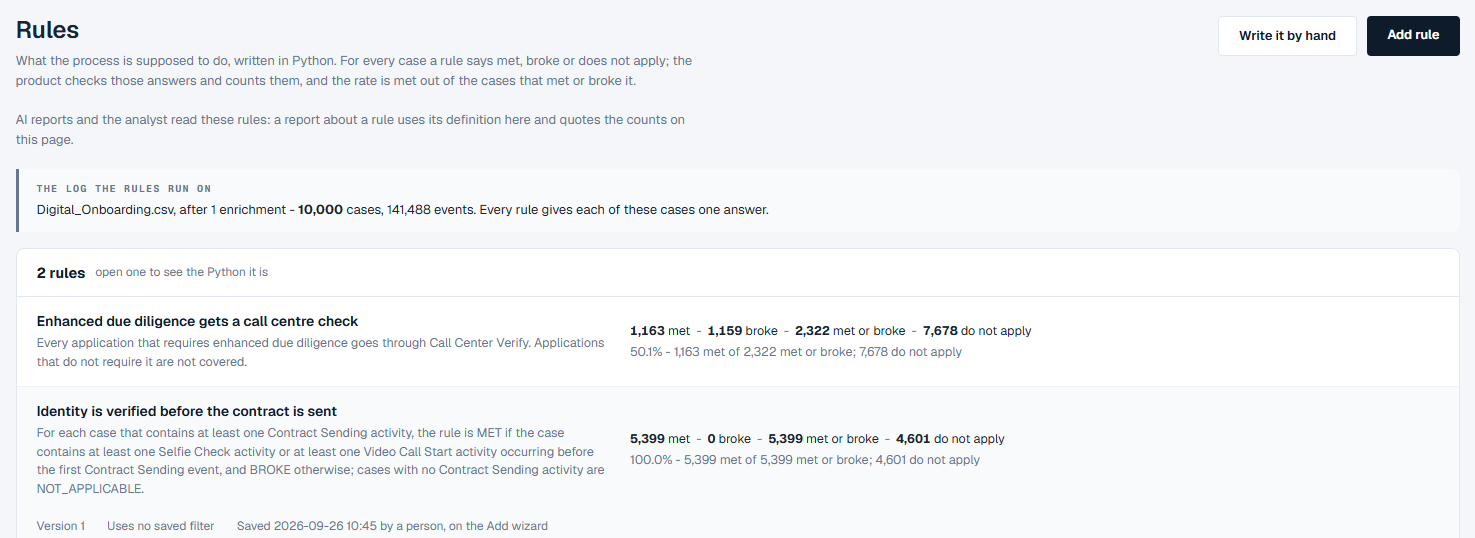
- The log the rules run on - the event log the rules are counted on, with its number of cases and events. Every rule gives each of these cases one answer.
- The list - one row per rule: its name, the description that says what it expects, and its counts on the log:
| Count | Meaning |
|---|---|
| met | Cases the rule is about that kept it. |
| broke | Cases the rule is about that did not keep it. |
| met or broke | The cases the rule is about. The rate is taken over these. |
| do not apply | Cases the rule is not about. |
Under the counts is the rate: met out of the cases that met or broke it. For example, "Identity is verified before the contract is sent" reads 100.0% - 5,399 met of 5,399 met or broke; 4,601 do not apply. The cases that never reach the contract step do not count against the rate.
Click a rule to open it. The opened row shows its version, any saved filter it uses, when and how it was saved, the Python it is written in, and up to five example cases for each answer - Met, Broke and Does not apply.
There is no on or off switch. A rule counts as soon as it is saved; delete it to take it out.
What you can do
Add a rule in your own words
- Click Add rule.
- In the box, say what the process should always do - for example "Identity must be verified with a Selfie Check or a Video Call Start before Contract Sending" - and click Submit.
- The page moves to Check how we read it. On the left, under What we will make, are the Name and Description read from your words. On the right, How we read what you said lists which cases the rule is about and what counts as keeping it. Read as shows each choice it made where your words could mean two things, and Left out - this log cannot say it names anything the log has no data for.
- Change the name or the description if they are not right, or click Back - say it again to start over.
- Click Generate. The rule is written from the description, tried on the log and saved, and the page shows its counts.
- Click Done - back to Rules, Open it to edit, or Add another.
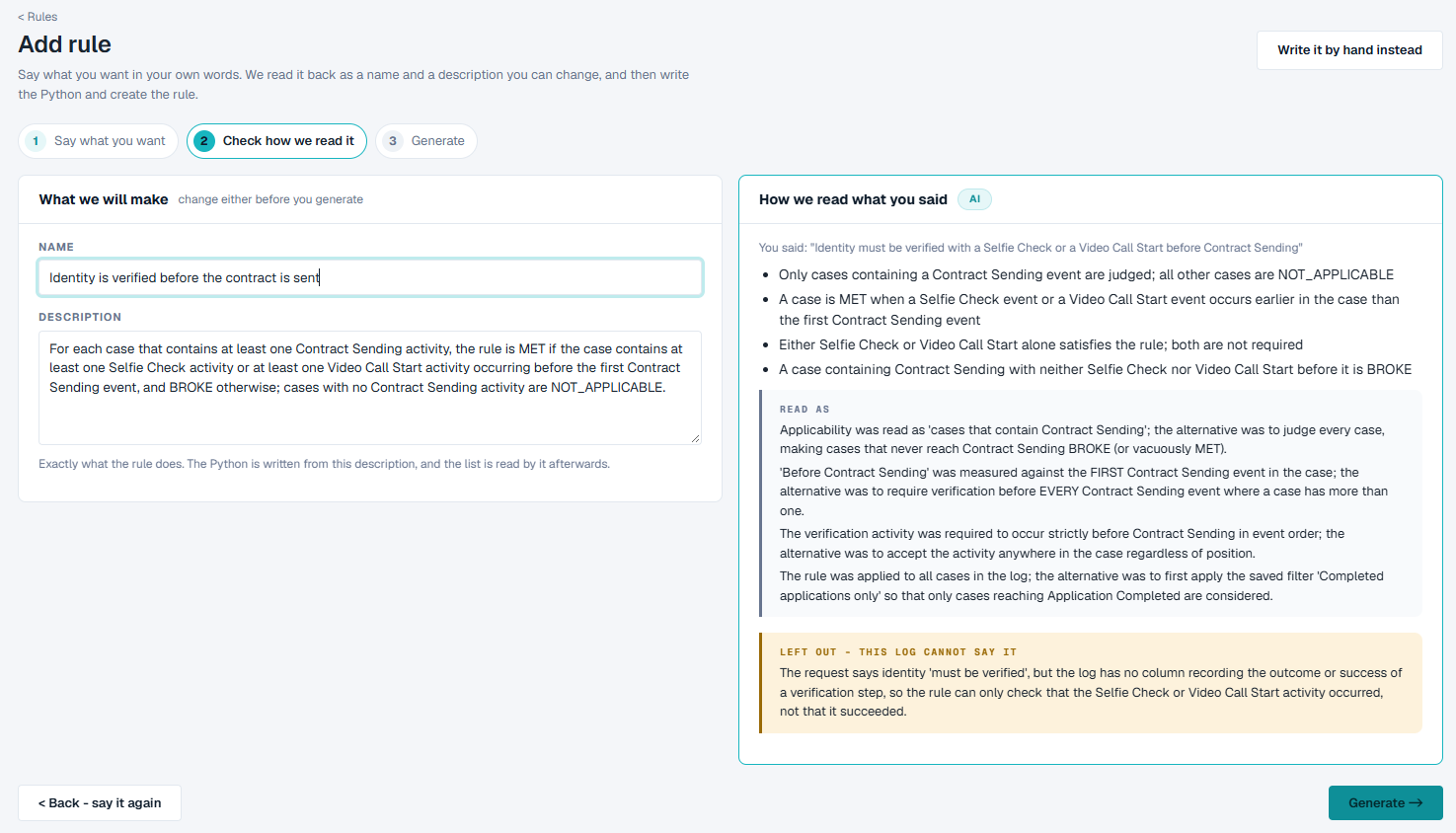
A good rule says two things precisely: which cases it is about, and what counts as keeping it. Read the Read as notes before you click Generate - they are where a rule most often means something slightly different from what you intended.
A time limit is a rule too. For example, "Every application that reaches Application Completed must reach it within 10 days of the application's first event" makes a rule that a case meets when it reaches the step in time and breaks when it is late. Read as says how the time is counted - for example as calendar days rather than working days - so check it before you click Generate.
Write a rule by hand
- Click Write it by hand.
- Type a Name and a Description.
- Write the Python in the code box. The This log panel on the right lists the log's columns, activities and saved filters, the three answers a rule can give (MET, BROKE and NOT_APPLICABLE) and helpers; click one to insert it.
- Click Try it on the log to see its counts. Nothing is saved.
- Click Save rule, or Cancel to leave without saving.
Change or delete a rule
- Open the rule and click Edit to change it, or Try it to count it again.
- Click Delete, and confirm, to remove it.
Where rules are used
- Conformance checks the cases against your rules as well as against the process model, and shows how many rules were breached and how many cases broke a rule.
- AI reports read your rules: a report about a rule uses its description here and quotes the counts on this page.
- A cost can count the cases broken by one rule, or by any rule. See Costs.
Good to know
- Rules belong to the event log the project reads. If the project has more than one event log, each has its own rules.
- A rule that cannot be counted shows does not count and the reason, never a rate of 0%.
- The wording of a rule can only check what is in the data. If the log records that a step happened but not whether it succeeded, the rule checks that it happened, and the page says so under Left out - this log cannot say it.
- Adding a rule in your own words needs an AI model in the project. Without one, the page says so; write the rule by hand instead - it is the same rule either way.