Variants
A variant is one distinct path through the process: the activities a case went through, in the order it went through them. Variants lists every path your cases took, how common each one is, and the cases behind it, so you can see how much of the work follows the usual route and how much goes another way.
The screen has three tabs: Overview, Sequence variants and Parallel variants.
Overview
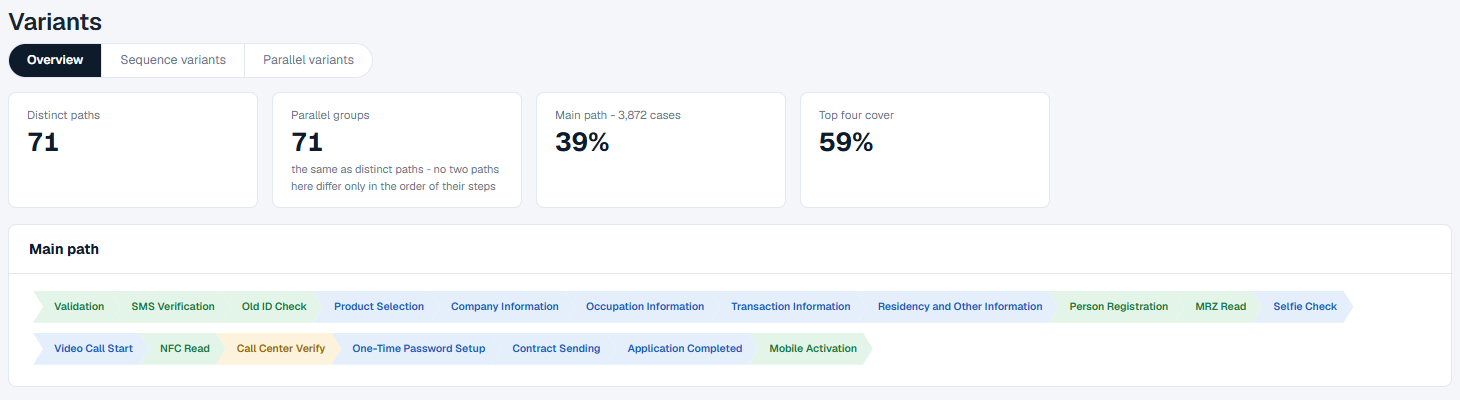
How to read it
- Distinct paths - how many different paths the cases took.
- Parallel groups - how many groups those paths make when paths that differ only in the order of their steps count as one. When the two numbers are the same, the card says so: no two paths differ only in their order.
- Main path - the share of cases that took the commonest path, and how many cases that is.
- Top four cover - the share of cases that took one of the four commonest groups.
- Main path, under the cards - the commonest path, step by step, from the first activity to the last.
Sequence variants
This tab lists the paths one by one, each exactly as the cases ran it.
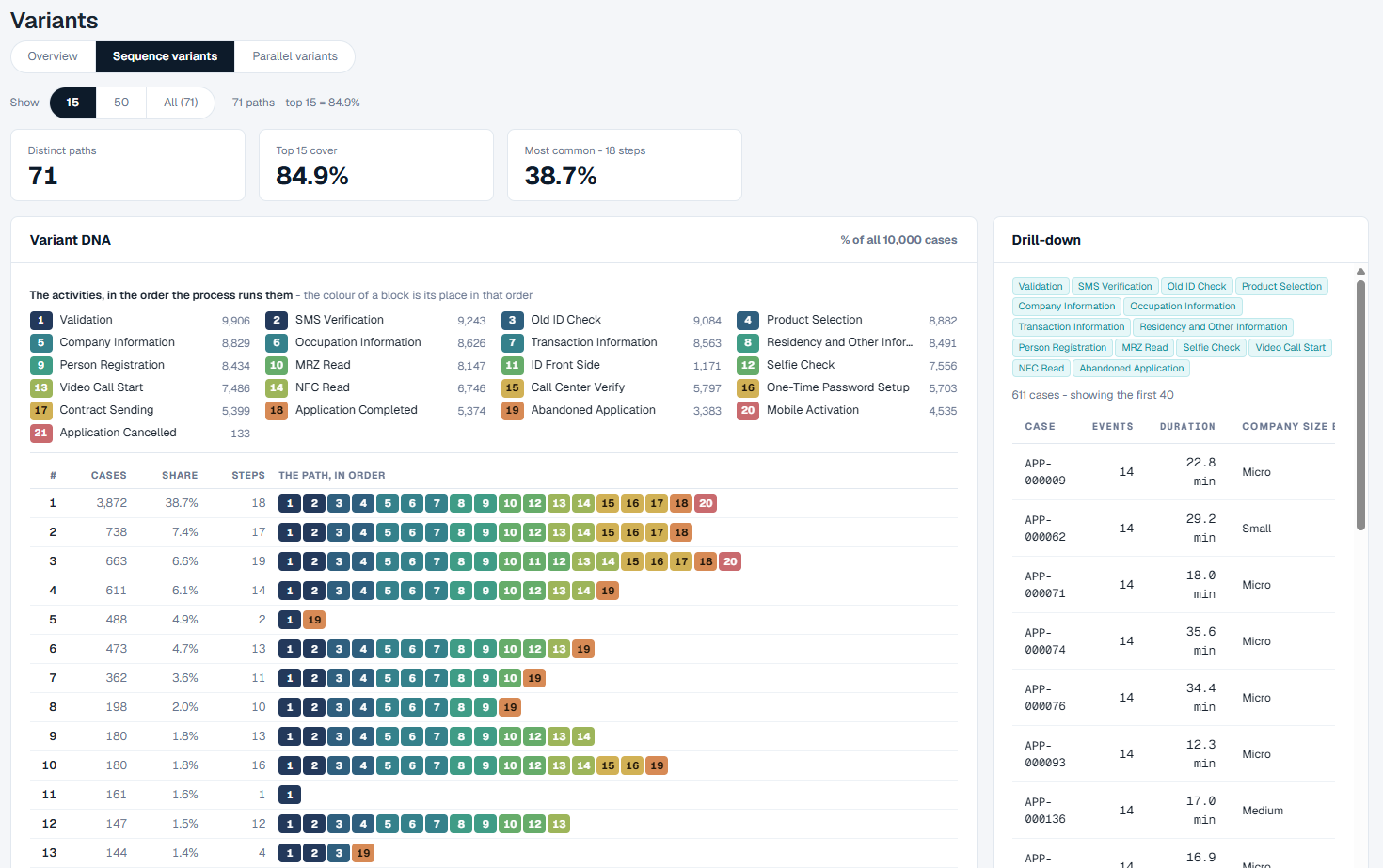
How to read it
- Show - how many paths to list: 15, 50, 100, and a last step for all of them. The screen offers only the steps smaller than the number of paths in your log, so on a log with 71 paths it offers 15, 50 and All (71). The last step lists at most 1,000 paths: on a log with more, it reads, for example, 1,000 of 4,182, and there is no All. Beside it, how much of the log the listed paths cover, for example "71 paths - top 15 = 84.9%".
- The cards - Distinct paths, how much the listed paths cover, and the share and length of the Most common path.
- Variant DNA - the paths drawn side by side:
- The key at the top numbers every activity in the order the process runs them, with its number of events. A block's number and colour are its activity's place in that order, so blocks that run in order go from dark to light.
- The table has one row per path: its rank (#), how many Cases took it, their Share of all cases, its number of Steps, and The path, in order, as a row of numbered blocks. A block with a small extra number is an activity that ran several times in a row.
- Drill-down, on the right - empty until you click a path.
Reading the rows against each other is the quickest way to see where paths part: a row that stops early ended there, and a missing number is a step that path skipped.
What you can do
See the cases behind a path
- Click a row in Variant DNA.
- Drill-down shows the path's steps, how many cases took it, and the first 40 of those cases with their number of events, their duration and the fields your log holds for each case.
- Click a case to open it on its own page: its events in order, when it spent its time, how it compares with the other cases, and its fields.
See more or fewer paths
- Click one of the steps next to Show: 15, 50, 100, or the last step (All (N), or 1,000 of N on a log with more than 1,000 paths).
Parallel variants
Some processes have steps that can happen in any order - for example two checks that run side by side. Each order is a different path, so one way of working can show up as many sequence variants. This tab groups those paths together, so each row is one way of working rather than one exact order.
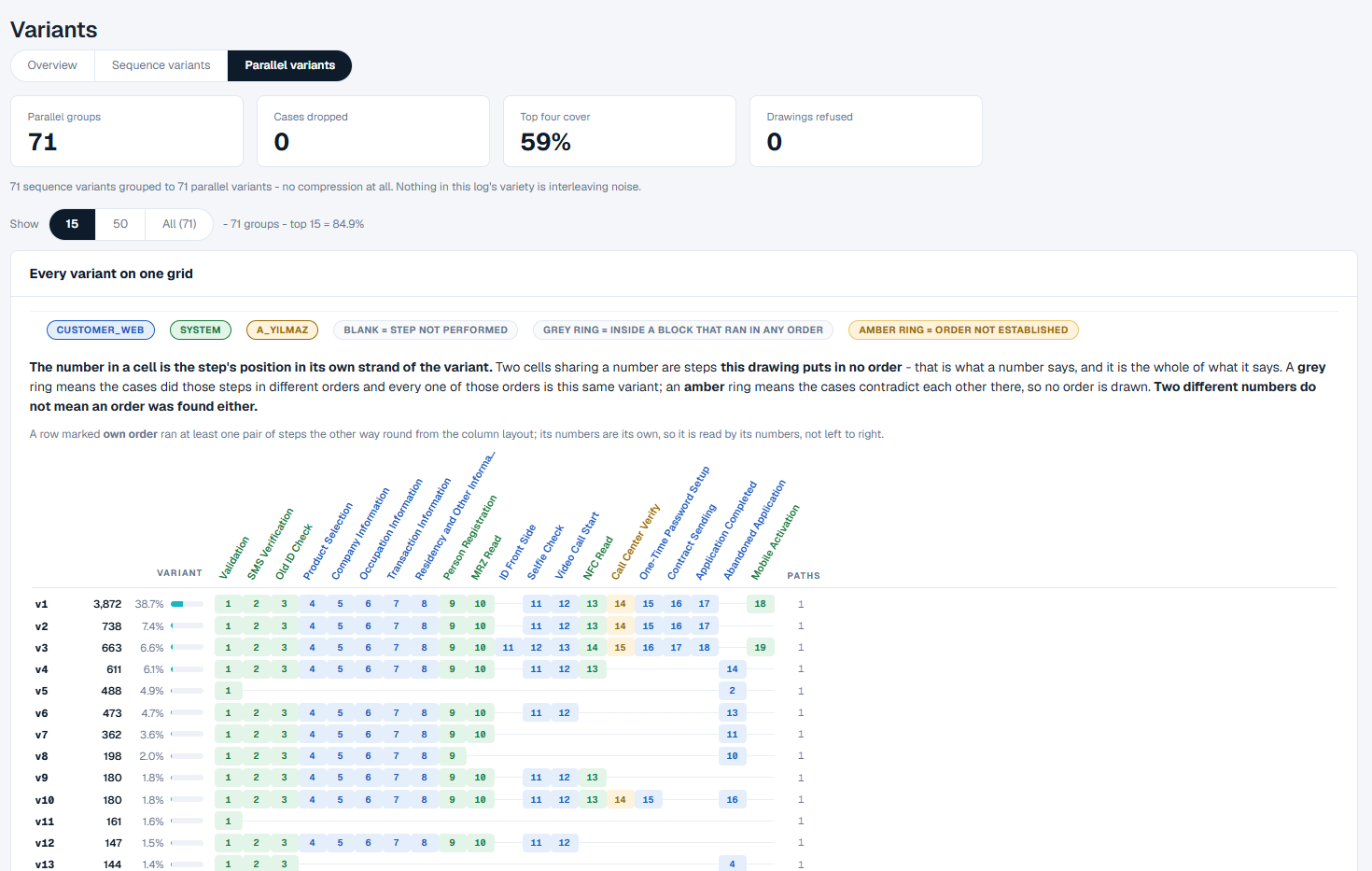
How to read it
- The cards:
- Parallel groups - how many groups the paths make.
- Cases dropped - cases whose path could not be placed in any group.
- Top four cover - the share of cases in the four largest groups.
- Drawings refused - groups whose drawing did not hold up against their own cases, so no order is claimed for them.
- The sentence under the cards says how much the grouping helped on this log - for example "71 sequence variants grouped to 71 parallel variants - no compression at all", which means none of the variety comes from steps being done in a different order.
- Show - how many groups to list, with the same steps as on Sequence variants: 15, 50, 100 and a last step for all of them, up to 1,000.
- Every variant on one grid - one row per group and one column per activity:
- Each row starts with the group's name (v1, v2, ...), its number of cases and its share.
- A number in a cell is the step's position in that group's path. A blank cell is a step the group never performed.
- Two cells with the same number are steps the group performs in no fixed order.
- PATHS, at the end of the row, counts the sequence variants the group holds.
- The legend above the grid names what each colour of cell stands for, then blank = step not performed, grey ring = inside a block that ran in any order and amber ring = order not established. The sentence under it says the same in full: a grey ring means the cases did those steps in different orders and every one of those orders is this same variant; an amber ring means the cases contradict each other there, so no order is drawn. Two different numbers do not mean an order was found either.
- A row marked own order ran at least one pair of steps the other way round from the column layout. Read that row by its numbers, not left to right.
What you can do
- Click a row in the grid. A window opens for that group.
- It shows the group's steps, a check of the drawing against its cases, The paths inside this group and The cases in it.
- Click Filter the map to this to open Process Maps for the cases in this group.
- Click Close to go back to the grid.
Filtering
A filter set on another screen - for example by clicking a path on the Process Map - shows as a chip at the top of the screen, such as Showing only Variant #2:
- Click the x on the chip to remove it.
- Take it to opens the map or Performance with the same filter.
Good to know
- Every figure on this screen is for the event log in use, shown in the top bar.
- On Sequence variants, a share is always of all the cases in the log, even when a filter is on.
- Parallel variants is always worked out from the whole log. If a filter is on, the tab says it is not applying it and offers Take it to sequence variants.
- When a filter leaves no cases, the screen says "Nothing matches this filter". Remove a filter with the chip above to widen it again.
- A log with many paths can have a long tail of rare ones. The commonest few usually cover most of the cases; the cover figures tell you how many.