Automations
Automations looks at every step in your process and asks which ones a machine could take over, and what that would give back. It ranks the steps from your log, says how sure it is about each one, and can have an AI agent write up what each automation would take.
How to read it
The screen has two tabs: Overview and Candidates.
What a step is, and what makes it a candidate
A step is every activity in the log, and every handoff from one activity straight into the next. A step is scored only once it has run often enough to judge: at least thirty times, or one per cent of the cases, whichever is larger.
For each step, the screen measures:
- how often it runs, and how often it is reached the same way;
- whether the same thing always follows it - the share of its runs followed by the same next step. Where that is lower, it also checks whether a single value already in the log would have predicted what follows. Below 70 per cent it reads unknown rather than low, because a log cannot tell an inconsistent rule from a decision nobody recorded;
- whether it takes the same time each run - the spread of its times against its median. 0 means it always takes the same time; 1.0 means the spread is as wide as the median itself;
- the time in front of it - the median wait before the step, multiplied by the runs that had a wait recorded.
From those, each step gets a verdict:
| Verdict | Meaning |
|---|---|
| strong | The same thing follows at least 90 per cent of the time, and its time varies by less than 0.5. All its hours count. |
| partial | Somewhere in between. Its hours count only in the share of runs where the same thing follows; the rest is left to a person. That share is read over all of the step's runs; where its hours are measured on fewer runs, the row says so. |
| judgement | Its time varies by 1.5 times its median or more. It is not the same task twice. Not counted. |
| blocked | Nothing is recorded in front of it (it opens its case), its median wait is zero, or what follows it is unknown. Not counted. |
The Overview tab
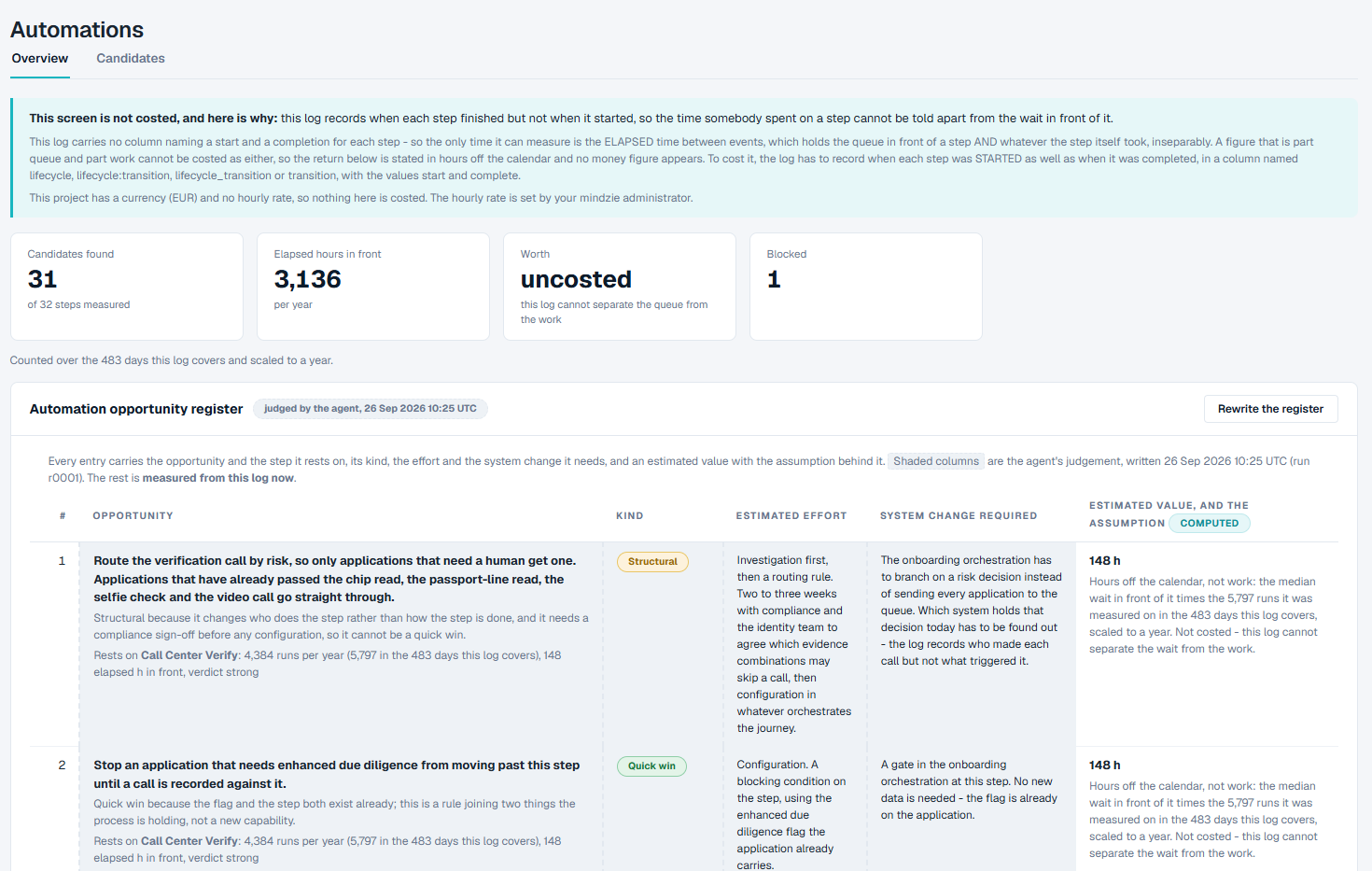
- The figures at the top: Candidates found (out of the steps measured), Elapsed hours in front (the hours the counted candidates hold), Worth (a money value, or uncosted with the reason), and how many steps are Blocked.
- Automation opportunity register - the agent's write-up of what to do about each step (see below).
- Worth automating first - the five candidates with the most to give back, each with what to automate, why, its hours and its verdict. The screen does not explain the scoring itself; this page does, in What a step is, and what makes it a candidate.
If the screen cannot put a money value on the hours, a box at the top says why in one line - for example, that the screen found no record of when each step started that it can read. The full reasons follow as plain lines in the same box, each saying what would have to change: for example, that the log needs a column recording when each step started as well as when it finished, or that no hourly rate is set for this project.
A line under the figures says what period they cover - for example "Counted over the 483 days this log covers and scaled to a year".
Hours per year, or over the whole log
If the log covers at least 28 days, volumes and hours are scaled to a year, and the columns read / yr. On a shorter log they are what was observed over the whole log, and the columns read observed.
Elapsed time and handling time
- Elapsed is the wait in front of a step - calendar time, the queue and the work together.
- Handling is the time spent inside a step. The screen can only measure it when the log records when each step started as well as when it finished, in a column named
lifecycle,lifecycle:transition,lifecycle_transitionortransitionholding the valuesstartandcomplete. When it does, a Handling h column appears and the list is ranked by it.
A run has no handling time when its start and completion are stamped at the same instant, or when a suspend, a resume or another phase is recorded anywhere in the case while it is open - even against another step. Those runs are left out of the handling figures rather than counted as zero, and a step none of whose runs can be measured reads no handling measurable.
Money is only ever worked out from handling time, never from elapsed time, and only when the project has an hourly rate and a currency. The screen has no box to type a rate into: the hourly rate is set by your mindzie administrator, and the currency on the Costs screen. Without a rate, every figure is in hours, and the cards say Hours, not money - no rate set or Uncosted.
The automation opportunity register
A table an AI agent writes when you ask for it. Each entry names the opportunity, why, and the step it rests on (with that step's measured runs and hours); its Kind (for example Quick win or Structural); the Estimated effort; the System change required; and the Estimated value, and the assumption.
- The shaded columns are the agent's judgement. The chip beside the title says when it was written.
- The value column is worked out from your log every time the page opens. The agent does not write it.
- A note under the table, What this register does not contain, says what the agent could not know from an event log.
- The register is not written again when the data changes. After you load new data, rewrite it.
Before a register exists, the chip reads not written yet.
The Candidates tab
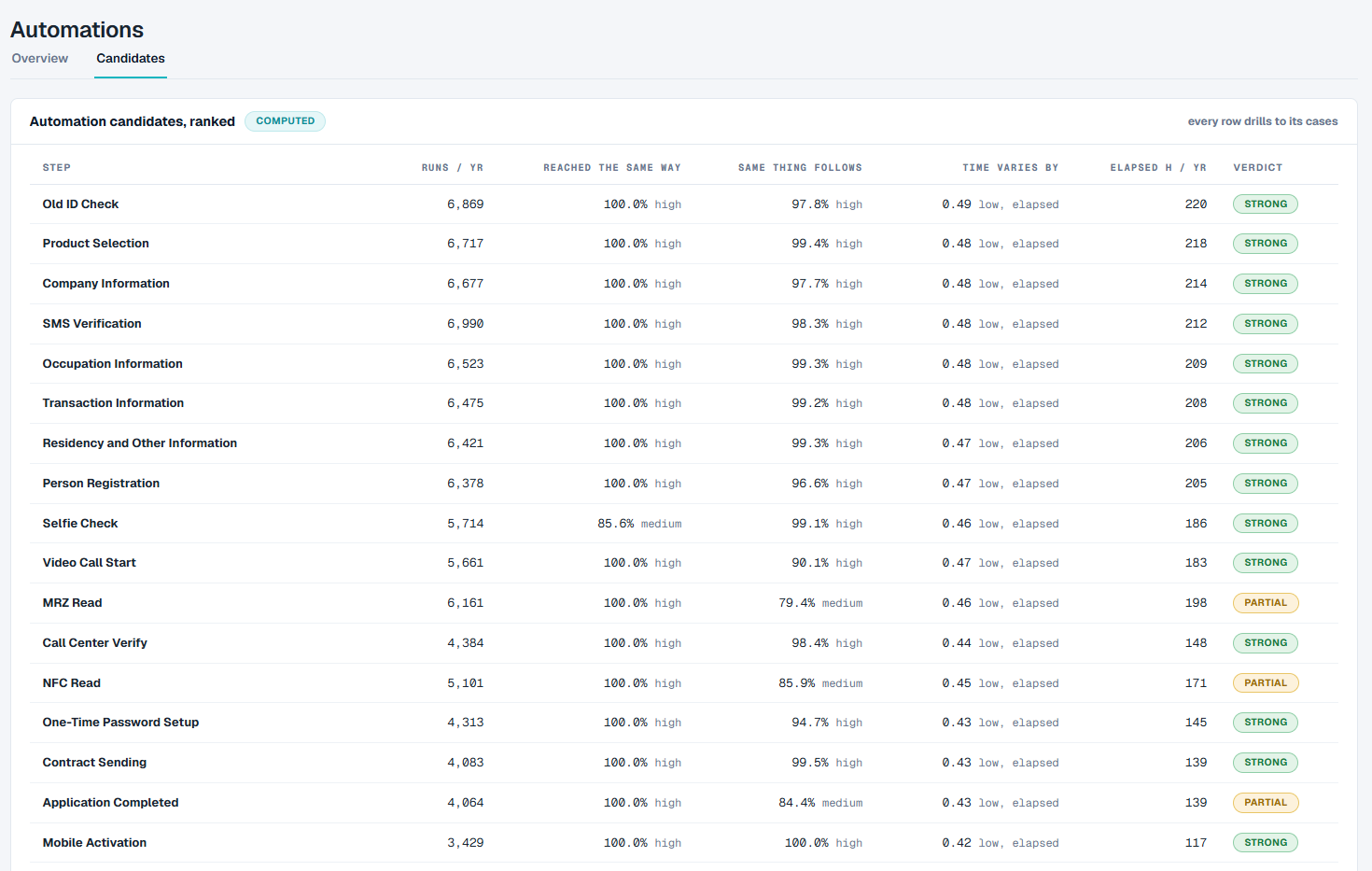
- Automation candidates, ranked - every scored step: its runs, how often it is reached the same way, how often the same thing follows, how much its time varies, its hours and its verdict. Click a row to see the cases it was measured on under Cases behind a candidate.
- What it returns - the counted candidates side by side, with a total. Blocked and judgement steps are left out.
- What stands in the way - for each blocked or partial step, what in the data would have to change.
- Why this one is a candidate - one sentence per step, built from the figures on its row.
- A line at the foot of the tab says what the screen does not claim: every figure is counted from this log, money comes only from the hourly rate set for this project and only on handling time the log measures, and a clear column is not evidence that a step can be automated. It also counts any rows left off the list - for example handoffs that would have been the same rows measured twice.
What you can do
Find what to automate first
- Open Automations. The Worth automating first card lists the five steps with the most to give back.
- Open the Candidates tab to see each step's figures and its verdict. The verdicts follow the thresholds in What a step is, and what makes it a candidate.
See the cases behind a candidate
- Open the Candidates tab.
- Click a row. The cases it was measured on appear under Cases behind a candidate.
Have the agent write the register
- On the Overview, click Write the register.
- The agent writes it as an AI job. This takes a few minutes. While it runs, the card says The agent is writing the register and when it started; reload the page to see the register once it is done.
- To write it again after new data, click Rewrite the register. The old register stays on the screen until the new one is finished.
Good to know
- Every figure is measured from your log. The screen does not guess a rate, a saving or a cost. Hours are a median multiplied by the runs it was measured on, so a handful of cases that sat over a holiday cannot set the headline.
- A log records events, not tasks. A step that only marks a state the case reached - for example an application marked cancelled - is scored like a step somebody performed. Whether a step is work a machine could take over is for you to judge.
- What a log cannot see. Whether a system has an interface, whether a vendor will change it, or whether anyone may automate the step at all is not in an event log. A step that is not blocked here is not proof the way is clear.
- When the agent is not available. If the agent cannot run on this project, Write the register is greyed out and the card says why.
- If the last run failed. The card says The last run did not finish and gives the reason. Click the button again to retry.