Voice Dictation
Prefer to watch? This tutorial is also available as a video.
Speak your instructions to the AI agent instead of typing them. The Dictate button on the AI Job conversation lets you record a message with your microphone, watch the live transcript as you speak, and then insert the text into the message box or send it straight to the agent.
Overview
Voice dictation:
- Records audio from your microphone while you speak
- Transcribes your words live through the mindzie transcription service
- Corrects domain terms (for example "mindzie" and "BPMN") using a built-in vocabulary, without changing anything else you said
- Places the final text in the message box (Insert) or submits it to the agent immediately (Send)
Audio is processed through the mindzie transcription service using your installation's license - you do not need to configure any AI provider or API key for dictation.
When to Use Voice Dictation
Use dictation when you want to:
- Describe a long or detailed analysis request faster than typing it
- Talk through what you want from the agent in natural language
- Add spoken context to an AI Job while reviewing results on screen
How to Access
Open any AI Job: AI Jobs (Beta) > select a job. The green Dictate button sits at the bottom left of the conversation panel, next to the message box.
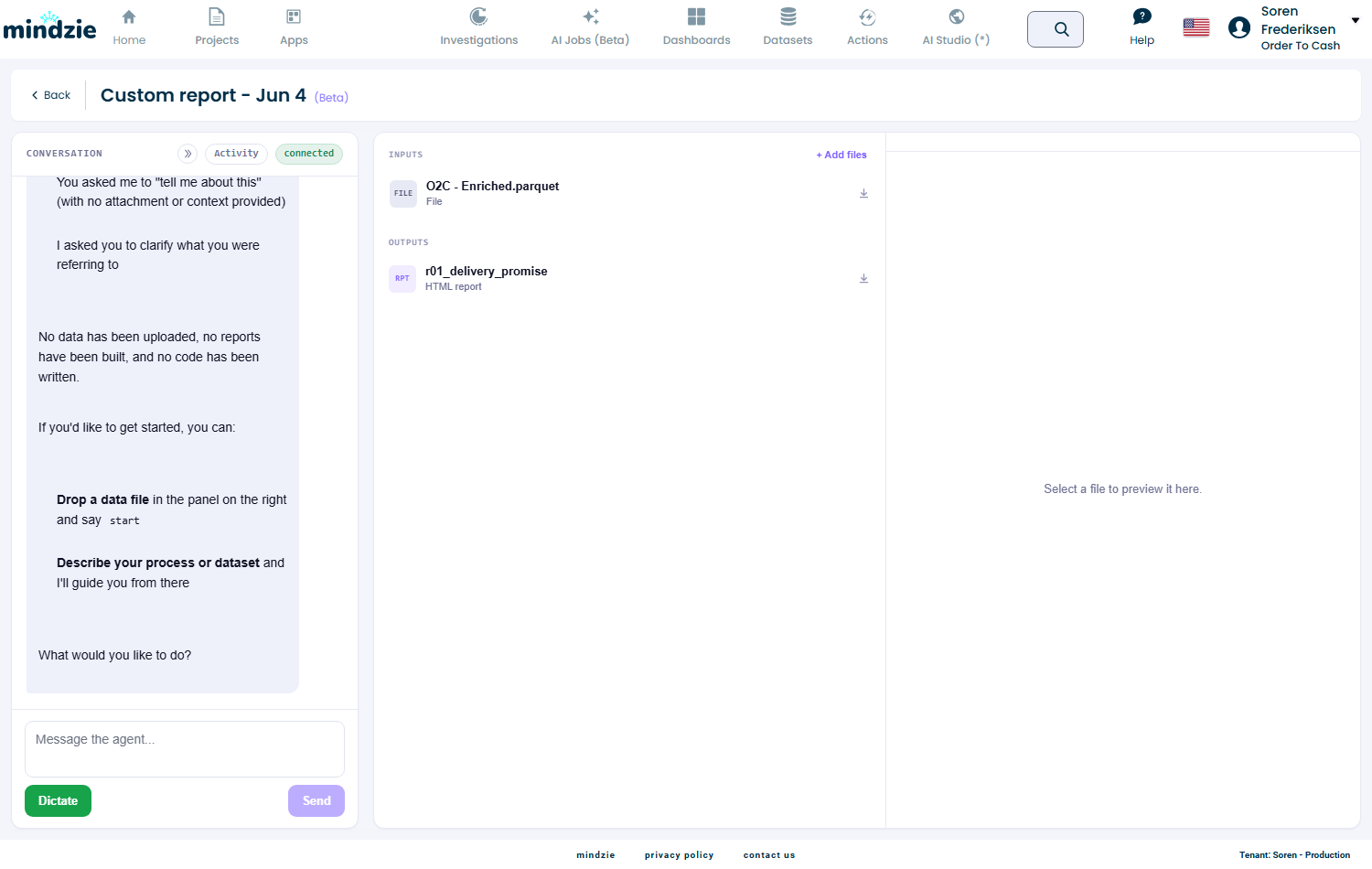
Voice dictation follows the Enable AI agents setting (Settings > AI Agent). When the AI agents are turned off for a tenant, the Dictate button is hidden and dictation requests are rejected.
The first time you dictate, your browser asks for microphone permission - choose Allow.
Using the Dictation Dialog
Click Dictate to open the recording dialog. It starts recording immediately: the timer runs and the level bars move while you speak.
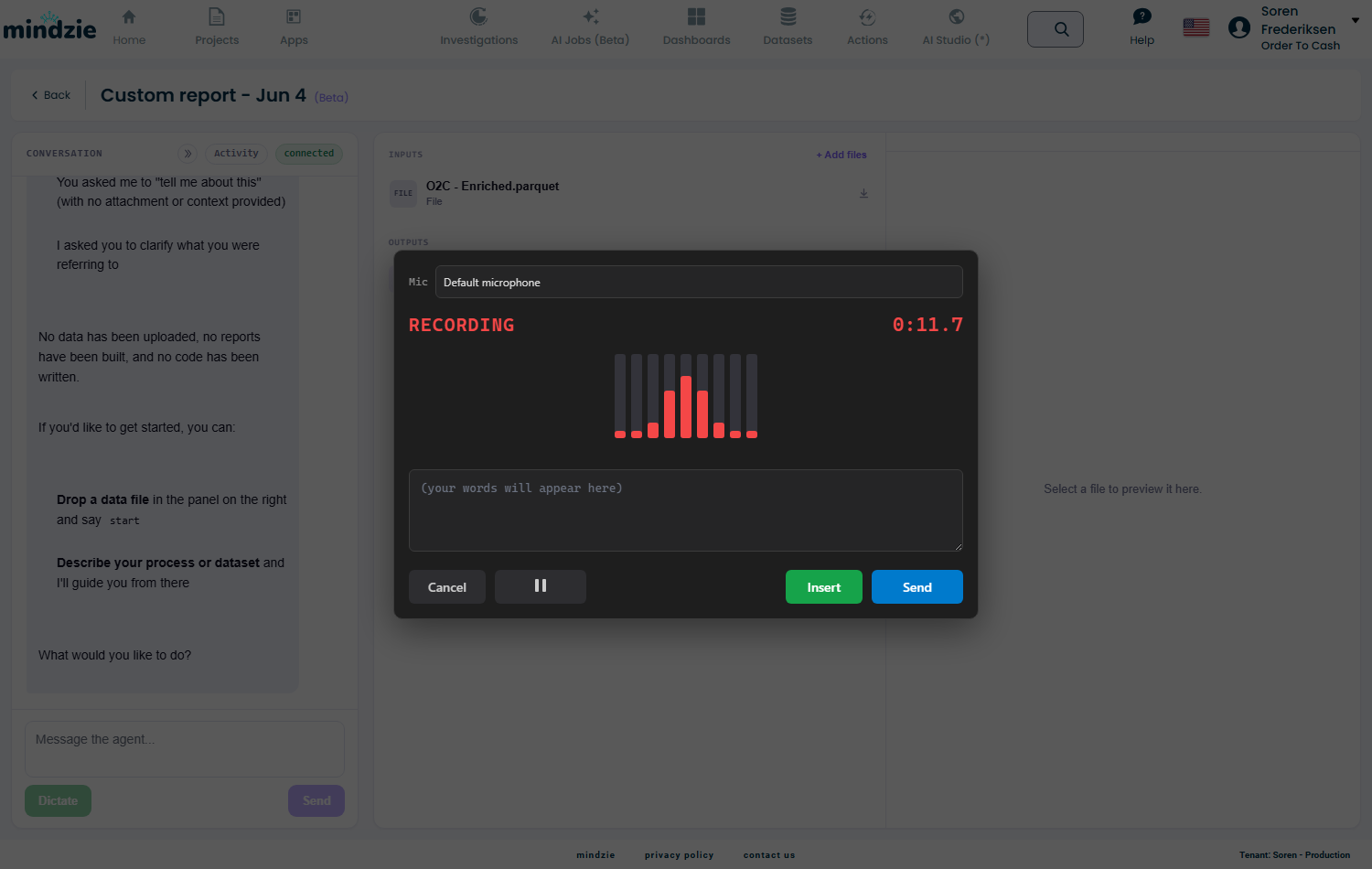
| Control | What it does |
|---|---|
| Mic selector | Choose which microphone to record from |
| Pause | Pause and resume the recording |
| Cancel | Discard the recording and close the dialog |
| Insert | Transcribe and place the text in the message box - you can edit it before sending |
| Send | Transcribe and submit the text to the agent immediately |
Example
- Open an AI Job and click Dictate
- Say: "Create a process overview report from the attached dataset and highlight the three biggest bottlenecks"
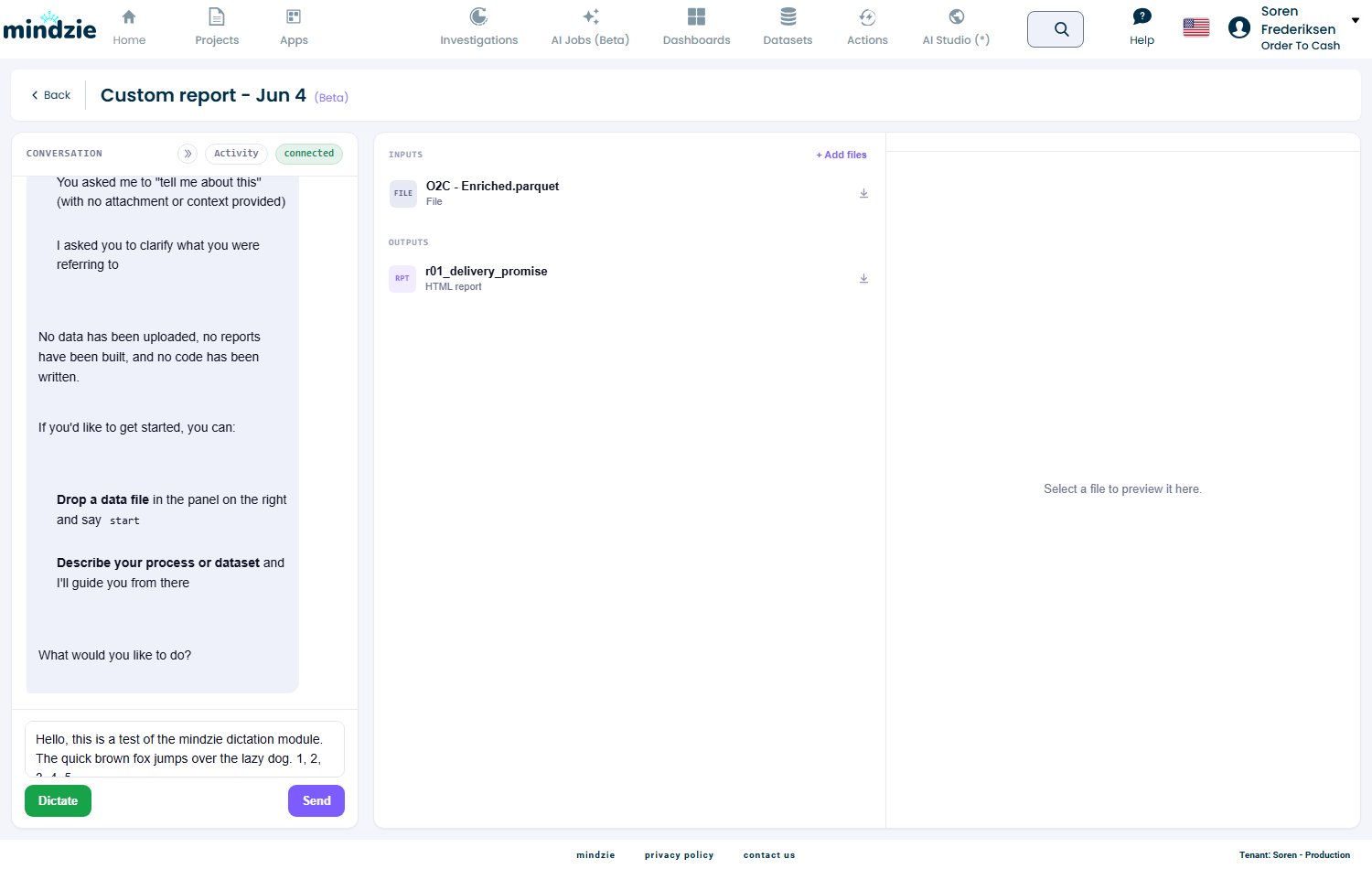
- Click Insert
- The transcribed text appears in the message box - review it, adjust if needed, and press Send
Notes
- Dictation preserves your exact words. The only corrections applied are known domain terms (so "mind z" becomes "mindzie") - the service never rewords or summarizes what you said.
- If the transcription service is unreachable, the dialog shows an error and nothing is sent - your draft text in the message box is untouched.
- Dictation is available on both the mindzieStudio AI Jobs page and the BPM Studio AI Jobs page.