AI Event Log Builder
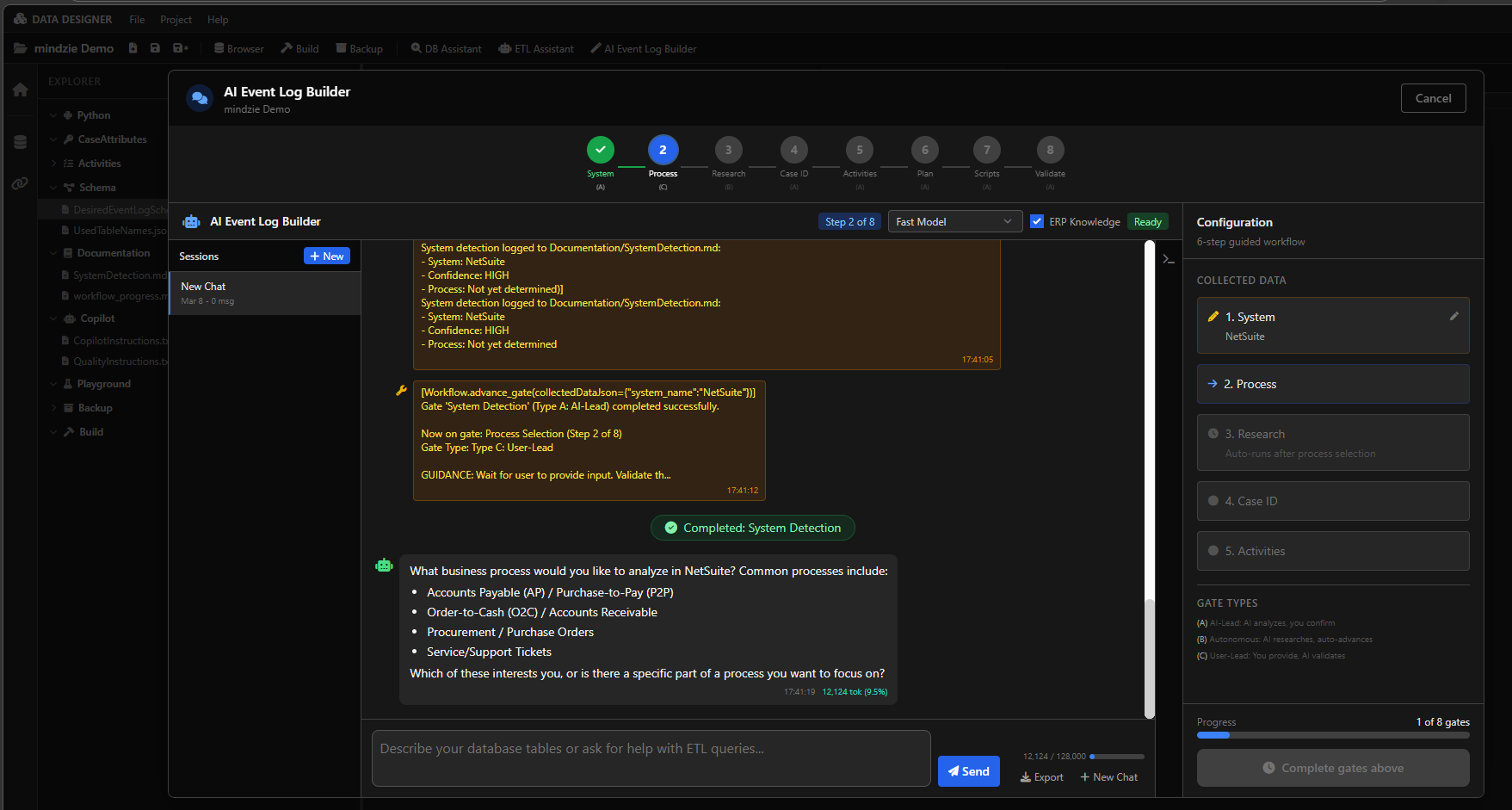
The AI Event Log Builder is a guided wizard in mindzieDataDesigner that walks you through creating an event log step by step. It uses a structured approach with 8 sequential gates that must be completed in order. Each gate is a focused conversation about one topic.
How to Access
- Open a project in mindzieDataDesigner
- Click AI Event Log Builder in the toolbar at the top of the application
- The wizard opens in a chat panel and begins at Gate 1
The 8 Gates
The AI Event Log Builder follows a fixed sequence of 8 gates. You must complete each gate before moving to the next.
Gate 1: System Detection (AI-Lead)
The assistant analyzes your database tables and identifies the ERP system (SAP, Oracle, Dynamics, NetSuite, etc.). You confirm or correct the detection.
Assistant: "Based on your schema, this appears to be NetSuite. I recognized tables like transaction, transactionline, and entity which are characteristic of NetSuite. Is this correct?"
You: "Yes"
Gate 2: Process Selection (User-Lead)
You tell the assistant which business process to analyze. The assistant validates your choice against the detected ERP system.
Assistant: "What business process would you like to analyze? For NetSuite, common processes include Accounts Payable, Order-to-Cash, and Procurement."
You: "AP"
Gate 3: Research Phase (Autonomous)
The assistant researches the ERP system's data model using the built-in knowledge base and web search. It creates a research document summarizing the tables, columns, and relationships relevant to your selected process. No interaction is needed during this gate -- you can watch the progress.
Gate 4: Case ID Configuration (AI-Lead)
Based on the research, the assistant recommends a Case ID strategy. You confirm or modify the recommendation.
Assistant: "For Accounts Payable in NetSuite, I recommend using the transaction table with the id column, filtered to type = 'VendBill'. This captures vendor bills as individual cases. Would you like to continue with this configuration?"
You: "Yes" or "No, I want to include vendor credits too"
Gate 5: Activities Configuration (AI-Lead)
The assistant recommends which activities (events) to track based on the research. You confirm or modify the list.
Assistant: "Here are the recommended activities: Bill Created (datecreated), Bill Approved (approvaldate), Bill Paid (closedate). Would you like to continue with these, or make changes?"
You: "Add the due date as well"
Gate 6: Generate Implementation Plan (AI-Lead)
The assistant summarizes everything discovered and decided so far into a formal Implementation Plan document. You review and confirm to proceed.
Gate 7: Script Creation and Validation (AI-Lead)
The assistant creates all SQL scripts for activities and case attributes, then validates each one. You review the validation results.
Gate 8: Event Log Validation (AI-Lead)
The assistant builds the event log and presents statistics (total events, cases, activities, date range). You confirm the results are acceptable to complete the process.
Gate Types Explained
Each gate follows one of three interaction patterns:
| Type | Label | How It Works |
|---|---|---|
| AI-Lead (Type A) | The assistant presents its analysis or recommendation | You confirm, correct, or ask for changes. The wizard does not advance without your confirmation. |
| Autonomous (Type B) | The assistant works on its own | You watch the progress. The wizard auto-advances when the work is complete. |
| User-Lead (Type C) | The assistant waits for your input | You provide the requested information. The assistant validates your answer and confirms. |
Resume Support
The AI Event Log Builder saves progress automatically. If you close it and reopen later, it picks up where you left off. A banner shows "Resumed from previous session" with an option to start fresh if you prefer to begin again.
How to Interact
You do not need to know SQL or process mining to use this wizard. The assistant asks questions and you answer them. Most gates require a simple confirmation ("yes, that looks right") or a short answer ("Accounts Payable").
AI Event Log Builder vs. ETL Assistant
The AI Event Log Builder is structured and predictable. Every user goes through the same 8 steps in the same order. This makes it:
- Better for first-time users who do not know what questions to ask
- More consistent -- the same process every time
- Easier to follow -- you always know where you are (Step 3 of 8)
- Self-documenting -- it creates research and plan documents along the way
The trade-off is less flexibility. You cannot skip steps, go back to previous gates, or ask it to do partial tasks. For that flexibility, use the ETL Assistant instead.
Tools Available
The AI Event Log Builder has access to the same tools as the ETL Assistant:
| Tool Category | Capabilities |
|---|---|
| Schema exploration | Browse tables, view schemas, preview data, list datetime columns |
| Query execution | Run SQL queries against the connected database |
| ERP detection | Detect the source ERP system and list supported processes |
| ERP knowledge | Discover ERP-specific tables using the built-in knowledge base |
| Script management | Create and edit activity scripts and case attribute scripts |
| Validation | Validate case attributes, activities, and review queries |
| Building | Build the event log and read build output |
| Plan management | Create implementation plans, update sections, track progress |
| Web search | Research ERP data models online |