Opening BPM Studio
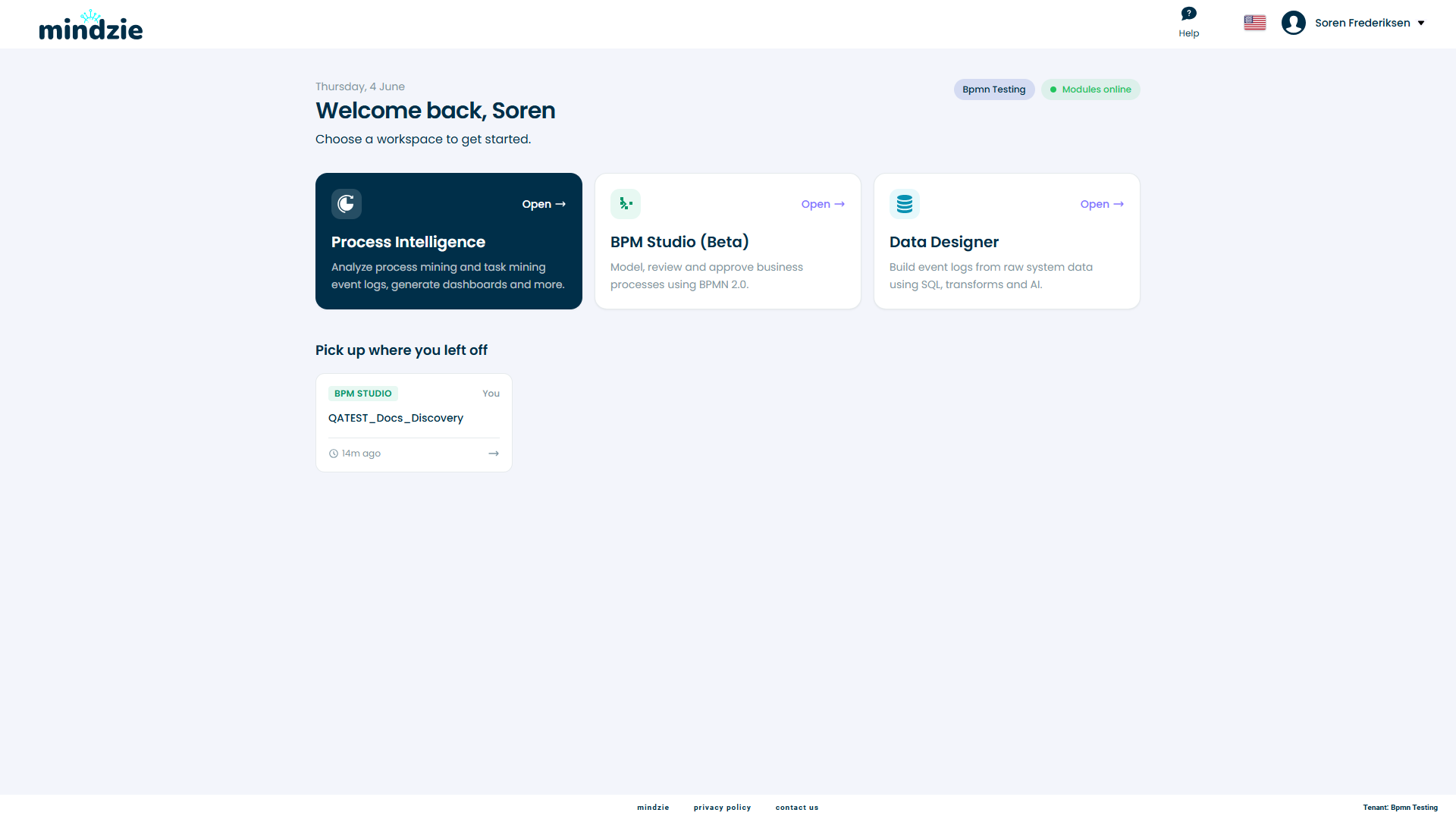
BPM Studio is opened from the mindzie module selector - the screen you land on after signing in and choosing a tenant.
Steps
- Sign in to mindzieStudio with your email and password.
- If you belong to more than one tenant, select the tenant you want to work in.
- On the welcome screen, find the BPM Studio card and click Open.
You land on the BPM Studio Overview - a dashboard of your projects and models - ready to open a project or create a new one.
If the BPM Studio card is not on the welcome screen, BPM Studio is switched off for your tenant. A tenant administrator can turn it on in the tenant's module settings.
Permissions
Any signed-in member of the tenant can open BPM Studio and work in the projects they belong to. Creating a project needs the Analyst role or higher - if you have the basic User role, New project is not offered, so ask a colleague to create the project and add you to it.
What you can do inside a project is controlled by your project role (Owner, Editor, or Viewer). See Project Members.
The Workspace Overview
The Overview is a dashboard of everything you have in BPM Studio:
- Counts of projects, models, drafts, and published models.
- Recent activity - the models that changed most recently, with their project, status, and when they were modified.
- Drafts to finish - the models you have started but not published.
- Recently published - what has most recently gone into the Repository.
Each row links straight to the model, so the Overview doubles as your way back into whatever you were last working on.
Finding Your Way Around
BPM Studio has two levels of navigation in the left sidebar.
At the workspace level:
- Overview - the dashboard you land on.
- All Projects - every project you can access.
- Repository - published models across your whole organization.
Inside a project (after you open one) the sidebar switches to show that project, with a Back to all projects button and these entries:
- Models - the BPMN models in the project.
- Files - source files used for AI generation.
- AI Jobs - AI generation jobs and their progress. Greyed out if AI agents are not enabled for your tenant.
- Members - who has access to the project, and their role.
The Sidebar and Header
At the top of the sidebar, a nine-dot grid switches back to the module selector so you can move to another mindzie module. It is hidden when BPM Studio is the only module your tenant uses.
At the bottom of the sidebar:
- About opens a dialog with the product version and the tenant and project you are working in, and a copy button for each identifier.
- The user chip shows your name and current tenant. Click it to Change tenant or Log out.
In the header:
- The page label tells you where you are - there is no breadcrumb trail.
- A tenant chip shows which tenant you are working in.
- Feedback opens the mindzie Feedback Board in a new tab, pre-filled so your note is tagged to BPM Studio. Your BPM Studio session stays open.
- The language switcher (the flag) changes the interface language. BPM Studio is available in the same set of languages as the rest of mindzieStudio, and the editor follows the same choice.
- Help opens this documentation in a new tab, in the language you are using.
Picking Up Where You Left Off
The module selector's "Pick up where you left off" panel lists the work you opened recently, including BPM Studio projects - click one to jump straight back into it.