Finding Your Way in a Project
Every screen in a project has the same frame: a bar across the top, a menu down the left, and the screen itself in the middle.
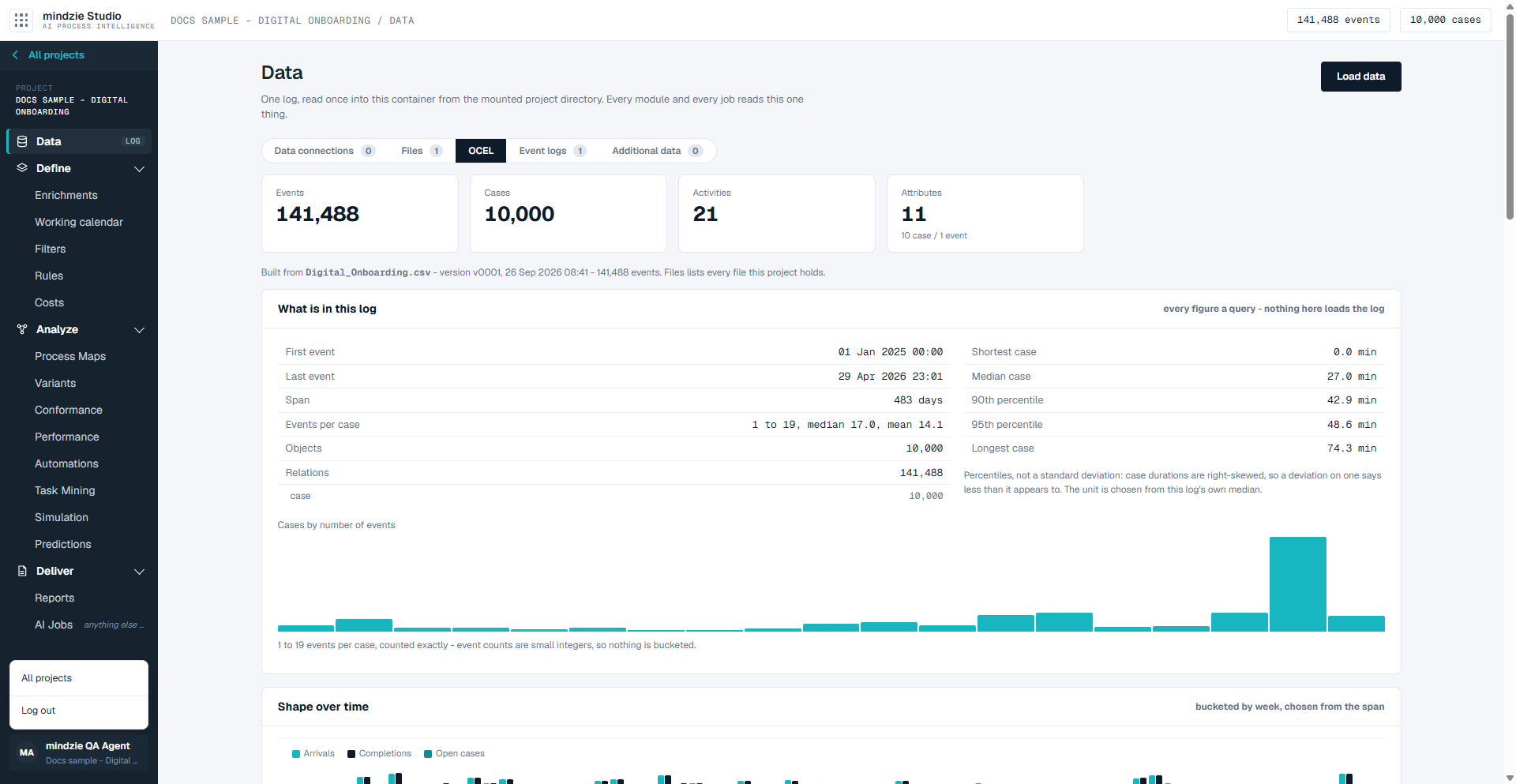
The top bar
- The nine-dot button, at the far left, takes you back to the mindzieStudio welcome screen, where you can choose another module.
- Where you are - the project name and the screen you are on.
- The size of the log - how many events and cases the project's log holds. Before any data is loaded it reads "no log loaded".
- The event log in use. A project can keep more than one event log over the same data - for example one where a case is an order, and one where a case is an invoice. When it does, a drop-down here shows which one every screen is reading, and lets you switch.
The menu
All projects, at the top of the menu, takes you back to the projects page. Below it is the project's name, and then the screens, grouped in the order you work:
| Group | Screens | What it is for |
|---|---|---|
| Project | Data | Bring data in and look at what arrived. |
| Define | Enrichments, Working calendar, Filters, Rules, Costs | Say what the process is measured against, before you analyze it. |
| Analyze | Process Maps, Variants, Conformance, Performance, Automations, Task Mining, Simulation, Predictions | Look at the process from each angle. |
| Deliver | Reports, AI Jobs | What you found, written up to read and share. |
Click a group's heading to fold it away or open it again. A project opens on Data.
Anything you define is used everywhere. A filter you name on Filters can be applied on the Analyze screens, a rule you state on Rules is what Conformance checks, and a report can read both.
Your name and signing out
Your name is at the bottom of the menu. Click it for:
- All projects - back to the projects page.
- Log out - signs you out of mindzieStudio as well.
Leaving a project
Going back to your projects does not stop the project; it keeps running. To stop it, click Stop on the projects page. If nobody uses it for a while, it stops by itself.