Working Calendar
The working calendar says when the business is open, and up to what moment a case that has not finished is measured. Set it when a duration should count working hours only - so that a case that waited over a weekend is not counted as two days slower.
How to read it
The screen opens read only. Nothing on it changes the calendar until you click Edit.
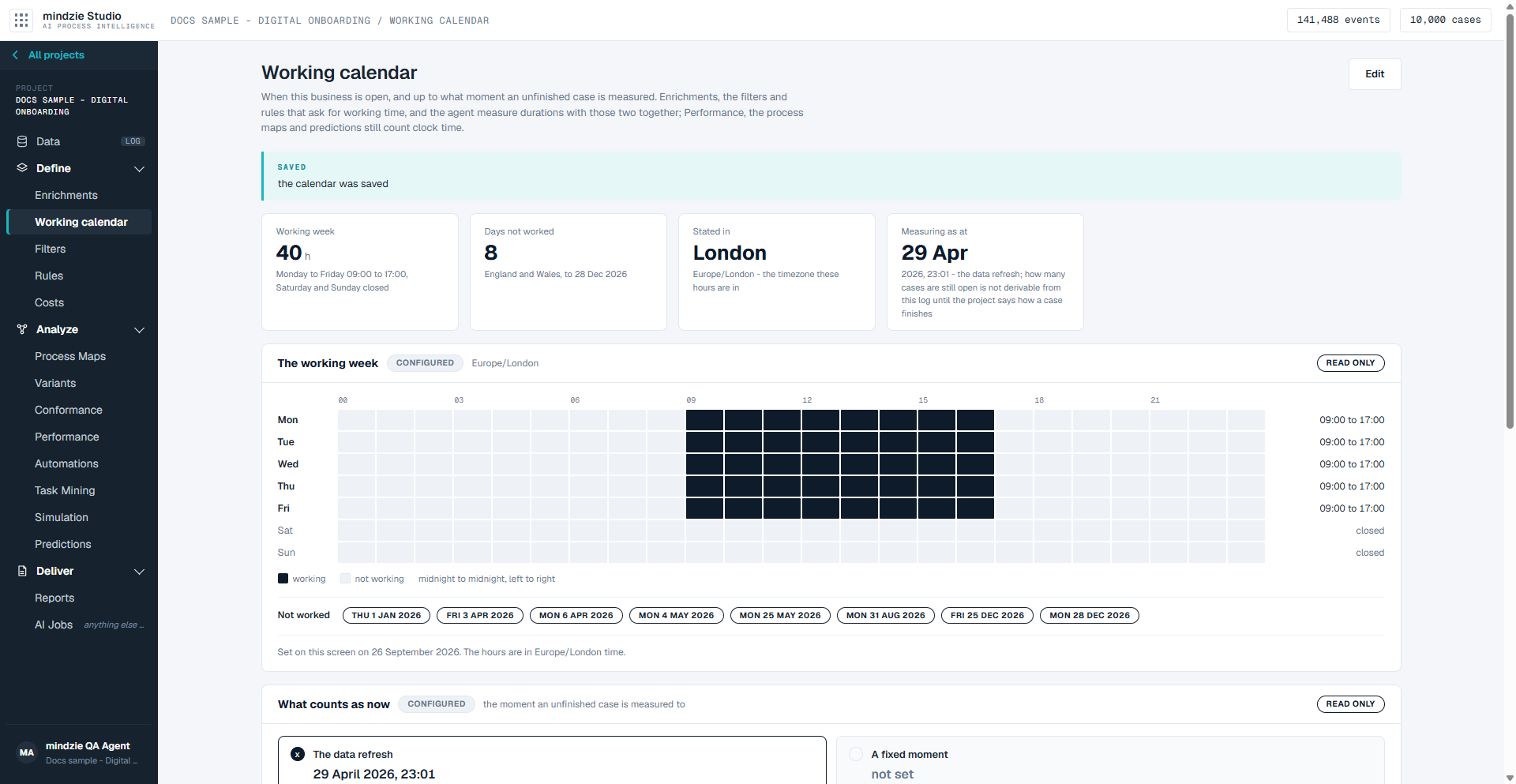
The four figures at the top:
- Working week - how many hours a week the business is open, and on which days.
- Days not worked - how many dates, such as public holidays, are taken out of the week.
- Stated in - the timezone the hours are stated in.
- Measuring as at - the moment an unfinished case is measured to.
The working week. One row a day, Monday to Sunday, with the hours of the day from midnight to midnight, left to right. Working hours are filled in, and the right-hand column gives each day's hours or says closed. Under the week, Not worked lists the dates taken out, and a line says how the calendar was set and when.
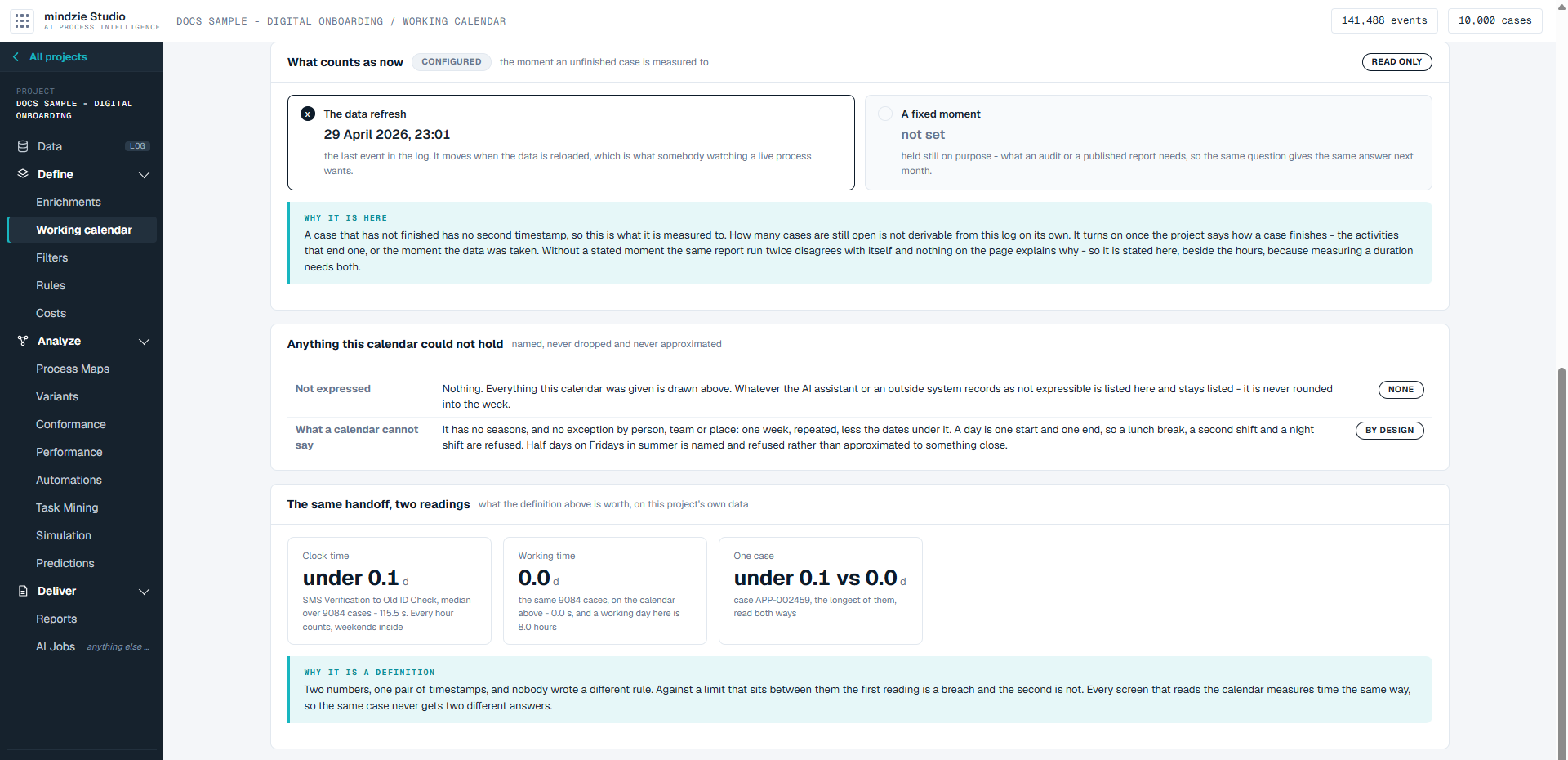
What counts as now. A case that has not finished has no end time, so it is measured up to one of two moments. The one in use is marked:
- The data refresh - the last event in the log. It moves when the data is reloaded, which suits watching a live process.
- A fixed moment - a date and time you choose. It stays where it is, so the same question gives the same answer next month, which suits an audit or a published report.
Below them, Why it is here says how many cases in the log are still open - or, when the project does not yet say how a case finishes, that this cannot be told from the log.
Anything this calendar could not hold. Anything the calendar was given that it cannot express is listed under Not expressed and stays listed, rather than rounded into the week. The row under it says what no calendar can hold.
The same handoff, two readings. Once a calendar is set, this card shows what it means on your own data: the median time between two steps in Clock time, the same cases in Working time, and One case, the longest of them, read both ways.
What you can do
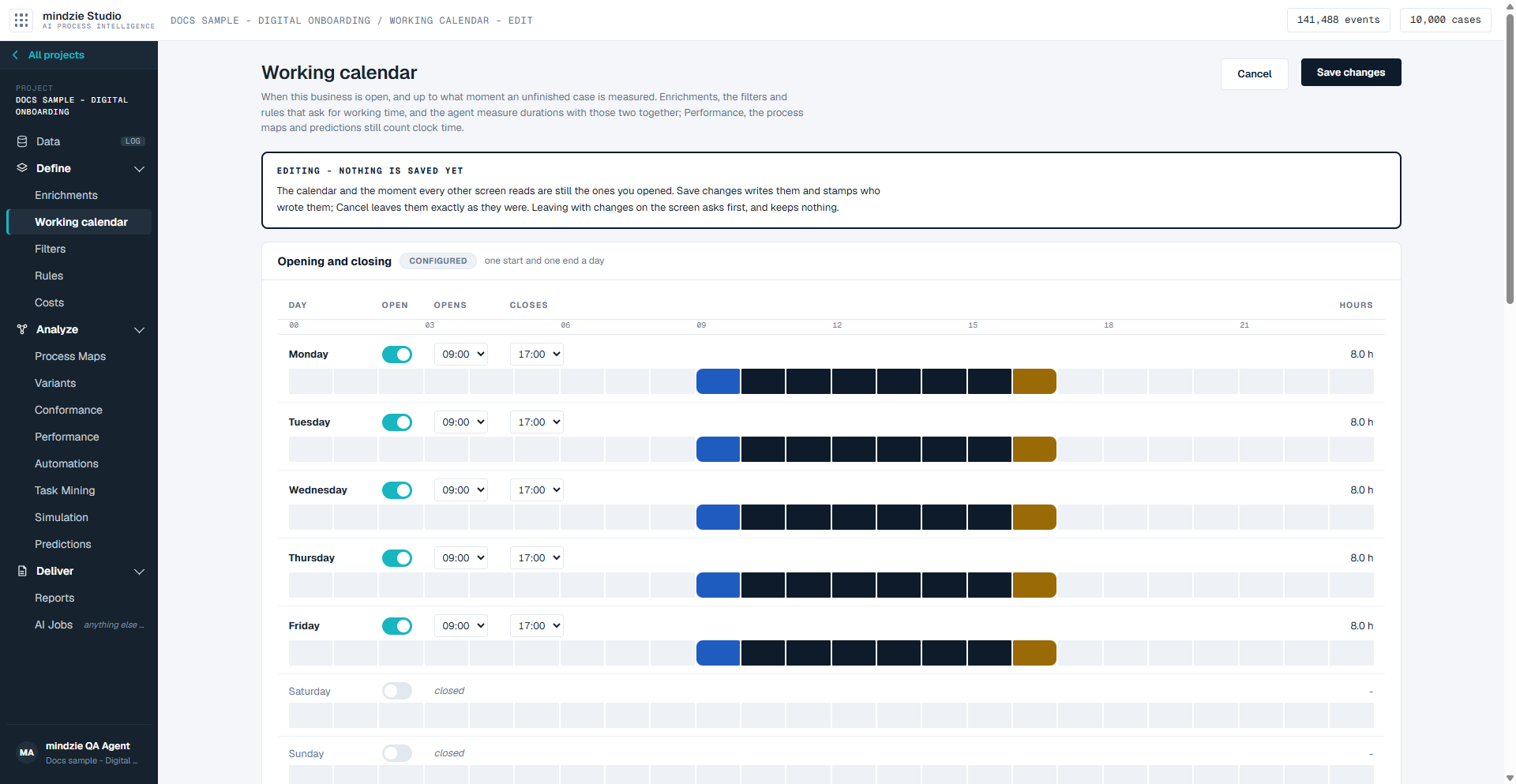
Click Edit. A banner says Editing - nothing is saved yet.
Under Opening and closing, set each day:
- Turn a day's Open switch on or off. A day that is off is closed.
- Choose the Opens and Closes times, or click the hour the day starts on the strip under it, then the hour it ends.
The Working week and Days open figures, and the sentence under What this says, follow what you set.
Under What counts as now, choose The data refresh or A fixed moment. A fixed moment is stated in UTC, and cannot be after the last event in the log.
Under Days not worked, pick a date in Add a date, give it a name in What it is called, and click Add. A button such as Add England and Wales 2026 adds a year of published public holidays in one go. Each date has a Remove button.
Under The timezone these hours are stated in, choose the timezone of the business.
Click Save changes. Cancel leaves the calendar exactly as it was.
The screen goes back to its read-only view and says the calendar was saved.
To go back to having no calendar at all, click Edit, then Remove this calendar at the bottom of the page.
Good to know
- Which screens use it. Enrichments, the filters and rules that ask for working time, and AI reports and AI jobs measure durations in working time. Performance, Process Maps and Predictions count clock time.
- No calendar is not a default week. Until a calendar is set, the week is drawn with every day closed, the screen says no calendar is set, and every duration is clock time.
- Removing the calendar is not the same as closing every day. With no calendar, durations are clock time. A week with no open hours says the business never opens.
- One start and one end a day. A calendar is one week, repeated, less the dates not worked. It cannot hold a lunch break, a second shift, a night shift, seasons, or different hours for different people, teams or places.
- The timezone matters. Timestamps are converted into the calendar's timezone before they are compared with its hours, so a change to summer time does not put the hours out by one.