Filters
A filter is a named set of cases - for example "completed applications only". Saving a filter changes nothing in your data: it runs only when something asks for it, such as a screen, a rule or an enrichment.
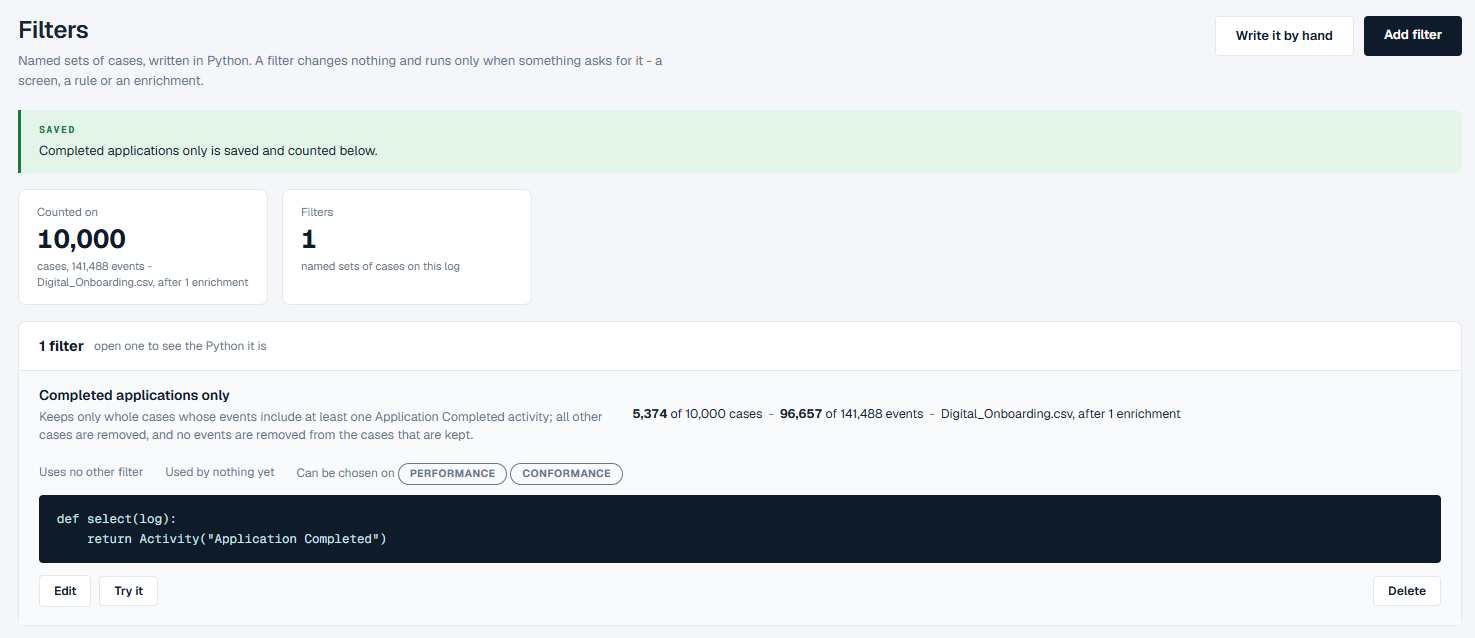
How to read it
The two tiles at the top:
- Counted on - how many cases and events the project's event log holds, and which log it is. Every filter on the page is counted on this log.
- Filters - how many filters the log has.
Below them is the list, one row per filter: its name, the sentence that says what it keeps, and what it keeps on the log right now. For example, "Completed applications only" reads 5,374 of 10,000 cases - 96,657 of 141,488 events. A filter that takes events out of the cases it keeps is marked removes events, with the number of cases it left empty.
Click a filter to open it. The opened row shows:
- Uses - any other filter it is built on, or "no other filter".
- Used by - the rules, enrichments or other filters that use it, or "nothing yet".
- Can be chosen on - the screens where you can apply it: Performance and Conformance.
- The Python the filter is written in.
- Edit, Try it and Delete.
There is no on or off switch. A filter is in use as soon as it is saved; delete it to take it away.
What you can do
Add a filter in your own words
- Click Add filter.
- In the box, say which cases you want to look at - for example "Only cases that reached Application Completed" - and click Submit.
- The page moves to Check how we read it. On the left, under What we will make, are the Name and Description read from your words. On the right, How we read what you said lists what the filter will do, and under Read as anything it had to choose because your words could mean two things. Anything this log cannot express is listed under Left out - this log cannot say it.
- Change the name or the description if they are not right, or click Back - say it again to start over.
- Click Generate. The filter is written from the description, tried on the log and saved, and the page says what it keeps.
- Click Done - back to Filters, Open it to edit, or Add another.
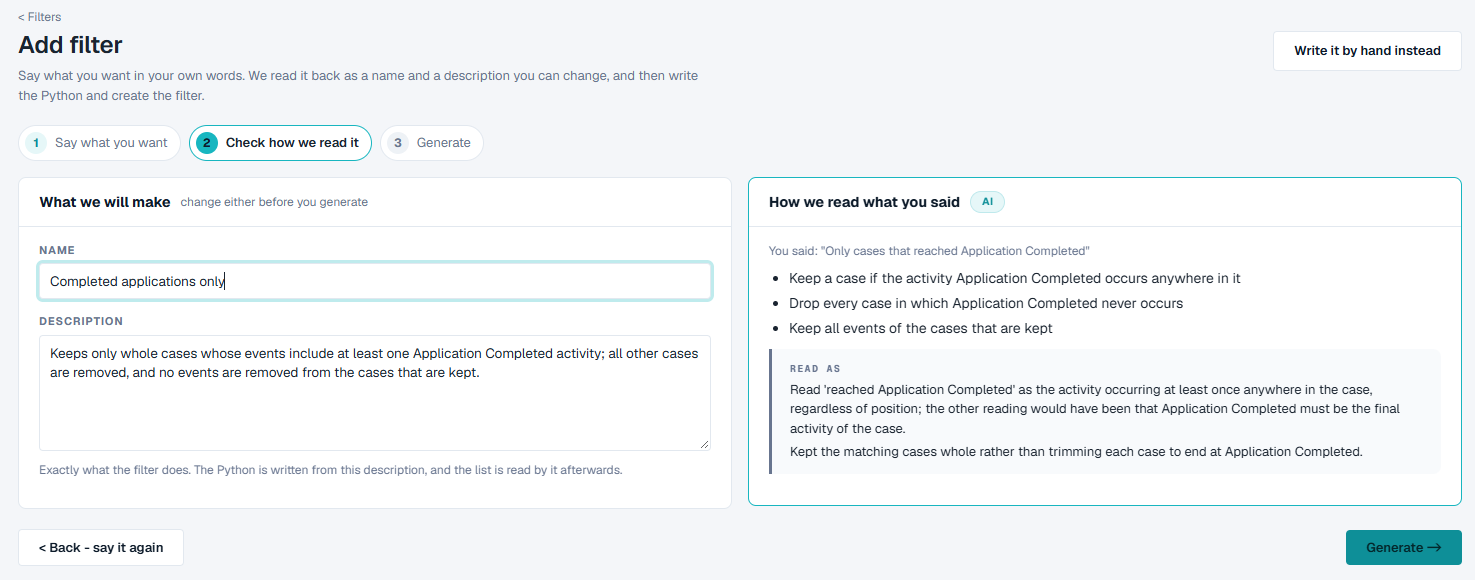
The description matters: the filter is written from it, and it is the line the list shows afterwards. Put the name in words you will recognize in a list.
Write a filter by hand
Click Write it by hand.
Type a Name and a Description. The Event log it will be counted on is shown below them.
Write the Python in the code box. The This log panel on the right lists the log's columns, activities, other filters and helpers; click one to insert it where the cursor is.
If you would rather not start from nothing, type a sentence under Say it in a sentence and click Write the Python. It fills the code box for you and saves nothing.
Click Try it on the log to see what the filter would keep, with a few example cases. Nothing is saved.
Click Save filter, or Cancel to leave without saving.
Look at only a filter's cases
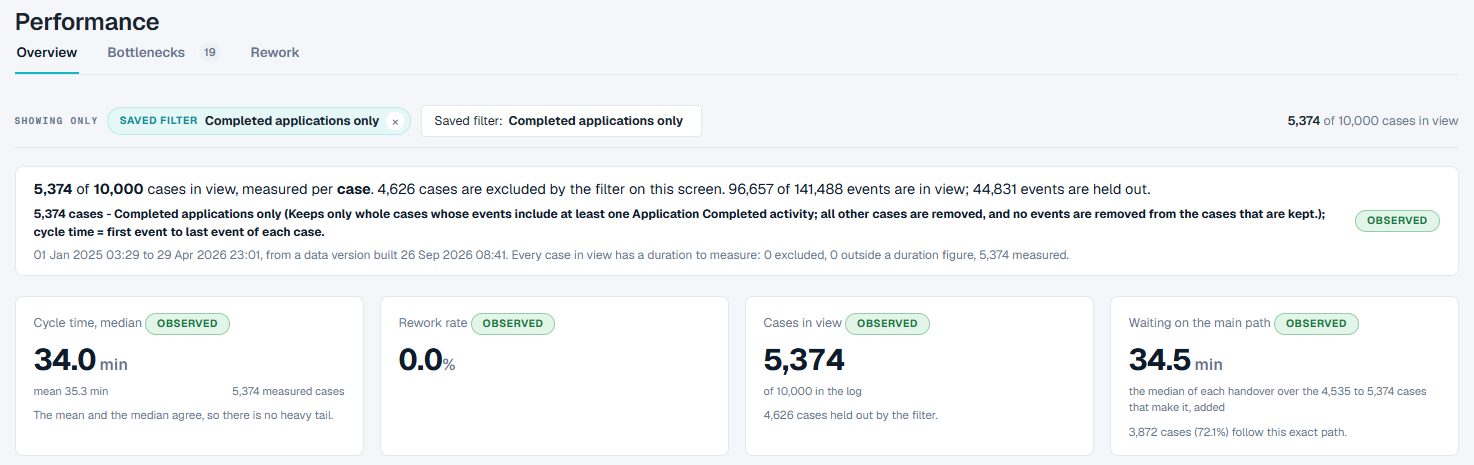
- On Performance or Conformance, click Saved filter and choose the filter.
- The screen is counted on the filter's cases only, and says how many of the log's cases are in view. On Performance, a chip reads Showing only - Saved filter with the filter's name; click the cross on the chip to go back to all cases. On Conformance, the screen shows Filtered and the filter's name.
Change or delete a filter
- Open the filter and click Edit to change it, or Try it to count it again.
- Click Delete to remove it. If a rule, an enrichment or another filter uses it, the page first lists them and asks you to choose Delete it anyway or Keep it. Anything that used a deleted filter stops with an error naming the missing filter the next time it runs.
Good to know
- Filters belong to the event log the project reads. If the project has more than one event log, each has its own filters.
- Sometimes the first reading of your words is not kept, and the page says Not yet with the reason - for example when the reading put a count or a percentage of its own into the description. Say it again in other words, or write the filter by hand. Figures are always measured on your data, never written in for you.
- A filter that cannot be counted still shows in the list, with cannot be counted and the reason in place of its numbers.
- Adding a filter in your own words needs an AI model in the project. Without one, the page says so; write the filter by hand instead - it is the same filter either way.