Export Image (Process Map and Dashboard)
Overview#
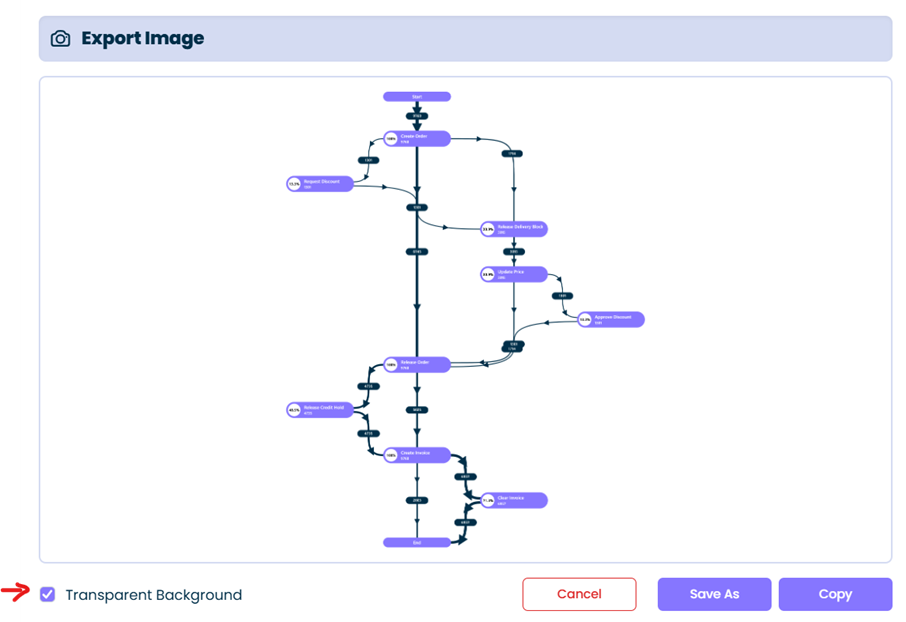
Export image button generates an image of the process map or dashboard metric which can be copied or saved. By default, the image is saved with a transparent background, you can uncheck the ‘Transparent background’ checkbox and select a desired background color.
Common Uses#
Exporting the process map for adding to presentationsUses metrics and KPI’s in management reports
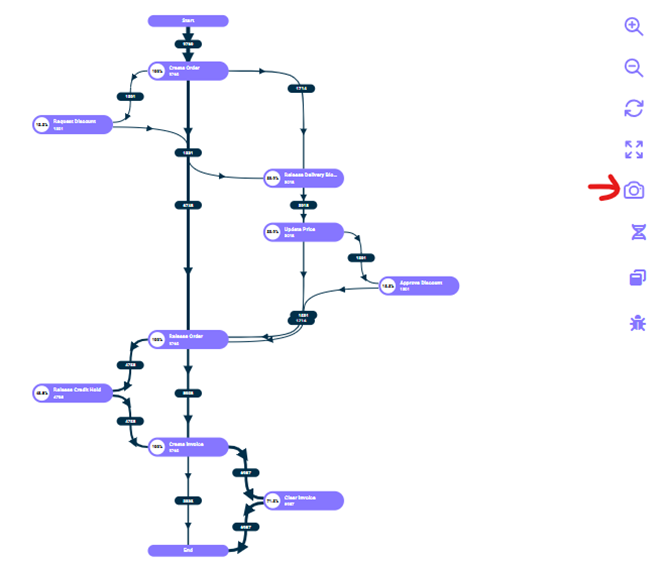
Export Process Map Image#
Click the camera icon on the process map view.
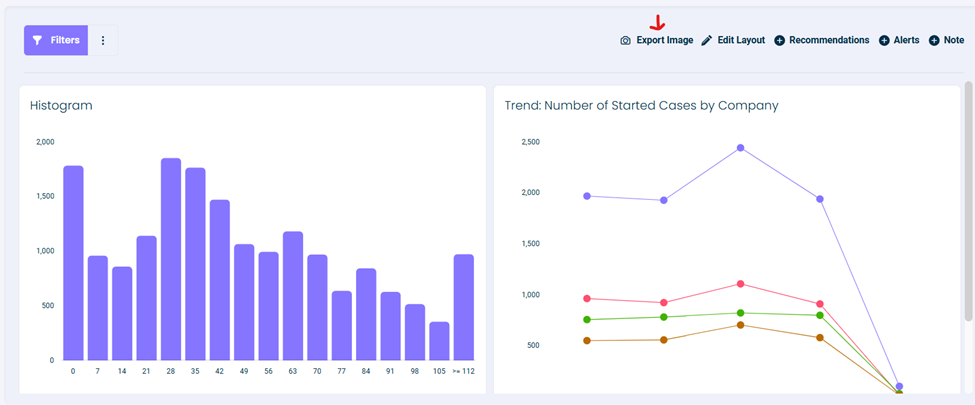
Export Dashboard Image#
Click the export image button to save a high resolution image of the dashboard.
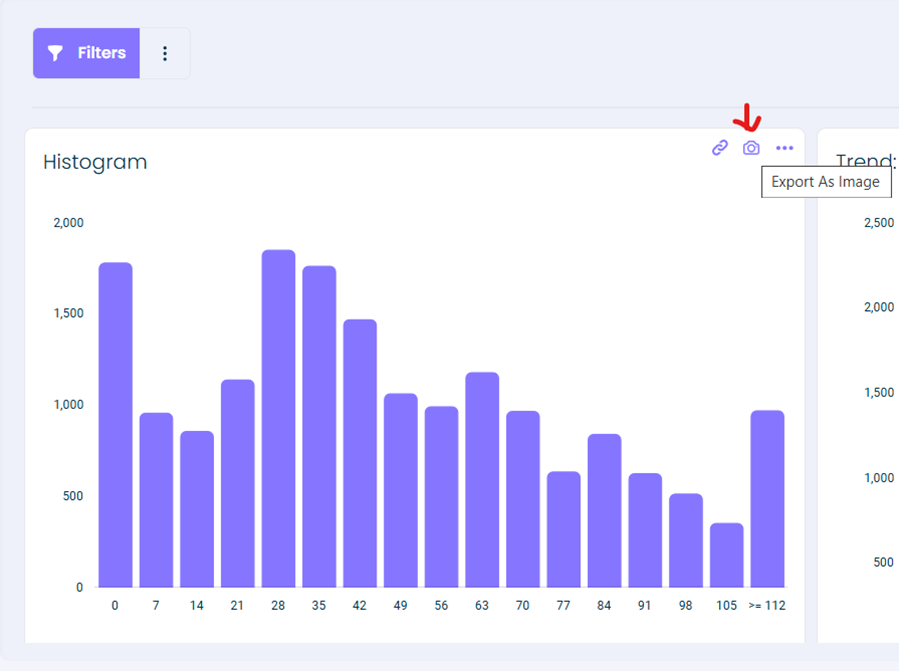
Export Individual Dashboard Metric#
Hover over the desired metric with your mouse, click the camera icon.
Example
To export a process map image:
- Navigate to your process map view
- Click the camera icon in the toolbar
- Choose whether to use transparent background
- Select background color if needed
- Save or copy the generated image
This documentation is part of the mindzie Studio process mining platform.