Install SQL Server Express
Prefer to watch? This tutorial is also available as a video.
This guide explains how to install SQL Server Express for use with the mindzie Studio Enterprise Server. SQL Server Express is a free edition of Microsoft SQL Server that provides all the database functionality needed for the mindzie on-premise server.
Prerequisites
- Windows Server or Windows 10/11
- Administrator access to the machine
- Internet connection to download SQL Server Express
- At least 6 GB of free disk space
Step 1: Download SQL Server Express
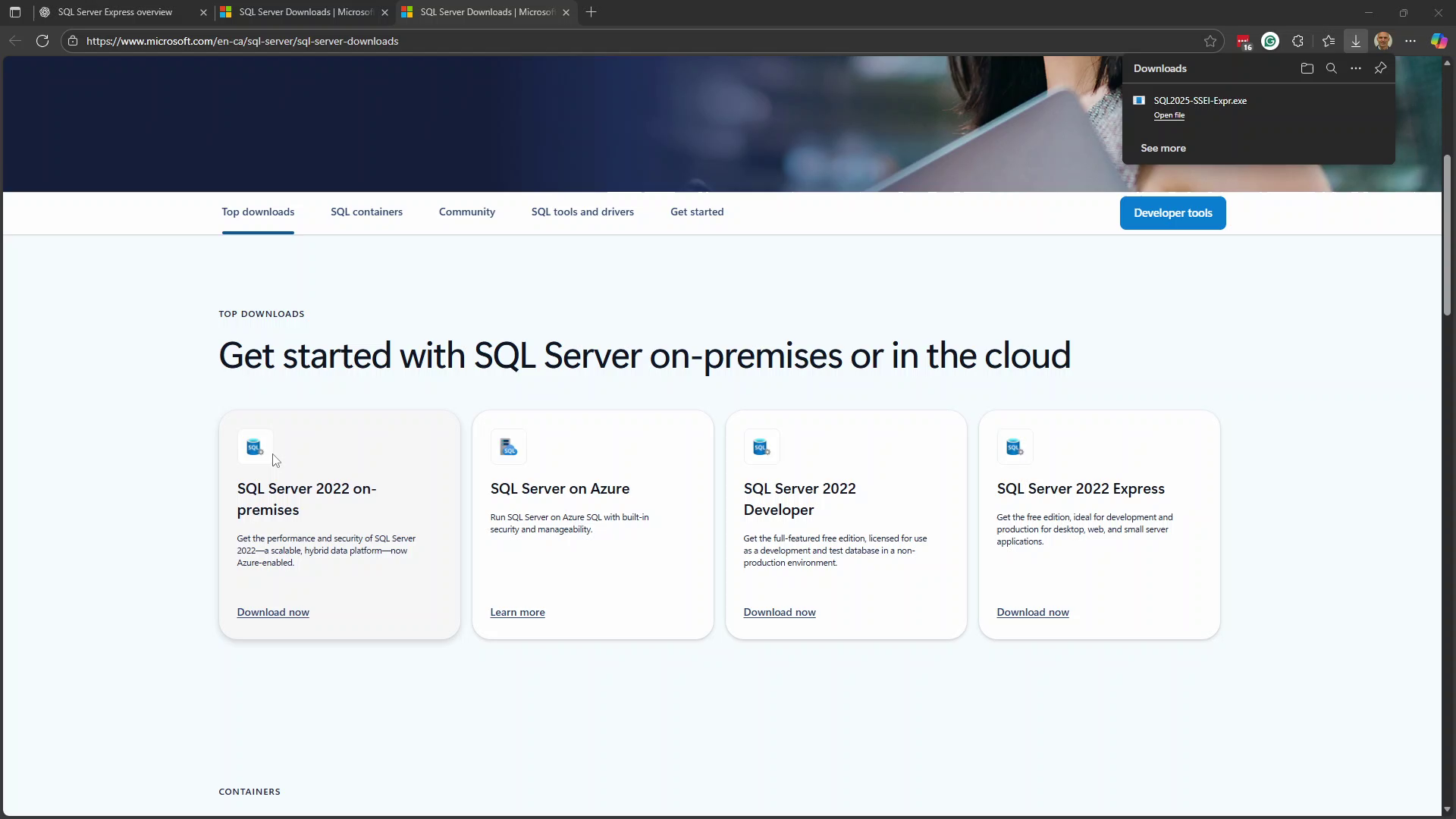
- Navigate to the Microsoft SQL Server Downloads page
- Locate SQL Server Express in the download options
- Click Download now to download the installer
Step 2: Select Custom Installation
When the installer launches, you will see three installation options:
- Basic - Quick install with default settings
- Custom - Full control over installation options
- Download Media - Download files for later installation
Important: Select Custom installation. This allows you to configure the instance name and authentication mode required for mindzie Studio.
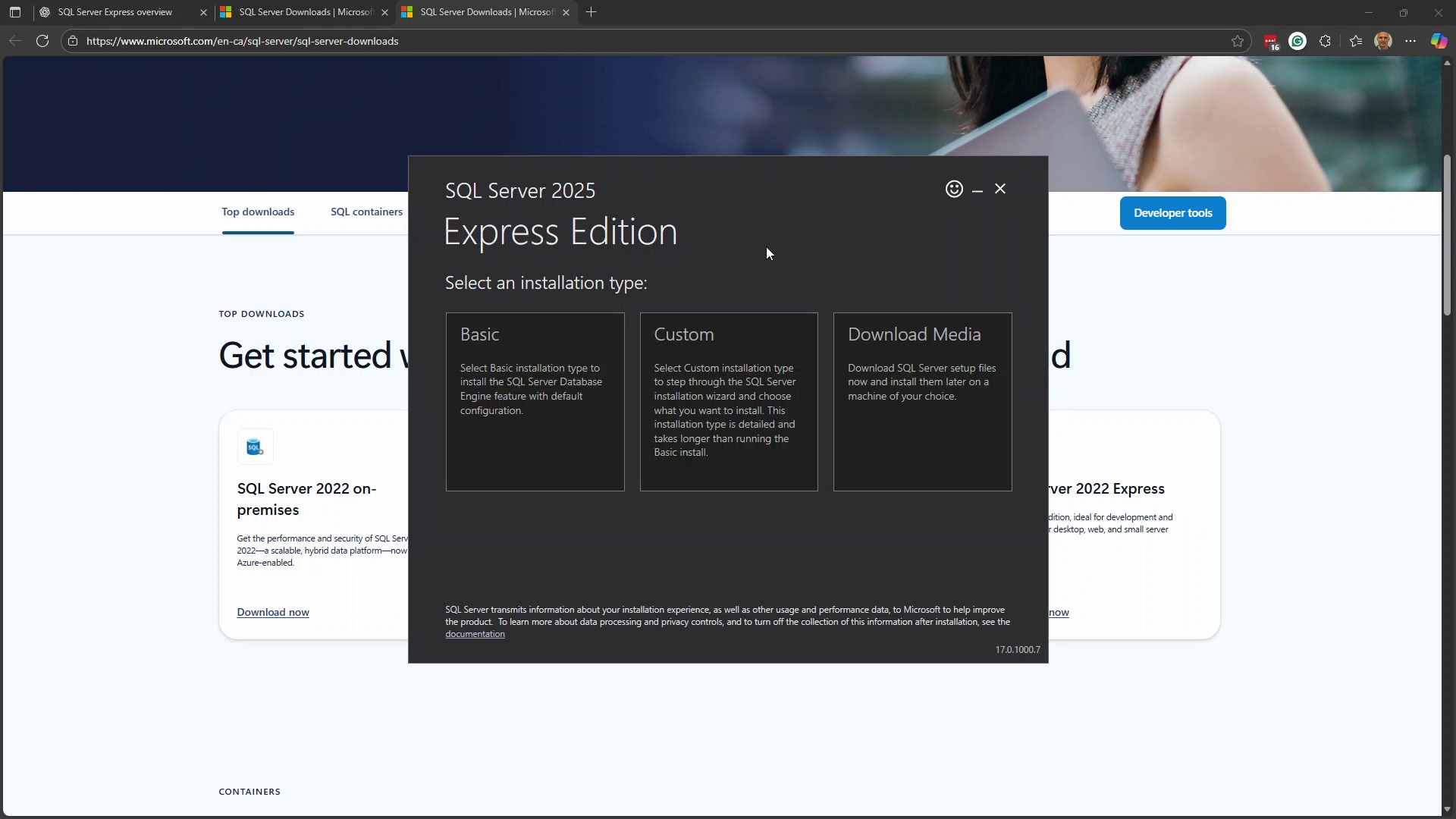
The installer will download the required files. This may take several minutes depending on your internet connection.
Step 3: Start New Installation
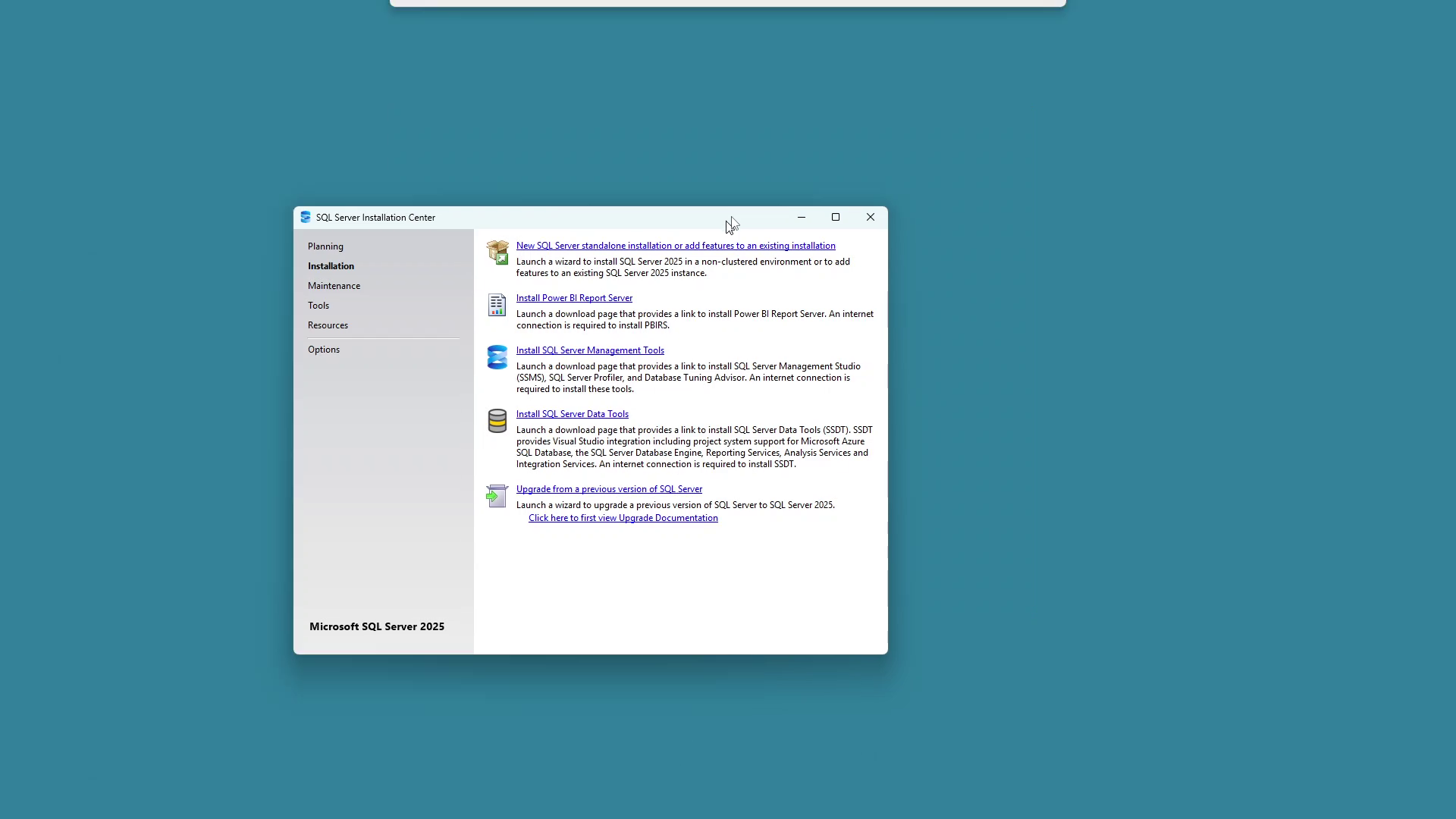
Once the download completes, the SQL Server Installation Center opens.
- Click Installation in the left panel
- Select New SQL Server standalone installation or add features to an existing installation
Step 4: Accept License Terms
- Review the license terms
- Check the box I accept the license terms and Privacy Statement
- Click Next
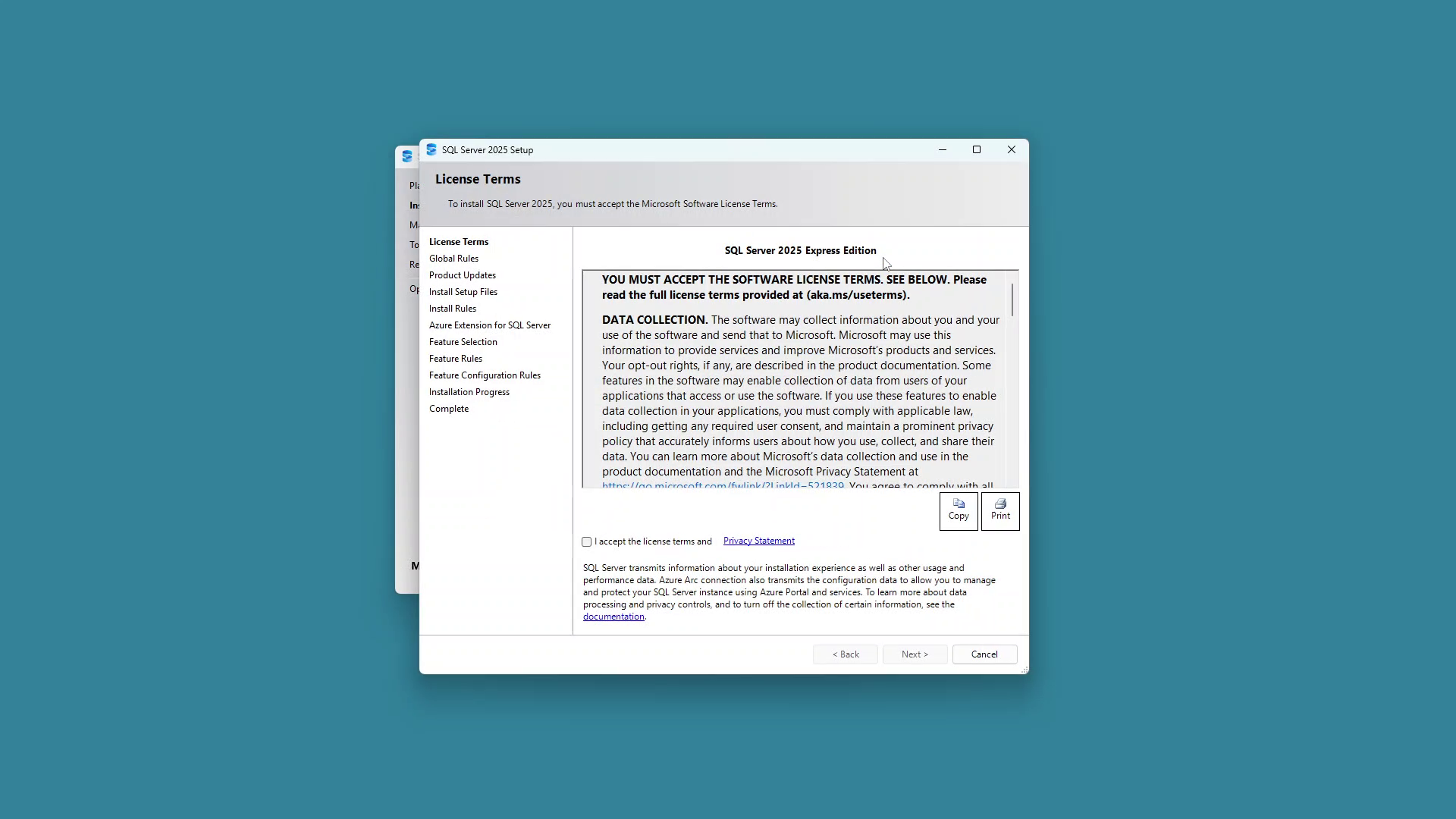
The installer will perform prerequisite checks. You may see a warning about Windows Firewall - this is not a problem for local installations since mindzie Studio will connect to the database locally.
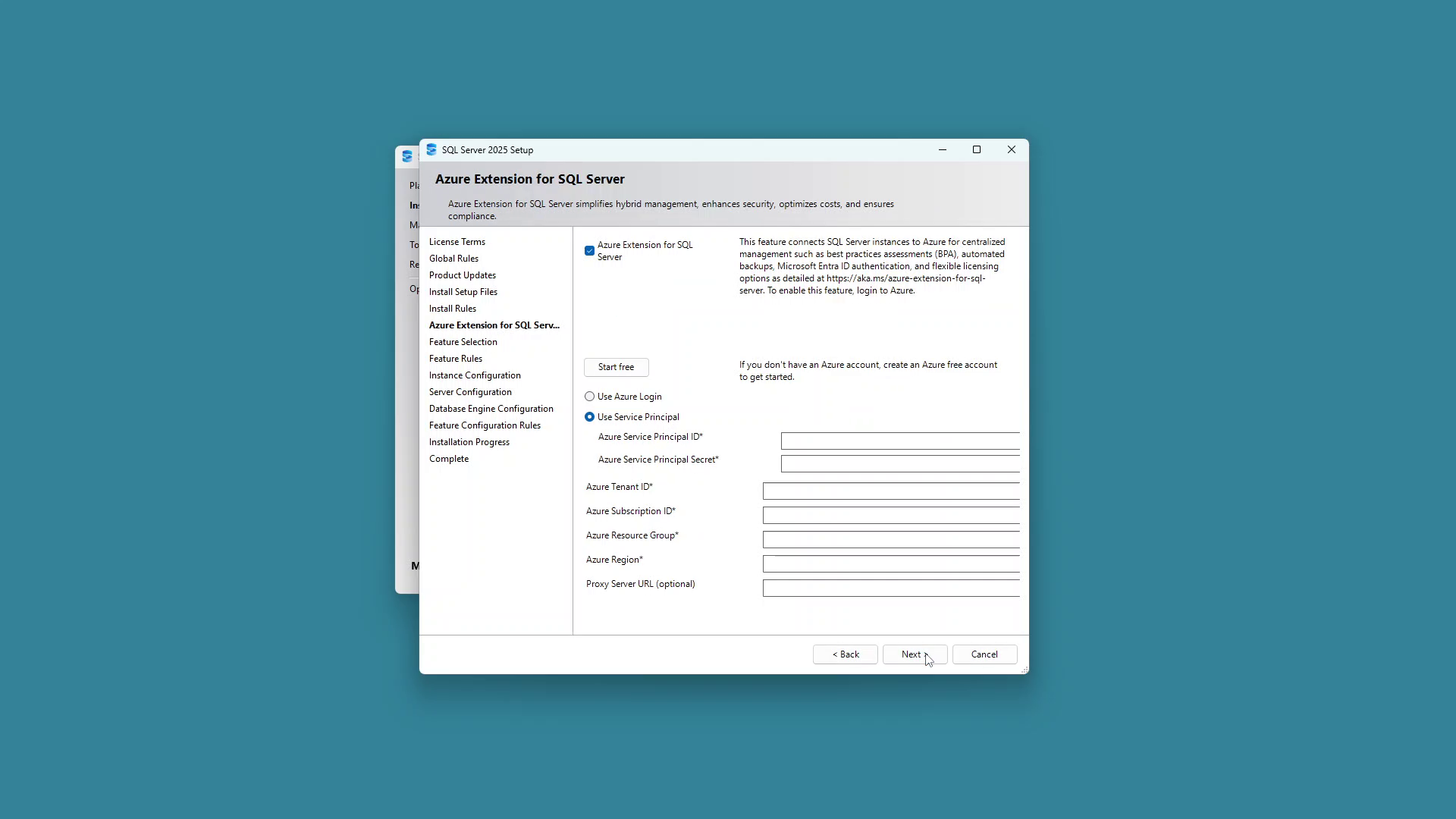
Step 5: Skip Azure Extension
The Azure Extension for SQL Server is not required for mindzie Studio.
- Uncheck the Azure Extension for SQL Server option
- Click Next
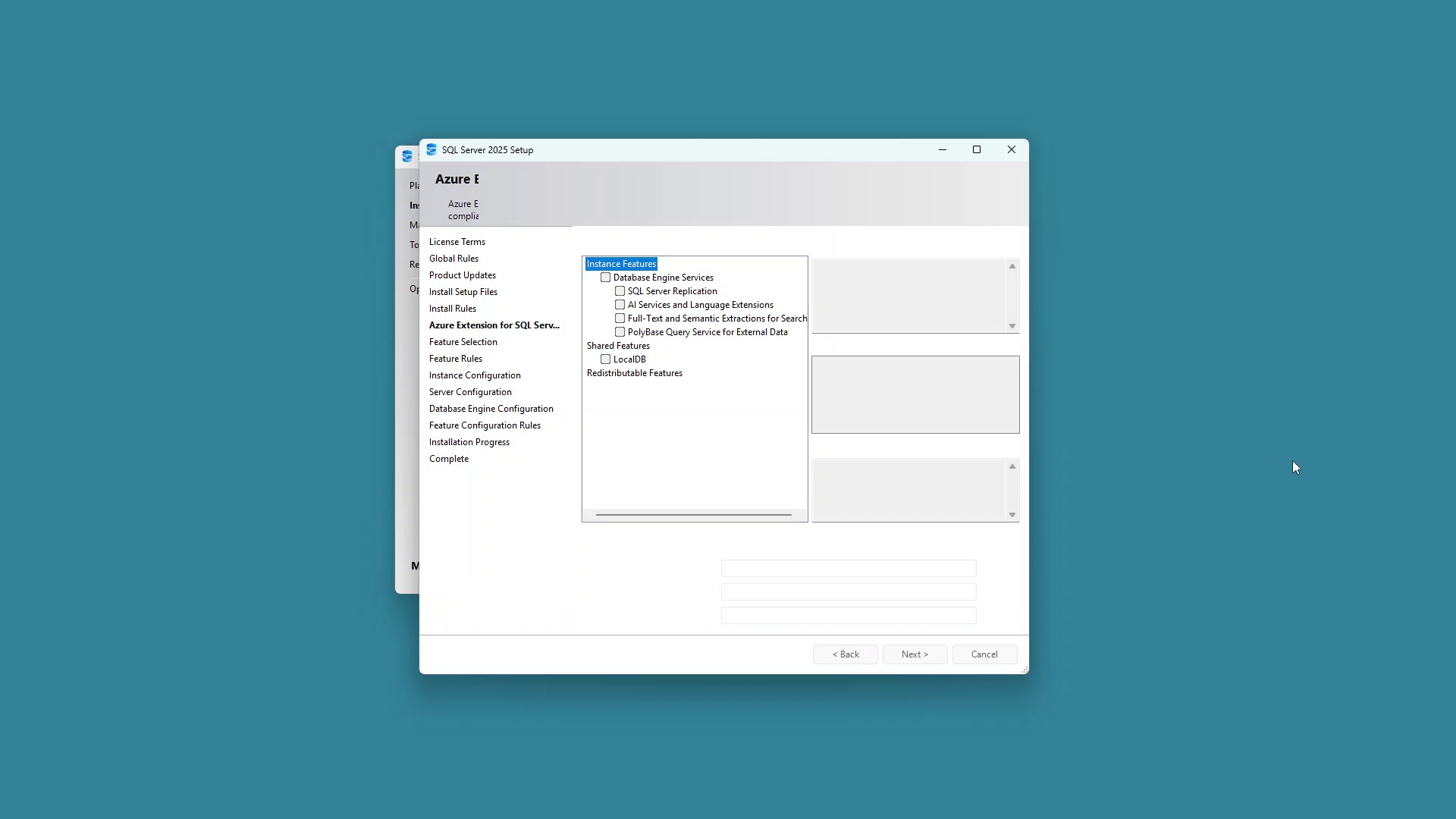
Step 6: Select Features
For mindzie Studio, you only need the Database Engine Services.
- Under Instance Features, check Database Engine Services
- You can leave other options unchecked
- Click Next
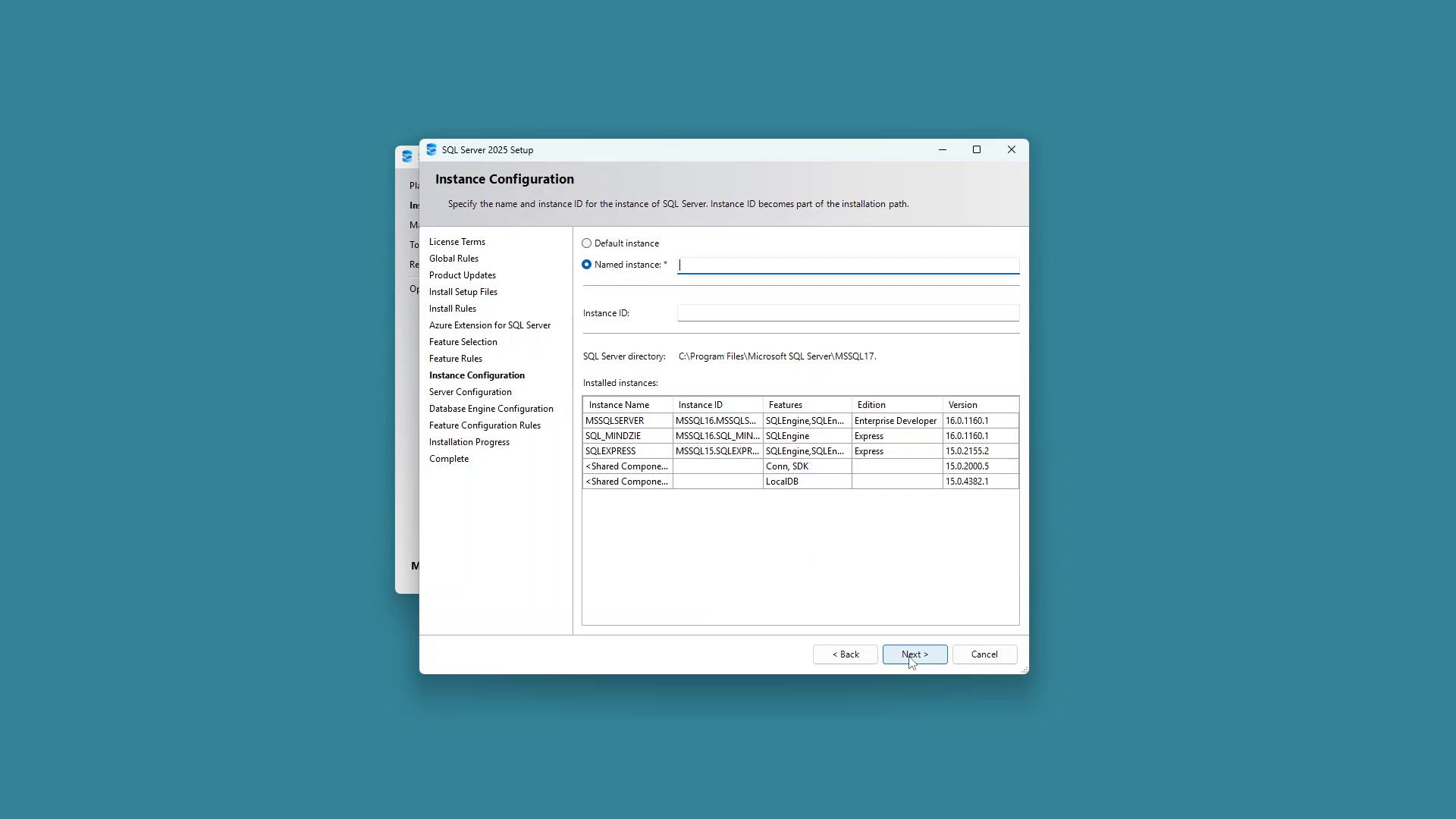
Step 7: Configure Instance Name
Configure the SQL Server instance name:
- Select Named instance
- Enter SQLEXPRESS as the instance name
- The Instance ID will automatically populate
- Click Next
Note: If you already have an instance named SQLEXPRESS, you can either:
- Use the existing instance
- Choose a different name (e.g., SQLEXPRESS2)
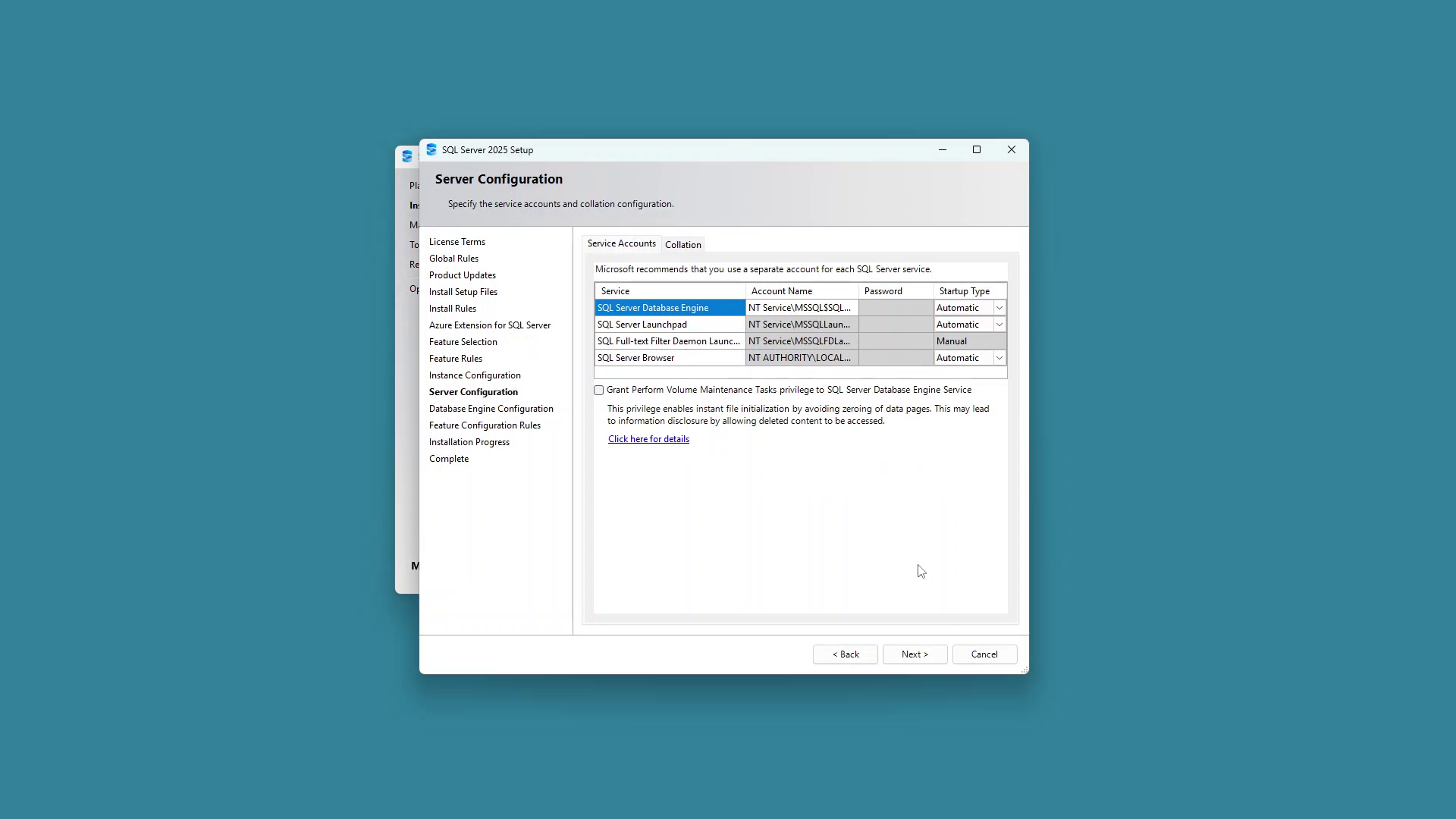
Step 8: Server Configuration
Leave the Server Configuration settings at their defaults:
- Review the service accounts (default values are acceptable)
- Ensure SQL Server Database Engine is set to Automatic startup
- Click Next
Step 9: Configure Authentication
This is the most important step for mindzie Studio connectivity.
- Select Mixed Mode (SQL Server authentication and Windows authentication)
- Enter a strong password for the sa (system administrator) account
- Confirm the password
- Click Next
Important: Remember this password - you will need it when configuring the mindzie Studio server connection.
Step 10: Complete Installation
- Review the installation summary
- Click Install to begin the installation
- Wait for the installation to complete
- Click Close when finished
Verify Installation
After installation completes:
- Open SQL Server Management Studio (SSMS) or use sqlcmd
- Connect using:
- Server name:
localhost\SQLEXPRESS(or your custom instance name) - Authentication: SQL Server Authentication
- Login:
sa - Password: The password you configured
- Server name:
Configure mindzie Studio Connection
When configuring the mindzie Studio Enterprise Server, use these connection details:
| Setting | Value |
|---|---|
| Server | localhost\SQLEXPRESS |
| Authentication | SQL Server Authentication |
| Username | sa |
| Password | Your configured password |
| Database | (mindzie will create this) |
Version Compatibility
This installation process works with:
- SQL Server 2019 Express
- SQL Server 2022 Express
- SQL Server 2025 Express
All versions provide the features required by mindzie Studio.
Troubleshooting
Cannot connect to SQL Server
- Verify the SQL Server service is running (check Windows Services)
- Confirm you are using the correct instance name
- Ensure Mixed Mode authentication is enabled
Forgot sa password
- You will need to reinstall SQL Server Express or use Windows Authentication to reset the password
Windows Firewall warning during installation
- This warning can be ignored for local installations
- If accessing SQL Server from other machines, configure appropriate firewall rules
Support
For assistance with SQL Server Express installation for mindzie Studio, contact mindzie support.