Force Update mindzieStudio Server
This guide explains how to force an update of your mindzieStudio server installation when you need to reinstall even if the versions match.
When to Use Force Update
Use the Force Update option when:
- The normal update process is not working correctly
- You need to reinstall components even if the version appears current
- You want to ensure all files are refreshed regardless of version numbers
- Troubleshooting installation or configuration issues
- The server is not responding correctly after a standard update
Prerequisites
Before starting the force update process:
- Administrative access to the server
- Network access to download the latest version (or offline installation files)
- Scheduled downtime window (the server will be temporarily offline during the update)
Force Update Process
Step 1: Download mindzieStudio Setup
Offline Installation
If your server has no internet access, download the following files on a machine with internet access, then transfer all three to the server:
1. Download mindzieStudio Setup
2. Download mindzieStudio Update Package
Place all three files in the same directory before running the setup.
Step 2: Run Setup and Enable Force Update
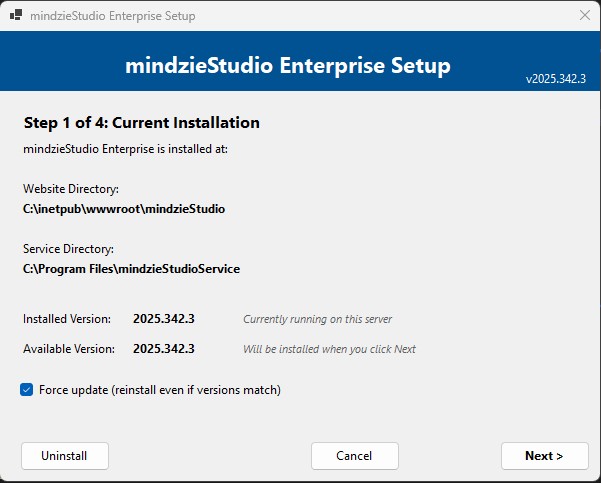
- Run
mindzieStudioSetup.exe - The setup will display your current installation details:
- Website Directory
- Service Directory
- Installed Version
- Available Version
- Check the "Force update (reinstall even if versions match)" checkbox
- Click Next > to continue
Step 3: Wait for File Copy
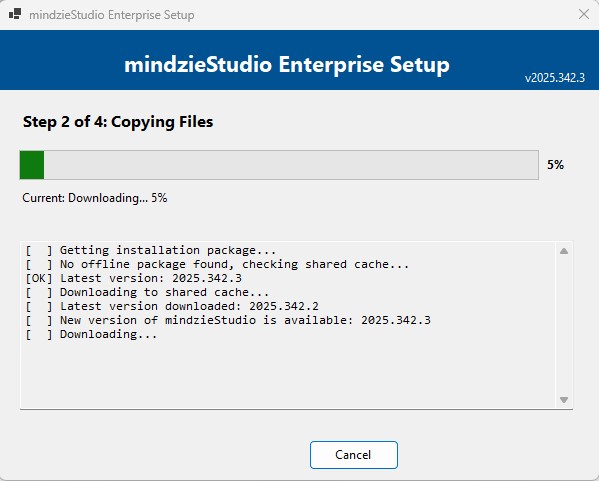
The setup will download (if online) and copy the files to your server. Wait for this process to complete.
Step 4: Configuration
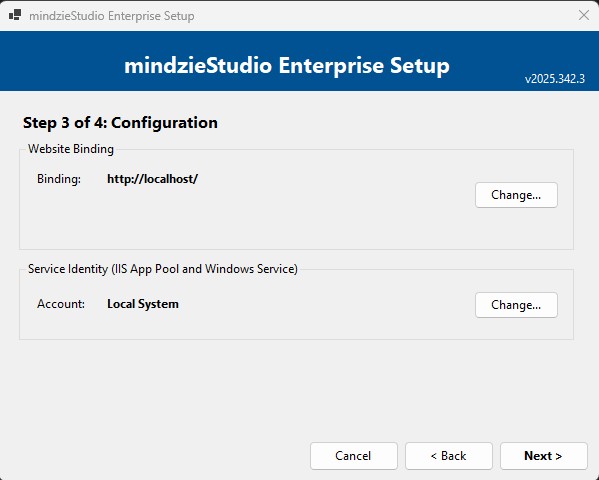
The configuration screen allows you to change settings if needed:
- Website Binding: Change the IIS binding if required
- Service Identity: Change the account used for IIS App Pool and Windows Service
For a force update where you are not changing any configuration, simply click Next > to continue.
Step 5: Complete the Installation
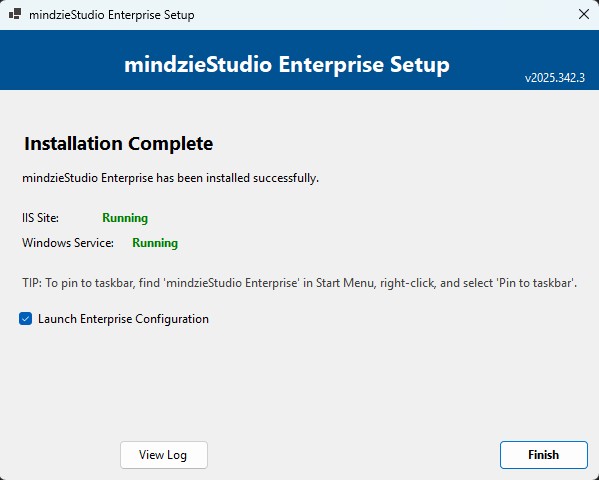
Once the installation completes:
- Verify that both IIS Site and Windows Service show as "Running"
- If you do not need to make configuration changes, uncheck "Launch Enterprise Configuration"
- Click Finish
Verify the Update
After the update completes:
- Open a web browser and navigate to your mindzieStudio URL
- Verify the application loads correctly
- Check the version number in the application to confirm the update
Troubleshooting
Server Not Responding After Update
If the server is not accessible after the update:
Check that the mindzieStudioService is running:
- Open Services (services.msc)
- Locate "mindzieStudioService"
- Verify it is running, if not, start the service
Check the IIS application pool is running:
- Open IIS Manager
- Navigate to Application Pools
- Verify the mindzieStudio pool is started
Click View Log on the completion screen to review any errors
Browser Shows Cached Old Version
If the browser shows an old version after successful update:
- Clear your browser cache (Ctrl+Shift+Delete)
- Hard refresh the page (Ctrl+F5)
- Try accessing from a different browser or incognito/private window
Support
If you encounter issues with the force update process:
- Email: support@mindzie.com
- Include the installation log (click View Log on the completion screen)
- Provide your current and target version numbers