Project Files
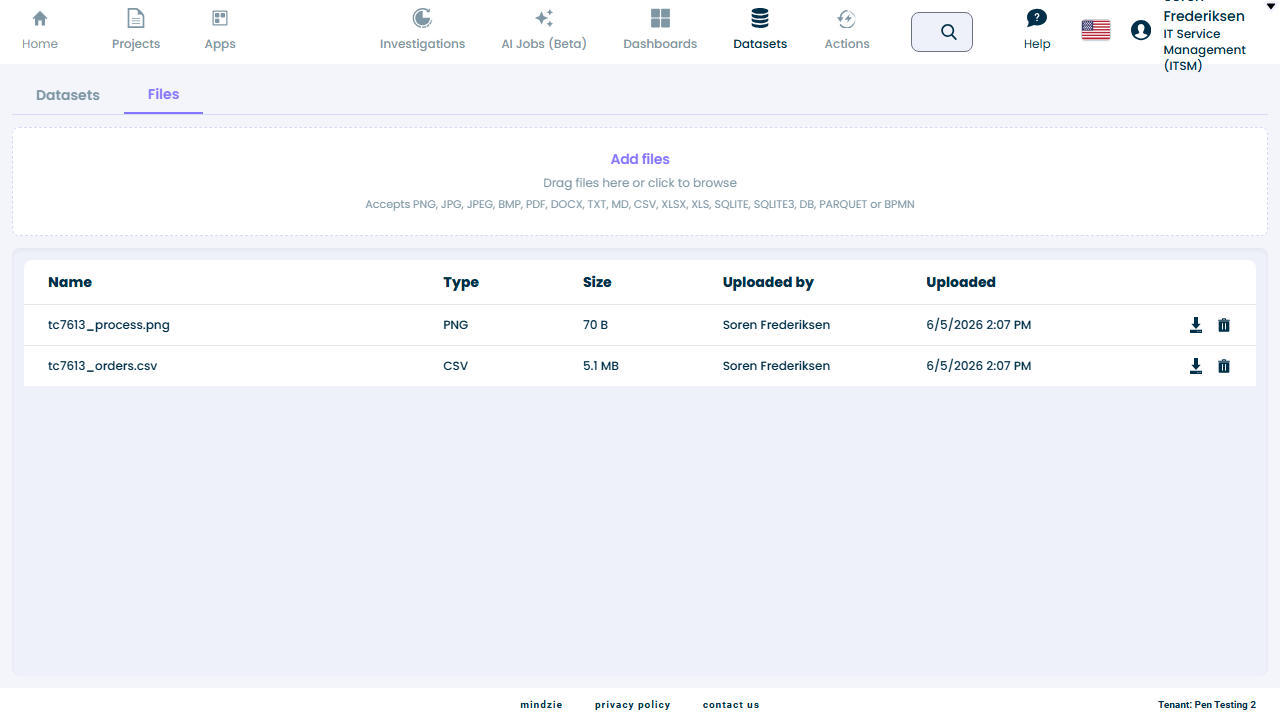
The Files tab under Datasets gives every project a single place for its raw files: source documents, images, spreadsheets, and data files. Files you upload here, and files you attach to AI Jobs or BPMN AI investigations, all land in the same project file store - the Files tab is one view of everything the project holds.
Overview
The Datasets page has two tabs:
- Datasets - the project's structured event-log datasets (the default view, unchanged)
- Files - the project's file store: upload, download, and delete raw files
Every file belongs to the open project and is stored in mindzie's managed tenant storage alongside the project's datasets. AI agents read their input files from this same store, so a file uploaded once can be attached to any number of AI Jobs.
When to Use Project Files
- Upload data files (CSV, Excel, Parquet, SQLite) you plan to attach to AI Jobs
- Keep source material for BPMN AI investigations (process images, SOP documents) with the project
- Review everything that has been uploaded to a project, by whom, and when
- Download or remove files the project no longer needs
How to Access
Open a project, then go to Datasets in the top navigation and select the Files tab.
Uploading Files
Click Add files (or drag files onto the drop zone) to upload one or more files in a single selection. Each file gets its own progress bar; failures are shown per file with the reason and can be retried.
Accepted file types: PNG, JPG, JPEG, BMP, PDF, DOCX, TXT, MD, CSV, XLSX, XLS, SQLITE, SQLITE3, DB, PARQUET, and BPMN. The per-file size limit is 100 MB.
Files that are not accepted (for example an .exe, or a file over the size limit) show a clearly visible rejection message - other files in the same selection continue uploading.
Duplicate File Names
If you upload a file whose name already exists in the project, mindzieStudio asks what to do:
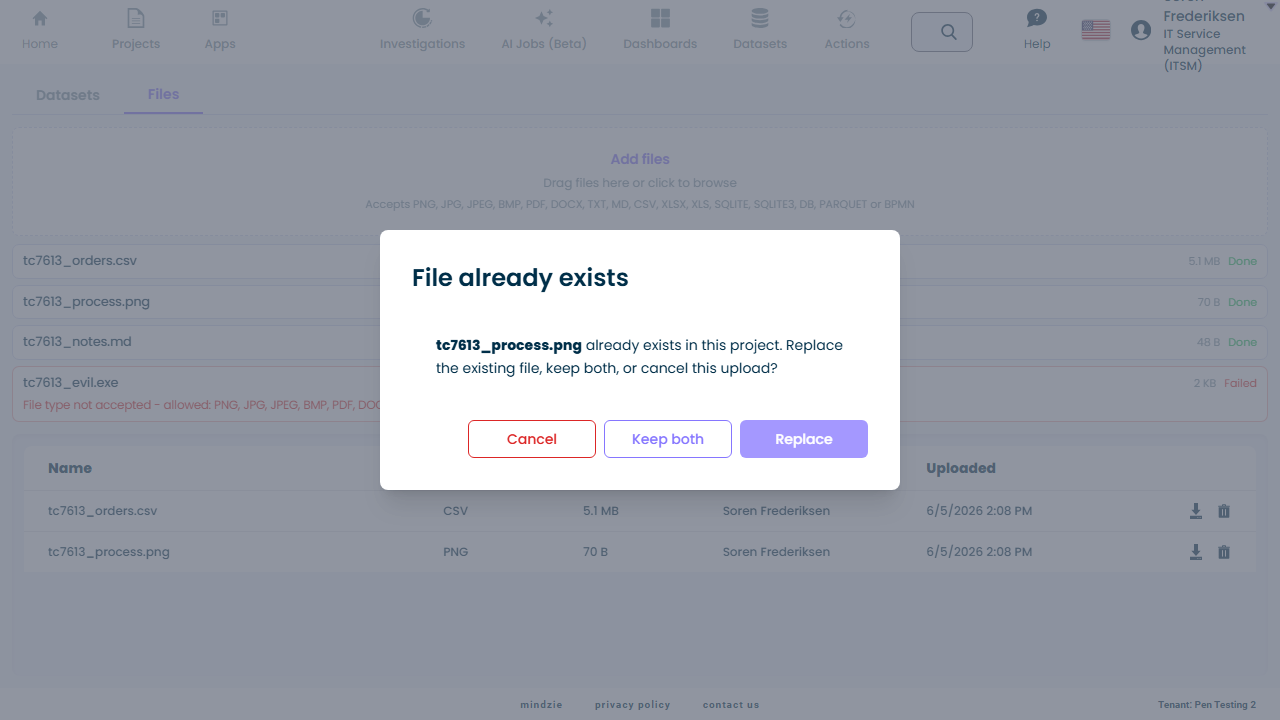
- Replace - removes the existing file(s) with that name, then uploads the new one
- Keep both - keeps both copies; each file has its own identity even with the same name
- Cancel - skips this file; other files in the selection continue
The File List
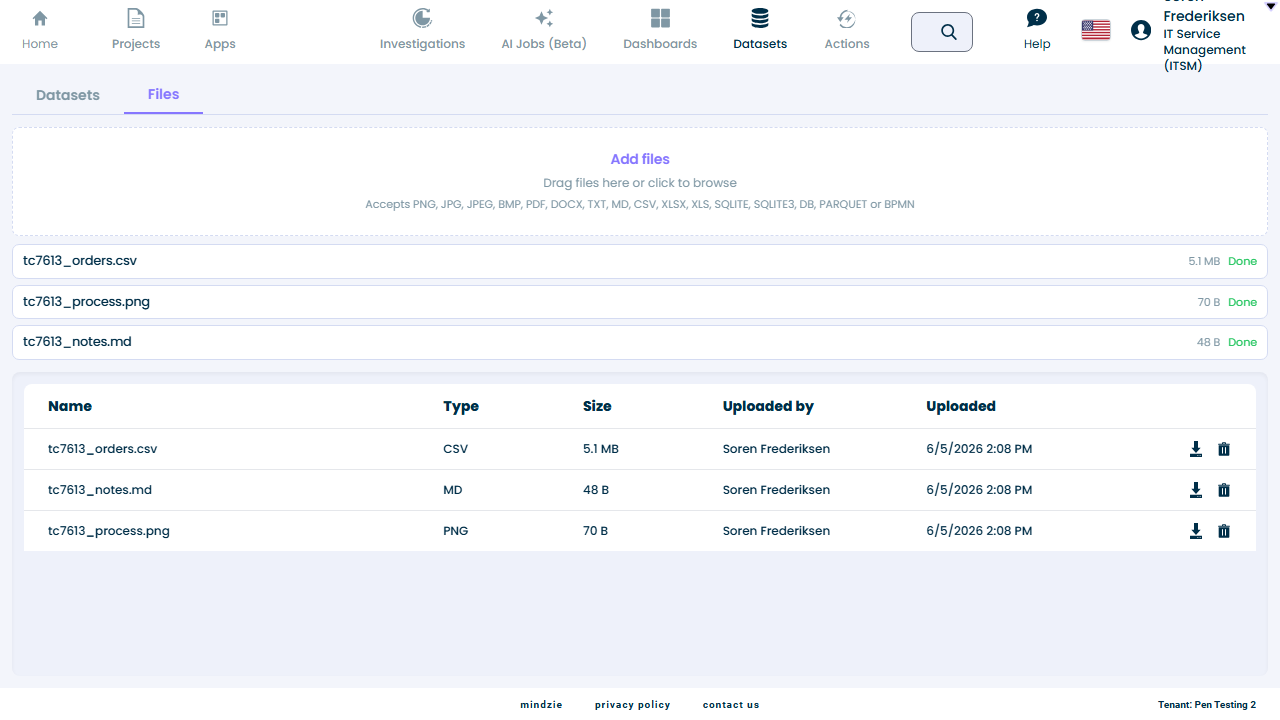
| Column | Description |
|---|---|
| Name | The file's original name, exactly as uploaded |
| Type | The file type (CSV, PNG, PDF, ...) |
| Size | The file size |
| Uploaded by | The user who uploaded the file |
| Uploaded | When the file was uploaded |
Each row offers Download (streams the original file) and Delete (asks for confirmation first). Deleting a file removes it permanently; AI Jobs that used the file will no longer be able to read it.