Projects
Overview
Projects in mindzie Studio provide a simple way to organize your process improvement work. They serve as containers for data sets, analysis, dashboards, and other process mining artifacts, helping you maintain structure and security across your process improvement initiatives.
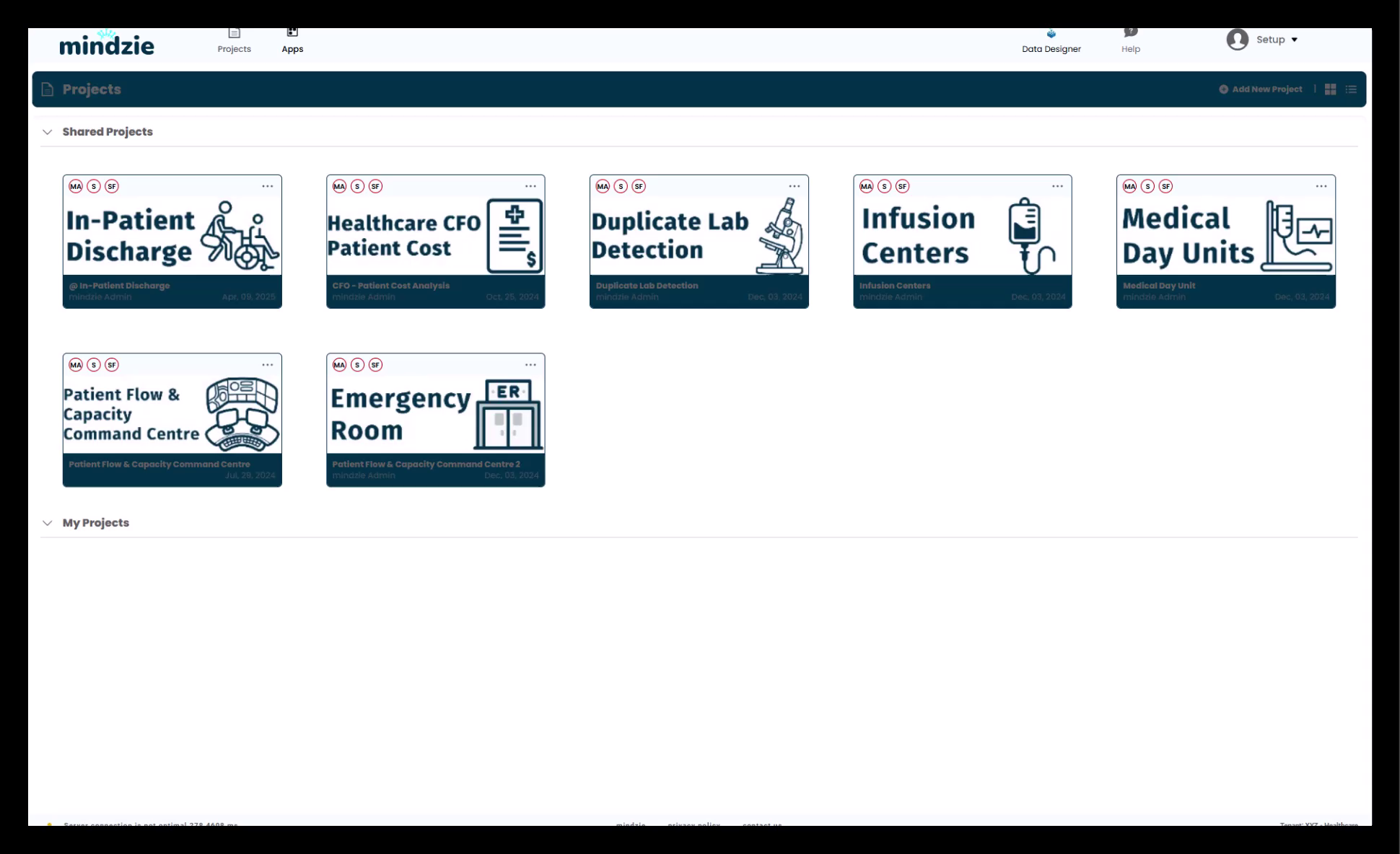
What are Projects?
Projects are organizational containers that allow you to:
- Group related process analysis work
- Organize by customer, business process, or business unit
- Manage multiple data sets within a single context
- Control user access and permissions
- Share process analysis with stakeholders
Common Project Organization Strategies
For Consultants
- One project per customer - Keep client work separate and secure
- One project per engagement - Organize by specific consulting projects
- Multi-client projects - Group similar industries or processes
For Internal Teams
- By Business Process - Separate Order-to-Cash, Procure-to-Pay, etc.
- By Business Unit - Finance, Operations, Sales, etc.
- By Initiative - Specific improvement projects or transformation efforts
- By Geography - Regional or location-specific analysis
Flexible Data Organization
Within each project, you can include:
- Single Data Set - Focused analysis on one process
- Multiple Data Sets - Compare processes, time periods, or variations
- Related Processes - End-to-end process chains
Creating a New Project
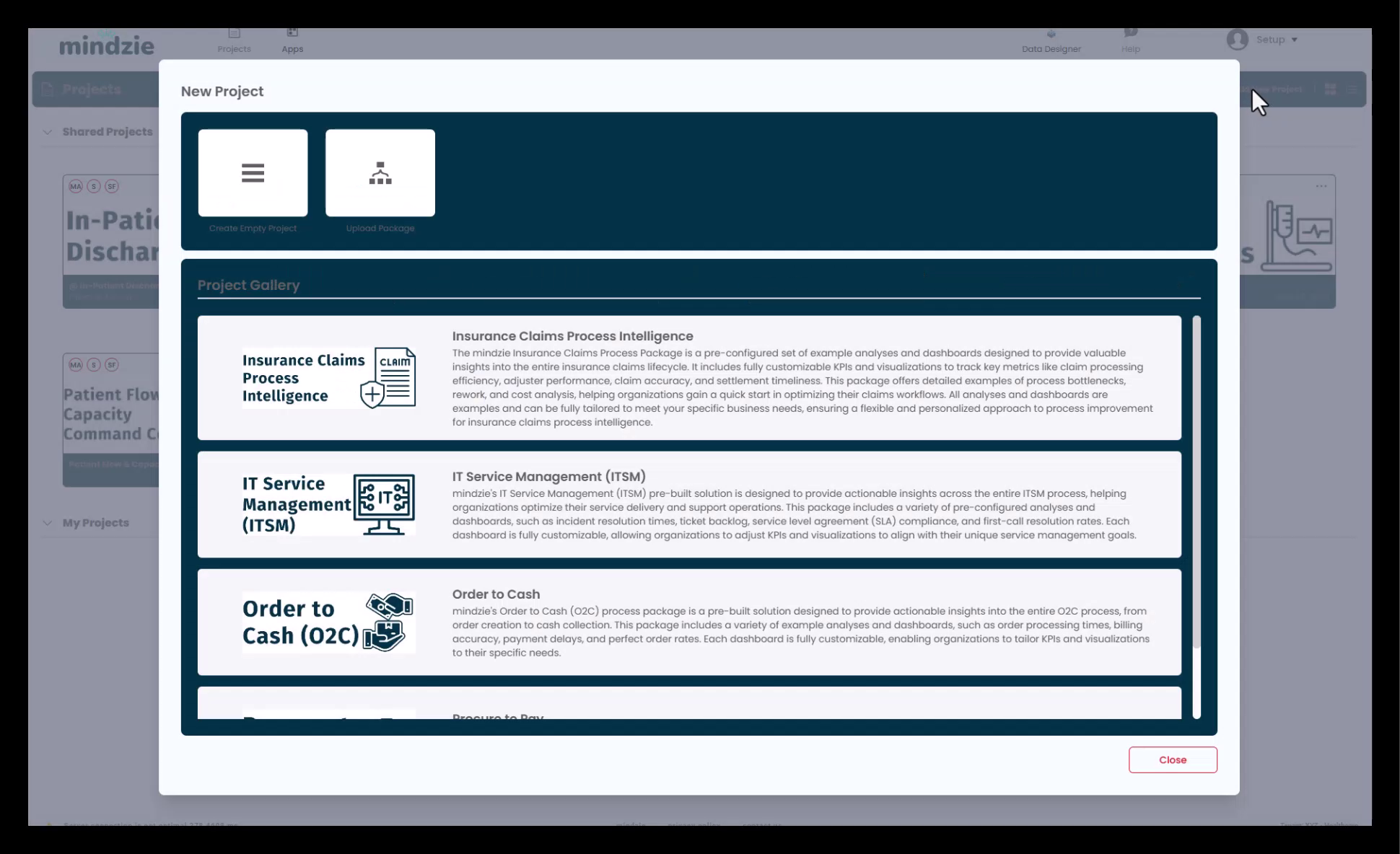
To create a new project:
- Click Add New Project in the top right corner
- Choose from three options:
Create Empty Project
- Start with a blank project
- Add data sets manually
- Build analysis from scratch
- Best for custom work
Upload Project Package
- Import a previously saved project
- Share projects between environments
- Restore backed-up projects
- Transfer work between users
Select from Project Gallery
- Access mindzie's sample projects
- Industry-specific examples
- Process templates and best practices
- Contact support@mindzie.com for additional samples
Project Views
Card View
The default card view provides:
- Visual project cards with thumbnails
- Quick access to projects
- At-a-glance project information
- Easy navigation
List View
Switch to list view for:
- Tabular project listing
- Quick edit access
- Bulk project management
- Detailed project information
To switch views:
- Click the List View icon in the top right corner
- Toggle between card and list display
Project Organization
Shared Projects
Projects shared with you by other users appear in the "Shared Projects" section at the top.
My Projects
Projects you own or have created appear in the "My Projects" section below.
Managing Projects
Project Menu Options
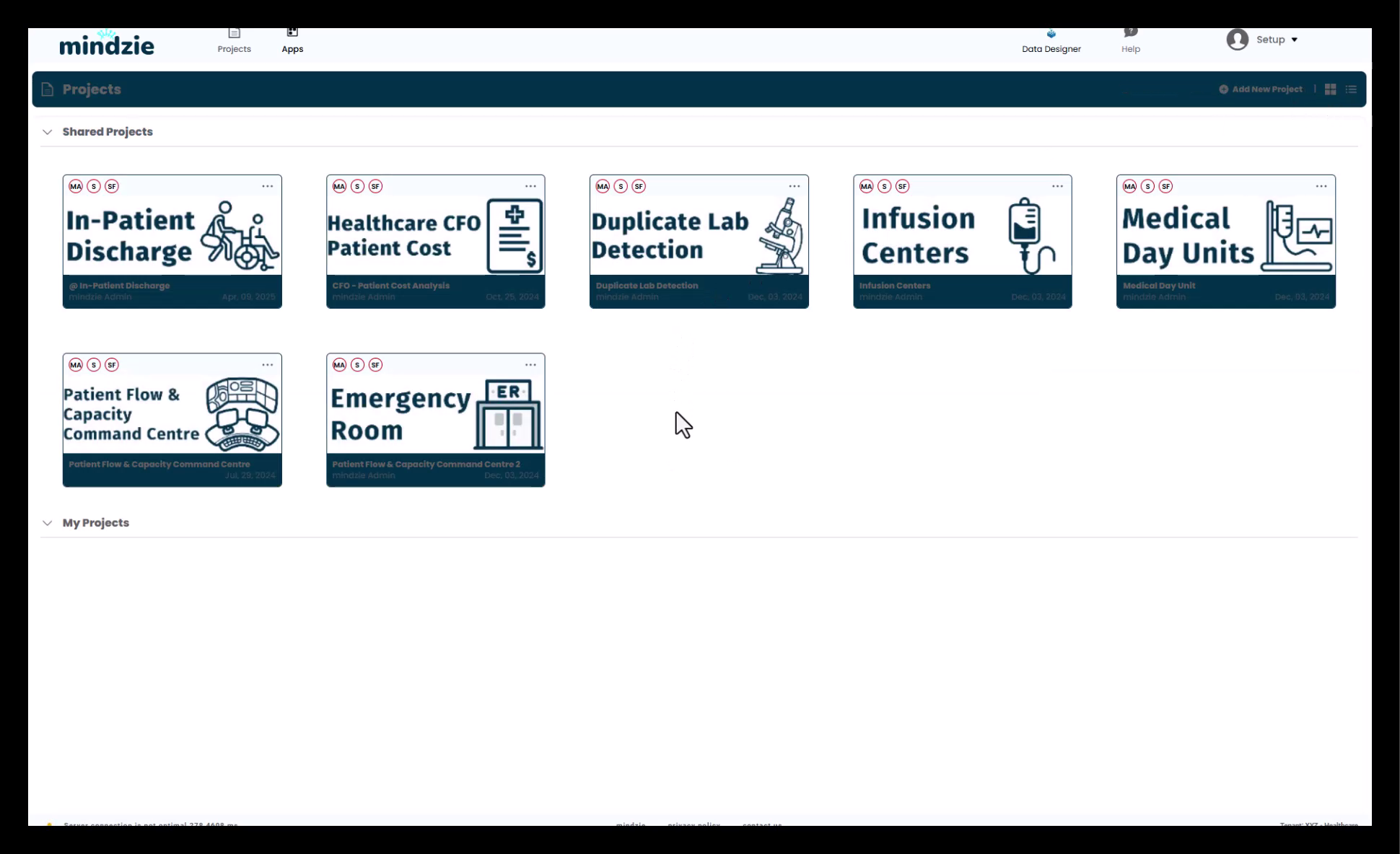
Access project management by clicking the three dots on any project card:
Edit Project
- Modify project name and details
- Update project settings
- Change project configuration
Add/Remove Thumbnail
- Add Thumbnail - Upload custom project image
- Remove Thumbnail - Return to default appearance
- Helps visual identification
Save Project Package
- Export entire project
- Share with other users
- Back up project work
- Transfer between environments
Import Application Colors and Charts
- Apply standardized styling
- Maintain brand consistency
- Reuse color schemes
Remove Project Colors
- Reset to default colors
- Administrator setting only
- Clear custom styling
Delete Project
- Permanently remove project
- Cannot be undone
- Removes all associated data and analysis
Assign Users
- Control project access
- Set user permissions
- Manage collaboration
User Access and Security
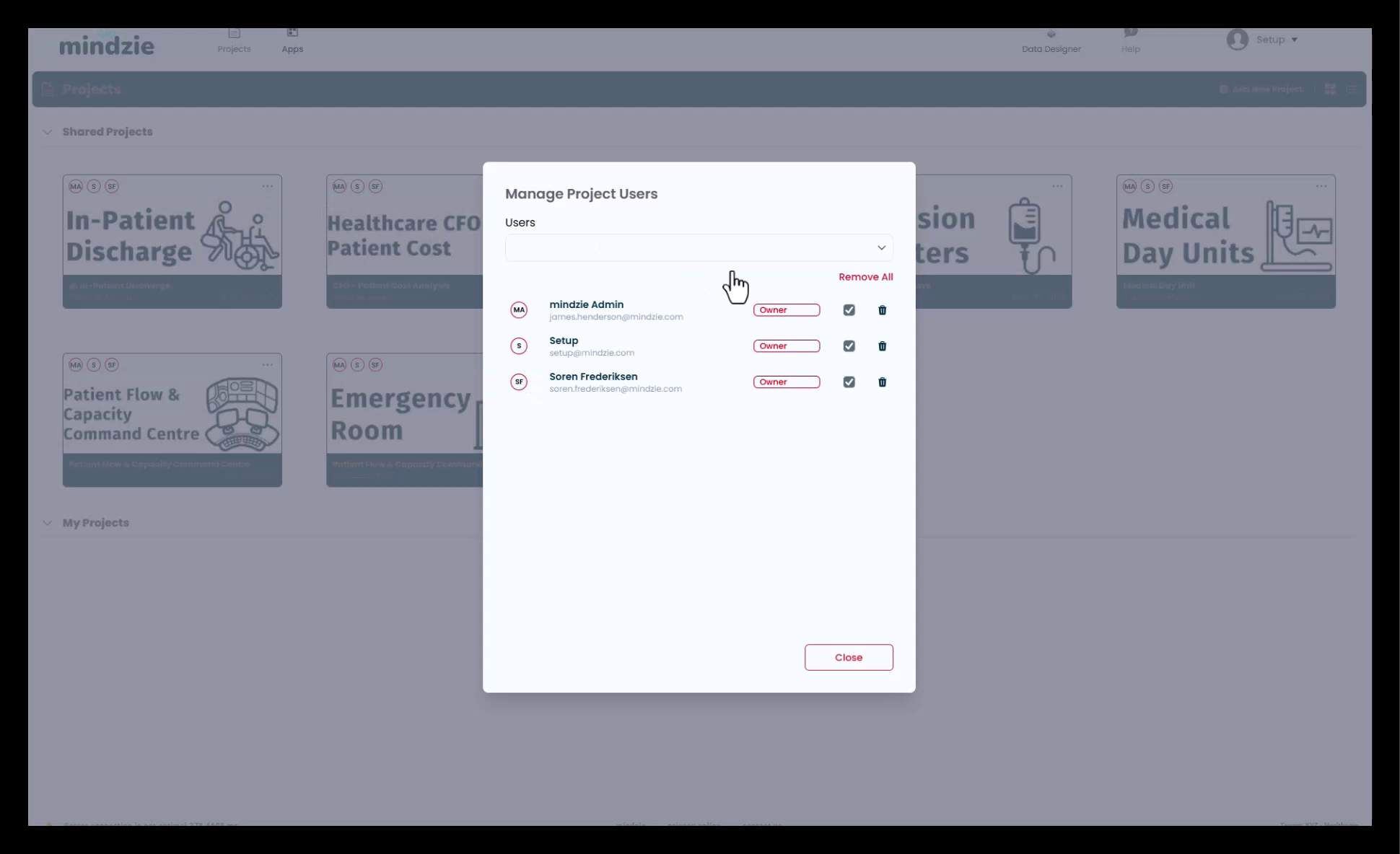
Assigning Users to Projects
- Click the three dots on a project card
- Select Assign Users
- Choose users from the list
- Set permission levels
Permission Levels
Owner
- Full project control
- Can edit and delete project
- Can assign other users
- Can share with others
- Manages project security
Contributor
- Can access project
- Can view and analyze data
- Cannot modify project settings
- Cannot assign users
Managing User Access
From the Assign Users dialog:
- Select from All Users - Add multiple users at once
- Remove All Users - Clear all user assignments
- Owner Checkbox - Grant owner-level permissions
- Security Layer - Users not assigned cannot see the project
Security Benefits
Project-based security provides:
- Access Control - Only assigned users can see projects
- Data Privacy - Separate sensitive client or business data
- Collaboration - Share selectively with team members
- Compliance - Meet data access requirements
Administrator Features
Show All Projects
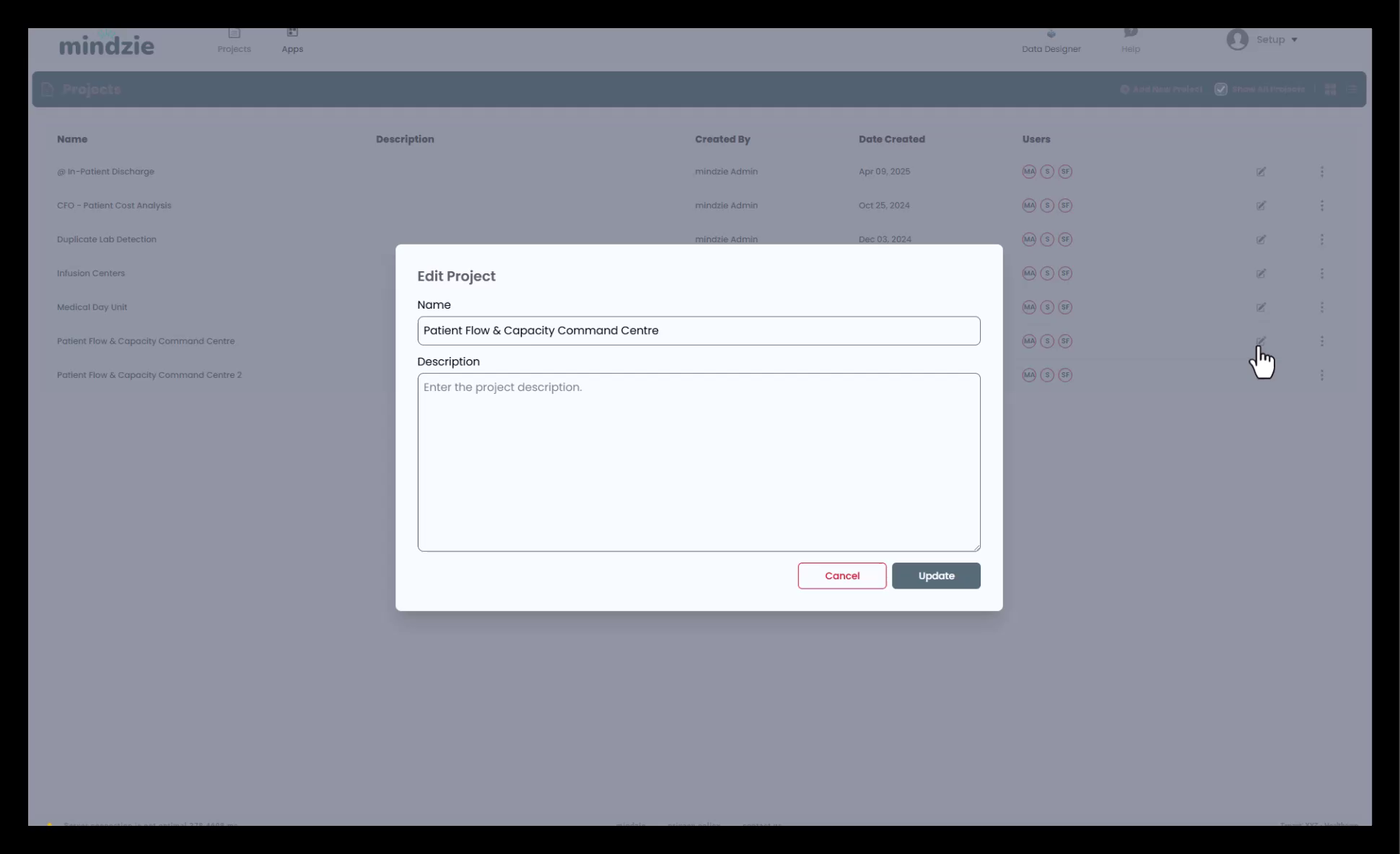
Administrators have special capabilities:
Access All Projects
If you are an administrator:
- Enable Show All Projects toggle
- View projects you don't have access to
- Identify projects with the head icon
- Click the head icon to assign yourself
Taking Ownership
Useful when:
- Original project creator has left the organization
- Projects need to be reassigned
- Administrative maintenance required
- Project ownership needs transfer
To take ownership:
- Enable Show All Projects
- Find the project with the head icon
- Click the head icon
- You are automatically assigned as owner
- You can now manage or reassign the project
Project Packages
Saving Project Packages
Project packages allow you to:
- Export Projects - Save complete project with all data and analysis
- Share Templates - Create reusable project templates
- Backup Work - Protect against data loss
- Transfer Projects - Move between environments
To save a project package:
- Click the three dots on a project
- Select Save Project Package
- Choose save location
- Package includes data, analysis, dashboards, and settings
Using Project Packages
Project packages are useful for:
- Sharing best practices across teams
- Creating starter templates for common processes
- Backing up important analysis work
- Migrating between development and production
- Training new users with pre-configured examples
Best Practices
Project Organization
- Clear Naming - Use descriptive, consistent project names
- Logical Structure - Group related work together
- Regular Cleanup - Archive or delete unused projects
- Security First - Only assign necessary users
- Document Purpose - Use project descriptions
Data Management
- Multiple Data Sets - Use when comparing processes
- Time-Based Organization - Separate by period when relevant
- Version Control - Save project packages at milestones
- Clean Data - Remove test or obsolete data sets
Collaboration
- Assign Appropriately - Give users the right permission level
- Owner Distribution - Have multiple owners for important projects
- Regular Review - Audit user access periodically
- Clear Communication - Document project purpose and scope
Performance
- Project Size - Keep projects focused and manageable
- Data Volume - Monitor data set sizes
- Regular Maintenance - Clean up old analysis
- Archive Completed - Save and remove finished projects
Project Gallery
The Project Gallery provides:
- Industry-specific example projects
- Process templates and best practices
- Pre-configured analysis and dashboards
- Learning and training resources
Accessing Additional Samples
To request sample project packages:
- Contact support@mindzie.com
- Specify your industry or process type
- Request specific use cases or examples
- mindzie support will provide relevant samples
Support
For assistance with projects:
- Contact mindzie support for project gallery samples
- Refer to data import documentation for adding data sets
- Check security documentation for advanced permission settings
- Review the latest documentation for new project features