Apps
Apps in mindzieStudio let you bundle dashboards, and analysis into a focused, purpose-built view for specific audiences. Instead of giving every user access to the full project workspace, you can create an app that contains only the dashboards and views relevant to their role.
Overview
Apps are tenant-level containers that sit above individual projects. A single app can pull content from multiple projects, making it easy to build cross-project views. Each app has its own navigation sidebar, categories for organizing content, and user access controls.
Key characteristics:
- Apps span across projects -- you can include content from any project in the tenant
- Each app has its own set of assigned users with role-based access
- Users assigned to an app see only that app's content when they log in
- Apps support categories and subcategories for organizing content
When to Use Apps
Use apps when:
- You need to give executives a simplified view with only high-level dashboards
- Operational staff need access to specific monitoring dashboards without seeing the full project
- You want to combine content from multiple projects into a single view
- You need to control which users see which dashboards and investigations
- You want to provide a focused, role-based experience for different user groups
Accessing the Apps Page
To access apps, click Apps in the top navigation bar of mindzieStudio.
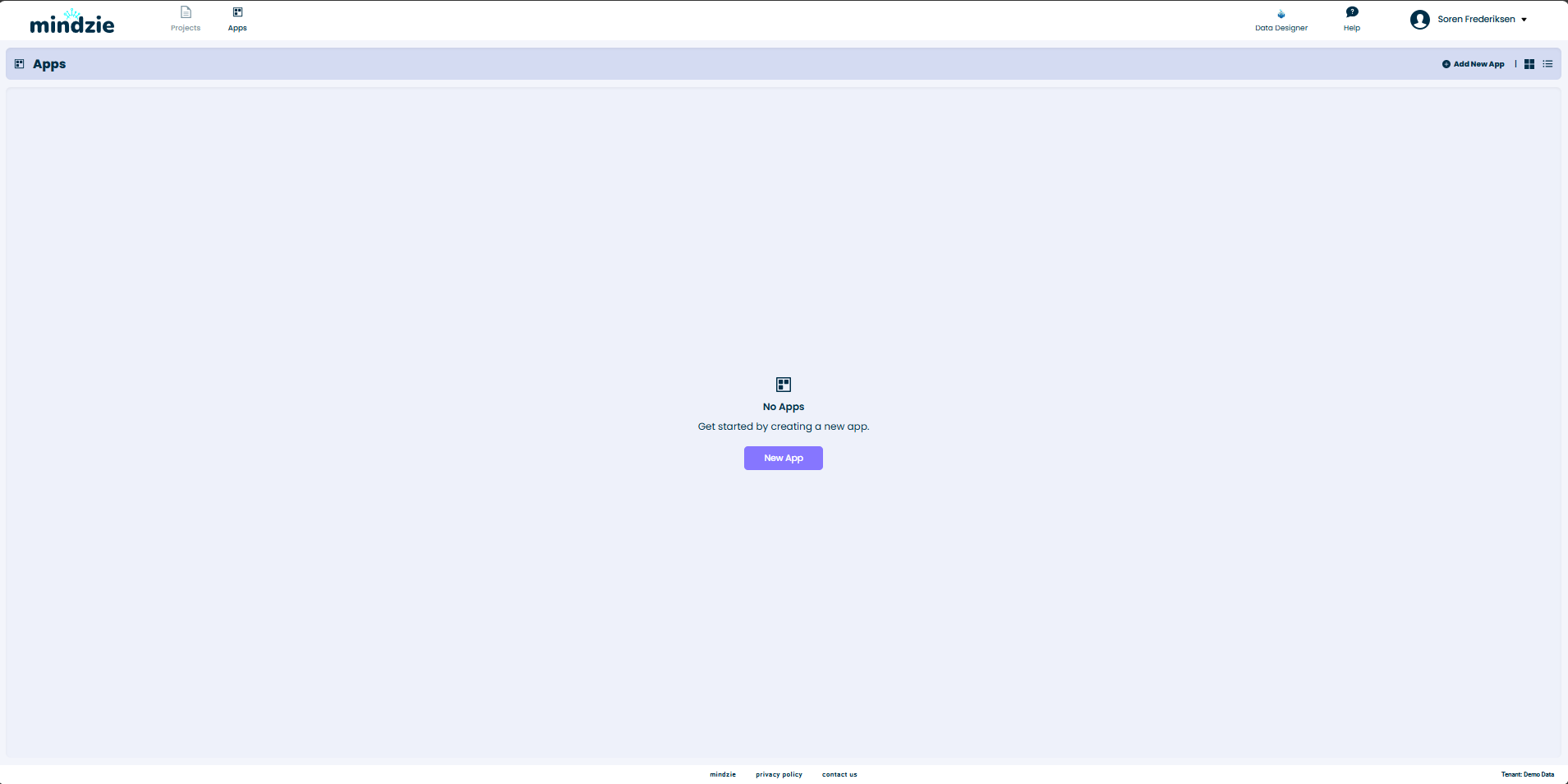
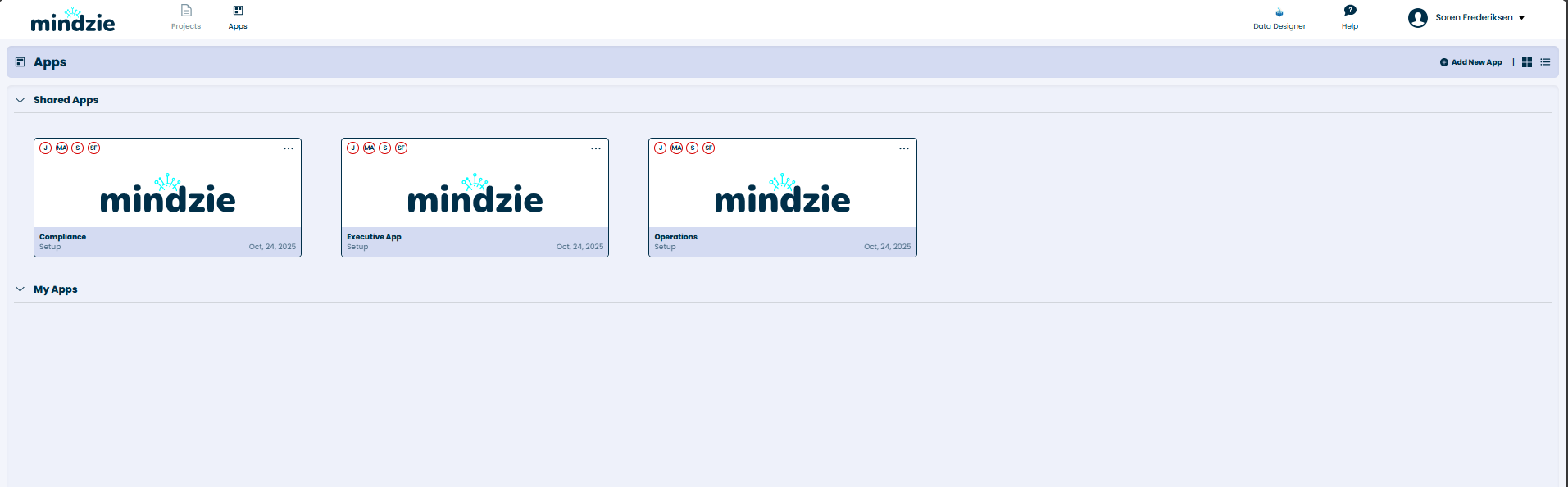
The Apps page is divided into two sections:
- Shared Apps -- apps that have been shared with you or the entire tenant
- My Apps -- apps you have created
Each app card displays the app name, creator, and creation date. The icons in the top-left corner of each card indicate user access levels.
Creating a New App
Step 1: Start the App Creation
- Navigate to the Apps page
- Click Add New App in the top-right corner
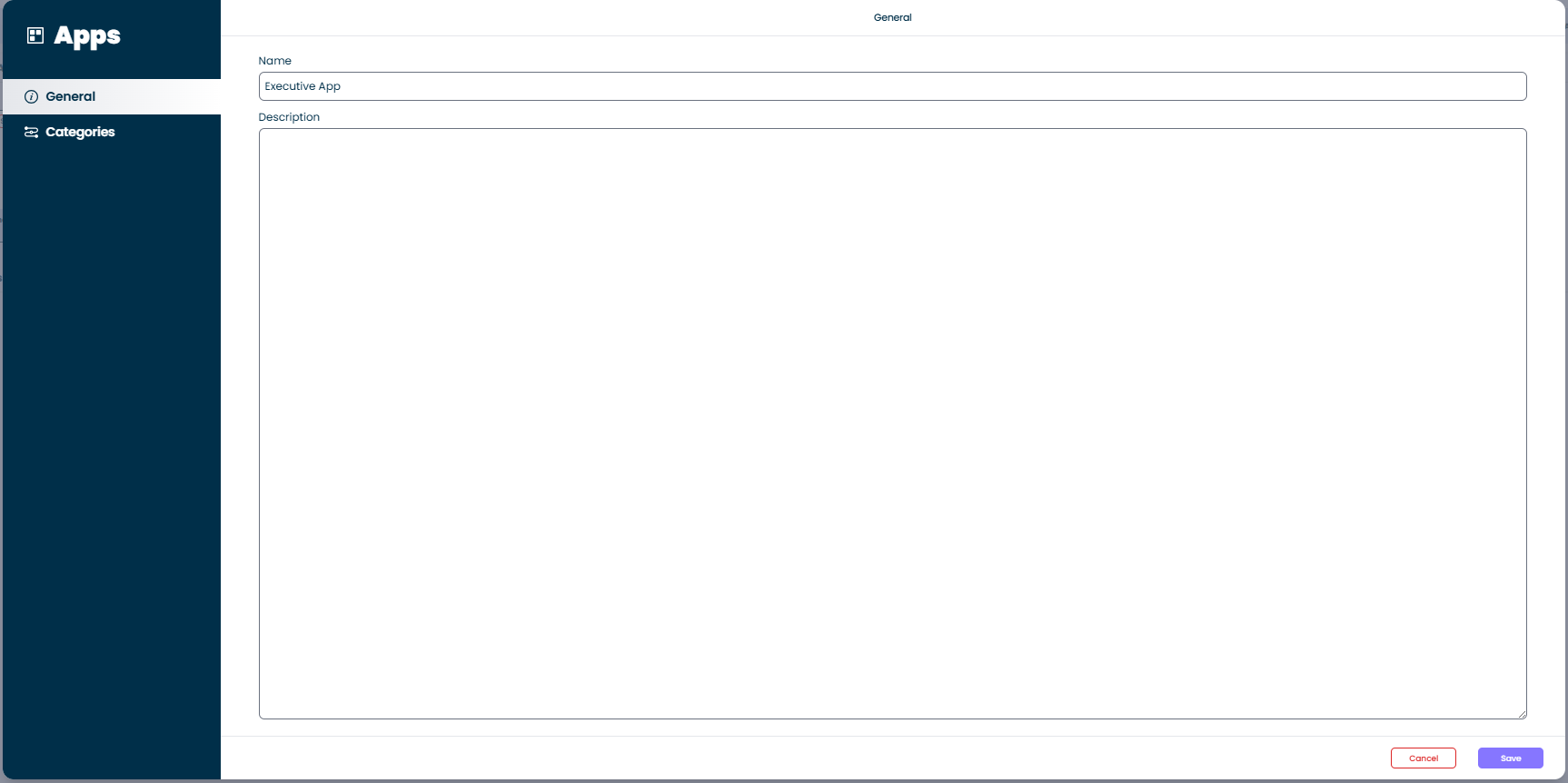
The app editor opens with a sidebar containing two tabs: General and Categories.
Step 2: Set the App Name and Description
- On the General tab, enter a Name for your app (e.g., "Executive App")
- Optionally add a Description to explain the purpose of the app
- Click Save
Step 3: Add Categories (Optional)
Categories help organize the content within your app. For example, you might create categories like "Reporting", "Monitoring", or "Analysis".
- Click the Categories tab in the sidebar
- Click the add button to create a new category
- Enter a Title and optional Description
- Click Submit
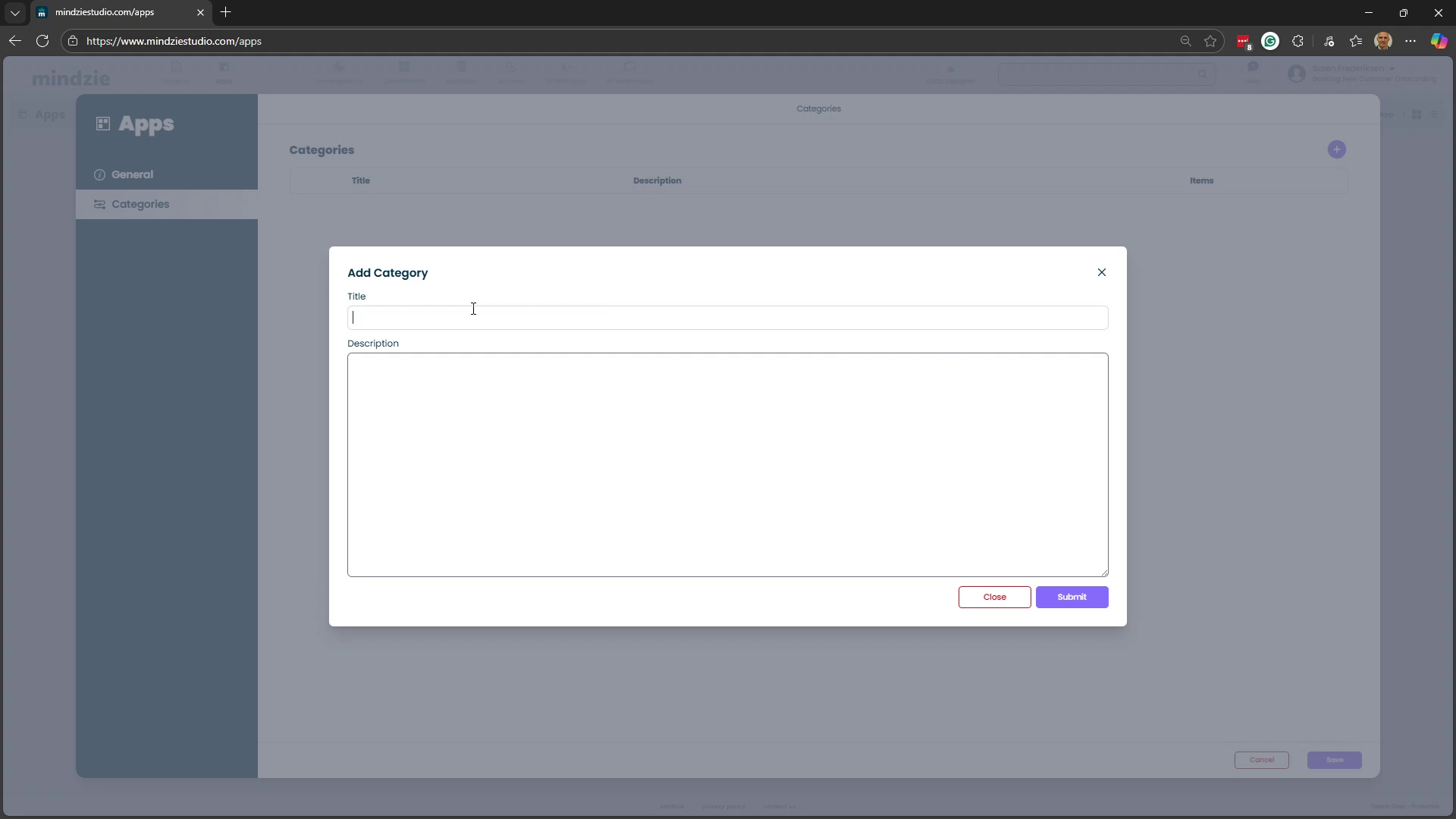
You can create multiple categories and even nest subcategories within them.
Adding Content to an App
Once your app is created, you can add dashboards and analysis to it from anywhere in mindzieStudio.
Adding a Dashboard to an App
- Navigate to Dashboards and open the dashboard you want to add
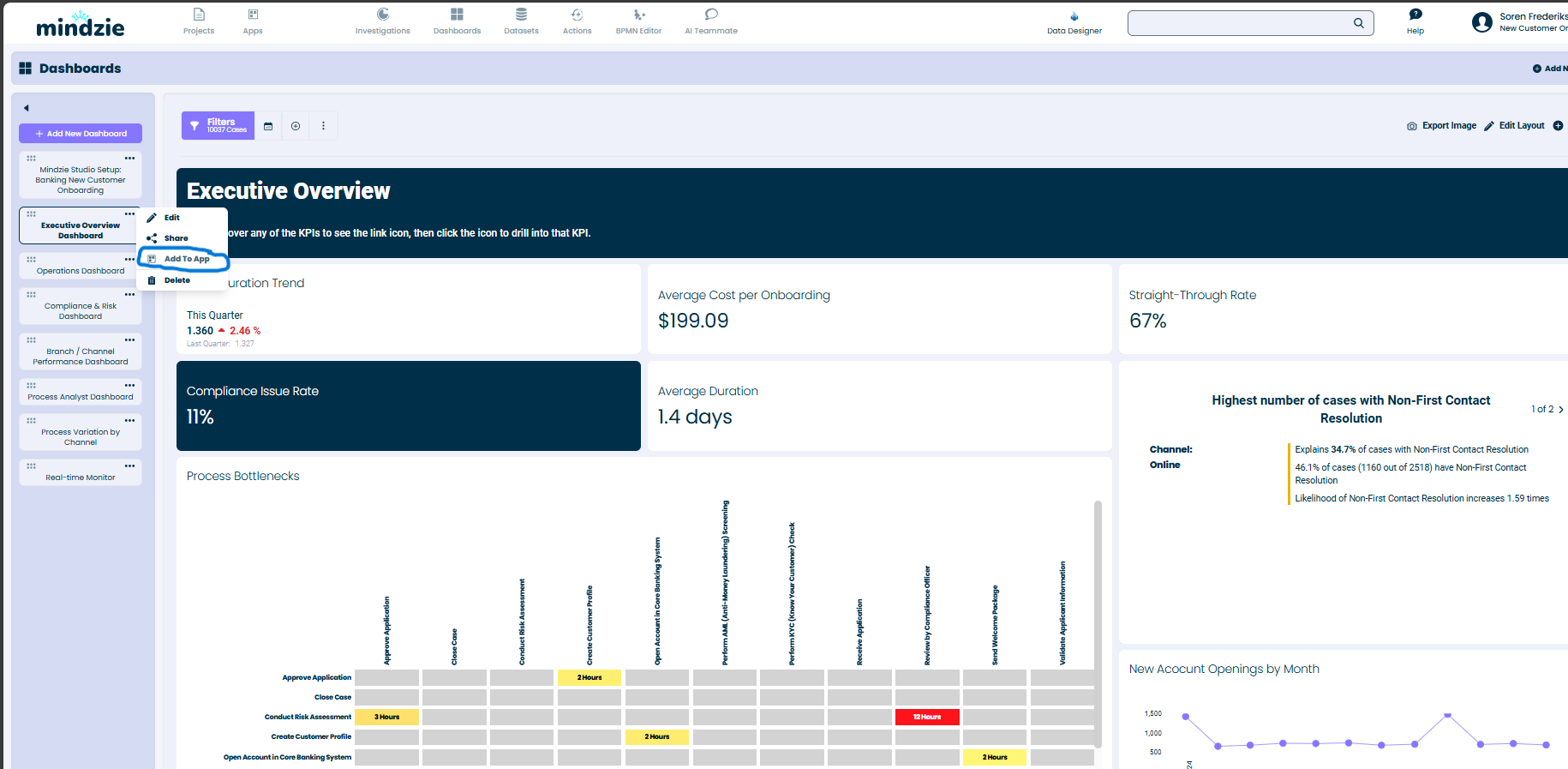
- Click the three-dot menu (...) on the dashboard and select Add to App
- In the Add To App dialog, you will see your available apps and their categories
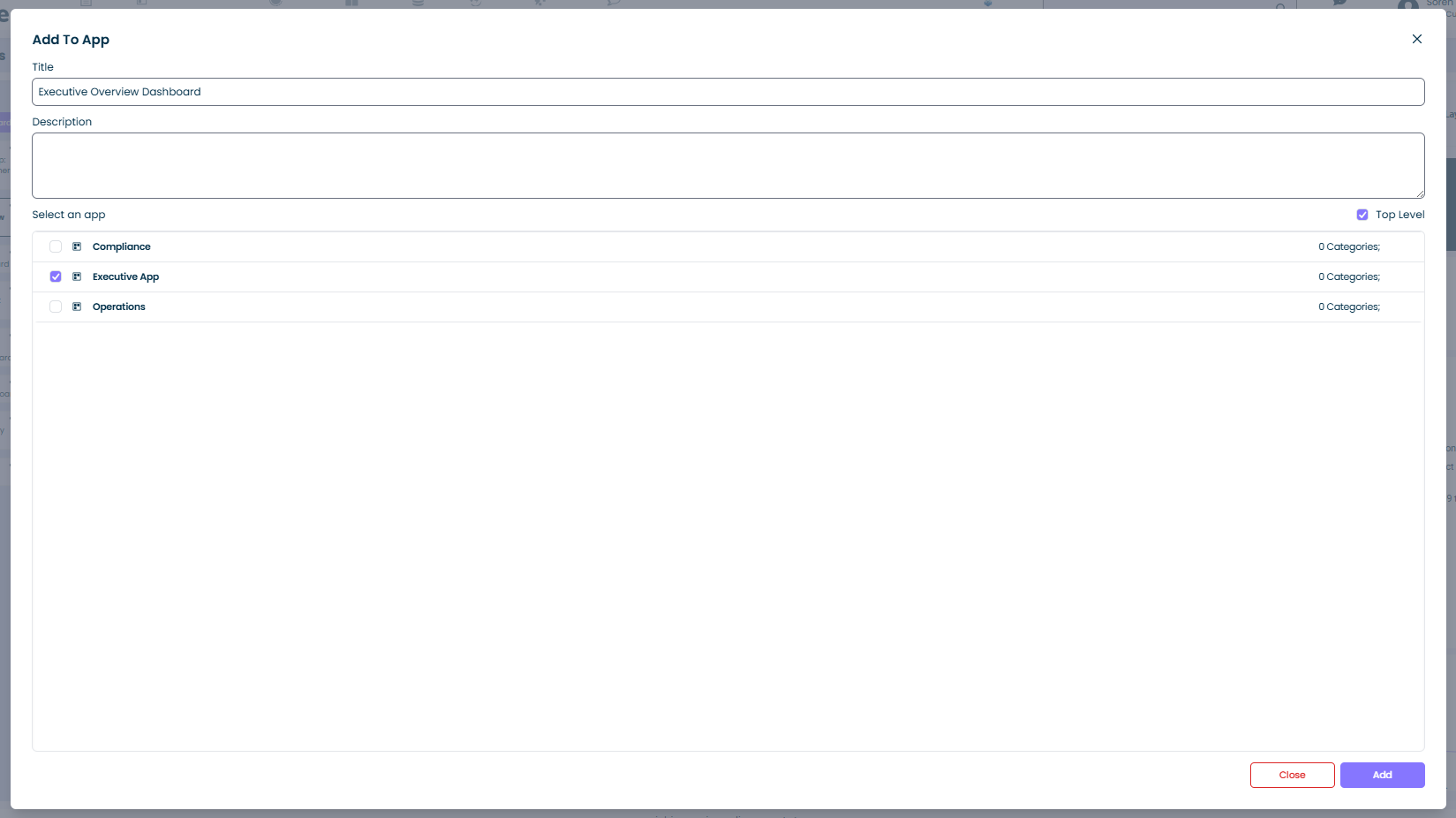
- Select where to place the dashboard:
- Click Top Level to add it directly to the app root
- Click a specific category (e.g., Reporting) to place it under that category
- Click Add
Viewing an App
When you open an app, it displays with its own sidebar navigation. The sidebar shows the app content organized by the categories you created.
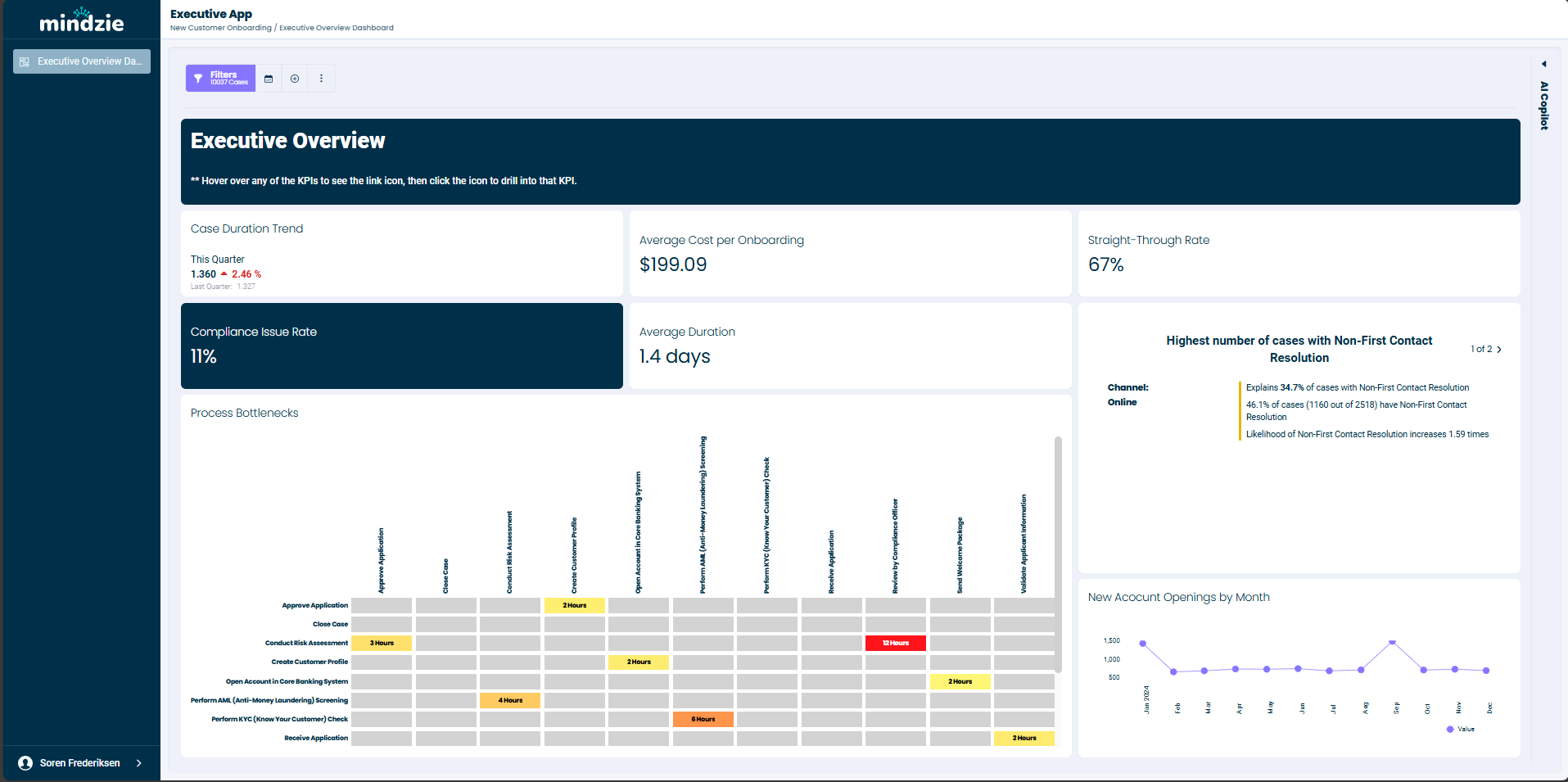
The sidebar contains:
- Items added to the top level of the app
- Expandable category sections with their assigned items
- Navigation links to each dashboard or view
Users who are assigned to an app and log in to mindzieStudio will see only the app content -- they will not have access to the full project workspace.
Managing App Users
You can control who has access to each app by assigning users with different roles.
Assigning Users
- On the Apps page, click the three-dot menu (...) on the app card
- Select Assign Users
The Manage App Users dialog displays:
- A dropdown to search and add users
- A list of currently assigned users with their roles
- Controls to change roles or remove users
User Roles
There are three access levels for app users:
- Owner -- full control over the app, including editing, adding content, and managing users
- Contributor -- can add and modify content within the app
- Read-only (User) -- can only view the app content; this is the most common role for end users
By default, the person who creates the app is the owner.
Managing Apps
App Card Options
From the Apps page, click the three-dot menu (...) on any app card to access these options:
- Assign Users -- manage who can access the app
- Edit -- modify the app name, description, and categories
- Upload Thumbnail -- set a custom image for the app card
- Delete App -- permanently remove the app
Deleting an App
When deleting an app, a confirmation dialog appears requiring you to acknowledge that the app and its related entities will be permanently deleted. Check the confirmation box and click Confirm to proceed.
Best Practices
- Name apps by audience -- use clear names like "Executive Overview" or "Operations Dashboard" so users know which app is for them
- Use categories to organize -- group related dashboards under categories like "Reporting", "Monitoring", or "Analysis"
- Assign minimal access -- give most users read-only access unless they need to modify app content
- Combine across projects -- take advantage of apps spanning multiple projects to build comprehensive views
- Keep it focused -- include only the dashboards and views that are relevant to the target audience
Related Documentation
Support
If you encounter issues with Apps:
- Email: support@mindzie.com