Actions Engine
Overview
The mindzie Actions Engine is a powerful automation platform that triggers alerts, notifications, AI reports, and other automated updates based on your process data. It enables you to transform process insights from discovery into continuous automated monitoring and action.
Access Requirements
To use the Actions Engine, you must have one of the following user account levels:
- Analyst - Full access to create and manage actions
- mindzie Developer - Advanced configuration and scripting capabilities
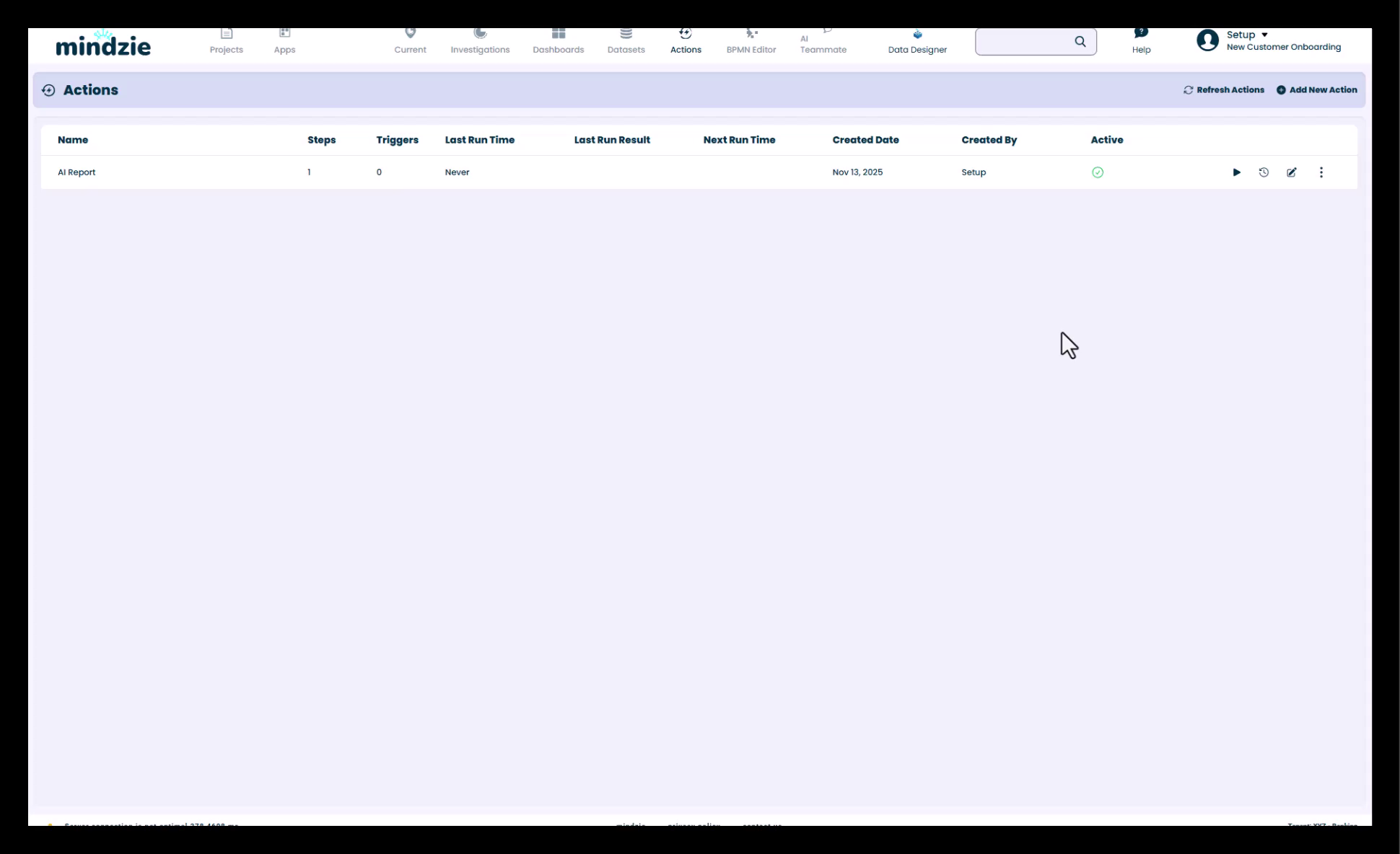
Accessing the Actions Engine
- Navigate to the top of your screen
- Click on Actions Engine in the main navigation menu
Creating a New Action
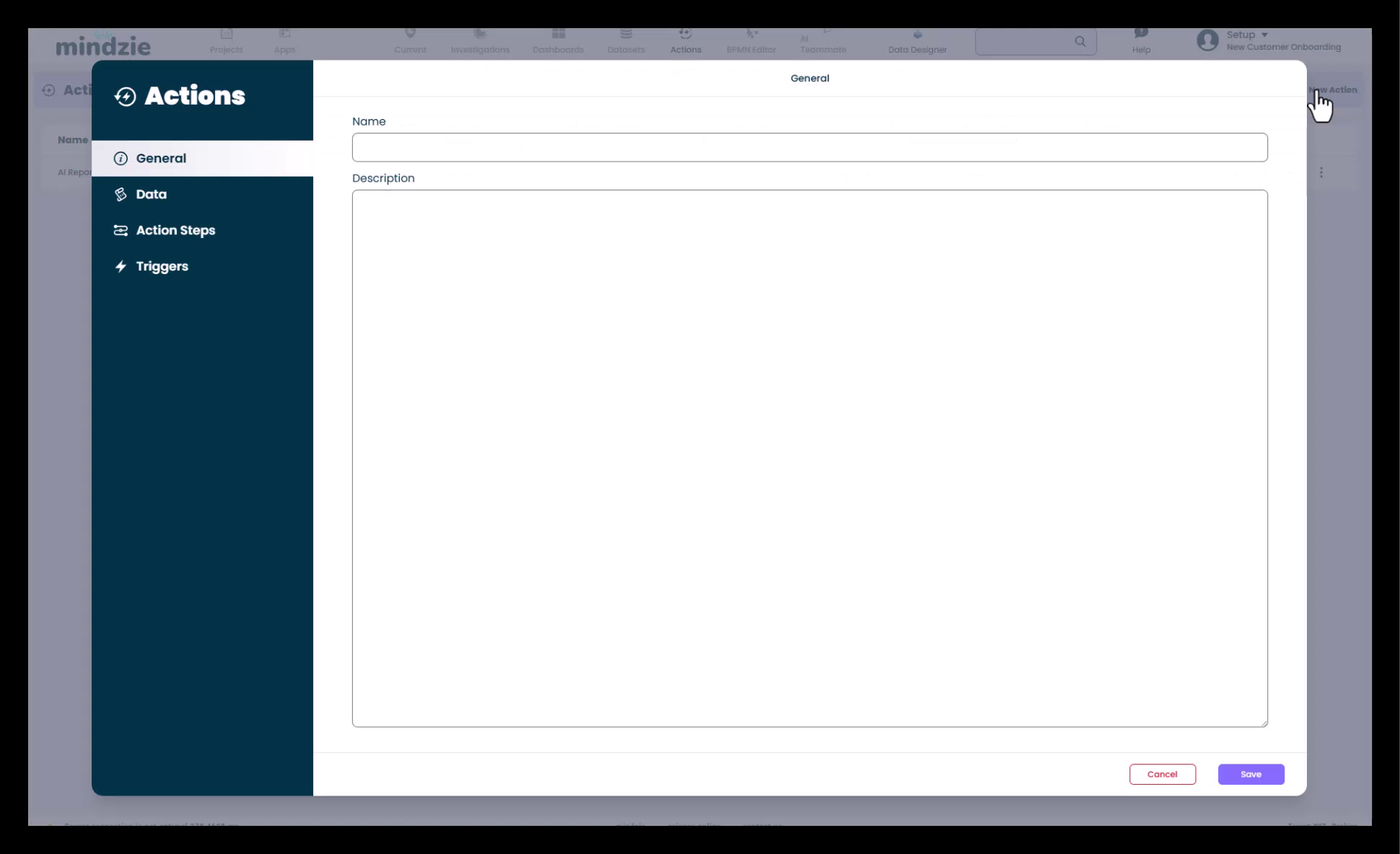
Starting a New Action
- Click New Action in the top right corner
- Provide a name and description for your action
Selecting Analysis Data
Choose the process analysis data that will trigger your action:
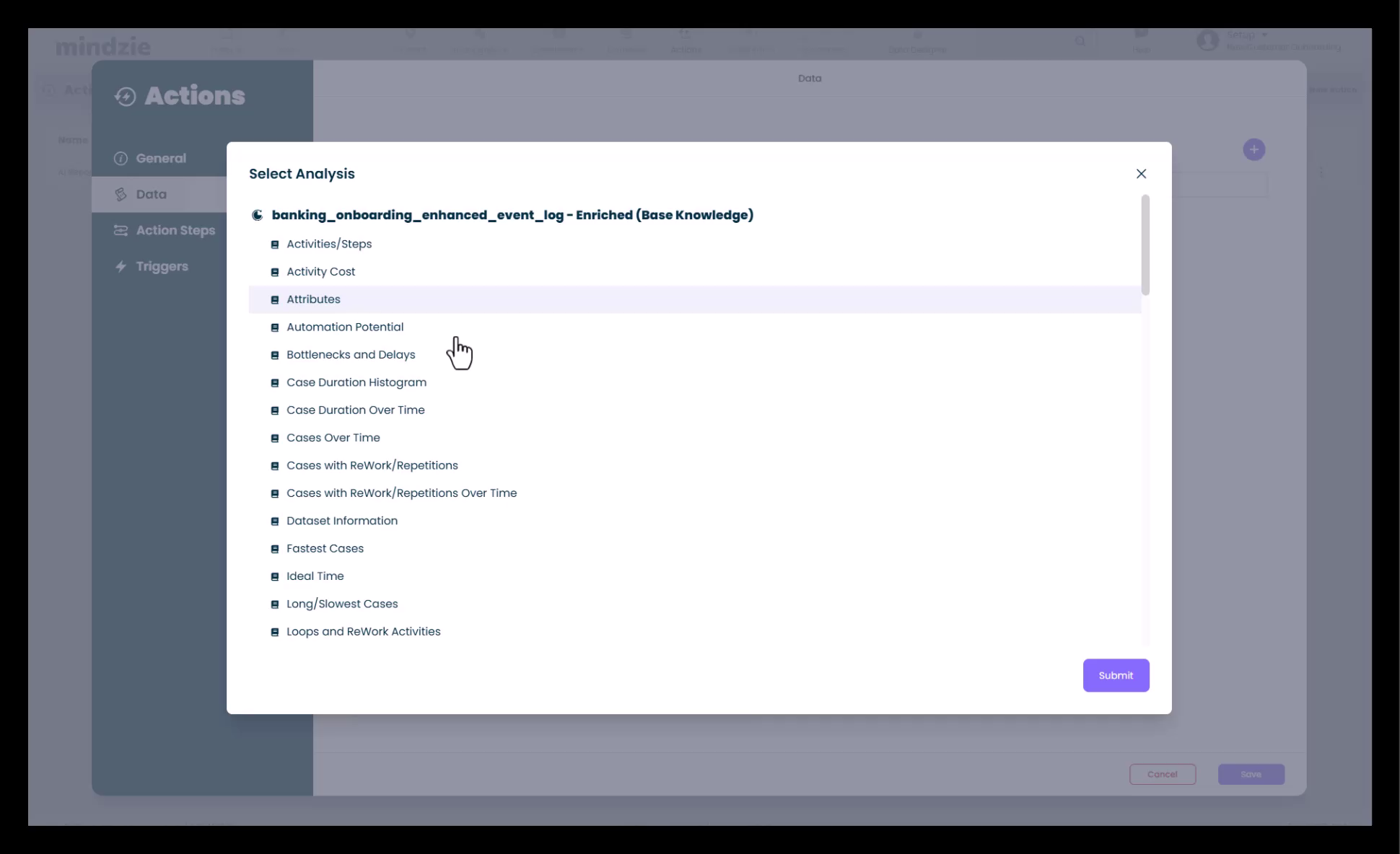
- Click the plus (+) arrow to add analysis
- Select from your existing analyses:
- Outlier detection
- Maverick buying insights
- Compliance issues
- Conformance monitoring
- Process SLA tracking
- Duration analysis
- Risk assessments
- Performance metrics
- Choose relevant insights (compliance, risk, performance, etc.)
- Click Submit to add the analysis to your action
You can add:
- Single analysis - For focused, specific actions
- Multiple analyses - For comprehensive monitoring across criteria
Configuring Action Steps
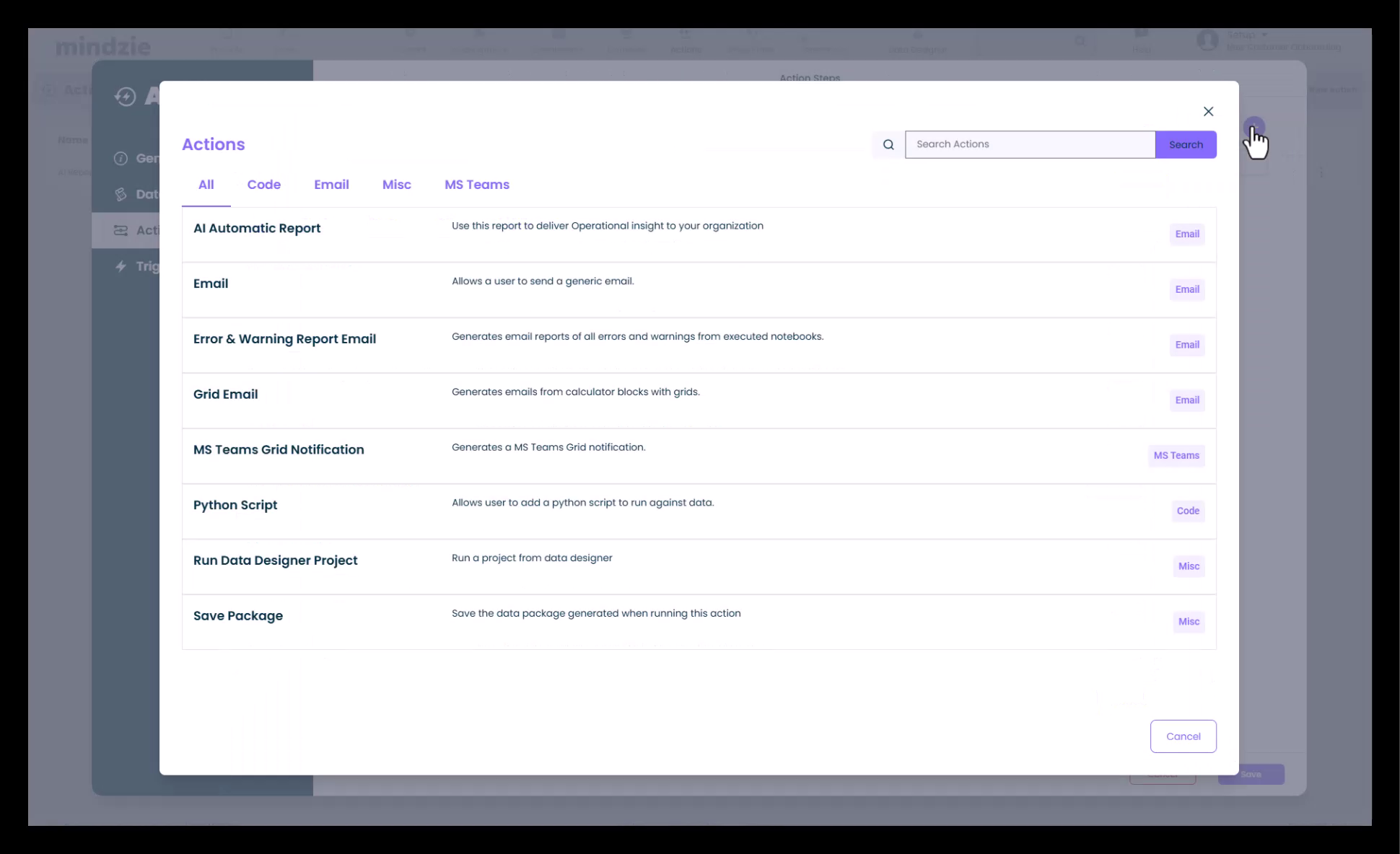
Action steps define what happens when your trigger conditions are met.
Available Action Steps
The Actions Engine uses no-code building blocks that can be combined:
- AI-Automated Reports - Generate intelligent reports using AI
- Email Notifications - Send alerts to stakeholders
- MS Teams Integration - Post directly to Teams channels
- Error/Warning Tracking - Default monitoring across the platform
- Python Scripting - Custom extensions and integrations
Advanced Integration Options
For advanced scenarios, use Python scripting to:
- Integrate with third-party systems
- Trigger updates through APIs
- Put processes on hold based on compliance warnings
- Pause workflows automatically
- Create custom actions and workflows
AI Report Configuration
To configure an AI-generated report:
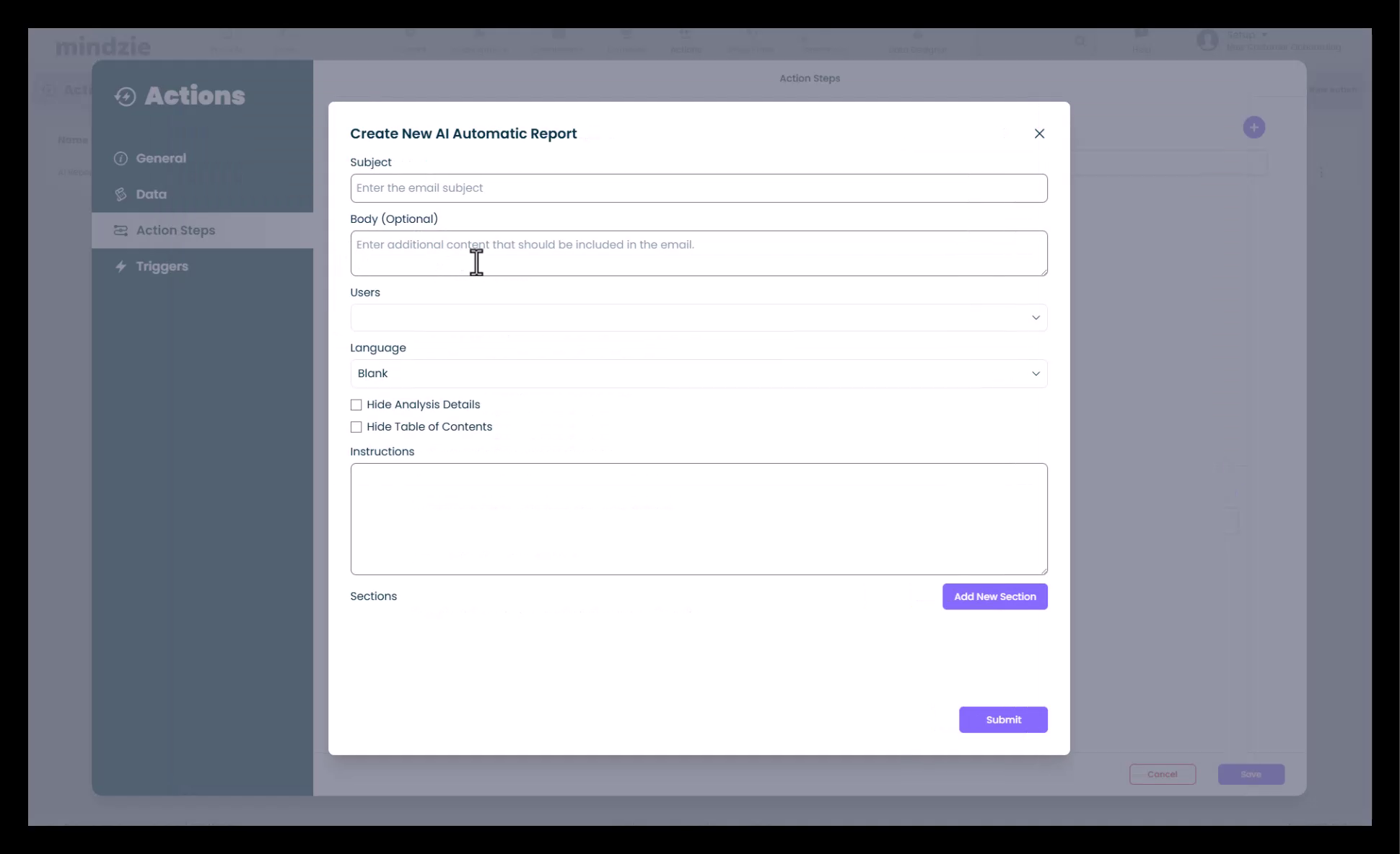
- Select AI Report as the action step
- Provide a Subject for the report
- Choose Recipients (users or groups)
- Select the Language for the report
- Add any Additional Instructions for the AI
- Click Submit to save the configuration
Setting Up Triggers
Triggers determine when and how often your action executes.
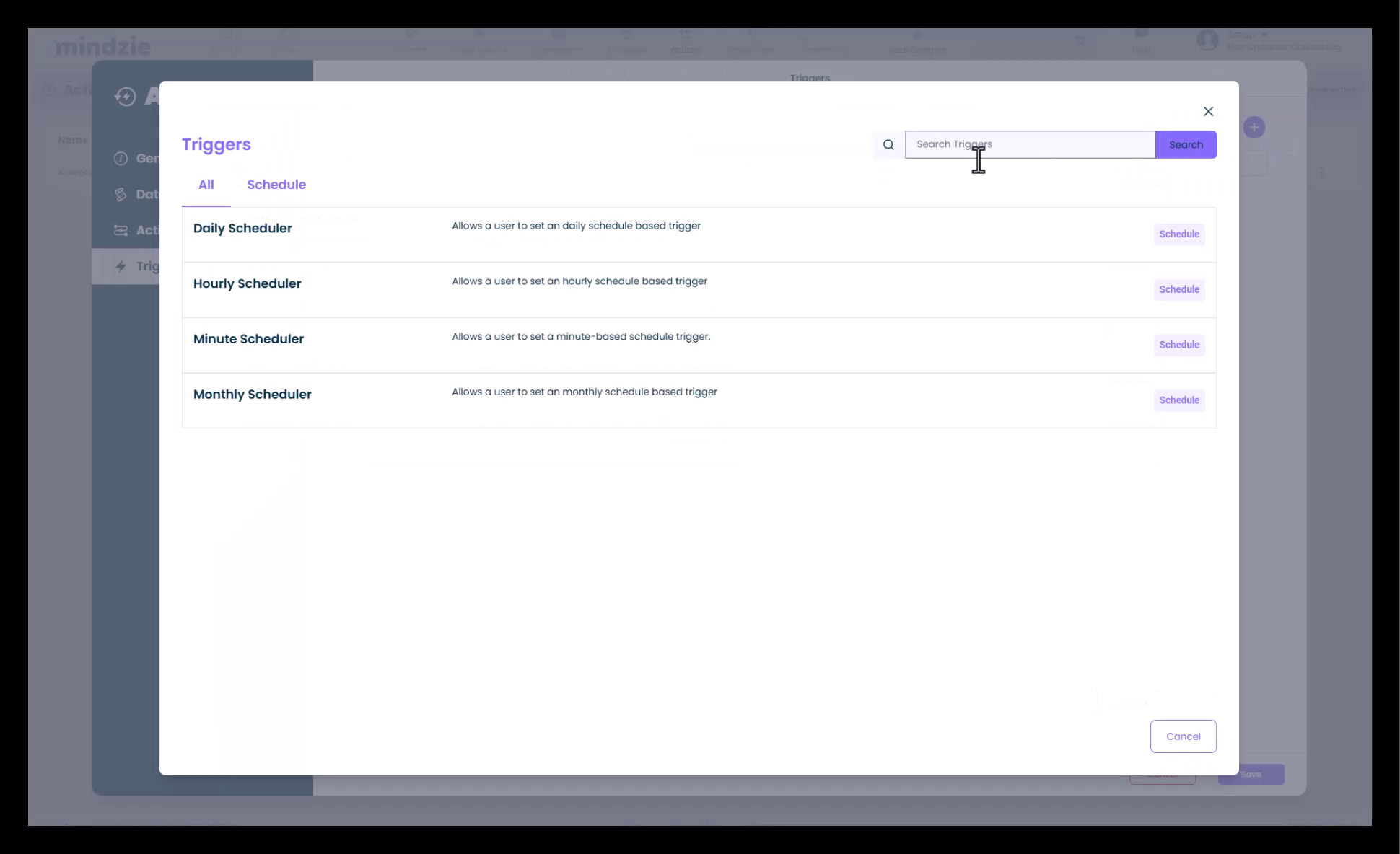
Trigger Frequency Options
- Every Minute - Real-time monitoring
- Hourly - Regular interval checks
- Daily - Once per day
- Weekly - Specific days of the week
- Monthly - Monthly reports and monitoring
- Custom - Define your own schedule
Schedule Configuration
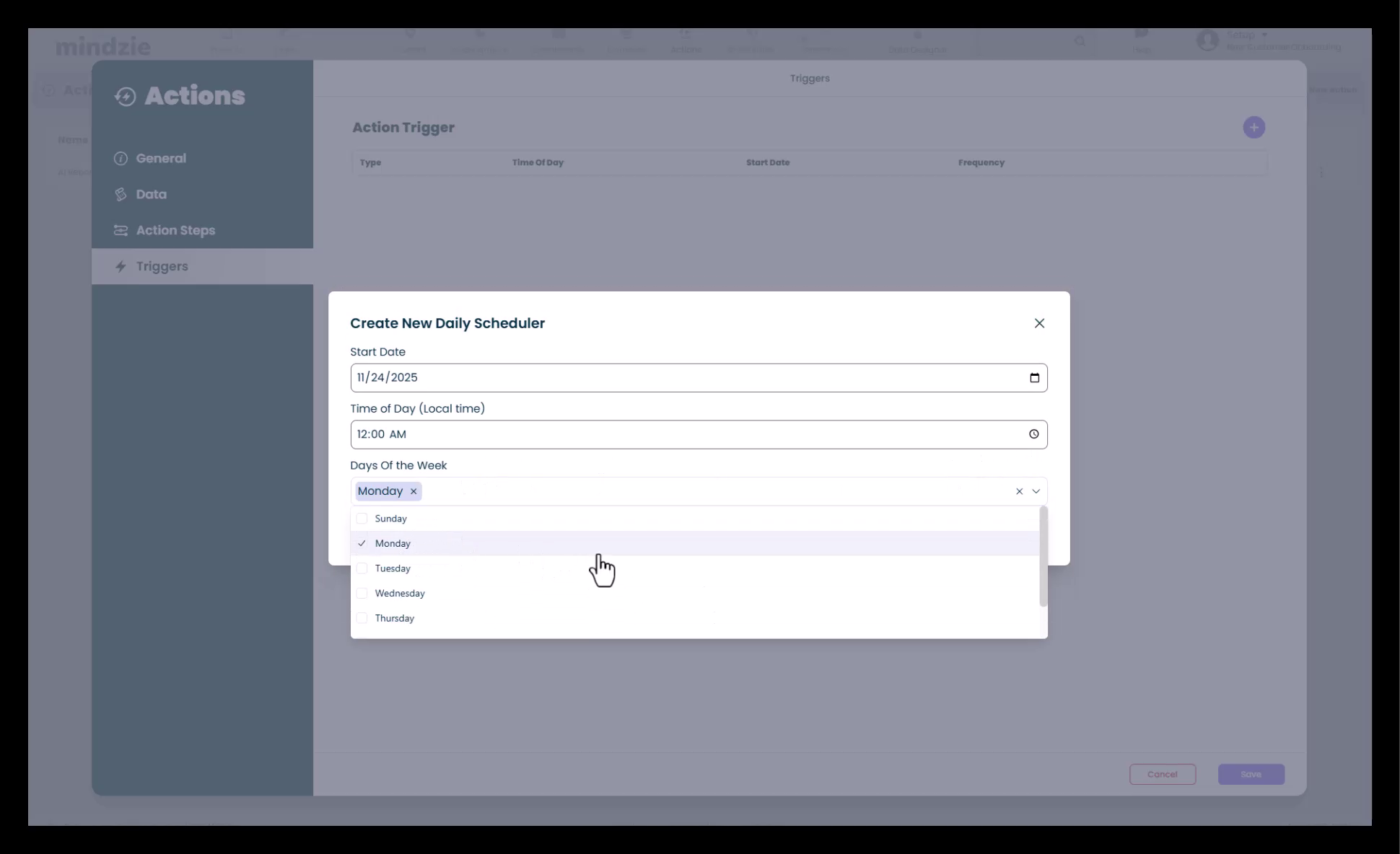
Configure specific timing:
- Select Days of the Week (e.g., Monday, Friday)
- Choose Start Time for execution
- Specify Specific Days if needed
- Click Save to activate the trigger
Example: To send a report every Monday morning:
- Select "Monday" as the day
- Set start time to 9:00 AM
- Save the trigger
Managing Actions
Once your action is configured, you have several management options:
Manual Execution
- Play Button - Manually run the action immediately
- Use this to test your action before scheduling
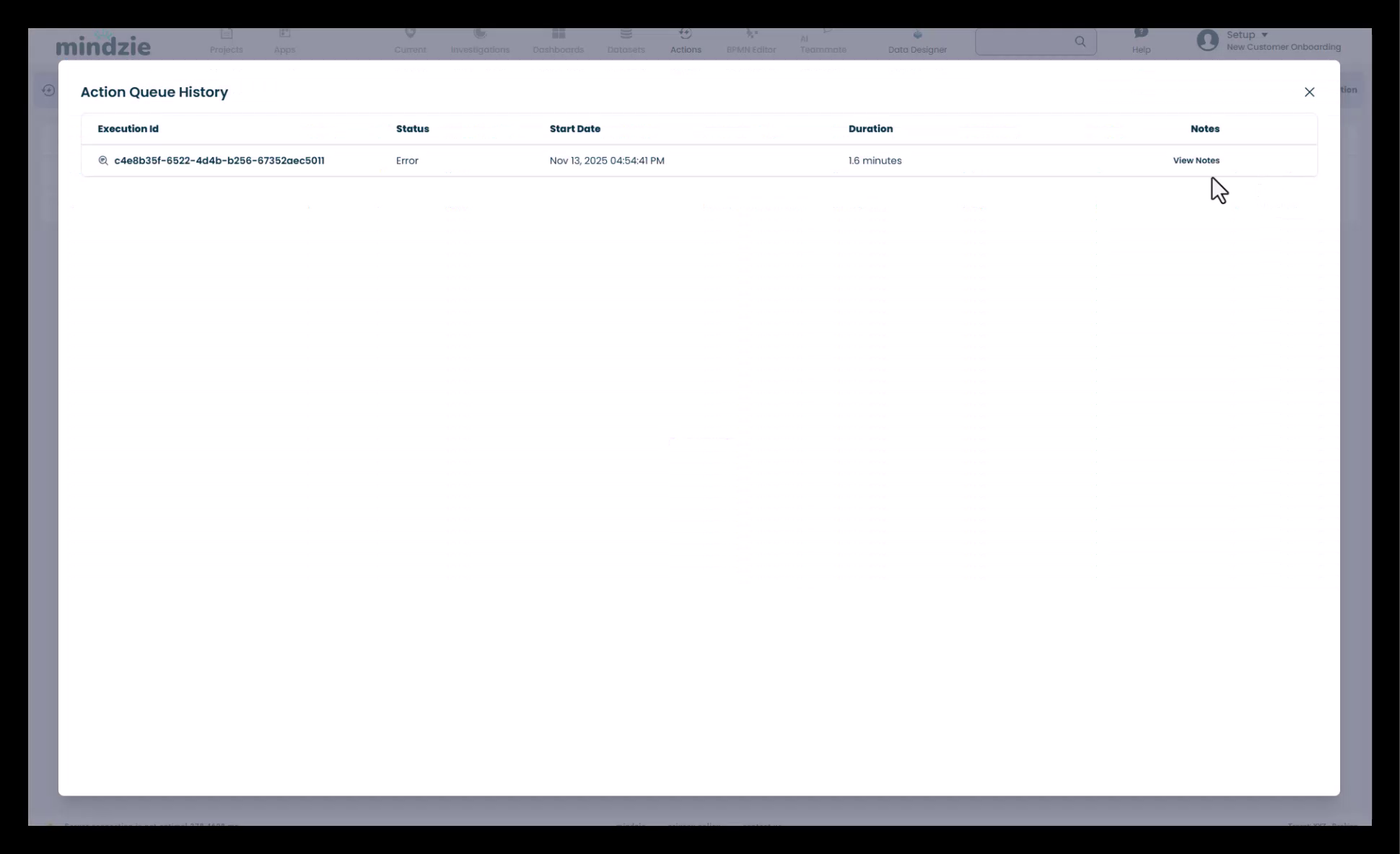
Action History
- History Button - View execution history
- See when the action last ran
- Check for errors or warnings
- Review insights from past executions
- Verify action performance
Editing Actions
- Edit Button - Modify action configuration
- Update analysis selections
- Change action steps
- Adjust triggers and schedules
Action Control
Use the three-dot menu to:
- Disable - Temporarily pause the action without deleting
- Delete - Permanently remove the action
- Duplicate - Create a copy for similar monitoring
Use Cases
The Actions Engine supports various automation scenarios:
Compliance Monitoring
- Detect policy violations
- Alert compliance officers
- Generate compliance reports
- Track conformance metrics
Performance Alerts
- Monitor SLA breaches
- Identify bottlenecks
- Track duration anomalies
- Send performance dashboards
Risk Management
- Flag high-risk processes
- Alert risk managers
- Generate risk assessment reports
- Track risk indicators
Process Optimization
- Identify improvement opportunities
- Send optimization recommendations
- Track efficiency metrics
- Monitor process changes
Management Reporting
- Daily executive summaries
- Weekly performance reports
- Monthly analytics dashboards
- Custom insights for stakeholders
Best Practices
- Start Simple - Begin with one analysis and one action step
- Test First - Use manual execution to verify before scheduling
- Monitor History - Regularly check execution history for issues
- Appropriate Frequency - Match trigger frequency to business needs
- Clear Naming - Use descriptive names for easy identification
- Document Instructions - Add clear descriptions for AI reports
- Review Recipients - Ensure the right people receive alerts
- Iterate - Refine actions based on feedback and results
Scalability
- Unlimited Actions - Configure as many actions as needed
- Parallel Execution - Multiple actions run independently
- Background Processing - Actions run automatically without user intervention
- Complete Workflow - From discovery to automated monitoring
Support
For assistance with the Actions Engine:
- Contact mindzie support for advanced configuration
- Refer to Python scripting documentation for custom integrations
- Check the latest documentation for new action step types and features