Task Mining Agent, version 2 (Alpha)
The mindzie Task Mining Agent is a small Windows program that records how a person does their work on their own computer - the applications they use, the screens they visit, what they click, and what they enter into which fields. When a recording stops, you get two things:
- A report (
report.html) - the recording cut into tasks, with a timeline, the time spent in each application, how work moved between applications, observations, and every step with its screenshot. - An event log (
event_log.csv) - one row per step and one case per task, ready to load into mindzie for process analysis.
The agent runs in the notification area (the system tray). Nothing is sent anywhere: recordings stay on your computer, in your Documents folder.
A companion Chrome extension records what happens inside web pages - the page, the field, the button - in far more detail than Windows alone can see.
Alpha Feature: The Task Mining Agent version 2 is an alpha release. It works end to end, but it has known limits (listed at the end of this page) and may change before general release. Please send feedback to support@mindzie.com with "Alpha Feedback: Task Mining Agent" in the subject.
What is new in version 2
- Every click, double click, right click, drag, scroll, key command, field entry, application switch, screen change and dialog is recorded, with the name and type of the element acted on.
- Browser detail through the Chrome extension: clicks, fields, pick-lists, uploads, dialogs and page changes.
- Excel detail: workbook, sheet, cell and ribbon command.
- One screenshot per step, with the clicked element outlined.
- A tray program with Start, Pause/Resume (Ctrl+Alt+P), Stop, Settings, and a list of apps to skip.
- A report and an event log written automatically when a recording stops, with the steps cut into tasks.
- A simple installer: one download link, no administrator rights, nothing else to install, a Start menu entry, optional start at sign-in, and removal from Windows Settings.
- Automatic update checks. A new version is offered to you, and never installed during a recording.
Requirements
| Need | Detail |
|---|---|
| Windows | 64-bit Windows 10 or 11 |
| Rights | A normal (standard) Windows user. No administrator rights are needed, and none are asked for. |
| Other software | Nothing else to install - the setup carries everything it needs. |
| Google Chrome | Required. The setup will not install without it, because the browser is recorded through Chrome. Microsoft Edge is not supported for browser recording in this version. |
| Disk | About 230 MB for the download. Recordings grow with screenshots (roughly 100 KB per screenshot). |
| Network | Only to download the setup and to check for updates. Recording needs no network. |
Installing
Download the mindzie Task Mining Agent (mindzieTaskMiningSetup.exe)
Download and run
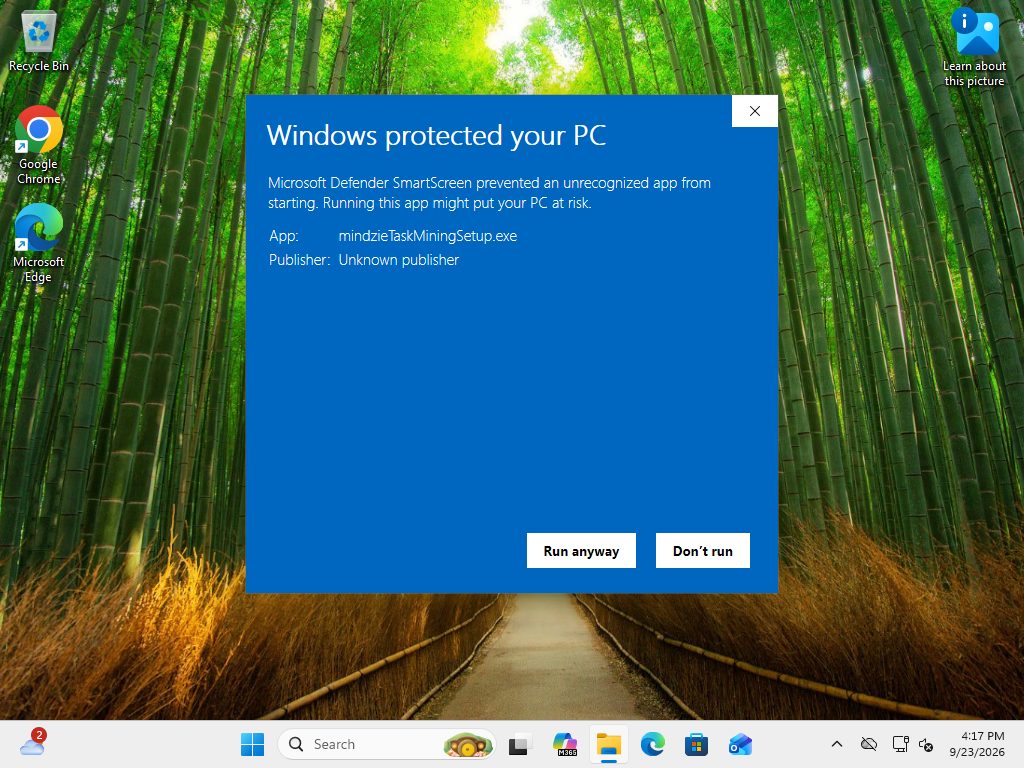
mindzieTaskMiningSetup.exe.Windows shows Windows protected your PC (Microsoft Defender SmartScreen), with the publisher "Unknown publisher". The setup is not code-signed in this version, so everyone sees this warning. Click More info, then Run anyway.
The setup opens on Install the Task Mining Agent. It shows the version and that it installs for this Windows user only, and it offers two choices:
- Start the agent when I sign in to Windows - ticked by default.
- Start recording at sign-in too (no dialog) - not ticked by default. It needs the first box.
The agent is installed in
%LOCALAPPDATA%\mindzie\mindzieTaskMiningAgent(for exampleC:\Users\<name>\AppData\Local\mindzie\mindzieTaskMiningAgent).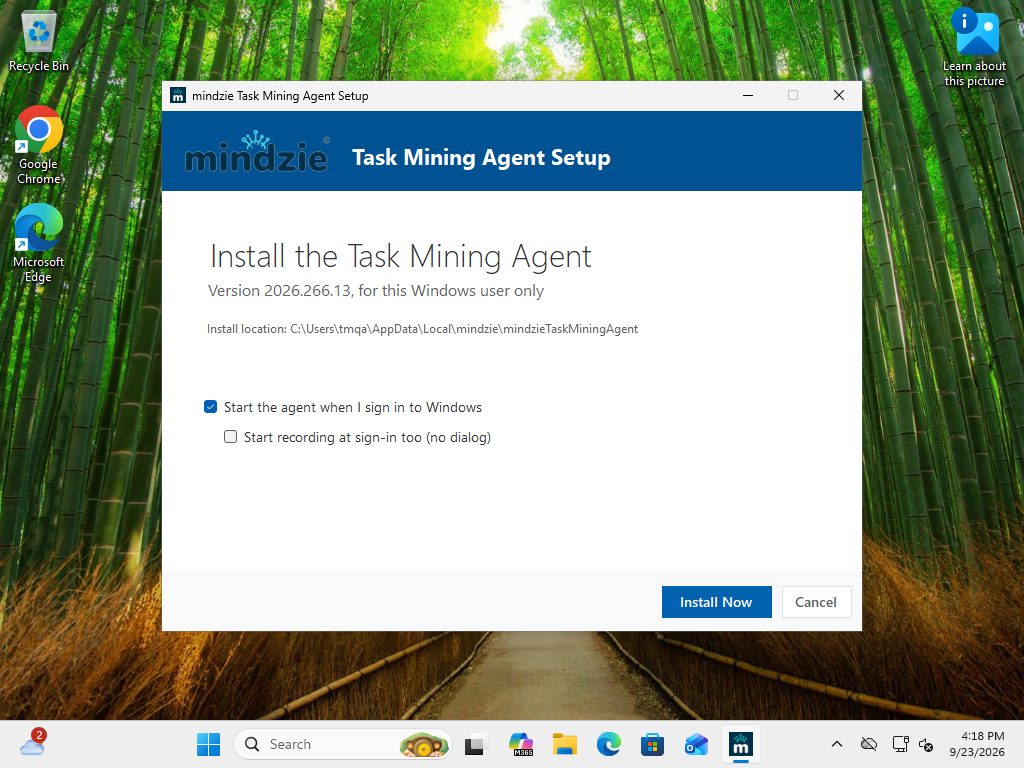
Click Install Now. The setup downloads the agent and installs it - usually in under a minute. No administrator prompt appears at any point.
Installation Complete! The agent starts and its icon appears in the notification area (it may be hidden behind the ^ arrow). The setup also opens a one-page guide to adding the Chrome extension - see the next section.
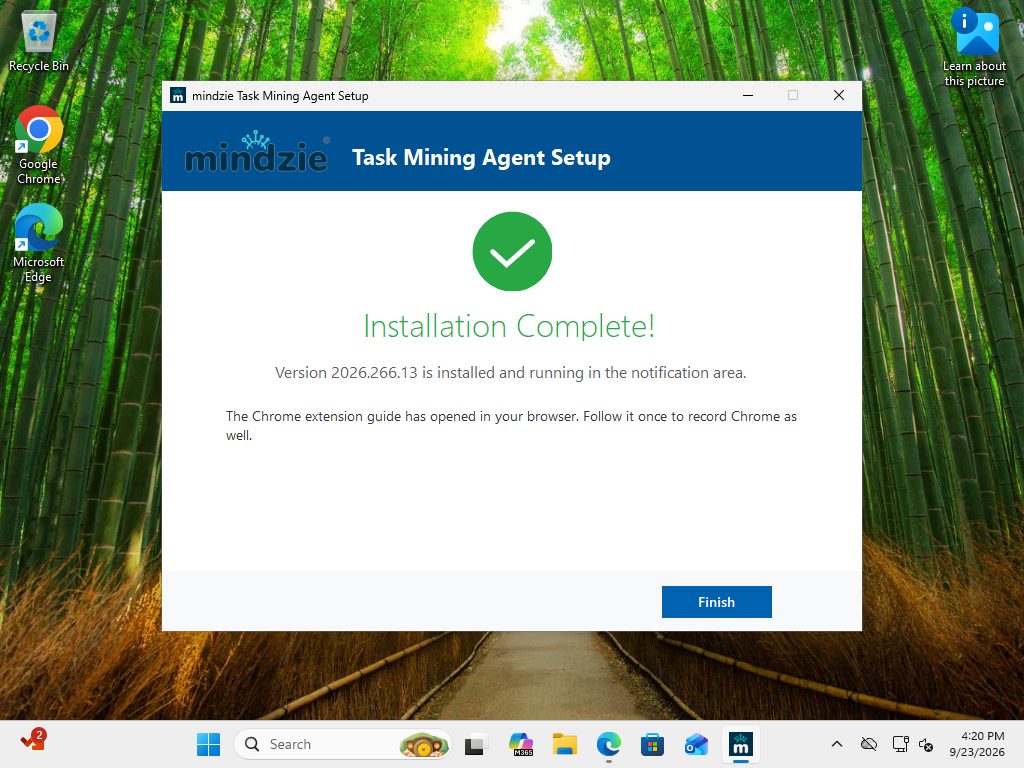
The install is for your Windows user only. It adds a Start menu entry named mindzie Task Mining Agent (no desktop shortcut) and an entry of the same name in Settings > Apps, from which it can be uninstalled.
If Google Chrome is missing
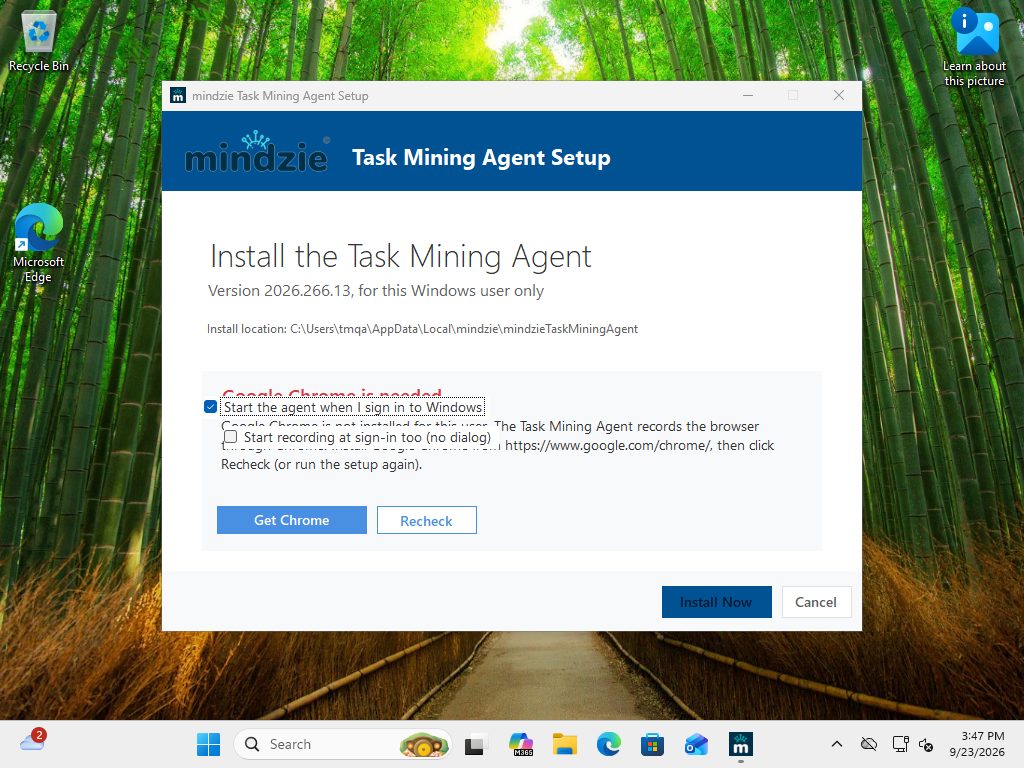
If Chrome is not installed for your Windows user, the first page says Google Chrome is needed, with Get Chrome and Recheck buttons, and Install Now stays disabled. Install Chrome from https://www.google.com/chrome/, then click Recheck (or run the setup again).
Running the setup again
If the agent is already installed, the setup offers Update Now (when a newer version is available) or Repair (when it is already current), and an Uninstall button. A recording that is running is stopped and saved properly before any files are replaced.
Adding the Chrome extension
This is a one-time step and takes about a minute. The extension is not in the Chrome Web Store in this version; it is loaded from the agent's install folder. The setup opens a guide page with these same steps.
- In Chrome, type
chrome://extensionsin the address bar and press Enter. - Switch on Developer mode (top right).
- If a card named mindzie Task Mining is already there from an earlier install, click Remove on it.
- Click Load unpacked and choose the folder
%LOCALAPPDATA%\mindzie\mindzieTaskMiningAgent\extension. - The new card must show the ID hakjbmjabomgaenbdpejokfkeckoiphe. That is the only extension the agent accepts.
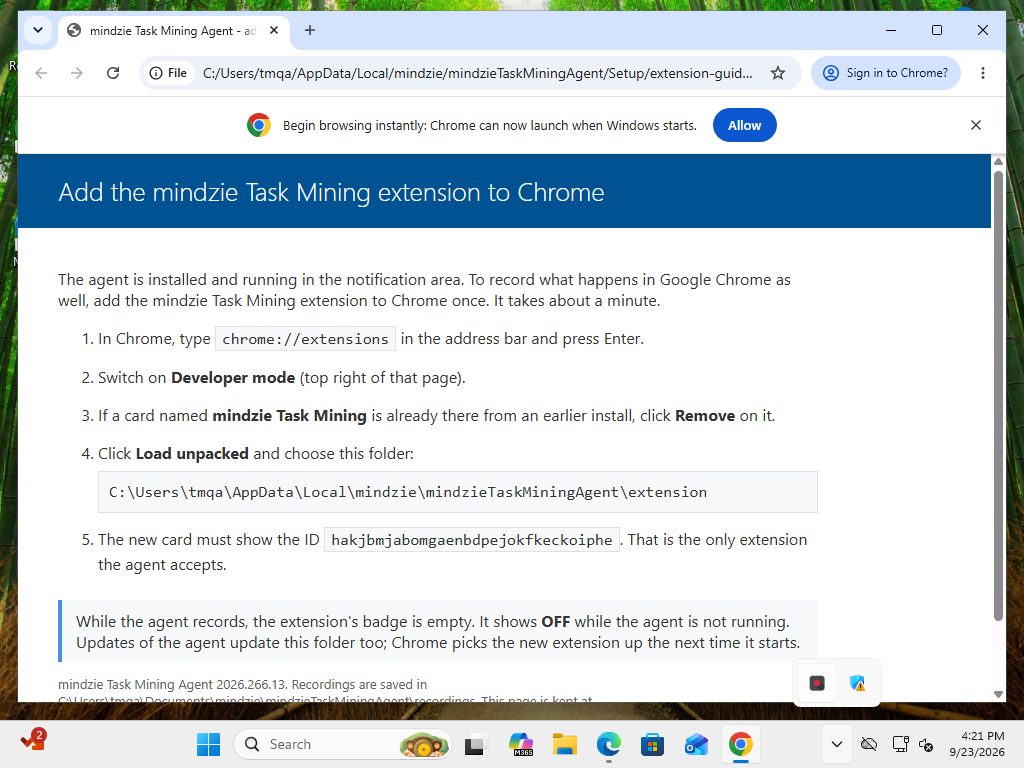
Note: The guide page opens in your default browser. On a new Windows user that is often Microsoft Edge. Do the steps in Chrome. The guide is kept in the
Setupfolder inside the install folder, so you can open it again later.
The extension's toolbar badge shows its link to the agent:
| Badge | Meaning |
|---|---|
| (empty) | Linked to the agent and recording to it |
OFF |
The agent is not running. The extension keeps up to 5,000 events until it is. |
... |
Connecting |
VER |
The agent and the extension are different versions - see Troubleshooting |
When the agent is updated, the extension folder is updated too; Chrome picks up the new extension the next time it starts.
Without the extension the agent still records everything in Windows, including Chrome's window and title, but not the fields and buttons inside web pages.
Using the agent
The tray menu
Right-click the agent's icon in the notification area.
| Item | What it does |
|---|---|
| Version | The installed version (greyed out). Shown from release 2026.266.20. |
| Start recording... | Opens Start Task Capture (below). Disabled while recording. |
| Pause / Resume | Pauses and resumes the recording. Shortcut: Ctrl+Alt+P, from anywhere. |
| Stop recording | Stops, saves, and writes the report and the event log. |
| Open output folder | Opens the recordings folder in File Explorer. Double-clicking the icon does the same. |
| Settings... | Opens the settings (below). Disabled while recording. |
| Check for updates | See Updates. |
| Exit | Stops any recording properly (the report is written), then closes the agent. |
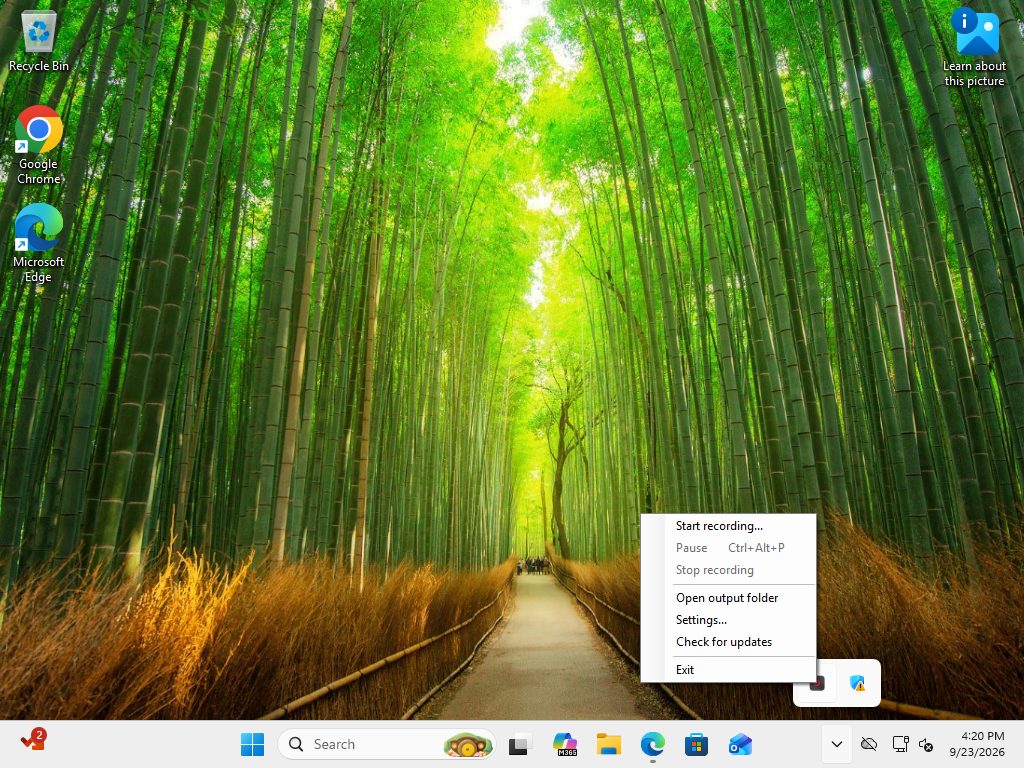
The screenshot above is from the first release (2026.266.13), which does not yet show the Version line.
The icon changes while recording. Its tooltip says mindzie Task Mining - not recording, - recording or - PAUSED. Only one agent runs per Windows user.
Starting a recording
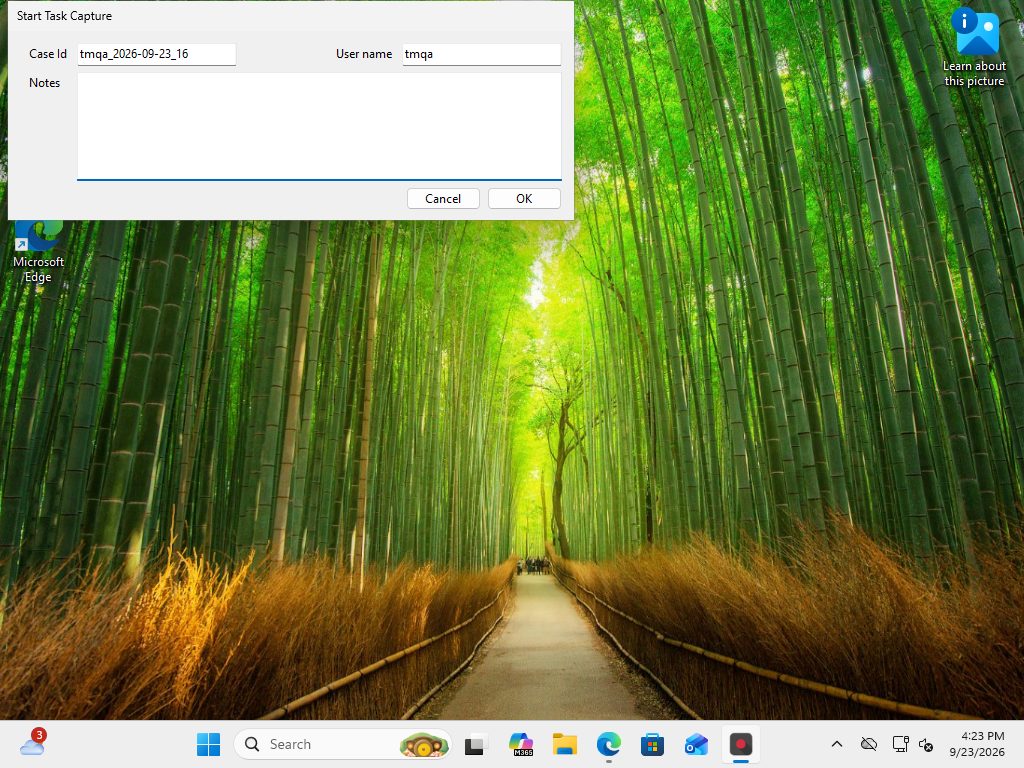
Start recording... opens Start Task Capture with three fields:
- User name - who is recording (remembered for next time).
- Case Id - a name for this recording, for example the piece of work being done.
- Notes - anything else.
Click OK to start.
If Start recording at sign-in was chosen during setup, recording starts at sign-in with no dialog:
the user name is your Windows user name and the Case Id is <user>_<yyyy-MM-dd>_<HH>.
Pausing
Pause (in the tray menu, or Ctrl+Alt+P) stops recording at once; nothing you do while paused is recorded. If you type into a field while paused, that field's value is withheld for the rest of the recording, because it may hold what you typed during the pause. The report shows where you paused and resumed.
If another program already uses Ctrl+Alt+P, a notification says Pause hotkey not available; use Pause in the tray menu instead.
Stopping
Stop recording saves the recording and writes report.html and event_log.csv into its folder. A
notification says Recording saved - Report written: followed by the path. If the report could not be
written, the recording is still saved and the message says why; you can write the report again later
(see Advanced).
Settings
Settings... opens mindzie Task Mining - Settings. Settings belong to your Windows user and apply to the next recording.
| Setting | Current default | Meaning |
|---|---|---|
| Apps to skip | empty | Windows of these programs are not recorded. Switching to one is noted only as a switch to a skipped app, with no name or title. Enter a process name such as ms-teams.exe, not a path. |
| Save a screenshot of every step | on | One screenshot per action, with the clicked element outlined in red. |
| Record what I enter in fields (read when I leave a field) | on | The value of a field is read once, when you leave it - never key by key. |
Both Save a screenshot of every step and Record what I enter in fields can be switched on or off in Settings; both are currently on by default.
What is recorded
Every row of a recording is one step:
| Step | What it is |
|---|---|
| click, double click, right click, middle click | A mouse click, following your own Windows double-click and drag settings |
| drag | A press and move beyond the drag distance |
| scroll | A burst of mouse-wheel scrolling (one row per burst) |
| key | A shortcut or navigation key by name only - for example "Ctrl+S", "Enter", "Tab". Typed characters are never recorded as keys. |
| field change | One per field edit; the value is read when you leave the field (if field values are on) |
| app switch | The application in front changed |
| screen change | The screen within an application changed |
| dialog open / dialog close | A dialog window appeared or closed |
| page change, upload | From the Chrome extension: a page change in a web application, or a file upload (file names only) |
| pause, resume, recording start, recording stop | Markers |
For each step you get the time, how long it took and the idle time before it, the application, the screen, the window title, the web page (with the extension), the element acted on (its name and type), the value entered (if field values are on), and a screenshot (if screenshots are on).
For steps in Excel you also get the workbook, sheet, cell address and ribbon command.
Privacy rules
- Passwords are never read - not their value, not their length, not a key count.
- Field values are read once, when you leave the field - never key by key.
- In web pages, the values of sensitive fields (card numbers, one-time codes, hidden fields, fields marked private) are withheld, and card numbers and social security numbers are removed from any captured text.
- File contents are never read; for uploads, only the file names.
- Programs on the Apps to skip list are not recorded.
- Programs running as administrator are recorded by window title only (Windows does not let a normal program read them).
- Nothing is sent over the network. The only network use is the update check, and the optional AI task naming described under Advanced, which runs only when someone starts it on purpose.
What a recording produces
Recordings are saved in Documents\mindzie\mindzieTaskMiningAgent\recordings, one folder per
recording, named recording_YYYYMMDD_HHMM (a second recording in the same minute gets _2, _3 and so
on). Installing, updating and uninstalling never touch this folder.
| File | What it is |
|---|---|
report.html |
The report - one self-contained page with screenshots included; opens in any browser |
event_log.csv |
The event log for mindzie (UTF-8; opens correctly in Excel) |
recording_YYYYMMDD_HHMM.csv |
The raw steps, with every column |
recording.json |
Facts about the recording: user, case id, notes, start and stop, agent version, computer, settings used, monitor layout |
screenshots |
One screenshot per user action (000001.jpg, 000002.jpg, ...) |
The report
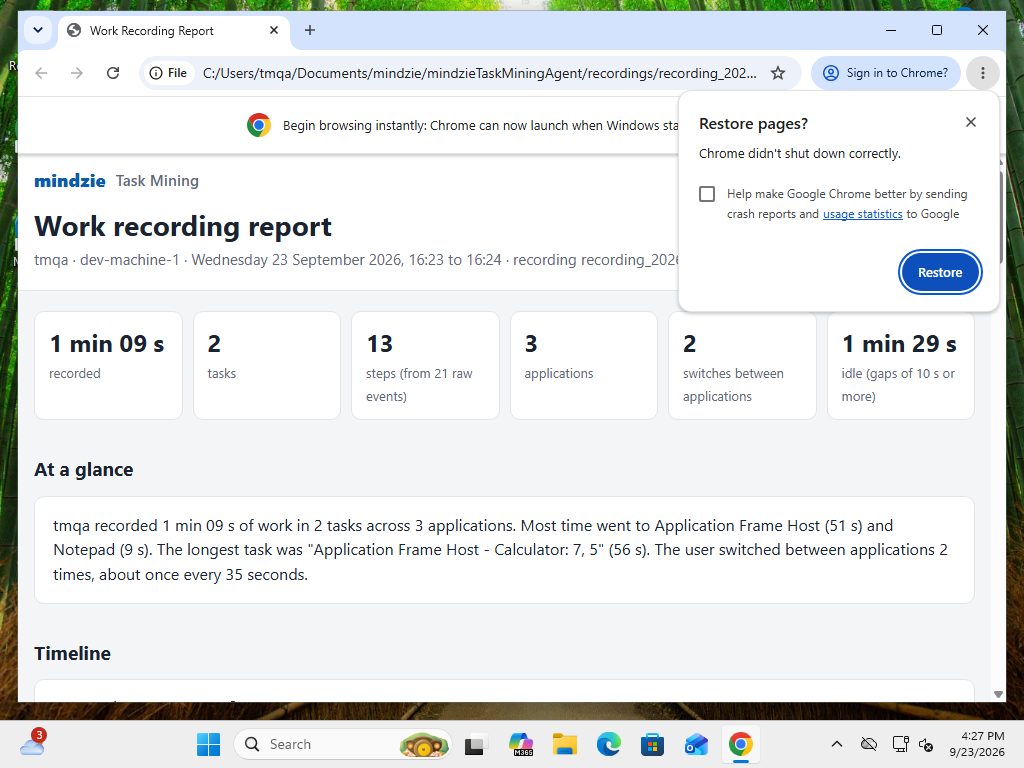
The report is titled Work recording report with the user, computer, and start and end time. It has these sections:
- Figures - time recorded, tasks, steps, applications, switches between applications, and idle time (gaps of 10 seconds or more).
- At a glance - a short paragraph about the recording.
- Timeline - the recording as a bar coloured by application, numbered where each task begins.
- Tasks - a table of the tasks with their applications, start, time and steps.
- How work moved between applications - a diagram; line thickness and labels show how often you switched between two applications, and boxes show the time in each.
- Observations - context switching, the most repeated click, values entered, idle time, the longest task, and windows that came up by themselves.
- Task by task - each task with its name, start, duration, step count, a one-sentence summary, and every step with its screenshot. A green ring on a screenshot marks the click point.
- About this report - how the recording was made and how tasks were named.
How tasks are found
The steps are cut into tasks by these rules:
- A new application (or, in a browser, a new site) starts a new task.
- Inside one web application, a page change caused by a click ends a business step - for example signing in, submitting a form, or the page the result lands on.
- Hops through the taskbar, tray, desktop and File Explorer, and windows that came up by themselves, belong to the task that follows them.
- A run of two user steps or fewer is too short to be a task and joins its neighbour.
Tasks are named from the application, the screen and the elements acted on most.
The event log
event_log.csv has one row per step and one case per task. Its columns are:
Case ID, Case Name, Activity, Timestamp, End Timestamp, Duration (sec), Idle Before (sec), User, Computer, Actor, Application, Screen, Web Page, Action, UI Element, Element Type, Field, Value, Previous Value, Description, Screenshot.
Actor is "User", or "System" for a window that came up by itself.
Loading it into mindzie: upload event_log.csv like any other CSV event log, and map Case ID as
the case, Activity as the activity, and Timestamp (with End Timestamp) as the time. The other
columns become attributes you can filter and analyse on.
Updates
- The agent checks for a newer version when it starts, and when you click Check for updates in the tray menu.
- When a newer version exists, mindzie Task Mining - update available shows the installed and the new version, with Install update and Later. Install update closes the agent, updates it and starts it again. Your recordings and settings are kept.
- The agent never updates during a recording. If a new version is found while you are recording, a notification says it will be offered when the recording stops.
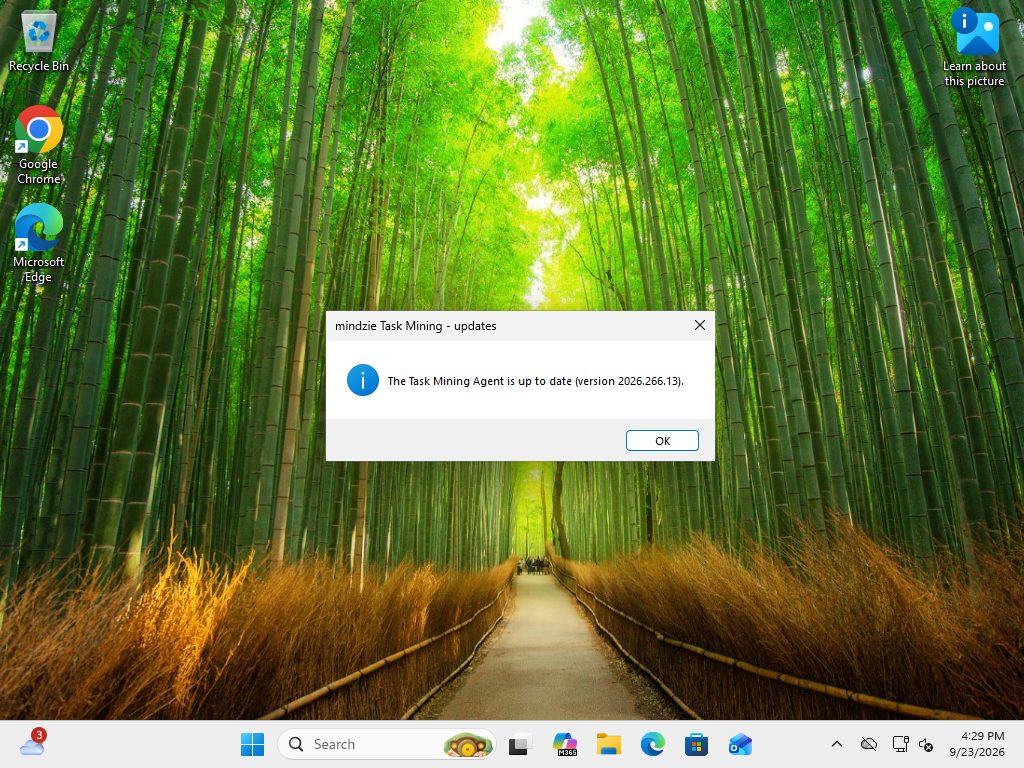
- When you are already current, Check for updates says The Task Mining Agent is up to date, with the version.
- Without a network connection it says Could not check for updates with the reason.
Uninstalling
Go to Settings > Apps > Installed apps, find mindzie Task Mining Agent, and choose Uninstall (or run the setup again and click Uninstall). A running recording is stopped and saved first.
The program, its Start menu entry and its start-at-sign-in setting are removed. Your recordings in
Documents are kept. The extension card also stays in Chrome - remove it yourself in
chrome://extensions.
Troubleshooting
| Symptom | Cause and fix |
|---|---|
| Windows protected your PC | The setup is not signed in this version. Click More info, then Run anyway. |
| Google Chrome is needed | Install Chrome, then click Recheck. |
Extension badge says OFF |
The agent is not running. Start it from the Start menu. |
Extension badge says VER |
The agent and extension versions do not match. Run the setup again, then reload the extension in chrome://extensions. |
| No web page detail in the report | The extension was not loaded, or was loaded in a browser other than Chrome. The report's About this report section then says the Chrome extension was not recording. |
| Browser capture has stopped | Recording continues without browser detail. Restart the agent. |
| A program shows only its window title | It runs as administrator; Windows does not let a normal program read it. |
| Pause hotkey not available | Another program uses Ctrl+Alt+P. Use Pause in the tray menu. |
| mindzie Task Mining is already running | Only one agent runs per Windows user. Look for its icon in the notification area. |
| The report was not written at stop | The recording is saved. Write the report again with --report (see Advanced). |
| Logs for support | %LOCALAPPDATA%\mindzie\mindzieTaskMiningAgent\logs (agent) and %LOCALAPPDATA%\mindzie\TaskMining\logs (Chrome link) |
Known limits of this version
- Browser detail is recorded in Chrome only; Microsoft Edge is not supported.
- The Chrome extension is loaded by hand with Developer mode (there is no Web Store listing yet).
- The setup is not code-signed, so SmartScreen warns on every download.
- The extension guide opens in the default browser, which is often Edge.
- On the Google Chrome is needed page, the tick boxes overlap the message.
- Programs running as administrator are recorded by window title only.
- In web pages, browser alert, confirm and prompt boxes are seen through Windows rather than the extension, and applications inside frames show as screen changes.
- Some Windows apps are named after the program that hosts them (for example, Calculator appears as "Application Frame Host"), and some of their buttons have no name.
- On a very short recording, the report's idle figure can be larger than the recorded time.
- Screenshots and field values are on by default.
Advanced
This section is for consultants and administrators.
Task names written by AI (optional)
mindzieTaskMiningAgent.exe --ai-report <recording folder>
Rewrites a recording's report and event log with task names, one-sentence summaries and the "At a
glance" paragraph written by AI. Only the text of each task's steps is sent - never the values
entered and never screenshots. The AI service key must be in the environment variable
MINDZIE_TASKMINING_AI_KEY. If the call fails, nothing is written. This is the only feature that sends
anything over the network, and it runs only when you start it.
Agent command line
mindzieTaskMiningAgent.exe is in the agent folder of the install folder.
| Command | What it does |
|---|---|
| (none) | Starts the tray program |
--record |
Starts the tray program and records from launch, with no dialog |
--stop |
Tells the running agent to stop recording and write its report |
--exit |
The same, then the running agent closes |
--report <folder> |
Writes report.html and event_log.csv for a recording folder again |
--ai-report <folder> |
The same, with task names written by AI (see above) |
--monitors x,y,w,h;x,y,w,h |
With --report or --ai-report: the monitor layout, for a recording that has none |
--out <folder> |
With --report or --ai-report: write the output somewhere else |
Exit codes: 0 success, 1 failed, 2 wrong command line.
Setup command line
mindzieTaskMiningSetup.exe is also kept in the Setup folder of the install folder.
| Command | What it does |
|---|---|
| (none) | The setup wizard |
--update [--force] [--version x] [--silent] |
Updates the installed agent. --force: even when current; --version: a specific released version; --silent: no windows |
--uninstall [--silent] |
Removes the agent (recordings in Documents are kept) |
--info |
Shows what is installed |
If the download site is blocked on your network, place the agent package file beside the setup; the setup then installs from that local package instead of downloading.
Release history
| Version | Released | What changed |
|---|---|---|
| 2026.266.13 | 23 Sep 2026 | First public release: installer, update check, report and event log on Stop, browser clicks and fields, tray program with pause |
| 2026.266.20 | 23 Sep 2026 | The tray menu's first line shows the installed version |