Review Data Before Building
Prefer to watch? This tutorial is also available as a video.
When someone hands you an extract nobody has modelled yet, the riskiest move is to start building. This tutorial shows how to run a data review instead: an AI Job that examines the raw files and tells you what they can honestly support, which joins hold, who is actually represented, and which decisions are yours to make - all before anything is modelled.
A data review starts from the same screen as a report job. The difference is entirely in the prompt: instead of asking the agent to build an event log, you ask it to review the files first.
The example uses a real, public university extract - six related tables covering 32,593 course enrolments, their registrations, assessments, and scores - so every screenshot and number on this page comes from an actual run.
Sample data credit: the files used here are from the Open University Learning Analytics Dataset (OULAD), published under the CC BY 4.0 license. You can substitute any multi-file extract of your own.
When to Review First
Run a data review when:
- The extract is unfamiliar - new customer, new system, new export
- Multiple files arrive together and nobody has confirmed how they join
- You are about to promise an analysis and want to know if the data can carry it
- A report came out strange and you suspect the data, not the question
The review's job is to hand you facts and decisions, not to answer questions for you. Expect numbers stated over totals, failed checks reported deliberately, and a decisions list that names what only you can settle.
Step 1: Upload the Extract
Start a new AI Job, choose AI Insight report from CSV files, and upload the extract. A .zip of CSVs is unpacked automatically - the six-table university extract arrives as one zip and appears as six files:
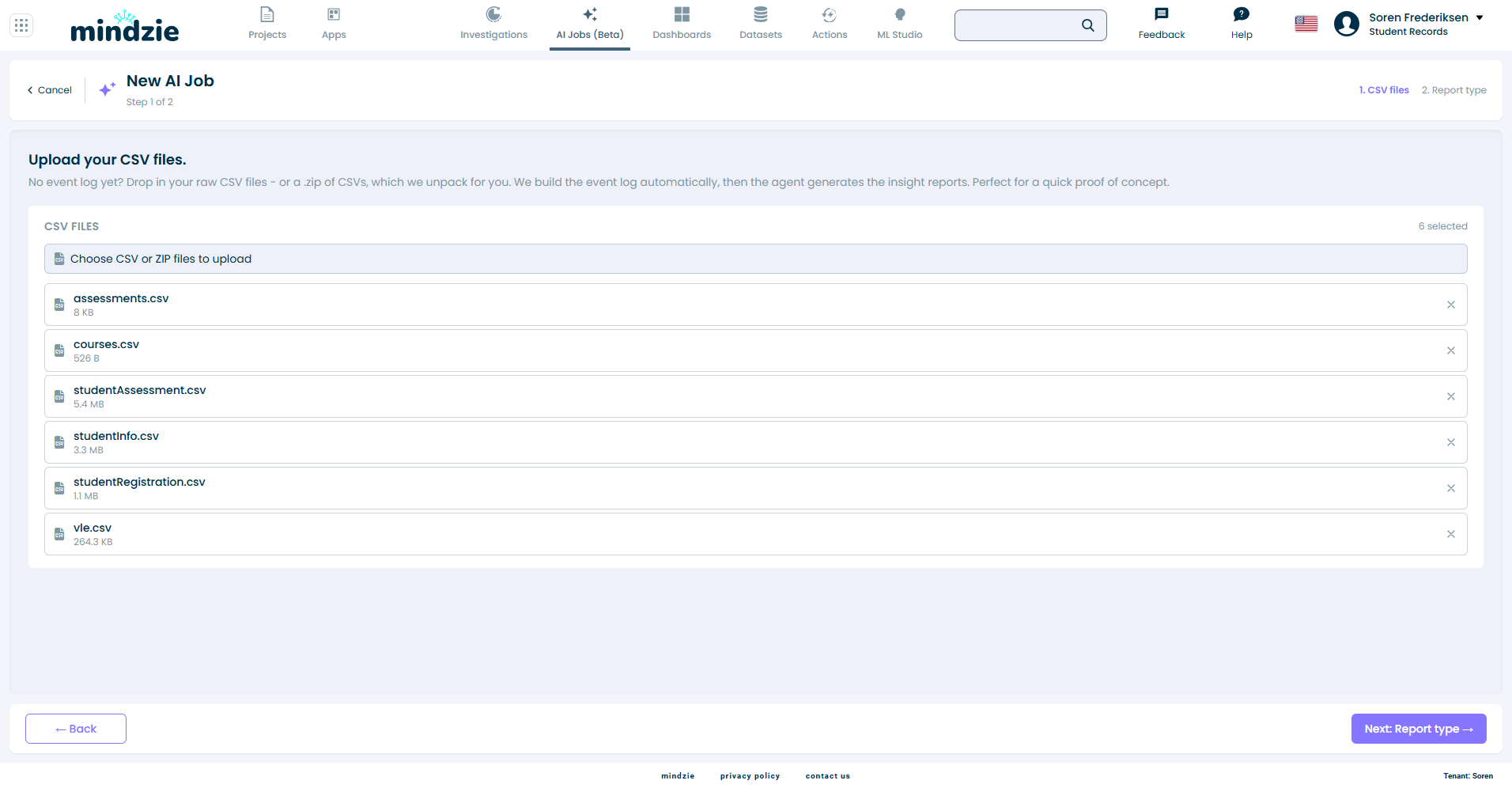
Click Next: Report type.
Step 2: Delete the Pre-Filled Build Instruction
The prompt box opens pre-filled with an instruction to build an event log from the files, ending in "Then:":
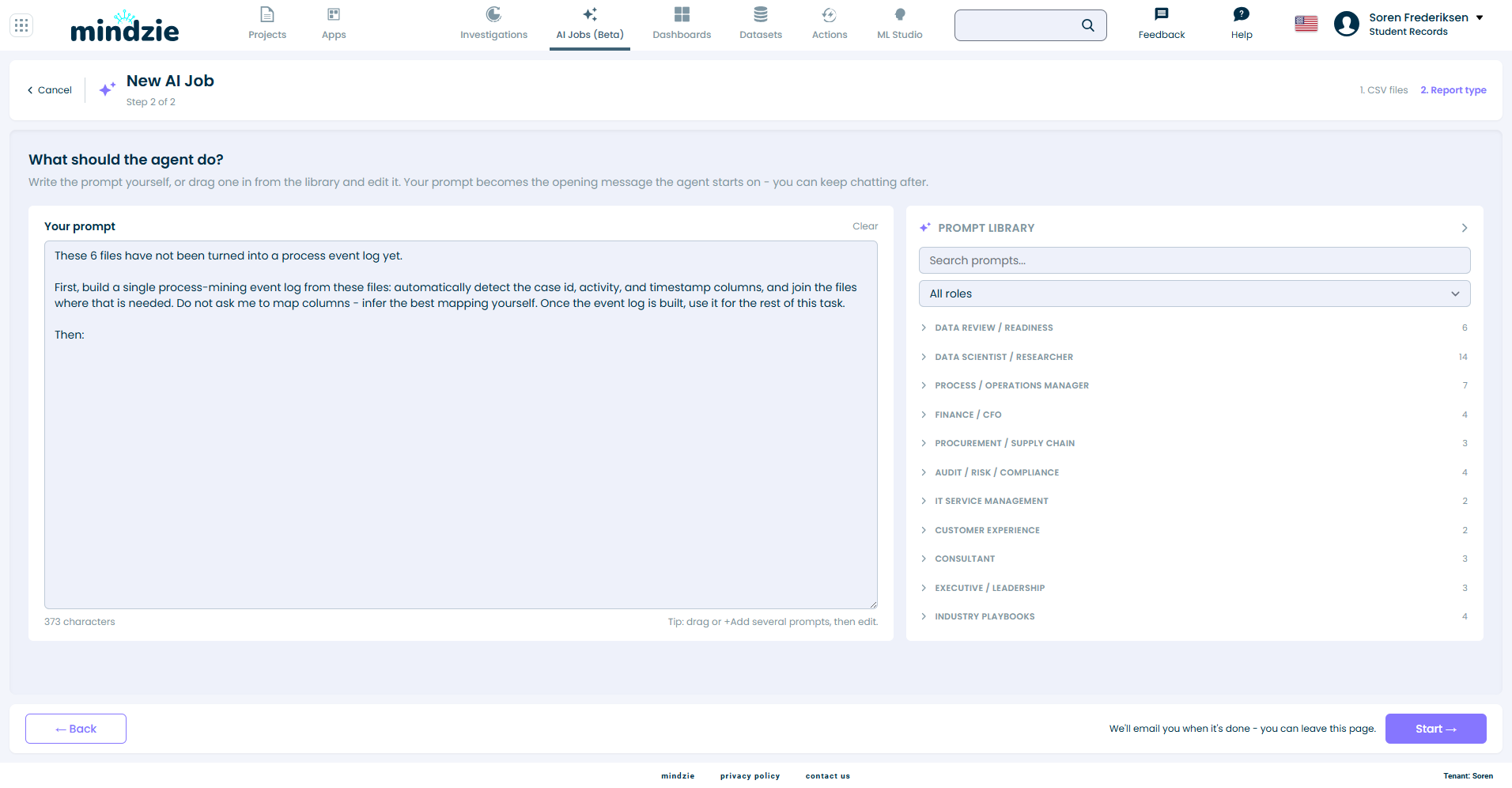
That is the right default for a report - and the opposite of what a review is for. For a review, this text goes. You can simply select everything in the box and delete it, or let a library prompt handle it, as in the next step.
The agent receives exactly the list of your uploaded files plus what this box says - so once the build instruction is gone, nothing tells the agent to model anything.
Step 3: Pick a Review Prompt from the Library
The prompt library's first group is Data review / readiness - six prompts, each aimed at a different question you might be facing:
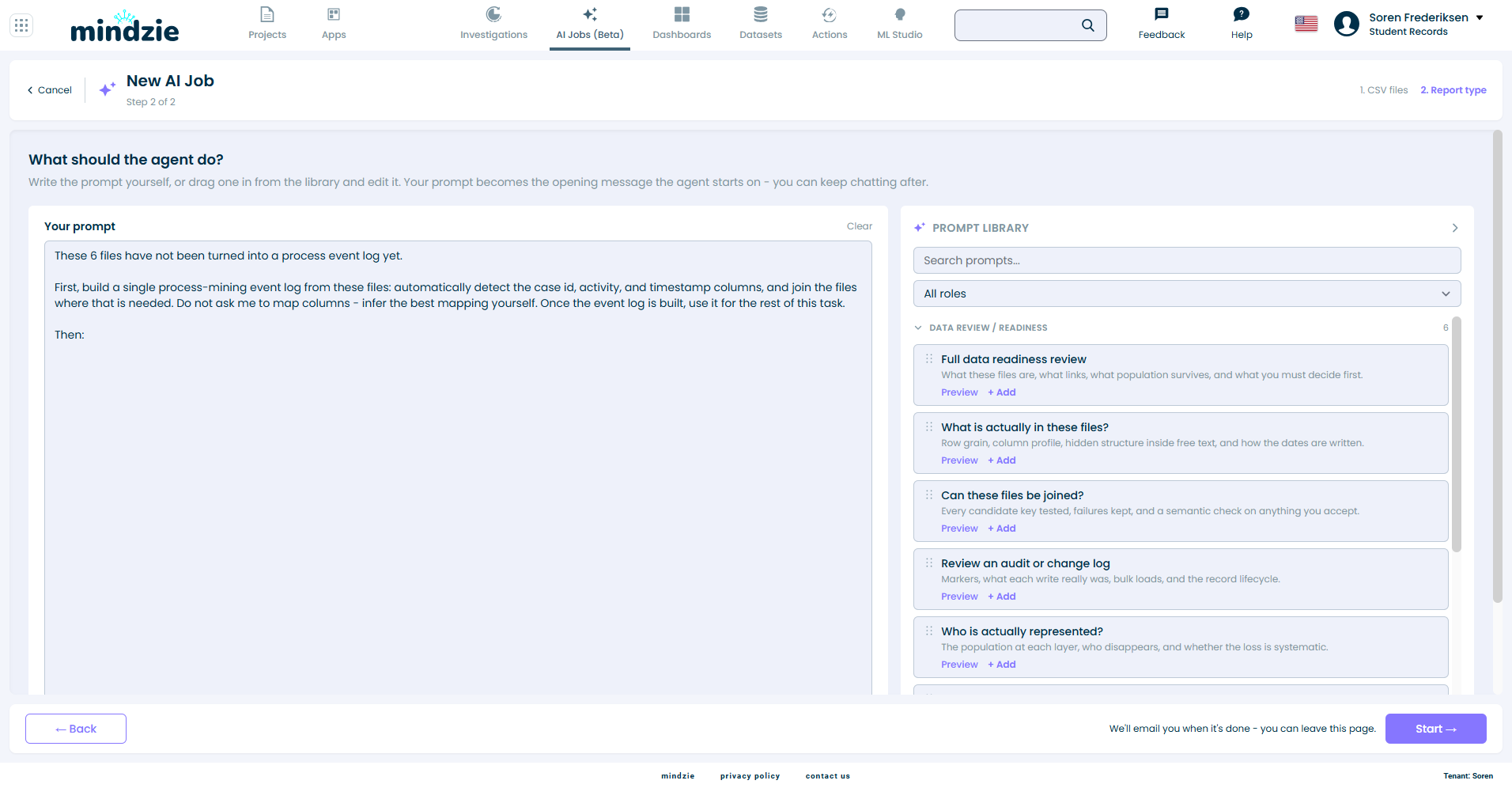
| Prompt | Use it when you need |
|---|---|
| Full data readiness review | What these files are, what links, what population survives, and what you must decide first. |
| What is actually in these files? | Row grain, column profile, hidden structure inside free text, and how the dates are written. |
| Can these files be joined? | Every candidate key tested, failures kept, and a semantic check on anything you accept. |
| Review an audit or change log | Markers, what each write really was, bulk loads, and the record lifecycle. |
| Who is actually represented? | The population at each layer, who disappears, and whether the loss is systematic. |
| Can this data answer my questions? | Score each question you have been given against what the files can actually support. |
Click Preview to read a prompt in full, and + Add to put it in the box. For a first look at an unknown extract, Full data readiness review is the broadest choice, and it is what this tutorial runs.
One of the six behaves slightly differently: Can this data answer my questions? ends with a placeholder line for you to replace with your own questions, one per line. If you leave the placeholder in, the agent infers the questions the data looks intended to answer, says plainly that it inferred them, and scores those instead.
Step 4: Resolve the Notice When Prompts Disagree
If you add a review prompt while the build instruction is still in the box, the prompt now asks for two opposite things - build first, and review before anything is built. A notice appears above the editor and says exactly that:
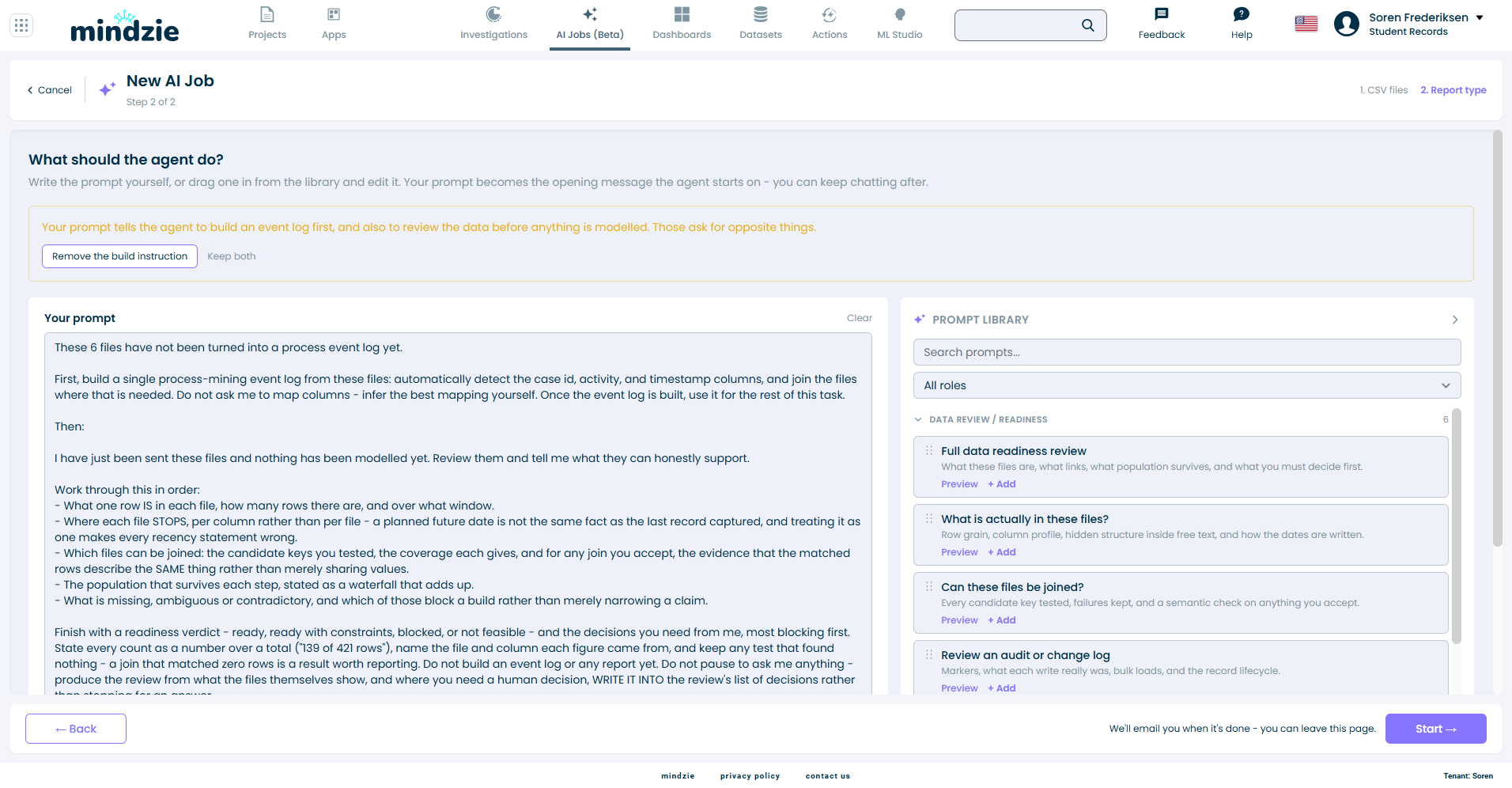
- Remove the build instruction deletes the pre-filled build text and keeps everything you wrote or added - one click and the prompt is a pure review.
- Keep both dismisses the notice and sends the prompt as-is, if mixing the two really is what you want.
Click Remove the build instruction. The box now contains only the review brief:
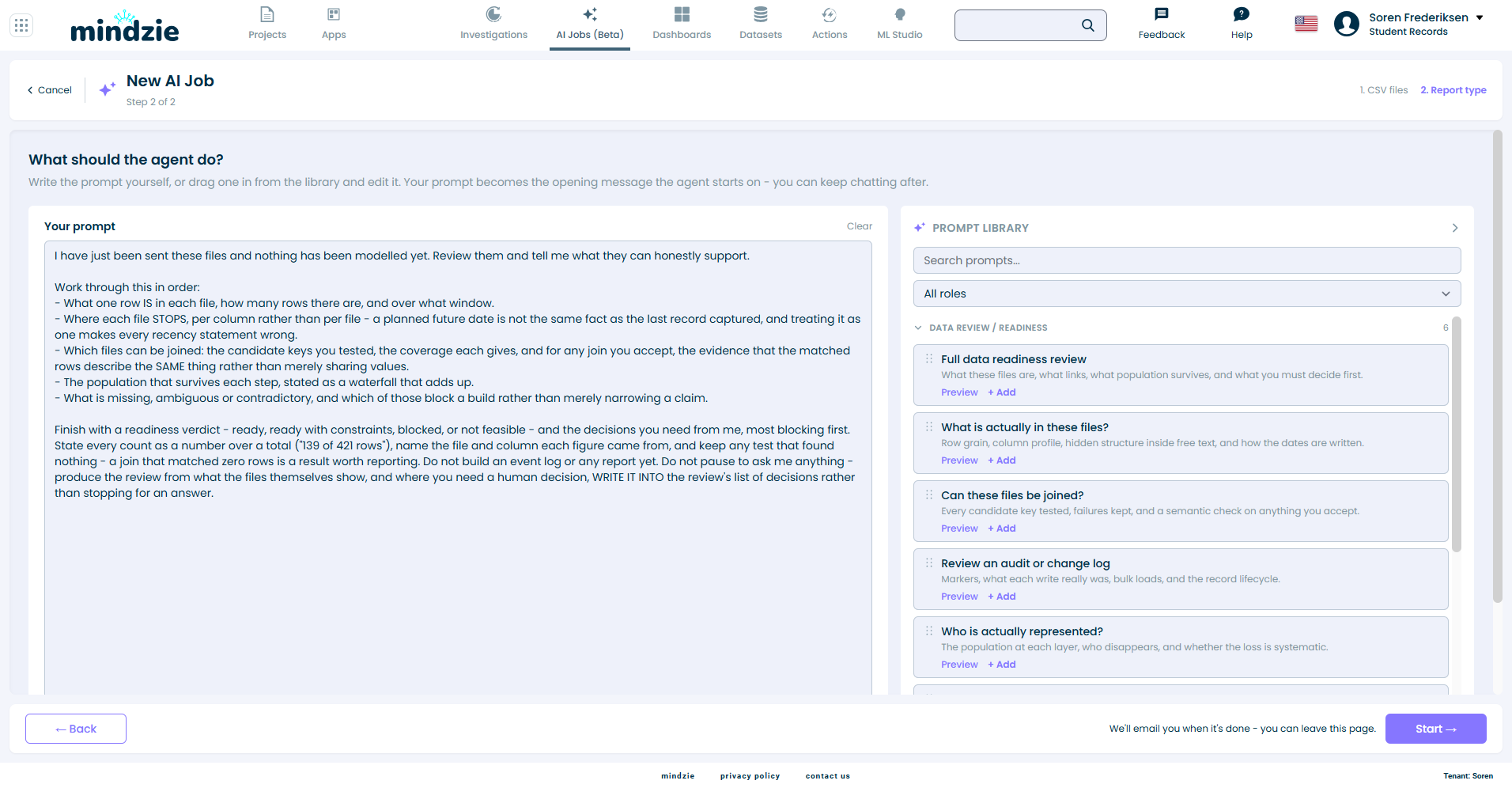
One more guard to know about: a completely empty prompt box refuses to start. There is no default - the job always runs on text you can see.
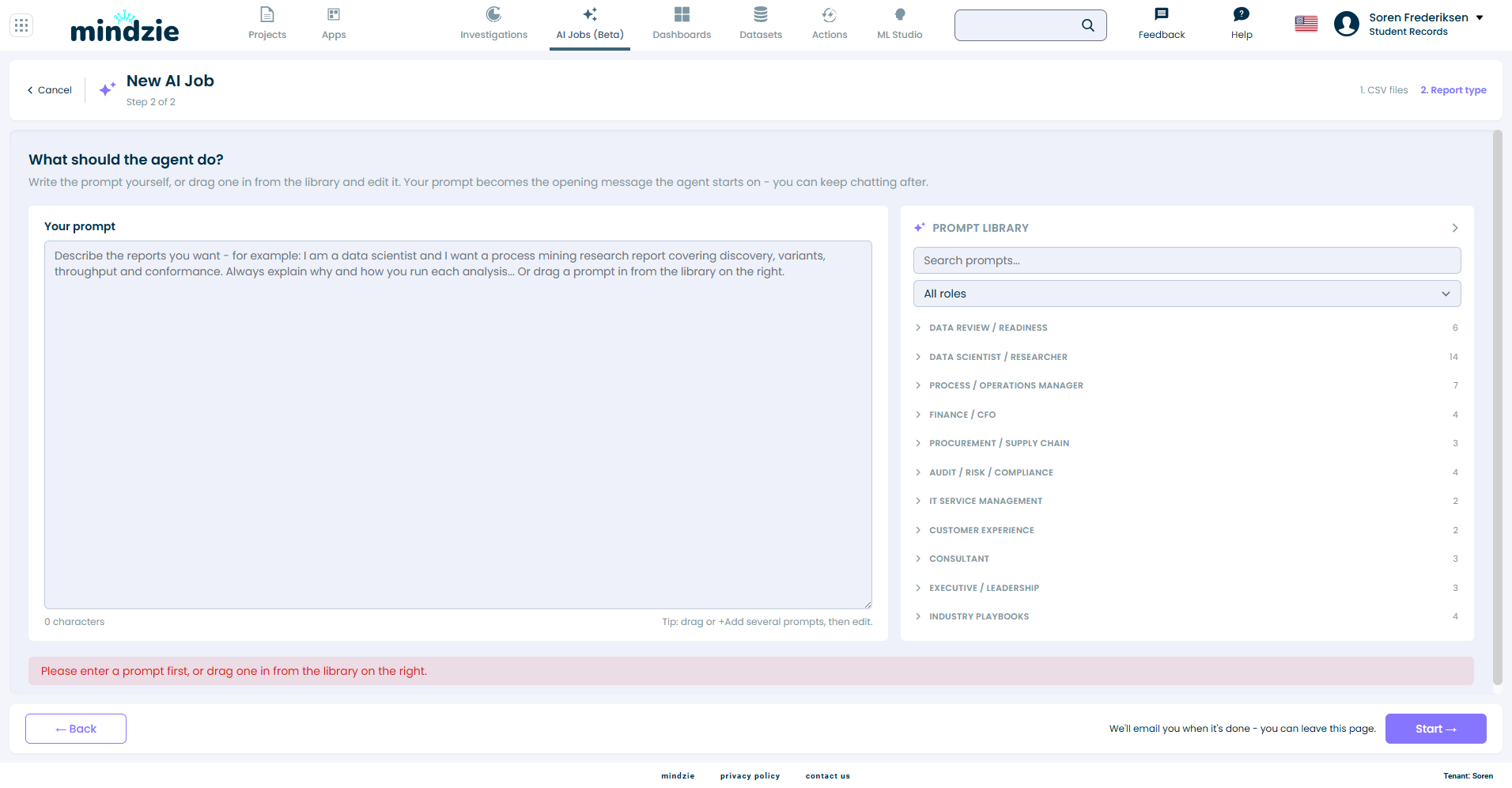
Click Start. The job is named Data review - [date], and you can leave the page - the email arrives when it is done.
Step 5: Read the Review
The review arrives in the job's conversation. On the university extract, the finished review worked through the files in order - what one row is in each file, where each column stops, which joins hold, and what population survives - and ended with a verdict:
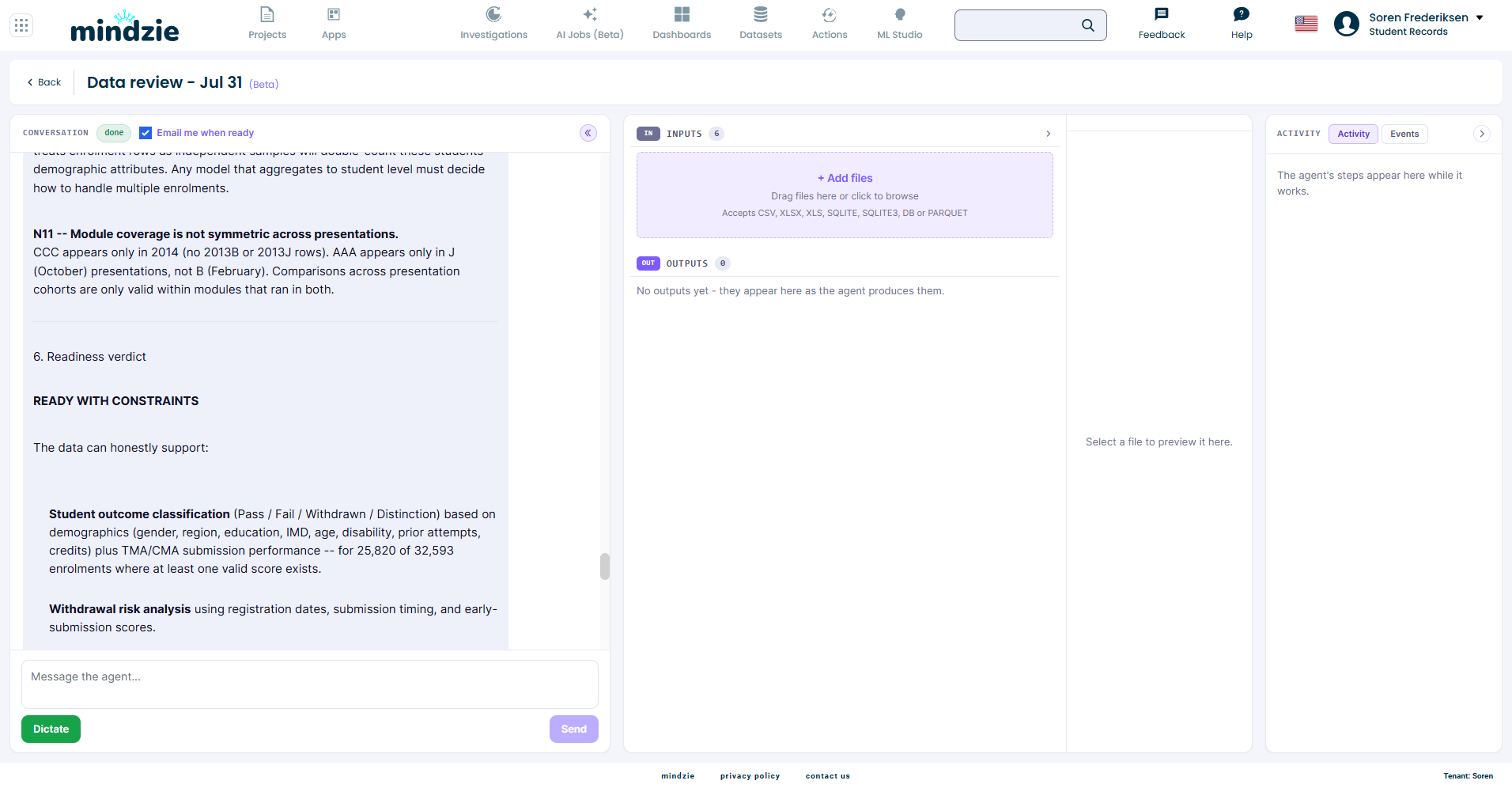
Here is how to read each part, with what this run actually found:
Facts are stated over totals. Not "most students submitted" but "25,820 of 32,593 enrolments have at least one valid score". Every figure names the file and column it came from, so any claim can be checked.
Failed checks are kept on purpose. A join that matched nothing, an all-zero weight column, a file that is absent - these appear in the review as results. On this extract the review reported, for example, that one module's assessments all carry weight zero, and that no clickstream file was supplied, which rules out any engagement analysis - stated plainly rather than silently skipped.
The verdict is one of four words. Ready, ready with constraints, blocked, or not feasible - followed by what the data can honestly support and what it cannot. This run came back ready with constraints: outcome and withdrawal analysis are supportable for most of the population; grade-weighted metrics and engagement analysis are not, and the review says why.
Decisions come back to you, most blocking first. Where two defensible readings exist, the review does not pick one - it writes the choice into a numbered decisions list. This run raised seven, including:
- Exam records exist for only two of the seven modules - restrict, proxy with coursework, or exclude exams?
- 6,750 of 32,593 enrolments have no submissions at all - score them as zero, treat them as a separate cohort, or exclude them?
- One demographic band is labelled
10-20where every other row says10-20%- standardise it, or treat it as a distinct category?
Answer the decisions in the conversation and the review continues from there - or, once you are satisfied, start a report job on the same files with the choices written into the prompt.
Related Documentation
- AI Jobs - All the ways to start an AI Job
- Create an AI Report from CSV Files - The default path, once the data is trusted
- Voice Dictation - Speak your instructions instead of typing
Support
If you encounter issues:
- Email: support@mindzie.com
- Include: the job name, the files you uploaded, and expected vs actual behavior