AI Jobs
AI Jobs turn your process data into business-ready insight reports. You start a job from the New AI Job screen, choose how you want to begin, and the AI agent does the analysis and writes the reports for you. You can leave the page while it runs - the job finishes in the background and emails you when it is done.
Overview
An AI Job runs the mindzie reporting agent against your process data and produces insight reports (bottlenecks, rework, variants, throughput, recommendations, and more) - or, if you ask for one, a data review that examines the files before anything is built. Every job follows the same shape:
- You choose a starting point on the New AI Job screen
- You provide the data (an enriched dataset, or raw CSV files)
- You write the prompt - the opening message the agent starts on
- The agent works in the background and notifies you when finished
How to Access
- Open a project
- Click AI Jobs in the top navigation
- Click New AI Job
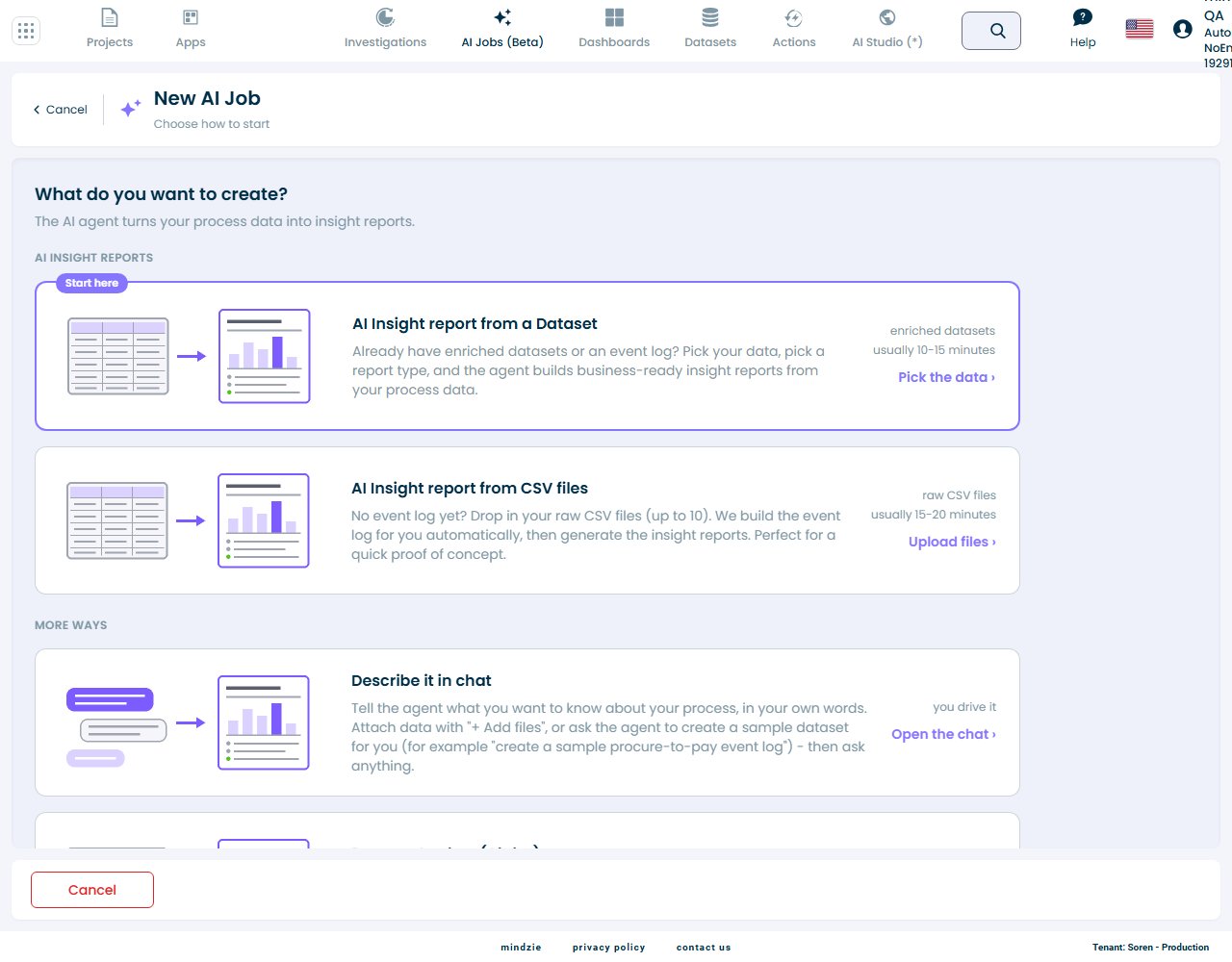
Choosing How to Start
The New AI Job screen groups the starting points into two sections.
AI Insight reports
These two on-ramps both produce the same thing - an AI Insight report. The only difference is the input you already have:
| On-ramp | Start here when | What the agent does |
|---|---|---|
| AI Insight report from a Dataset | You already have an enriched dataset or event log | Analyzes the dataset you pick and builds the reports |
| AI Insight report from CSV files | You have raw CSV exports but no event log yet | Builds the event log from your CSVs, then does whatever your prompt asks - a report, or a data review first |
More ways
| Option | Description |
|---|---|
| Describe it in chat | Start an empty job and tell the agent what you want in your own words. Attach data with + Add files, or ask the agent to create a sample dataset for you. |
| Task Mining agent | Upload desktop task-mining CSV logs from the mindzie recorder - the agent builds the task-mining event log and finds automation opportunities and where time goes. |
| Process Analyst (Alpha) | A data scientist for the project that builds analyses and dashboards directly into the project. This is an Alpha feature and only appears for tenants with PreRelease enabled. |
AI Insight Report from a Dataset
Use this on-ramp when your data has already been through the enrichment pipeline.
- Choose AI Insight report from a Dataset
- Select one or more enriched datasets to analyze
- Click Next: Report type
- Write your prompt (or add one from the library) and click Start
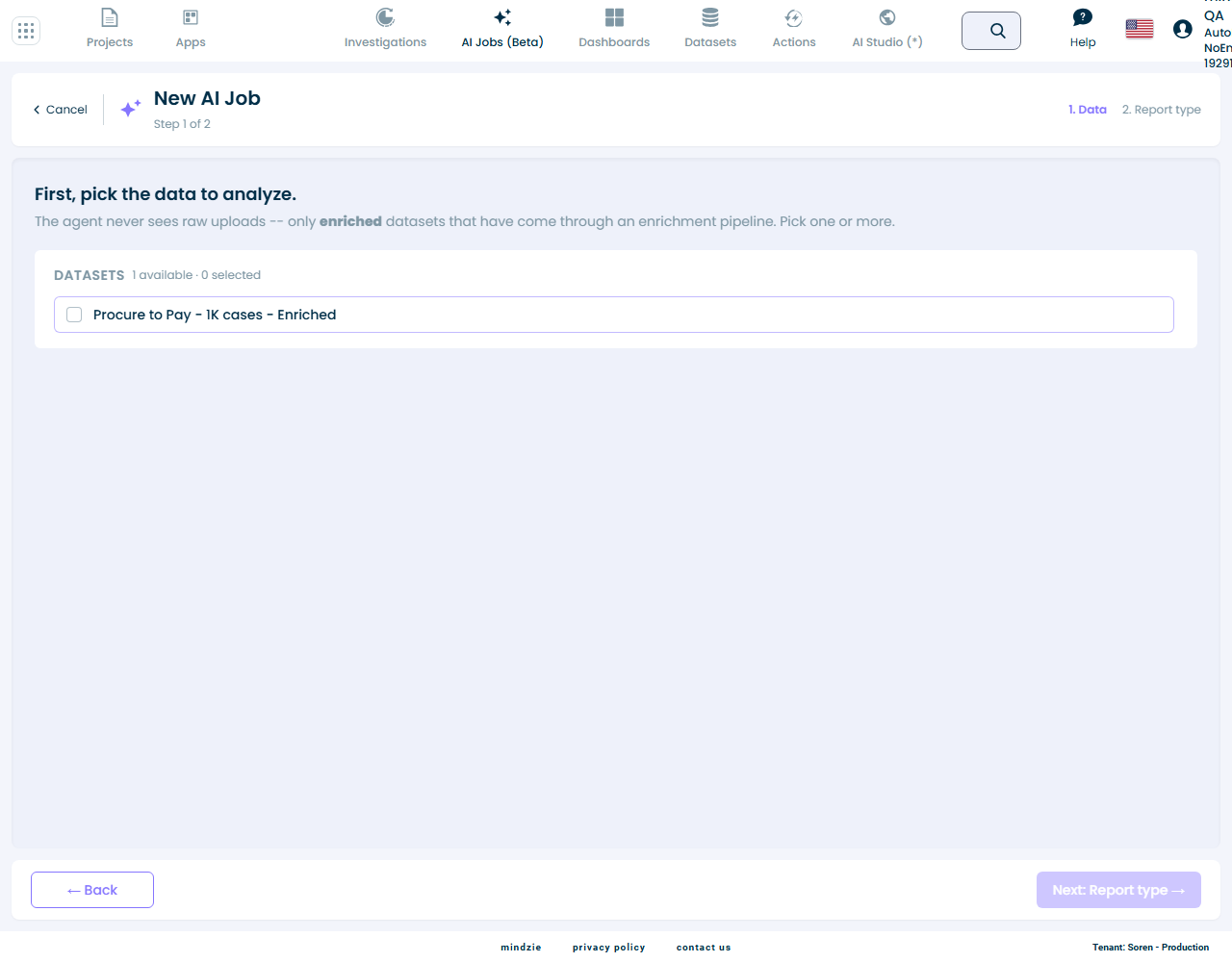
The agent never sees raw uploads on this path - only enriched datasets that have come through an enrichment pipeline. If no datasets appear, run an enrichment pipeline on your data first.
AI Insight Report from CSV Files
Use this on-ramp when you do not have an event log yet - for example a quick proof of concept from raw exports, or a first look at an extract nobody has modelled.
- Choose AI Insight report from CSV files
- Upload your raw CSV files - or a
.zipof CSVs, which is unpacked for you - Click Next: Report type
- Read the pre-filled prompt, finish it (or replace it), and click Start
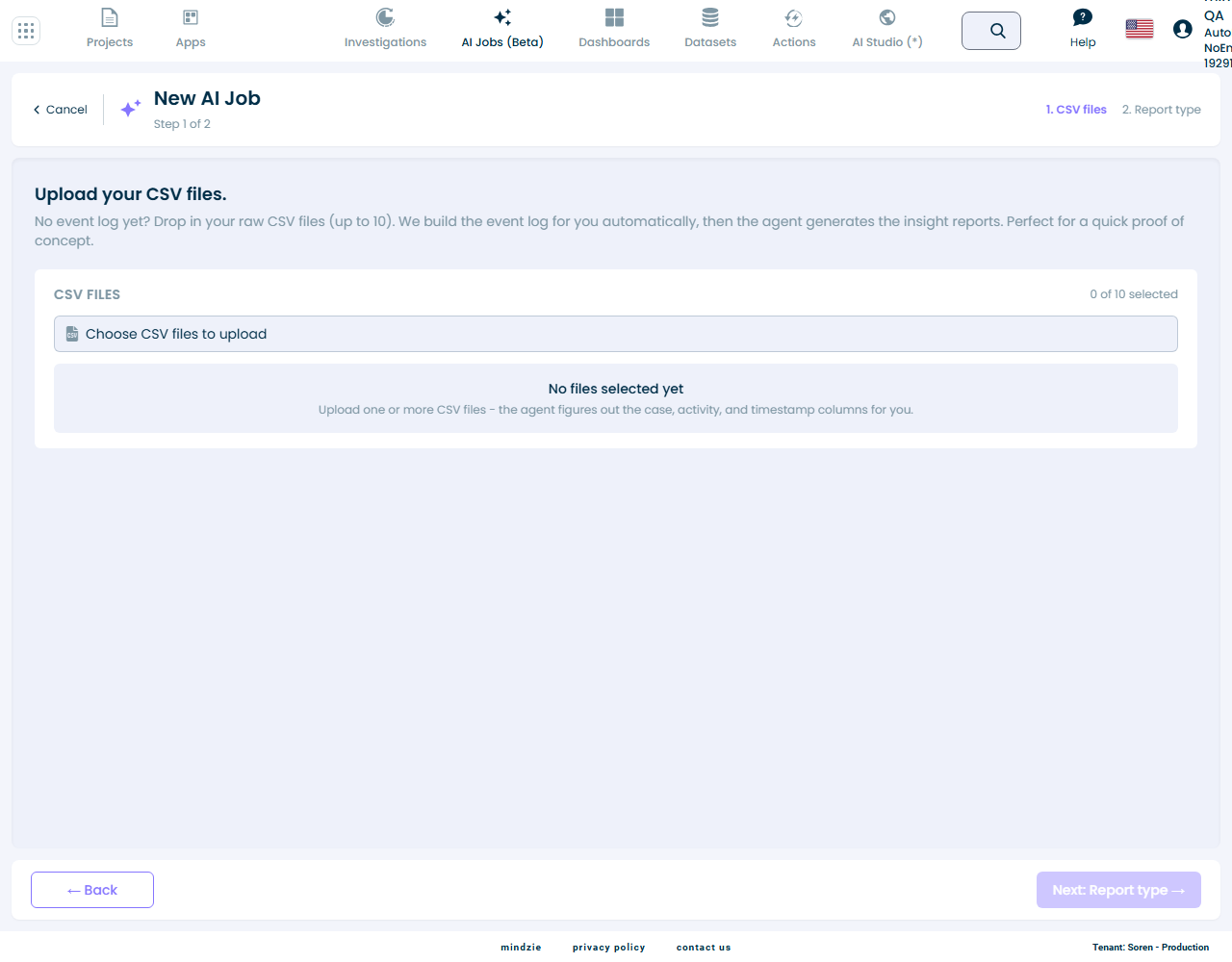
CSV upload notes
- Upload one or more CSV files, or a
.zipof CSVs; each file inside the zip is listed individually - Individual files up to 2 GB are accepted
- Remove a file with the x next to it before continuing
- Next: Report type stays disabled until at least one file is added
On this path the prompt box opens pre-filled with an instruction to build a single process-mining event log from your files - detecting the case id, activity, and timestamp columns automatically and joining files where needed - ending with "Then:". You do not need to prepare an event log or map any columns.
That pre-filled text is ordinary, editable text, and it supports two genuinely different jobs from the same screen:
- Build a report - leave the pre-filled text alone and type your report request after "Then:". Step-by-step: Create an AI Report from CSV Files.
- Review the data first - delete the pre-filled text and ask for a data review instead, or add a prompt from the Data review / readiness library group. Step-by-step: Review Data Before Building.
Write Your Prompt
Both on-ramps end on the same prompt step, titled What should the agent do?
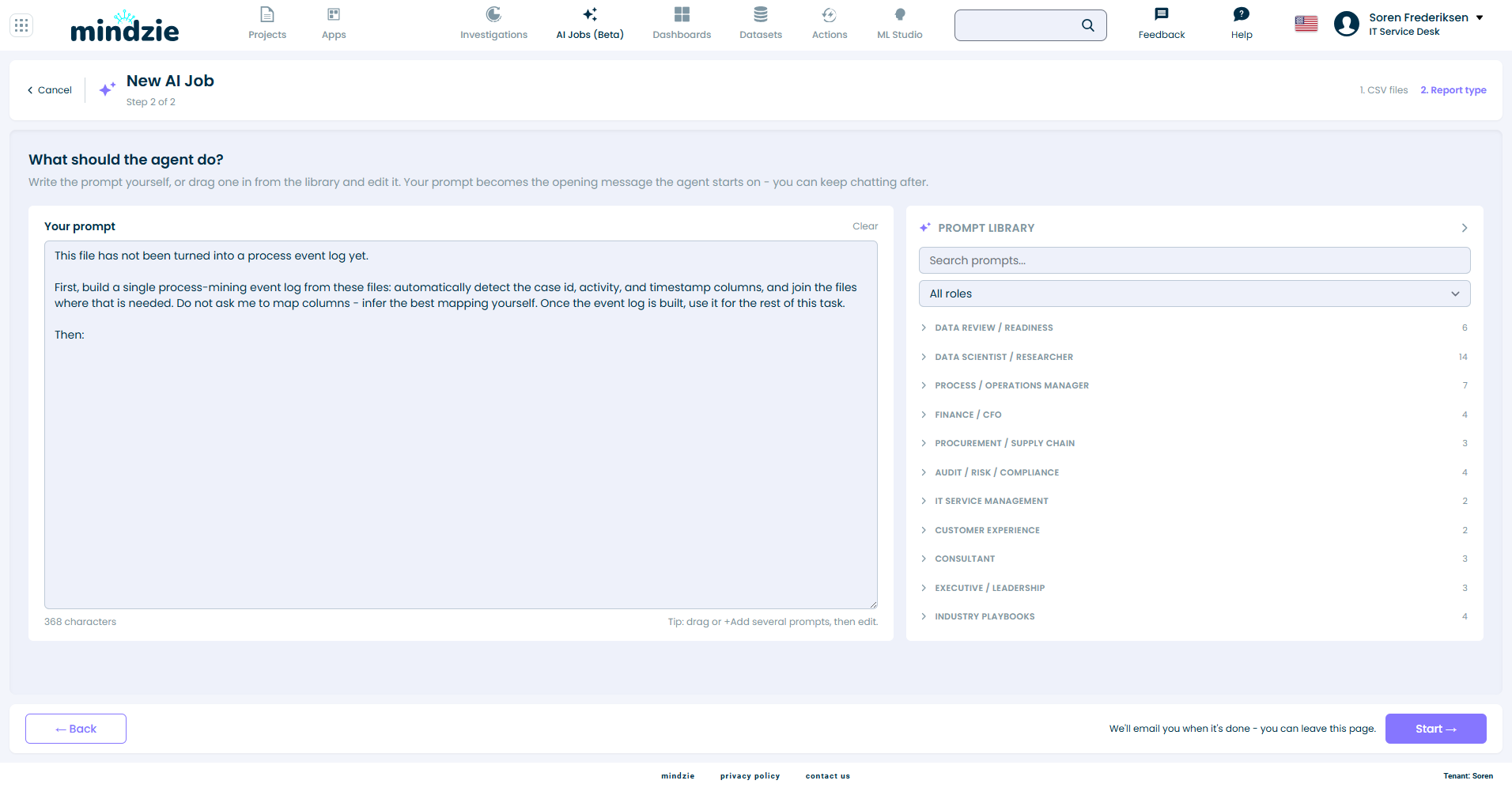
- Your prompt becomes the opening message the agent starts on. The agent receives the data you provided plus exactly what the box says - you can read every word of it before you press Start.
- The prompt library on the right offers ready-made prompts grouped by role - data review and readiness checks, data scientist, operations manager, finance, audit, and more. Drag a card into the box or click + Add, combine several, then edit freely.
- An empty prompt box refuses to start. There is no hidden default - if the box is empty, the job has nothing to do.
- If your prompt asks for opposite things - building an event log first, and reviewing the data before anything is modelled - a notice appears above the editor offering Remove the build instruction or Keep both. Removal keeps everything you wrote.
After You Start
- The job is named after what the prompt asks for, plus the date - a report run becomes Custom report - [date], a data review becomes Data review - [date]
- You can leave the page - the agent keeps working in the background
- You receive an email when the job is finished
- Open the job again from the AI Jobs list to read the conversation, preview the reports, and download them
- The job stays open as a conversation - ask follow-ups, refine definitions, or add more files with + Add files
Best Practices
Pick the right on-ramp: use from a Dataset when your data is already enriched, and from CSV files for raw exports.
Review unfamiliar data before building on it: for an extract nobody has modelled, run a data review first - it tells you what the files can honestly support.
Read the prompt box before you press Start: what it says is what the agent does. On the CSV path, the pre-filled build instruction is the right default for a report - keep it, and put your request after "Then:".
Start from the library: the prompt library covers most needs by role - add a card, then edit it to name the questions you actually care about.
Let it run: you do not need to wait on the page. The completion email links straight back to the finished job.
Troubleshooting
No datasets available (from a Dataset)
Solution: The agent only analyzes enriched datasets. Run an enrichment pipeline on your data in the Data Designer, then start the job again.
The agent built an unexpected event log (from CSV files)
Solution: The agent infers the case, activity, and timestamp columns from your CSVs. If the result looks wrong, continue the conversation on the job page and tell the agent which columns to use, or upload cleaner files and start a new job.
The Start button complains about an empty prompt
Solution: The job runs on the text in the prompt box, so it cannot start empty. Type what you want, or add a prompt from the library on the right.
I do not see Process Analyst
Solution: Process Analyst is an Alpha feature and only appears for tenants with PreRelease enabled. The two AI Insight report on-ramps and Describe it in chat are always available.
Related Documentation
- Create an AI Report from CSV Files - Tutorial: from raw CSVs to finished reports
- Review Data Before Building - Tutorial: check what an extract can honestly support first
- Voice Dictation - Speak your instructions to the AI agent instead of typing
- AI Insights Report (Action Step) - Generate the same kind of report as a scheduled Action step
- Load Dataset - Bring data into a project
Support
If you encounter issues with AI Jobs:
- Email: support@mindzie.com
- Include: the job name, what you started from (dataset or CSV files), and expected vs actual behavior