Email Settings
Configure email services for your organization to enable system notifications, alerts, and automated communications. mindzieStudio supports three email configuration options to meet different organizational requirements.
Accessing Email Settings
- Navigate to Administration > Tenant Settings
- Select Email from the settings menu
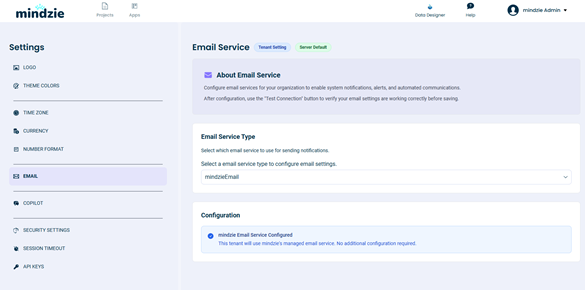
Email Service Options
mindzieStudio offers three email service types:
| Option | Description | Configuration Required |
|---|---|---|
| mindzieEmail | Use mindzie's managed email service | None |
| SMTP | Use your own SMTP server | Server details required |
| OFF | Disable all email functionality | None |
Option 1: mindzieEmail (Default)
The default setting uses mindzie's managed email service. This is the simplest option as no configuration is required.
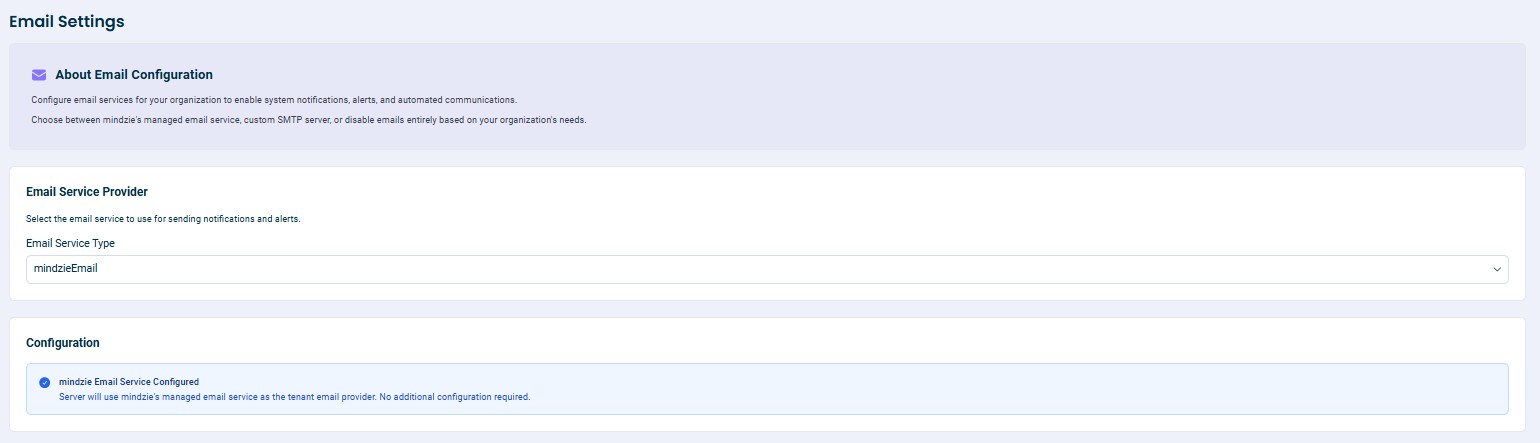
How it works:
- All emails are routed through mindzie's servers
- No setup or configuration required
- Email content is not stored on mindzie servers
Note: While mindzie does not store email content, emails do route through mindzie's servers. If your organization has strict data routing requirements, consider using your own SMTP server instead.
Option 2: SMTP Server
For organizations that require emails to be sent through their own infrastructure, mindzieStudio supports custom SMTP server configuration.
Step-by-Step Setup
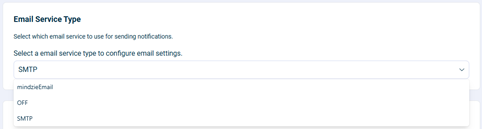
1. Change the Email Service Type
By default, the email service type is set to "mindzieEmail". Change this to SMTP using the dropdown selector.
2. Configure SMTP Server Details
After selecting SMTP, you will need to provide the following information from your IT administrator:
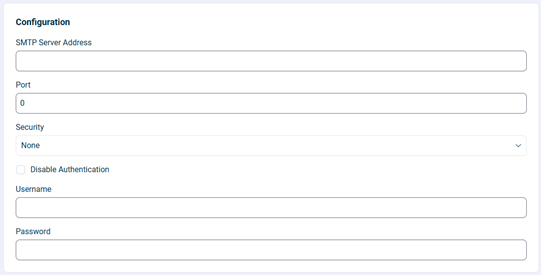
SMTP Configuration Fields
| Field | Description | Example |
|---|---|---|
| SMTP Server Address | The hostname or IP address of your SMTP server | smtp.company.com |
| Port | The port number for SMTP connections | 587 (TLS) or 465 (SSL) |
| Security | Connection security type | None, TLS, or SSL |
| Username | Authentication username (must be a full email address) | notifications@company.com |
| Password | Authentication password or app password | (your password) |
Important - Username Requirement:
In the current version of mindzieStudio, the Username field must be a valid email address, and this email address will also be used as the "From" address for all outgoing emails. This means the account you authenticate with will also appear as the sender of all system notifications.
For example, if you configure notifications@company.com as the Username, all emails sent by mindzieStudio will show notifications@company.com as the sender.
Authentication Options:
- If your SMTP server requires authentication, enter the username and password
- If no authentication is required, you can disable the authentication option
Security Options
| Security Type | Description | Typical Port |
|---|---|---|
| None | No encryption (not recommended for production) | 25 |
| TLS | Transport Layer Security with STARTTLS (recommended) | 587 |
| SSL | Implicit SSL/TLS connection | 465 |
Common SMTP Ports
| Port | Security | Description |
|---|---|---|
| 25 | None | Standard SMTP (often blocked by ISPs) |
| 587 | TLS | Submission port with STARTTLS (recommended) |
| 465 | SSL | SMTPS (implicit SSL) |
3. Save Your Configuration
After entering all the required information, click Save to apply your settings.
4. Test the Connection
After saving, use the Test Connection feature to verify your configuration:
- Click Test Connection
- Enter an email address to send a test message to
- Confirm the test email is received in the inbox
This verifies that mindzieStudio can successfully connect to your SMTP server and send emails.
SMTP Test Script
Before configuring SMTP settings in mindzieStudio, you can test your SMTP configuration using a standalone PowerShell script. This allows you to verify that your server settings, credentials, and network connectivity are correct before entering them into mindzieStudio.
How to use the test script:
- Download the
test_smtp.ps1file using the link above - Open the file in a text editor (Notepad, VS Code, etc.)
- Fill in your SMTP settings at the top of the file:
$SmtpServer- Your SMTP server address$SmtpPort- The port number (typically 587 for TLS)$UseTLS- Set to$truefor TLS encryption$FromEmail- The sender email address (must match Username)$Username- Your authentication username (must match FromEmail)$ToEmail- An email address to send the test message to
- Save the file
- Open PowerShell and navigate to the folder containing the script
- Run the script:
.\test_smtp.ps1 - If prompted, enter your SMTP password
- Check if the test email arrives in the recipient's inbox
Important: The script will warn you if the Username and FromEmail values do not match. In mindzieStudio, these values must be the same for SMTP to work correctly.
Example output on success:
mindzie Studio - SMTP Test Script
==================================

SMTP Settings:
  Server: smtp.office365.com
  Port: 587
  TLS: True
  From: notifications@company.com
  To: admin@company.com

Sending test email...

SUCCESS: Test email sent successfully!

You can now configure these settings in mindzie Studio:
  Administration -> Email Settings
If the test email is received, you can confidently enter the same settings into mindzieStudio.
Option 3: Email Disabled (OFF)
You can disable email functionality entirely if your organization does not require email notifications.
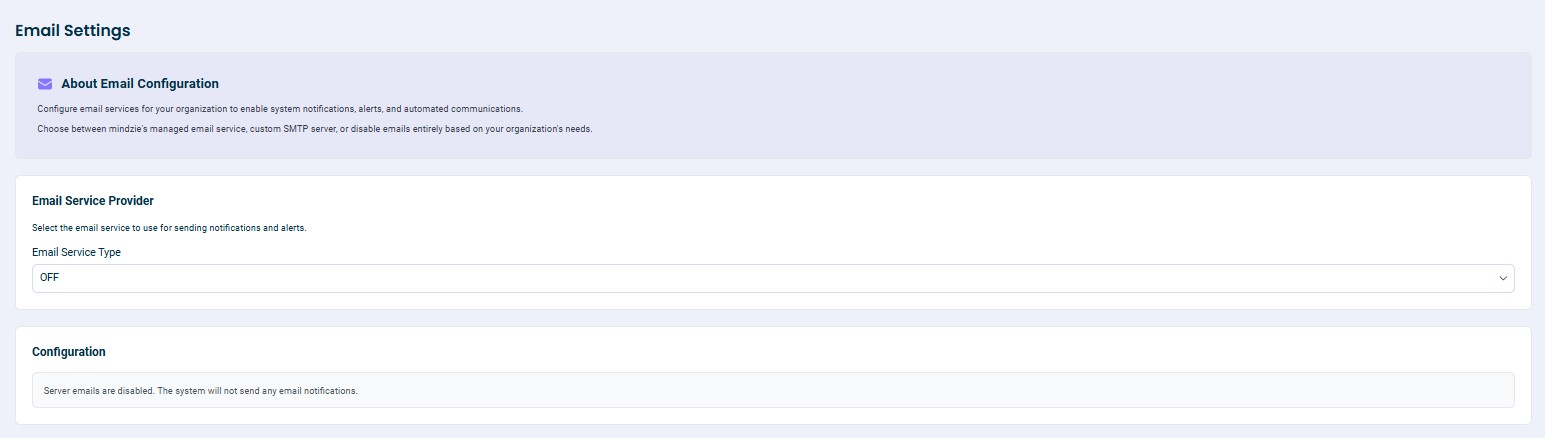
Warning: Disabling email will affect the following features:
- Two-factor authentication (2FA) via email will not be available
- System notifications will not be sent
- Alert emails will not be delivered
- Password reset emails will not work
Only disable email if you are certain these features are not needed for your deployment.
Best Practices
- Use TLS or SSL when configuring SMTP to ensure email content is encrypted in transit
- Test your configuration by sending a test email after making changes
- Use a dedicated email account for mindzieStudio notifications rather than a personal account
- Keep credentials secure and rotate passwords periodically
- Use app passwords when available instead of regular account passwords for enhanced security
Troubleshooting
Emails not being delivered
- Verify the SMTP server address and port are correct
- Check that the username and password are valid
- Ensure the security setting matches your server's requirements
- Check if your firewall allows outbound connections on the SMTP port
- Verify your email provider has SMTP authentication enabled
Authentication failures
- Verify the username format (most servers require the full email address)
- Check if your email provider requires an app-specific password
- Ensure the account has permission to send emails via SMTP
- Verify SMTP authentication is enabled at both the server and account level
Configuration Examples
The following examples demonstrate SMTP configuration for common email providers. These are provided as general guidance only.
Important: Email server configuration varies between organizations based on security policies, software versions, and administrative settings. The steps shown below may not exactly match your organization's environment. Always consult your IT administrator before making changes to email authentication settings, as these changes can have security implications for your organization.
mindzie does not provide support for configuring third-party email services. These examples are intended to illustrate the type of information needed and the general process involved.
Example: Microsoft Exchange 365
This example shows a typical configuration for Microsoft Exchange 365 / Office 365.
SMTP Settings for Microsoft 365
| Setting | Value |
|---|---|
| SMTP Server | smtp.office365.com |
| Port | 587 |
| Security | TLS |
| Authentication | Yes (Required) |
| Username | Your full email address (e.g., yourname@company.com) |
| Password | User password or App Password |
Enabling SMTP Authentication
Microsoft disables SMTP authentication by default. Your IT administrator may need to enable it at both the server and account level.
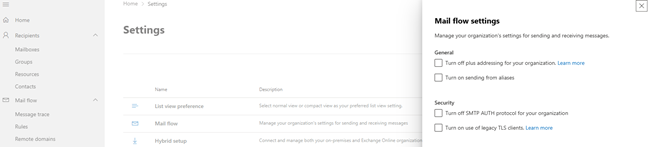
Server-Level Configuration (Exchange Admin Center):
- Go to https://admin.exchange.microsoft.com/
- Click Settings from the left menu
- Click Mail Flow
- Ensure "Turn off SMTP AUTH protocol for your organization" is unchecked
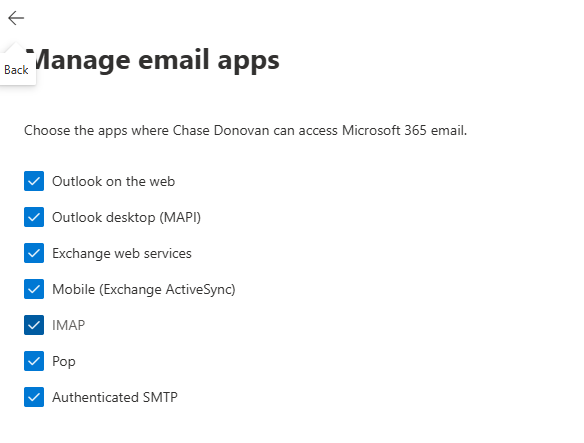
Account-Level Configuration:
- Go to https://admin.cloud.microsoft/
- Click on the account name to be used for sending emails
- Click Manage email apps
- Ensure "Authenticated SMTP" is checked
Note: If the SMTP option is not visible, it may be disabled at the server level. Contact your IT administrator.
Using App Passwords
If your organization uses Multi-Factor Authentication (MFA), you may need to create an App Password instead of using your regular password.
Note: App Passwords are only available when Security Defaults are disabled and Multi-Factor Authentication is enabled. If you cannot see the App Passwords option, contact your IT administrator.
Creating an App Password:
- Go to https://mysignins.microsoft.com/
- Click Security Info on the left side
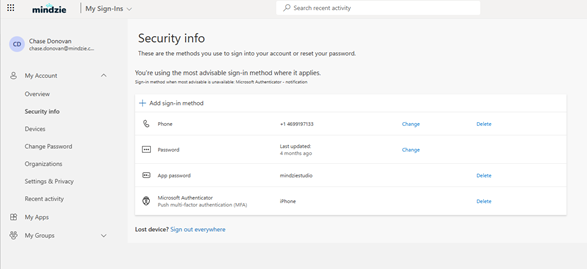
- Click Add sign-in method
- Select App Password
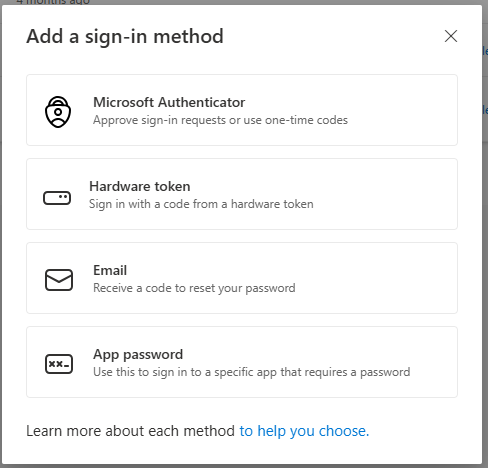
- Use this generated password in the mindzieStudio email settings
Security Note: Changing security defaults or enabling legacy authentication can affect your organization's security posture. Always consult with your IT security team before making these changes.
Example: Gmail SMTP
This example shows a typical configuration for Gmail / Google Workspace.
SMTP Settings for Gmail
| Setting | Value |
|---|---|
| SMTP Server | smtp.gmail.com |
| Port | 587 |
| Security | TLS |
| Authentication | Yes (Required) |
| Username | Your full Gmail address (e.g., yourname@gmail.com) |
| Password | App Password (recommended) |
Creating an App Password for Gmail
Google recommends using App Passwords for applications that need to access your Google account.
- Go to https://myaccount.google.com/apppasswords
- Sign in to your Google account if prompted
- Enter a name for the app (e.g., "mindzieStudio")
- Click Create
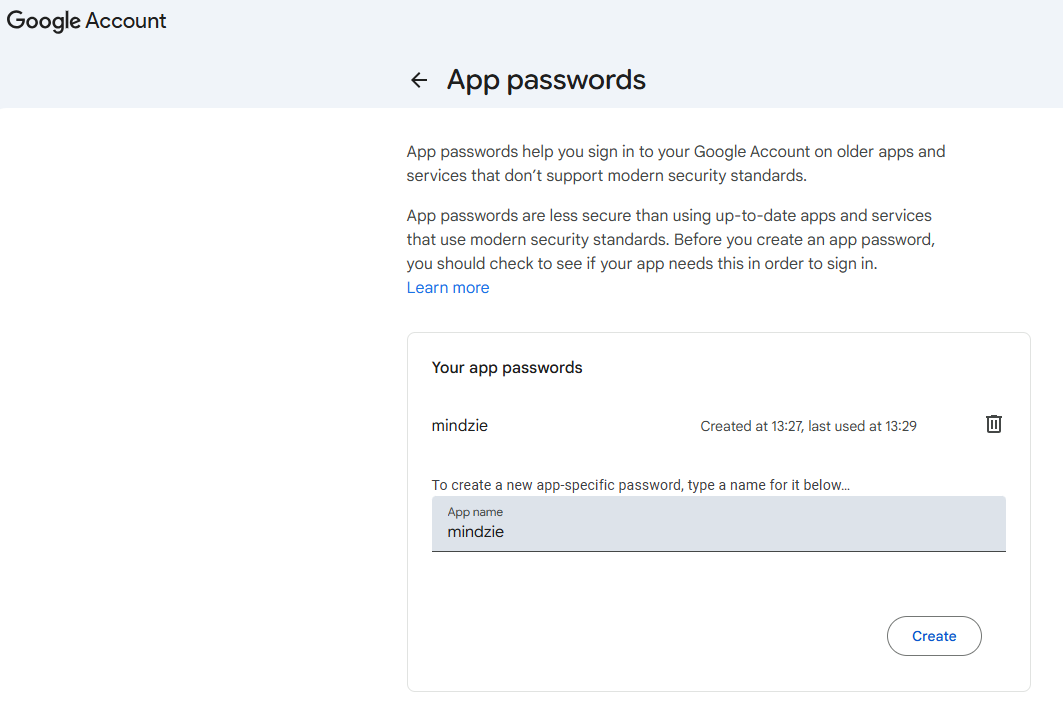
- Google will generate a 16-character password
- Copy this password and use it in the mindzieStudio email settings (not your regular Google password)
Note: You must have 2-Step Verification enabled on your Google account to use App Passwords. If you do not see the App Passwords option, enable 2-Step Verification first in your Google account security settings.
Support
For assistance with mindzieStudio email configuration, contact mindzie support. For questions about your organization's email server settings, SMTP authentication, or app passwords, please consult your IT administrator.