Grid Email
The Grid Email action step sends data tables from your analyses directly to recipients via email. This allows stakeholders to receive structured data they can review, analyze, or import into other tools.
Overview
When you configure a Grid Email, the system:
- Extracts table data from your selected analyses
- Formats the data as an email with embedded tables
- Optionally attaches the data as Excel or CSV files
- Sends the email to your specified recipients
This is ideal for sharing specific data points, metrics, or detailed breakdowns with teams who need the actual numbers rather than narrative reports.
When to Use Grid Email
Use Grid Email when you need to:
- Share specific metrics or KPIs with stakeholders
- Provide data for import into other systems (Excel, databases)
- Distribute performance tables to operational teams
- Send bottleneck or delay analysis to process owners
- Automate data distribution that was previously done manually
Prerequisites
Grid Email requires analysis data to function. Before creating a Grid Email action:
- Ensure you have selected analysis data in the Data step of the action wizard
- The selected analyses must contain tables or grids
- Charts without underlying data tables cannot be sent via Grid Email
Configuration
To add a Grid Email to your action, click the + button in the Action Steps section and select Grid Email.
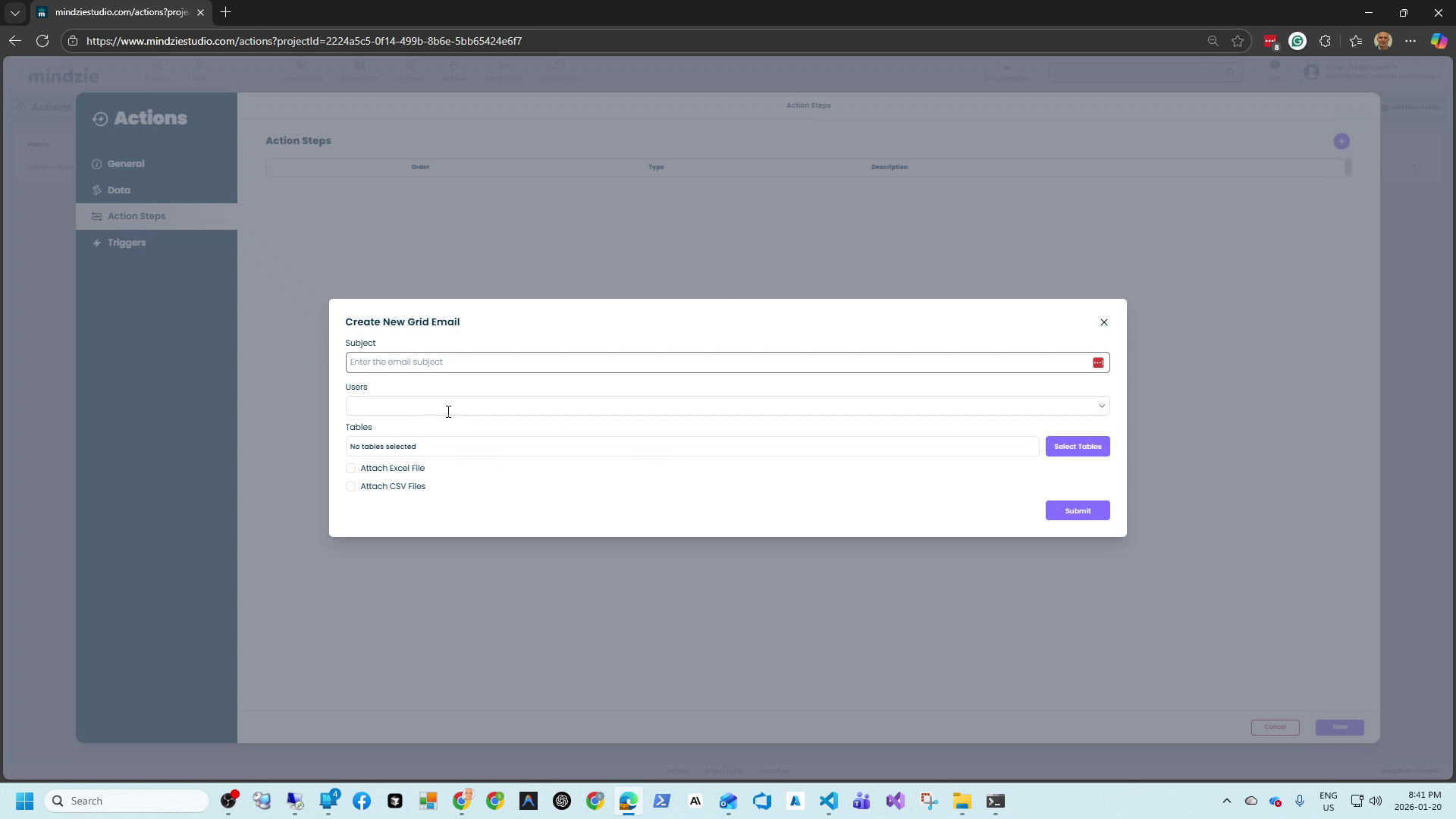
Basic Settings
Subject (Required): The email subject line. Make it descriptive so recipients know what data is included.
Example: "Weekly Bottleneck Analysis - Activity Pairs"
Users: Select the email addresses that will receive the data. You can add multiple recipients who will all receive the same email.
Table Selection
Click Select Tables to choose which data tables to include in the email.
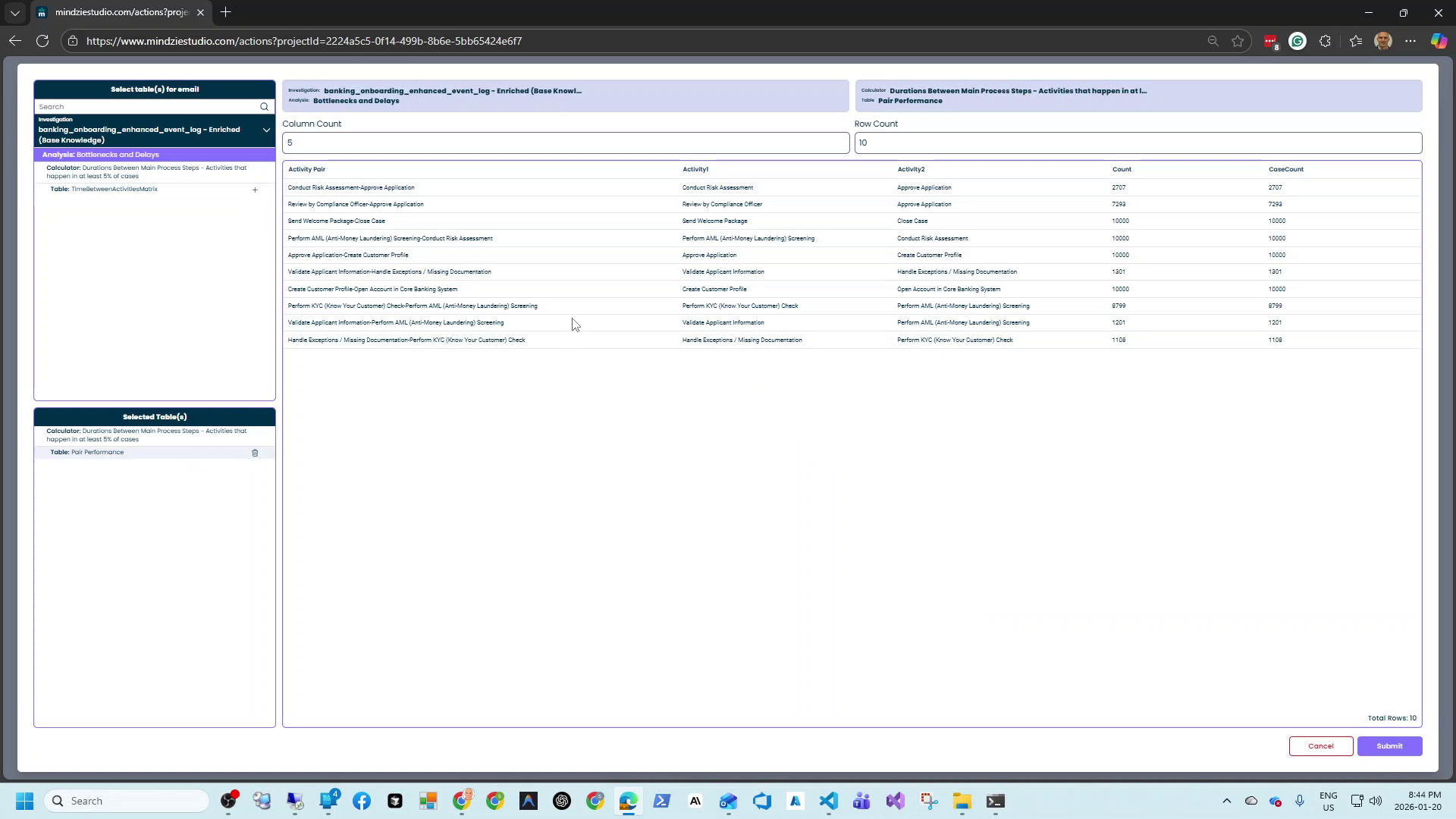
The table selection screen shows:
- Investigation: The source investigation containing the analysis
- Analysis: The specific analysis name
- Available Tables: Grids and tables within each analysis
For each analysis, you can select from multiple table types:
- Histogram data
- Statistics tables
- Calculated values over time
- Activity pairs and transitions
- Resource performance metrics
- And more
The preview shows the actual data that will be sent, including:
- Column names
- Row count
- Sample data values
Column Count and Row Count: Adjust these to control how much data appears in the preview and email.
Attachment Options
Attach Excel File: When checked, the selected tables are also attached as an Excel (.xlsx) file. Recipients can download and work with the data in Excel.
Attach CSV Files: When checked, each selected table is attached as a separate CSV file. This is useful for:
- Importing data into databases
- Processing with scripts
- Systems that don't support Excel format
You can enable both options to give recipients multiple format choices.
Example Configurations
Weekly Performance Report
| Setting | Value |
|---|---|
| Subject | Weekly Activity Performance - [Date] |
| Users | operations-team@company.com |
| Tables | Activity Statistics, Duration by Activity |
| Attach Excel File | Checked |
| Attach CSV Files | Unchecked |
| Schedule | Every Monday at 7:00 AM |
Daily Bottleneck Alert
| Setting | Value |
|---|---|
| Subject | Daily Bottleneck Analysis |
| Users | process-owner@company.com |
| Tables | Bottlenecks and Delays - Pair Performance |
| Attach Excel File | Unchecked |
| Attach CSV Files | Unchecked |
| Schedule | Every day at 6:00 AM |
Data Export for Integration
| Setting | Value |
|---|---|
| Subject | Process Data Export |
| Users | data-team@company.com |
| Tables | All relevant metrics tables |
| Attach Excel File | Unchecked |
| Attach CSV Files | Checked |
| Schedule | Daily at 5:00 AM |
Available Table Types
Depending on your analysis configuration, you may have access to various table types:
| Table Type | Description |
|---|---|
| Activity Statistics | Counts, durations, and metrics for each activity |
| Pair Performance | Transition metrics between activity pairs |
| Histogram | Distribution data for duration or other metrics |
| Calculated Values Over Time | Time-series data showing trends |
| Case Statistics | Case-level metrics and aggregations |
| Resource Performance | Metrics by resource/staff member |
| Variant Statistics | Process variant frequencies and durations |
Best Practices
Select relevant tables only: Don't include every available table. Choose the specific data recipients need.
Use clear subjects: Include the date or period in the subject so recipients can identify reports in their inbox.
Consider file formats: Use Excel for users who will analyze data manually. Use CSV for automated processing or database imports.
Limit row counts: Very large tables can make emails difficult to read. Consider filtering data or using attachments for large datasets.
Combine with AI reports: For stakeholders who need both narrative and data, set up both AI Automatic Report and Grid Email in the same action.
Schedule appropriately: Send data exports when downstream systems or teams need them.
Troubleshooting
No tables available to select
- Verify you have selected analysis data in the Data step
- Ensure the selected analyses contain grids or tables
- Some visualizations (pure charts) don't have table data
Email not sending
- Check that recipients are valid email addresses
- Verify the action is enabled and scheduled
- Review action history for error messages
Data is outdated
- Ensure the underlying analyses are being refreshed
- Check that data imports are running before the Grid Email
- Verify the data source connections are working
Attachments are too large
- Reduce the number of tables selected
- Limit row counts in large tables
- Use CSV instead of Excel for slightly smaller file sizes
- Consider sending separate emails for different data sets
Recipients can't open attachments
- Verify recipients have appropriate software (Excel for .xlsx)
- Try sending CSV format which opens in more applications
- Check if email security is blocking attachments
Related Documentation
Support
If you encounter issues with Grid Email:
- Email: support@mindzie.com
- Note which tables you're trying to send
- Include any error messages from the action history