Error & Warning Report
The Error & Warning Report action step sends automated notifications about issues detected in your project. This helps project owners stay informed about problems without manually checking each analysis.
Overview
When you configure an Error & Warning Report, the system:
- Scans all notebooks and analyses in your project
- Collects any errors or warnings that occurred during execution
- Generates a summary report of all issues found
- Emails the report to specified recipients
This is essential for maintaining healthy projects and catching issues before they impact your analysis quality.
When to Use Error & Warning Report
Use Error & Warning Report when you:
- Own a project and need to monitor its health
- Want early notification of data issues
- Need to track if enrichments or calculators stop working
- Have team members making changes to shared projects
- Want automated quality assurance for your process mining work
Configuration
To add an Error & Warning Report to your action, click the + button in the Action Steps section and select Error & Warning Report Email.
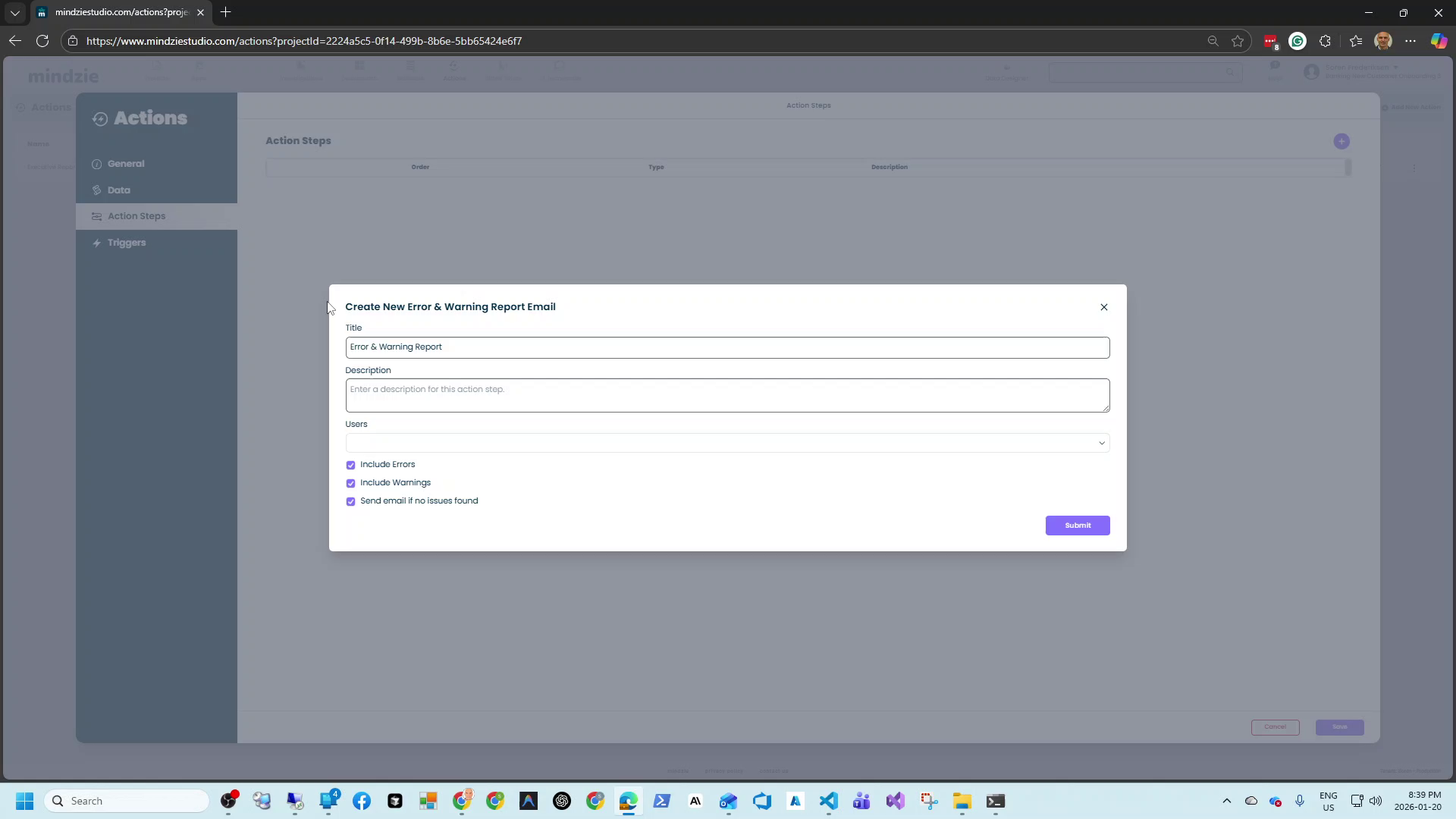
Settings
Title (Required): A name for this error report step. This helps you identify the step if you have multiple action steps.
Example: "Error & Warning Report"
Description (Optional): Additional notes about what this report monitors or why it exists.
Users: Select the email addresses that will receive the error reports. Typically this is the project owner or a team distribution list.
Report Content Options
Include Errors: When checked (default), the report includes all error messages from failed notebooks and analyses.
Errors occur when:
- A notebook fails to execute completely
- An enrichment references a column that no longer exists
- A calculator encounters invalid data
- Database connections fail
Include Warnings: When checked (default), the report includes warning messages that indicate potential issues.
Warnings occur when:
- Data quality issues are detected
- Performance thresholds are exceeded
- Deprecated features are used
- Partial failures occur
Send email if no issues found: Controls whether you receive a report when everything is working correctly.
- Checked: You receive a report every scheduled run, even if there are no issues. This confirms the monitoring is working.
- Unchecked: You only receive a report when errors or warnings are found. This reduces email noise but means silence indicates success.
Common Use Cases
Project Owner Monitoring
Set up weekly monitoring to catch any issues:
| Setting | Value |
|---|---|
| Title | Weekly Project Health Check |
| Users | project-owner@company.com |
| Include Errors | Checked |
| Include Warnings | Checked |
| Send if no issues | Unchecked |
| Schedule | Every Monday at 7:00 AM |
You only receive an email if something needs attention.
Team Notification
Keep the entire team informed of issues:
| Setting | Value |
|---|---|
| Title | Team Error Alerts |
| Users | process-mining-team@company.com |
| Include Errors | Checked |
| Include Warnings | Unchecked |
| Send if no issues | Unchecked |
| Schedule | Daily at 6:00 AM |
The team receives daily alerts about errors, but not warnings (to reduce noise).
Compliance Monitoring
For projects requiring documentation of system health:
| Setting | Value |
|---|---|
| Title | Compliance Health Report |
| Users | compliance@company.com |
| Include Errors | Checked |
| Include Warnings | Checked |
| Send if no issues | Checked |
| Schedule | Daily at 8:00 AM |
A report is sent every day as evidence of monitoring, whether issues exist or not.
What Triggers Errors and Warnings
Data Changes
When underlying data changes, existing analyses may break:
- A column is renamed or removed from the data source
- Data types change (text to number, etc.)
- Required data becomes unavailable
- Connection credentials expire
Configuration Issues
When analysis configuration becomes invalid:
- Enrichments reference deleted columns
- Calculators use incompatible data types
- Filters reference values that no longer exist
- Investigations reference deleted datasets
Execution Failures
When notebooks fail to run:
- Timeout during long-running calculations
- Memory limitations exceeded
- External service unavailable
- Python script errors
Best Practices
Set up for every project you own: If you are responsible for a project, create an Error & Warning Report to stay informed.
Choose recipients carefully: Send to people who can act on the issues. Avoid sending to stakeholders who cannot fix problems.
Use appropriate scheduling: Daily monitoring is suitable for active projects. Weekly is often enough for stable projects.
Enable "Send if no issues" initially: When first setting up, receive reports even when there are no issues to confirm the action is working. Disable later to reduce email volume.
Combine with other actions: Schedule error reports to run before other reports. This way you catch issues before stakeholders receive potentially incorrect data.
Responding to Error Reports
When you receive an error report:
- Review the error messages: Understand what failed and why
- Check the affected analyses: Open the mentioned notebooks in mindzieStudio
- Investigate root cause: Was it a data change, configuration issue, or system problem?
- Fix the underlying issue: Update configurations, fix data sources, or correct scripts
- Re-run affected analyses: Manually run notebooks to verify the fix
- Monitor subsequent reports: Ensure the error does not recur
Troubleshooting
Not receiving expected reports
- Verify the action is enabled (Active column shows green)
- Check that the schedule is correct
- Confirm email addresses are valid
- Look in spam/junk folders
- Review action history for execution errors
Receiving too many reports
- Uncheck "Send email if no issues found"
- Consider sending only errors, not warnings
- Reduce schedule frequency if issues are not time-sensitive
- Fix the underlying issues causing repeated errors
Report content is unclear
- Note the notebook names and error messages
- Open the specific notebooks in mindzieStudio
- Run notebooks manually to see detailed error output
- Check data connections and column mappings
Related Documentation
Support
If you encounter issues with Error & Warning Reports:
- Email: support@mindzie.com
- Include the error messages from your report
- Note when the issues started occurring