Data Designer Project
The Data Designer Project action step allows you to automatically run mindzieDataDesigner projects to import or refresh event log data. This enables fully automated data pipelines where data is imported on a schedule.
Overview
When you configure a Data Designer Project action step, the system:
- Connects to mindzieDataDesigner
- Executes your selected project
- Imports or refreshes the event log data
- Makes updated data available for your analyses
This is essential for maintaining current data in your process mining projects without manual intervention.
When to Use Data Designer Project
Use Data Designer Project when you need to:
- Automatically refresh event log data on a schedule
- Import data before generating reports
- Keep your process mining analyses up-to-date
- Create end-to-end automation from data import to report distribution
Prerequisites
Before using Data Designer Project:
- You must have a mindzieDataDesigner project already configured
- The project should be tested and working manually
- Database connections and credentials must be properly configured
- You need appropriate permissions to run Data Designer projects
Configuration
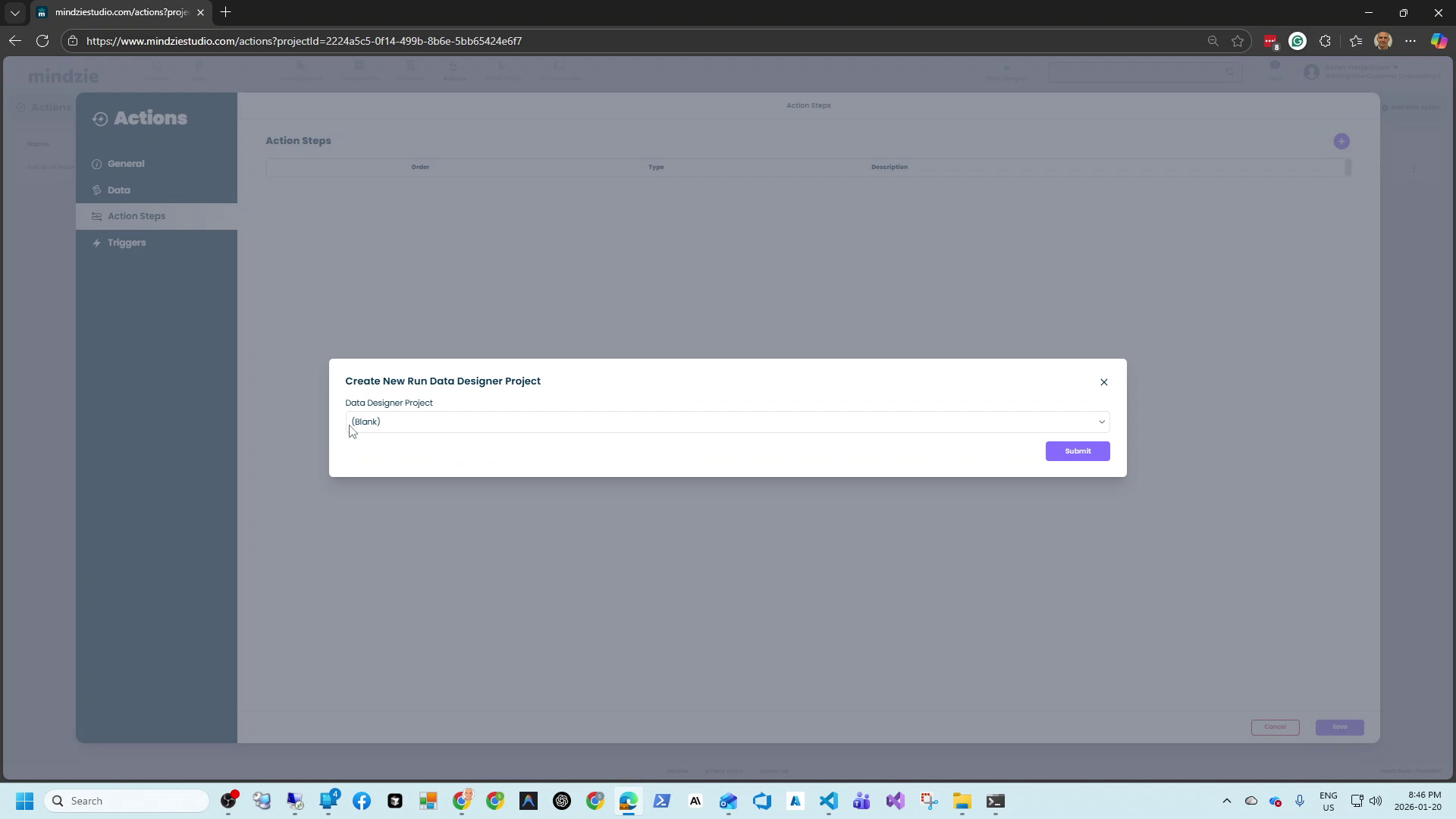
To add a Data Designer Project step to your action, click the + button in the Action Steps section and select Run Data Designer Project.
Settings
Data Designer Project: Select the project you want to run from the dropdown. This list shows all Data Designer projects available in your environment.
The dropdown displays:
- Project name
- Last modified date
- Creator (if available)
Simply select the project and click Submit to add it to your action.
Common Use Cases
Daily Data Refresh
Run a data import every morning before business hours:
| Setting | Value |
|---|---|
| Data Designer Project | Daily Sales Process Import |
| Trigger | Daily at 5:00 AM |
This ensures analysts have fresh data when they start their day.
Pre-Report Data Update
Combine data import with report generation:
Action Steps (in order):
- Run Data Designer Project - Import latest data
- AI Automatic Report - Generate and send executive summary
Trigger: Weekly, Monday at 6:00 AM
This pattern ensures reports always contain the most recent data.
End-to-End Automation Pipeline
Create a complete automated workflow:
Action Steps:
- Run Data Designer Project - Import event log
- Error & Warning Report - Check for import issues
- AI Automatic Report - Send executive summary
- Grid Email - Send detailed metrics to operations team
Trigger: Daily at 5:00 AM
By scheduling the data import first, all subsequent steps work with fresh data.
Execution Order
When your action contains multiple steps, they execute in the order configured:
- Data import runs first - Refreshes the underlying data
- Reports generate second - Use the newly imported data
- Notifications send last - Report on the results
Always place Data Designer Project steps before any steps that depend on the data.
Best Practices
Schedule before reports: Run data imports with enough time buffer before report generation. Allow for import duration plus any processing time.
Test projects manually first: Verify your Data Designer project runs successfully before automating it. Fix any issues in the project configuration.
Monitor import success: Add an Error & Warning Report step to catch import failures. This alerts you if the data pipeline breaks.
Consider data freshness requirements: Schedule imports based on how current your data needs to be. Daily is common, but some processes may need hourly updates.
Account for source system availability: Ensure source databases are available when imports are scheduled. Avoid running during maintenance windows.
Stagger multiple imports: If you have multiple Data Designer projects, stagger their schedules to avoid overwhelming source systems.
Troubleshooting
Project not appearing in dropdown
- Verify the Data Designer project exists and is saved
- Check that you have permission to access the project
- Ensure the project is properly configured in mindzieDataDesigner
Import failing
- Check action history for detailed error messages
- Verify database connections are still valid
- Confirm source data is available
- Test the project manually in mindzieDataDesigner
Data not updating in analyses
- Verify the import completed successfully (check action history)
- Ensure analyses are configured to use the correct dataset
- Check if analyses need to be refreshed after data import
- Verify the Data Designer project targets the correct destination
Timeout during import
- Large imports may exceed default timeouts
- Consider optimizing the Data Designer project
- Break large imports into smaller incremental updates
- Contact support if you need extended timeout limits
Credential errors
- Database credentials may have expired
- Check that service accounts are still valid
- Update credentials in Data Designer project configuration
- Verify network connectivity to source systems
Integration Patterns
Sequential Processing
Action: Daily Process Mining Update
Steps:
  1. Run Data Designer Project: Import Event Log
  2. Wait for completion
  3. AI Automatic Report: Generate Summary

Trigger: Daily 6:00 AM
Parallel Data Sources
Create separate actions for independent data sources:
Action 1: Import Sales Data
  - Run Data Designer Project: Sales Event Log
  - Trigger: Daily 5:00 AM

Action 2: Import Support Data
  - Run Data Designer Project: Support Tickets
  - Trigger: Daily 5:00 AM

Action 3: Combined Report (scheduled after imports complete)
  - AI Automatic Report: Cross-Process Analysis
  - Trigger: Daily 6:00 AM
Error Recovery
Action: Data Import with Monitoring
Steps:
  1. Run Data Designer Project: Main Import
  2. Error & Warning Report: Send to data-team@company.com

Trigger: Daily 5:00 AM
If the import fails, the error report notifies the team immediately.
Related Documentation
Support
If you encounter issues with Data Designer Project actions:
- Email: support@mindzie.com
- Include the Data Designer project name
- Note any error messages from the action history
- Describe when the issue started occurring