AI Automatic Report
The AI Automatic Report action step uses artificial intelligence to generate comprehensive reports from your process mining data. The AI analyzes your selected analyses and creates a well-structured report with summaries, insights, and recommendations.
Overview
When you configure an AI Automatic Report, the system:
- Collects data from all your selected analyses
- Sends this data to an AI language model
- Generates a formatted HTML report based on your instructions
- Emails the report to your specified recipients
This is ideal for executive summaries, regular status updates, and stakeholder communications where you need professional-quality reports without manual writing.
When to Use AI Automatic Report
Use AI Automatic Report when you need:
- Weekly or monthly executive summaries
- Automated status reports for stakeholders
- Regular process performance updates
- Reports in multiple languages
- Professional narrative explanations of your data
Configuration
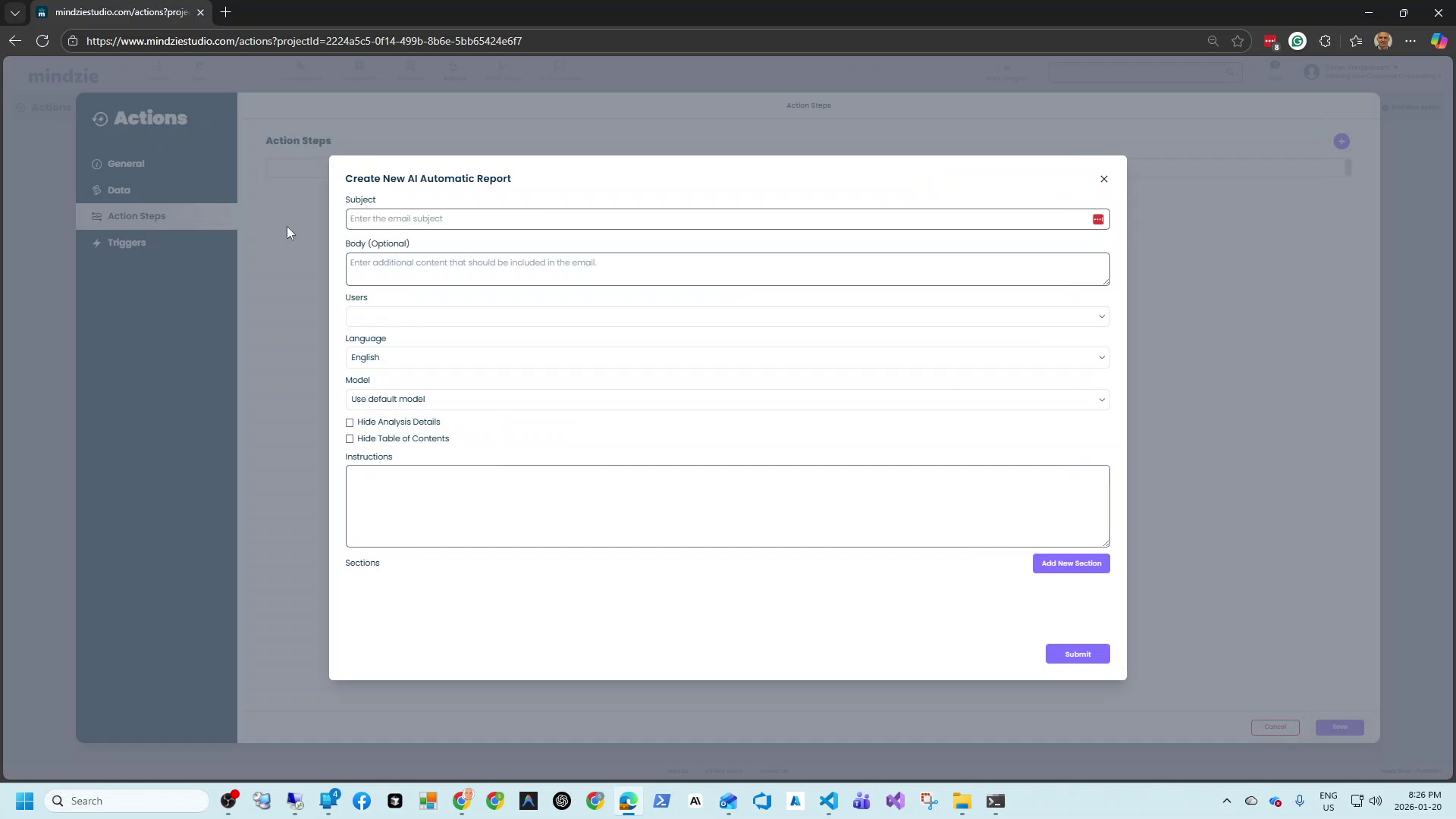
To add an AI Automatic Report to your action, click the + button in the Action Steps section and select AI Automatic Report.
Basic Settings
Subject (Required): The email subject line. This appears in recipients' inboxes and should clearly identify the report.
Example: "Weekly Executive Process Report - Banking Operations"
Body (Optional): Additional text to include in the email body before the report. Most users leave this empty as the AI-generated report contains all necessary content.
Users: Select the email addresses that will receive this report. You can add multiple recipients.
Language: Select the language for the generated report. The AI will write the entire report in your selected language, making it easy to distribute reports to international teams.
AI Model Settings
Model: Choose which AI model to use for report generation.
- Use default model: Uses the AI model configured in your tenant settings
- Specific model: Select a particular model if you have multiple configured (e.g., GPT-5.1, Claude, etc.)
Different models may produce different writing styles and levels of detail.
Display Options
Hide Analysis Details: When unchecked (default), each analysis becomes a section in the report with:
- A summary of what the analysis shows
- Detailed explanation of the findings
- Visual representation if applicable
When checked, the report focuses only on high-level insights without individual analysis breakdowns.
Hide Table of Contents: When unchecked (default), the report includes a table of contents for easy navigation. Check this option for shorter reports where navigation is unnecessary.
Instructions
The Instructions field is where you tell the AI what kind of report you want. This is essentially your prompt to the language model.
Write clear, specific instructions about:
- The report's purpose and audience
- What insights you want highlighted
- The tone and style (formal, conversational, technical)
- Any specific questions you want answered
Example instruction:
Give me a report for the executives with the most relevant improvements to increase process performance. Focus on actionable recommendations and quantify the potential impact where possible.
Sections
Sections allow you to add specific topics or questions to your report. Each section becomes a dedicated part of the generated report.
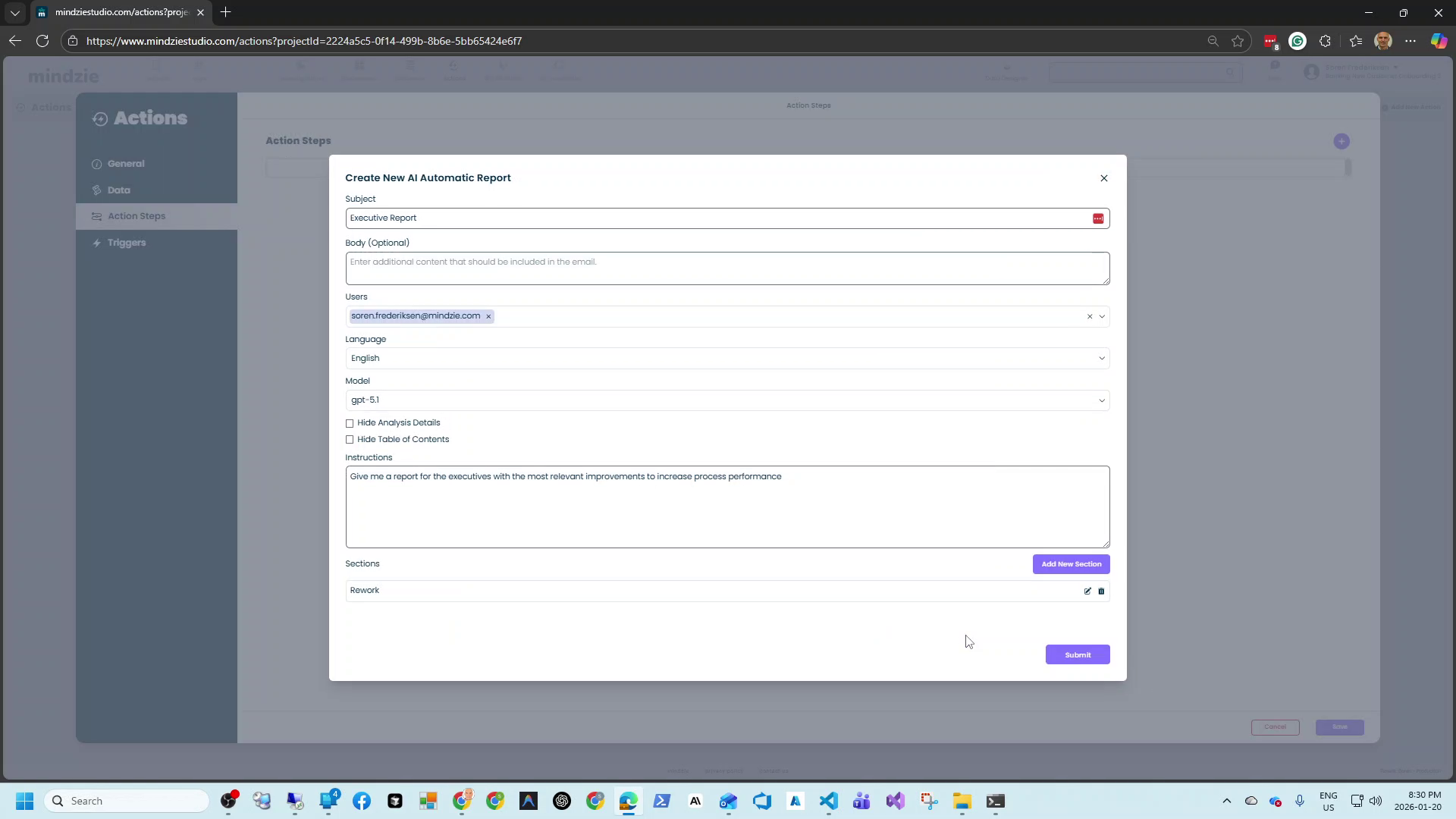
To add a section:
- Click Add New Section
- Enter a Title (this becomes the section heading)
- Enter Instructions for what this section should contain
Example section:
| Field | Value |
|---|---|
| Title | Rework |
| Instructions | Explain rework in this process and tell me what I can do about it |
You can add multiple sections to create a structured report covering all the topics you need.
Report Output
The AI generates an HTML email report that includes:
- Executive Summary: High-level overview based on your main instructions
- Table of Contents: Navigation links (unless hidden)
- Analysis Sections: Each selected analysis with AI-generated summaries
- Custom Sections: Your additional sections with specific insights
- Recommendations: Actionable suggestions based on the data
The report is formatted professionally with:
- Clear headings and structure
- Data visualizations where applicable
- Color-coded highlights for important findings
- Mobile-friendly responsive design
Best Practices
Be specific in instructions: Vague instructions produce generic reports. Tell the AI exactly what you need.
Match analysis to purpose: Select analyses that contain data relevant to your report topic. Including unrelated analyses adds noise.
Use sections strategically: Add sections for topics that might not emerge naturally from the data, like specific KPIs or compliance requirements.
Consider your audience: Adjust language complexity and detail level based on whether recipients are executives, analysts, or operators.
Test with manual runs: Before scheduling, use the Run button to generate a test report and verify it meets your needs.
Schedule appropriately: Send reports when recipients will read them - Monday morning for weekly summaries, first of the month for monthly reviews.
Example Configurations
Executive Weekly Summary
| Setting | Value |
|---|---|
| Subject | Weekly Process Performance - [Date] |
| Language | English |
| Model | Default |
| Hide Analysis Details | Unchecked |
| Hide Table of Contents | Unchecked |
| Instructions | Create an executive summary focusing on key performance indicators, trends compared to last week, and top 3 recommendations for improvement. Keep language concise and business-focused. |
Operations Team Report
| Setting | Value |
|---|---|
| Subject | Daily Operations Report |
| Language | English |
| Model | Default |
| Hide Analysis Details | Unchecked |
| Hide Table of Contents | Checked |
| Instructions | Provide a detailed operations report highlighting bottlenecks, delays, and any anomalies detected in yesterday's process execution. Include specific case IDs where issues occurred. |
Multi-Language Report
| Setting | Value |
|---|---|
| Subject | Rapport hebdomadaire |
| Language | French |
| Model | Default |
| Instructions | (Write in English - AI translates) Summarize this week's process performance for the Paris office. Focus on compliance metrics and customer-facing process times. |
Troubleshooting
Report is too generic
- Add more specific instructions
- Include sections with targeted questions
- Select more relevant analyses with detailed data
Report is missing expected content
- Verify the selected analyses contain the data you expect
- Check that analyses have been run recently and contain current data
- Add explicit sections for topics you need covered
Report takes too long to generate
- Reduce the number of selected analyses
- Use a faster AI model
- Simplify instructions to reduce processing
Recipients not receiving reports
- Verify email addresses are correct
- Check spam/junk folders
- Confirm the action is enabled and scheduled correctly
- Review action history for any execution errors
Related Documentation
Support
If you encounter issues with AI Automatic Reports:
- Email: support@mindzie.com
- Check action history for detailed error messages
- Verify your AI model configuration in tenant settings